
Table of Contents
ToggleManaging schedules across a team can quickly become chaotic without the right tools. Meetings overlap, employees take time off without others realizing, and project timelines become difficult to coordinate. This is why team calendar apps have become an essential part of modern workplace productivity.
A good team calendar doesn’t just show dates and events. It helps teams coordinate availability, track time off, schedule meetings, and plan projects more effectively. Instead of relying on spreadsheets, emails, or manual tracking, teams can see everything in one centralized calendar.

The best free team calendar apps typically include features such as:
Shared calendars for teams and departments
Time off and PTO tracking
Mobile apps for remote teams
Notifications and reminders
Integrations with tools like Slack, Google Workspace, or Microsoft Teams
In this guide, we’ll explore the best free team calendar apps available today. We’ll start with one of the most useful tools for tracking team availability and leave management: Day Off.
Day Off: Best Free Team Calendar for Leave Management

For many teams, one of the biggest scheduling challenges isn’t meetings, it’s knowing who is available and who is on leave. Vacation days, sick leave, remote work, and holidays can create confusion if they are not tracked clearly.
This is where Day Off excels.
Day Off is a team calendar specifically designed for leave management and team availability tracking. Instead of forcing teams to manage employee absences through spreadsheets or complicated HR systems, the app provides a simple shared calendar where everyone can see who is off and when.
The platform is built to be intuitive for both managers and employees, allowing teams to handle leave requests, approvals, and tracking in a streamlined workflow.
Key Features
Shared Team Leave Calendar
One of the most valuable features of Day Off is its visual team leave calendar.
Every approved leave request appears directly on the shared calendar, allowing team members and managers to quickly see:
Who is currently on leave
Upcoming vacations or holidays
Which days have multiple absences
This visibility helps teams avoid scheduling important meetings or deadlines when several employees are unavailable.
Managers can also use the calendar to ensure there is always enough team coverage, preventing situations where too many employees take leave at the same time.
Automated Leave Tracking
Tracking employee leave manually can quickly become messy. Many companies still rely on spreadsheets that need constant updating.
Day Off solves this problem by automatically tracking leave balances and usage.
Each employee has a clear overview of:
Remaining leave balance
Approved leave requests
Pending leave requests
Leave history
Managers can also easily review records when needed, making reporting and planning significantly easier.
Multiple Leave Types
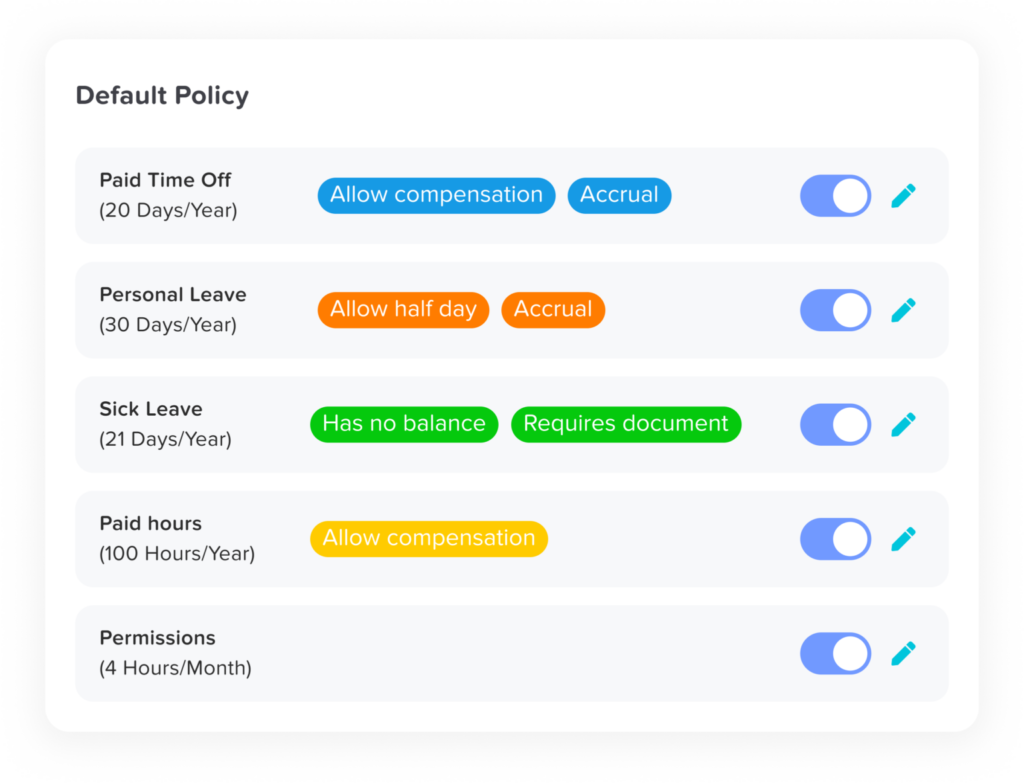
Different organizations need to track different types of leave. Day Off allows teams to create custom leave categories such as:
Vacation / PTO
Sick leave
Personal leave
Remote work days
Half-day leave
Public holidays
This flexibility allows companies to tailor the system to their internal policies.
Mobile Apps for Teams
Day Off is available on both iOS and Android, making it easy for teams to manage their schedules on the go.
Employees can:
Submit leave requests from their phones
Check the team calendar anytime
Receive approval notifications instantly
This is especially helpful for remote teams, distributed companies, and field employees who may not always be working from a desktop computer.
Team Notifications and Transparency
Communication is essential when managing schedules across a team.
Day Off automatically sends notifications when:
Leave requests are submitted
Requests are approved or rejected
Team members update their leave plans
This keeps everyone informed and reduces misunderstandings around availability.
Why Teams Love Day Off
Many teams choose Day Off because it focuses on solving one problem exceptionally well: simple and efficient employee leave management. Instead of overwhelming HR teams with unnecessary features, Day Off delivers exactly what teams need to track time off effortlessly.
Here are some of the key reasons teams prefer Day Off:
Quick and easy setup: teams can start tracking leave in minutes without complicated configuration.
Clear visual team calendar: instantly see who is off and when, making planning and coordination much easier.
No more spreadsheets: replace manual PTO tracking with a centralized, automated system.
Perfect for remote and hybrid teams: managers and employees can access leave information from anywhere.
Free plan for small teams: a great starting point for growing companies that need reliable leave tracking without additional cost.
For organizations looking for a simple, reliable, and user-friendly leave calendar, Day Off stands out as one of the best free tools available today. It helps teams stay organized, avoid scheduling conflicts, and manage employee time off with confidence.
Google Calendar: Best for Teams Using Google Workspace
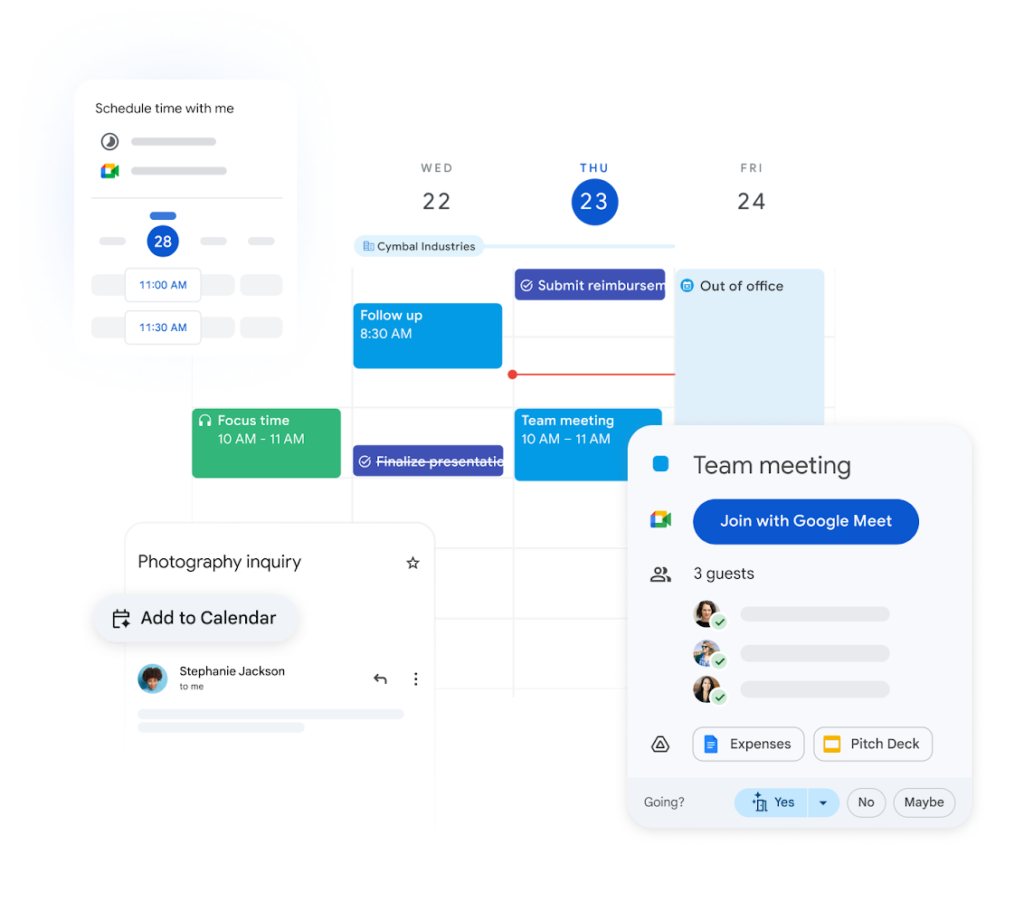
Google Calendar is one of the most widely used calendar platforms in the world. Many organizations already rely on it because it comes built into the Google Workspace ecosystem, alongside Gmail, Google Meet, and Google Drive.
For teams that already use Google tools, Google Calendar can serve as a central scheduling hub for meetings, deadlines, and shared events.
Although it is not specifically designed for leave tracking, it remains one of the most flexible and accessible calendar solutions available.
Key Features
Shared Team Calendars
Google Calendar allows teams to create and manage multiple shared calendars for different purposes. This makes it easy for organizations to organize events, projects, and team availability in one place.
For example, companies often create calendars for:
Company-wide events and holidays
Marketing campaigns and deadlines
Product launch schedules
Team time off or availability tracking
Team members can subscribe to these calendars and view them alongside their personal schedules, giving everyone better visibility into what’s happening across the organization.
Meeting Scheduling and Invitations
One of Google Calendar’s most useful features is its simple and efficient meeting scheduling system.
Users can schedule meetings by:
Selecting participants
Checking their availability
Sending calendar invitations instantly
Automatically attaching meeting links
This streamlines coordination and makes it much easier for teams to find suitable meeting times without long email chains.
Integration with Google Meet
Google Calendar integrates seamlessly with Google Meet, allowing users to create video meetings directly from their calendar events.
When scheduling a meeting, a Google Meet link can be generated automatically so participants can join the call with a single click.
This integration is especially helpful for remote and hybrid teams, where video meetings are a regular part of daily collaboration.
Smart Notifications and Reminders
Google Calendar includes flexible reminder and notification options to help users stay on top of important events and deadlines.
Available reminder options include:
Email reminders
Mobile push notifications
Popup alerts on desktop
These reminders help ensure that meetings, tasks, and important deadlines are not missed.
Pros
Completely free for individuals and small teams
Widely used with a familiar interface
Excellent integration with Google Workspace tools
Accessible on both desktop and mobile devices
Cons
Not specifically designed for PTO or leave tracking
Limited features for managing employee time off and approvals
Teamup Calendar: Best for Visual Team Scheduling

Teamup Calendar is designed specifically for group scheduling and collaborative planning. Unlike traditional calendar tools that focus mainly on personal events, Teamup helps teams manage multiple schedules, resources, and activities within a single shared system.
One of its standout features is the ability to create multiple-layered calendars, allowing organizations to organize complex schedules in a clear, structured way.
Because of its flexibility, Teamup is commonly used by schools, organizations, event teams, and distributed workplaces that need a centralized view of many moving parts.
Key Features
Multiple Calendar Layers
Teamup allows users to create sub-calendars within a main calendar, helping teams organize different schedules without clutter.
For example, organizations can create separate calendars for:
Different departments
Projects or marketing campaigns
Employee schedules
Equipment or meeting room bookings
Each sub-calendar can be color-coded, making it easy to identify activities and schedules at a glance.
Flexible Permission Controls
Teamup provides a powerful and flexible permission system, allowing organizations to control exactly how each user interacts with the calendar.
Administrators can define who can:
View the calendar
Add new events
Edit existing schedules
Manage specific sub-calendars
This ensures the right level of access for team members while keeping the schedule organized and secure.
Color-Coded Scheduling
One of Teamup’s biggest strengths is its visual organization.
Events can be color-coded based on categories such as:
Teams
Event types
Locations
Departments
This visual structure makes it much easier to understand complex schedules and quickly identify important events.
Pros
Highly customizable scheduling system
Strong visual organization with color coding
Great for large groups and event coordination
Cons
Interface may take some time to learn
Some advanced features require paid plans
Microsoft Outlook Calendar: Best for Microsoft 365 Teams
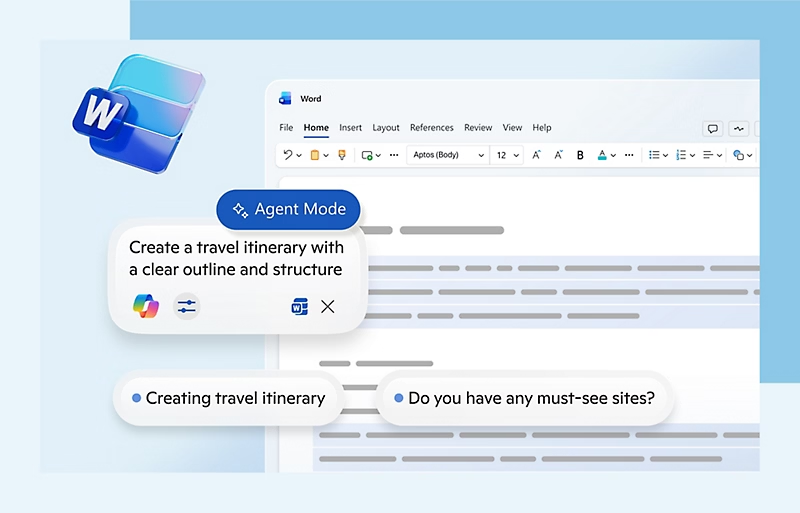
Microsoft Outlook Calendar is part of the Microsoft 365 ecosystem, making it the default calendar solution for many organizations. It integrates seamlessly with tools like Outlook email, Microsoft Teams, and other Office apps, creating a centralized environment for managing meetings, schedules, and team availability.
Because many companies already rely on Microsoft 365 for communication and collaboration, Outlook Calendar often becomes a natural choice for coordinating events and scheduling meetings across teams.
Key Features
Shared Calendars Across Teams
Outlook Calendar allows organizations to create shared team calendars where multiple users can view and manage events.
This makes it easy for teams to coordinate schedules and avoid conflicts. Managers can quickly check employee availability before setting up meetings or planning team activities.
Shared calendars are particularly useful for:
Team schedules
Department events
Project timelines
Company-wide activities
Microsoft Teams Integration
One of Outlook Calendar’s most valuable features is its deep integration with Microsoft Teams.
When scheduling a meeting, users can automatically generate a Microsoft Teams meeting link, allowing participants to join the call with a single click.
This seamless connection between scheduling and video conferencing makes it easier for teams to organize virtual meetings and collaborate efficiently.
Calendar Overlays
Outlook includes a feature called Calendar Overlay, which allows users to view multiple calendars layered together.
For example, a manager might overlay:
Their personal calendar
A team calendar
A project schedule
This provides a clear overview of multiple schedules at once and helps teams plan meetings without conflicts.
Pros
Excellent option for companies already using Microsoft 365
Strong meeting scheduling and coordination features
Reliable and secure enterprise-grade platform
Cons
Can feel complex for smaller teams
Not specifically designed for tracking employee leave or PTO
Notion Calendar: Best for Productivity-Focused Teams
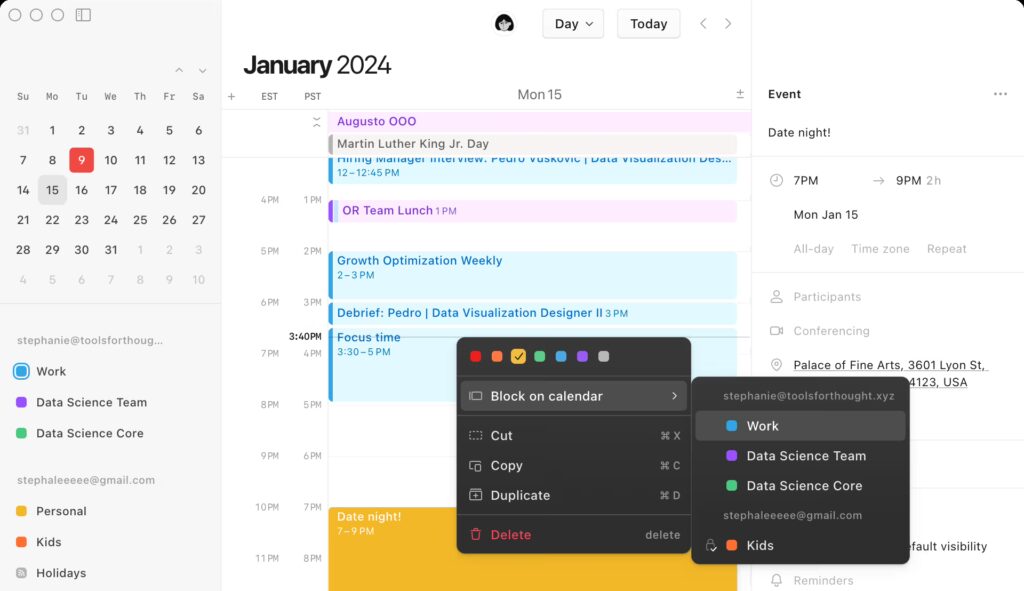
Notion is widely known as an all-in-one workspace for documentation, project management, and team collaboration. In addition to these capabilities, it also offers flexible calendar views that allow teams to organize tasks, deadlines, and schedules in a single workspace.
For teams that want to connect projects, documentation, and timelines, Notion can serve as a powerful scheduling tool alongside its broader productivity features.
Key Features
Calendar Database Views
Notion allows users to display database entries in a calendar format, making it easy to visualize tasks and deadlines across a timeline.
Teams can use this feature to track:
Project milestones
Task deadlines
Content publishing schedules
Team planning activities
By viewing tasks in a calendar layout, teams can better understand workloads and upcoming priorities.
Project and Task Integration
Unlike traditional calendar tools, Notion connects scheduling directly with project management workflows.
Calendar events can be linked to:
Project tasks
Internal documents
Meeting notes
Workflow pipelines
This integration helps teams keep all relevant information connected in one place, improving organization and collaboration.
Custom Workflows
One of Notion’s biggest strengths is its high level of customization. Teams can build workflows tailored to their specific processes.
For example, organizations can create systems where:
Tasks are scheduled within the calendar
Project documentation is attached to each entry
Status updates and progress are tracked automatically
This flexibility makes Notion a powerful solution for teams that want to design their own productivity systems.
Pros
Extremely flexible and customizable platform
Combines project management, documentation, and scheduling
Popular with startups, creative teams, and product teams
Cons
Requires setup and customization before it becomes effective
Not a dedicated calendar-first tool for scheduling or leave tracking
How to Choose the Right Team Calendar App
Choosing the right team calendar app depends largely on how your team plans, communicates, and manages schedules. Different tools are designed for different purposes, so it’s important to identify what problem you’re trying to solve before selecting a platform.
Here are a few key factors to consider when evaluating team calendar tools.
Define Your Main Purpose
Not all calendar tools serve the same function. Some focus on meeting scheduling, while others specialize in leave management or project planning.
For example:
Leave management: Day Off
Meeting scheduling: Google Calendar or Outlook Calendar
Visual team scheduling: Teamup Calendar
Project planning: Notion
Understanding your primary use case will help you narrow down the options and choose a tool that best fits your team’s workflow.
Consider Ease of Adoption
A calendar system is only effective if your team actually uses it. If a tool is overly complex or requires significant training, employees may avoid using it altogether.
Choosing a platform with a simple and intuitive interface makes it easier for teams to adopt the tool quickly and integrate it into their daily routines.
Ensure Mobile Accessibility
Today’s teams often work remotely, across different locations, or while traveling. Having access to schedules on mobile devices is essential.
A good team calendar app should allow employees to:
Check schedules anytime
Submit time-off requests
Receive notifications and reminders
Update availability on the go
Mobile accessibility ensures schedules remain accurate and up to date.
Look for Integrations
The most effective tools integrate with the platforms your team already uses. Strong integrations help streamline workflows and reduce manual work.
For example, integrations with tools such as:
Slack
Zoom
Microsoft Teams
Google Workspace
can make it easier to coordinate meetings, share updates, and manage team availability across multiple systems.
| Tool | Best For | Key Features | Mobile App | Leave / PTO Tracking | Integrations | Free Plan |
|---|---|---|---|---|---|---|
| Day Off | Leave management & team availability | Shared leave calendar, PTO tracking, approvals, leave balance tracking | iOS & Android | ✔ Full tracking | Slack, Google Workspace | ✔ Yes |
| Google Calendar | Teams using Google Workspace | Shared calendars, meeting scheduling, Google Meet integration, reminders | iOS & Android | ❌ Manual only | Google Workspace, Zoom, Slack | ✔ Yes |
| Teamup Calendar | Visual team scheduling | Multiple calendar layers, color coding, permission controls | Mobile web & apps | ❌ Not built-in | Zapier, API | ✔ Yes |
| Outlook Calendar | Microsoft 365 organizations | Shared calendars, calendar overlay, Teams meeting integration | iOS & Android | ❌ Manual tracking | Microsoft Teams, Office apps | ✔ Yes |
| Notion Calendar | Productivity & project planning | Calendar views for tasks, project integration, custom workflows | iOS & Android | ❌ Not built-in | Notion workspace, Zapier | ✔ Yes |
Frequently Asked Questions (FAQ)
What is a team calendar app?
A team calendar app is a shared scheduling tool that allows employees to view availability, schedule meetings, track events, and manage time off in one centralized place.
Unlike personal calendars, team calendar apps are designed for collaboration. They allow multiple users to access the same schedule so everyone can see important events, deadlines, and team availability.
Many team calendars also include features such as shared calendars, meeting scheduling, leave tracking, notifications, and integrations with workplace tools.
Why do teams need a shared calendar?
A shared calendar helps teams avoid scheduling conflicts and improve coordination.
Without a centralized calendar, companies often rely on emails, spreadsheets, or informal communication to track schedules. This can lead to problems such as:
Overlapping meetings
Employees taking time off without others knowing
Missed deadlines or project delays
Poor visibility into team availability
A team calendar gives everyone a clear view of schedules and availability, making it easier to plan meetings, projects, and workloads.
What features should a good team calendar app include?
The best team calendar apps typically include several important features that improve scheduling and coordination.
Key features to look for include:
Shared calendars for teams or departments
Meeting scheduling tools with availability checks
Time off and PTO tracking
Mobile apps for remote or traveling employees
Notifications and reminders for events and meetings
Integrations with tools like Slack, Microsoft Teams, or Google Workspace
These features help teams stay organized and ensure schedules remain accurate.
What is the best free team calendar app?
The best free team calendar app depends on the needs of your organization.
For example:
Day Off is ideal for teams that want a simple way to track employee leave and availability.
Google Calendar works well for teams already using Google Workspace for meetings and communication.
Outlook Calendar is a strong choice for companies using Microsoft 365.
Teamup Calendar is useful for organizations that need highly visual scheduling.
Notion Calendar works well for teams combining project management with scheduling.
Each tool has different strengths, so the best option depends on how your team manages schedules and workflows.
Can Google Calendar be used for employee leave tracking?
Yes, some teams use Google Calendar to track employee leave by creating a shared time-off calendar. Employees can add events for vacations, sick days, or remote work.
However, this approach has limitations because Google Calendar does not include built-in leave management features, such as:
Leave balance tracking
Request approval workflows
Leave history and reporting
For teams that need structured leave management, a dedicated tool like Day Off can provide a more efficient solution.
What is the difference between a team calendar and a leave management system?
A team calendar is primarily used for scheduling events, meetings, and shared activities.
A leave management system, on the other hand, focuses specifically on tracking employee time off, including:
Vacation and PTO
Sick leave
Personal leave
Remote work days
Public holidays
Leave management tools often include additional features such as approval workflows, leave balances, and reporting, which standard calendar tools usually do not provide.
Are team calendar apps useful for remote teams?
Yes. Team calendar apps are especially valuable for remote and hybrid teams because employees may work across different locations and time zones.
A shared calendar helps remote teams:
See when coworkers are available
Schedule meetings more easily
Track time off and holidays
Coordinate project timelines
Mobile access and automated notifications make it even easier for distributed teams to stay aligned.
How can teams avoid scheduling conflicts?
Scheduling conflicts often occur when teams lack visibility into each other’s schedules.
Using a team calendar helps prevent conflicts by allowing everyone to:
Check availability before scheduling meetings
See upcoming vacations or leave days
Coordinate project deadlines
Plan workloads more effectively
Many modern calendar tools also include availability detection and scheduling assistants, which automatically suggest meeting times that work for everyone.
Do small teams really need a team calendar app?
Even small teams benefit from using a shared calendar system.
As teams grow, managing schedules through emails or spreadsheets becomes difficult. A team calendar provides structure and transparency, making it easier to coordinate meetings, track time off, and plan projects.
Many tools also offer free plans, making them accessible for startups and small businesses.
What is the easiest way to track team availability?
One of the easiest ways to track team availability is by using a shared leave calendar where employees can submit time off requests and managers can approve them.
Tools like Day Off simplify this process by automatically updating the team calendar whenever leave is approved. This allows everyone to quickly see who is available and who is away, reducing confusion and improving planning.
Conclusion
A good team calendar app helps teams stay organized, avoid scheduling conflicts, and coordinate work more effectively. Instead of relying on spreadsheets or scattered communication, teams can manage meetings, events, and availability from a single shared system.
Tools like Google Calendar, Outlook Calendar, Teamup, and Notion offer useful features for scheduling and collaboration. However, when the main goal is tracking employee leave and team availability, a dedicated solution like Day Off can make the process much simpler.
With its visual leave calendar, automated tracking, and easy setup, Day Off provides a straightforward way for teams to manage time off and keep everyone aligned.