




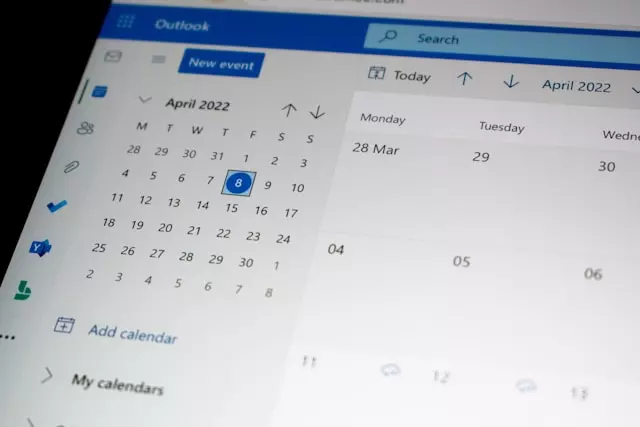
Managing your availability in the workplace is crucial, especially when you’re planning to be out of the office. Setting up an “Out of Office” (OOO) message in Outlook Calendar ensures that your colleagues and clients are informed of your absence and helps maintain smooth communication in your absence. This guide will walk you through the steps to set up an Out of Office message in Microsoft Outlook, covering both the classic desktop application and Outlook on the web.

Why Setting Up an Out of Office in Outlook is Important
Before diving into the steps, let’s briefly discuss why setting up an OOO message is essential:
Professionalism: Ensures that anyone trying to reach you is aware of your absence and knows when you will return.
Efficient Communication: Helps colleagues plan their work and informs clients or external contacts whom to reach during your absence.
Work-Life Balance: Sets clear boundaries by letting others know you are unavailable during specific periods.
Setting Up Out of Office in Outlook Desktop
Step 1: Open Outlook and Navigate to Your Calendar
Launch Outlook: Open the Microsoft Outlook application by clicking the Outlook icon on your desktop, taskbar, or Start menu.
Access the Calendar: Once Outlook is open, click the Calendar icon in the bottom-left corner of the window to switch from your inbox to your calendar, where you can manage schedules and appointments.
Step 2: Create a New Calendar Event
Select the Dates: In the calendar view, choose the date or range of dates you’ll be out of the office. Click a single date or click and drag across multiple dates for longer absences.
Open a New Event Window: After selecting the dates, a new event window will automatically open, allowing you to enter the details of your out-of-office status.
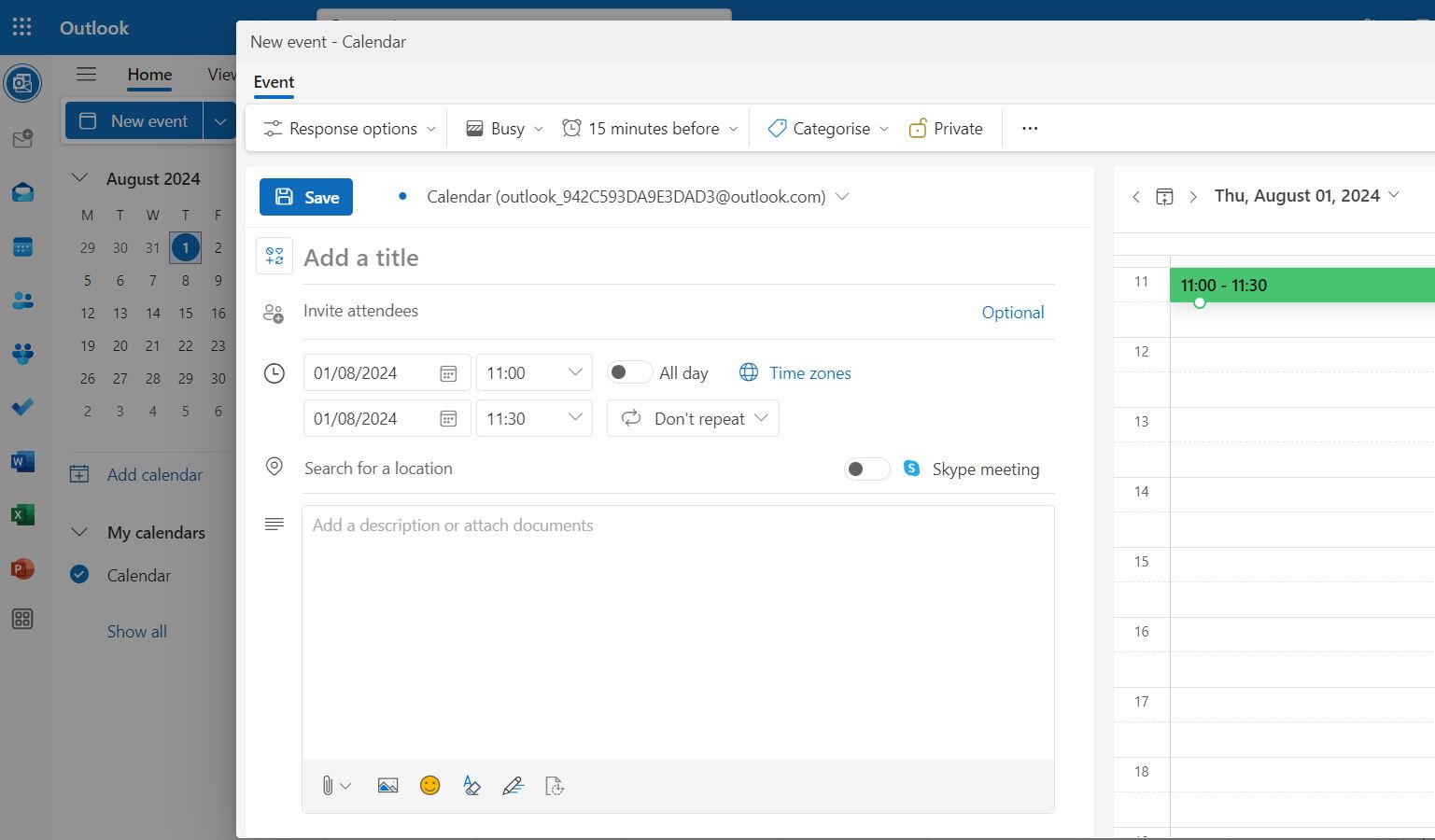
The Third Step: Set the Event as “Out of Office”
Availability Status: In the new event window, locate the drop-down menu labeled “Show As,” typically found beneath the event’s start and end times.
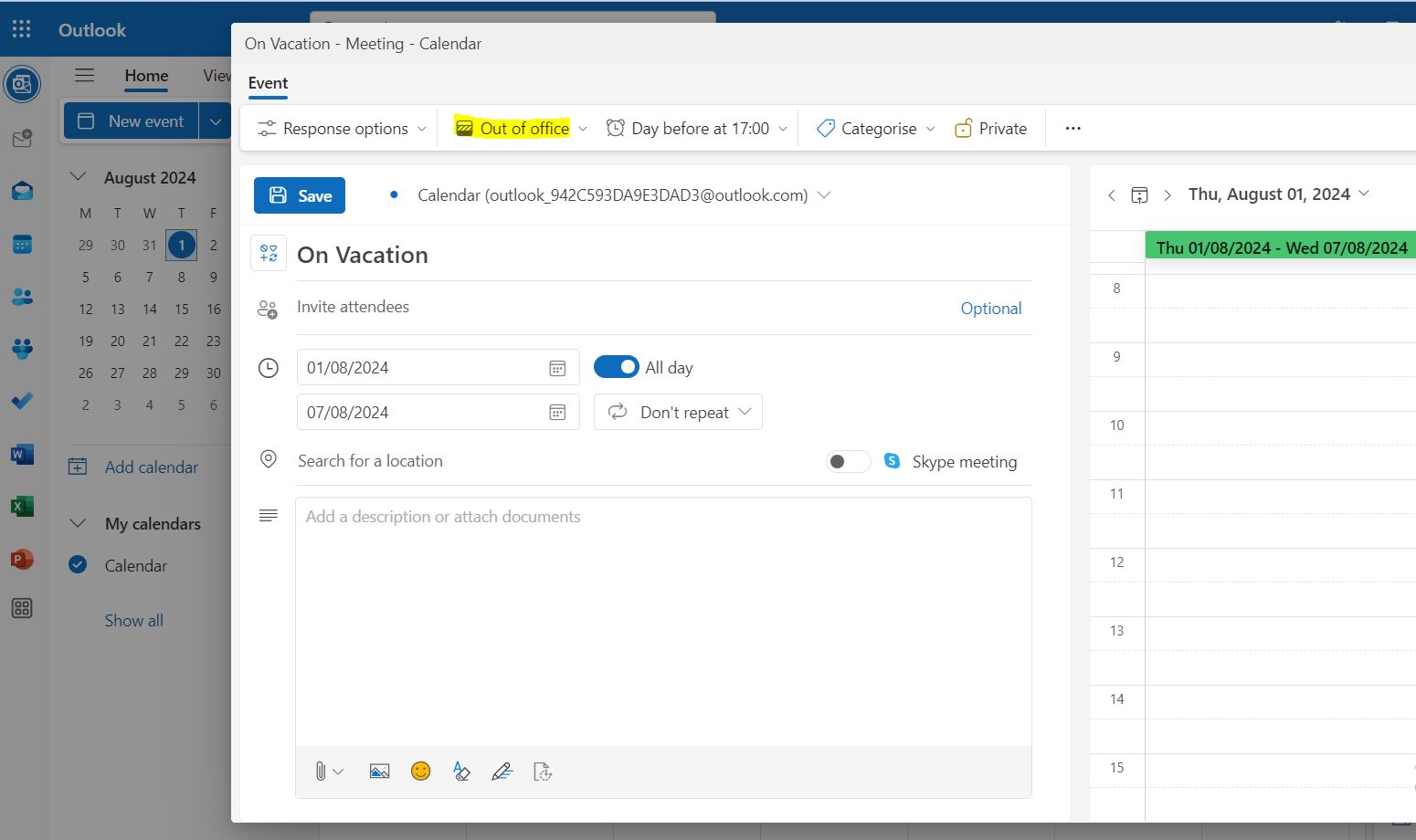
Select “Out of Office”: Click the “Show As” menu and choose Out of Office. This updates your availability status so others can see you’re unavailable during this period and automatically changes the calendar color to visually indicate your out-of-office time.
The Fourth Step: Customize the Event Details
Event Title: Enter a clear, descriptive title such as “Out of Office,” “Vacation,” or “Business Trip.” This appears on your calendar and in any invites, making your unavailability immediately clear.
Start and End Time: Set the start and end times to accurately reflect the full period of your absence—whether it’s a few hours, a full day, or multiple days. Double-check these times to avoid confusion.
All-Day Event Option: If you’ll be unavailable for an entire day or multiple days, select the All Day checkbox. This is especially useful for vacations or multi-day trips, as it blocks your calendar for the full duration.
Location Field: This field is optional but helpful for context. You may leave it blank or add a note such as “On Vacation” or “At Conference” to give viewers additional clarity.
Step 5: Add a Message
Event Body: Use the event description to add a custom message clarifying your availability, such as: “I will be out of the office from [start date] to [end date] and will have limited access to email. For urgent matters, please contact [alternative contact name].”
Additional Information: Include any instructions, delegated responsibilities, or handoff details for colleagues who may need to cover tasks during your absence, helping ensure continuity while you’re away.
Step 6: Set Up Automatic Replies
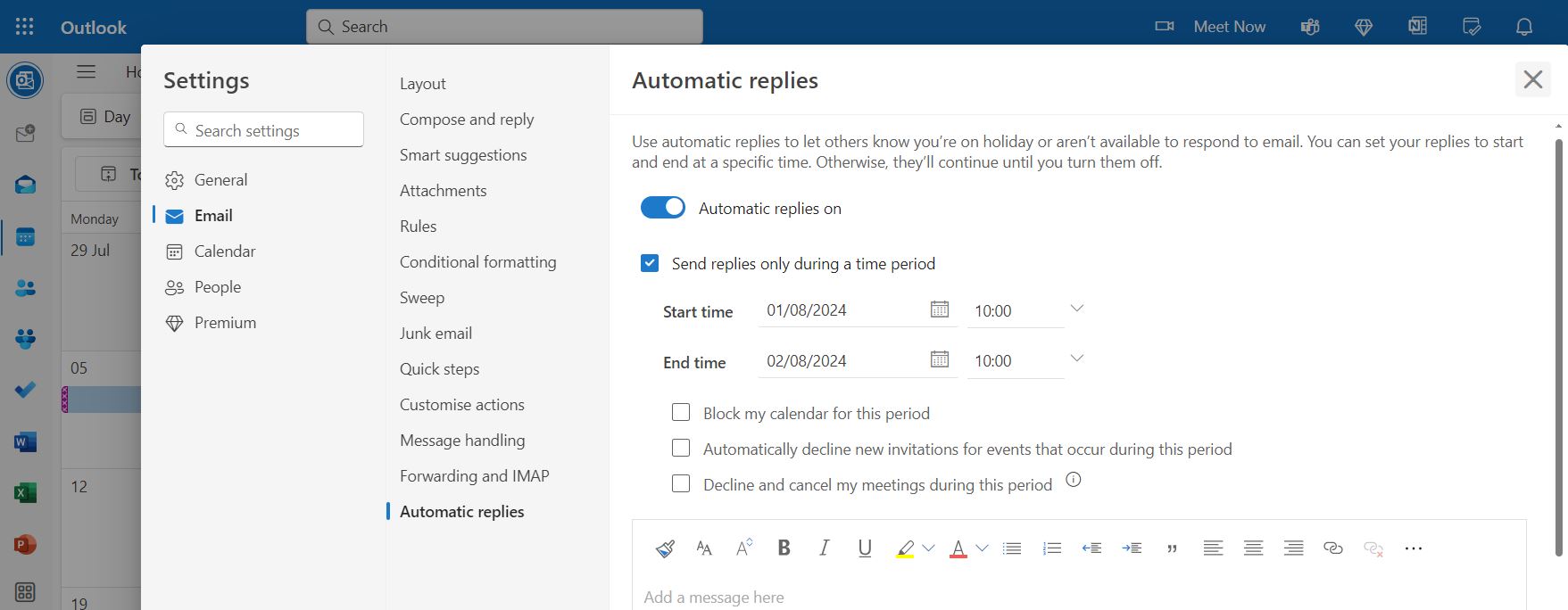
Access Settings: Click the Settings icon (gear) in the top-right corner of the Outlook Web interface.
Open Mail Settings: From the settings pane, select View all Outlook settings to access the full settings menu.
Enable Automatic Replies: Under Mail, choose Automatic replies, then toggle Send automatic replies and set the start and end dates for your absence.
Compose Your Reply: Enter your out-of-office message, including your absence dates, return date, and alternative contact information. This reply will be automatically sent to anyone who emails you during this period.
The Final Step: Save the Event
Finalize and Save: After reviewing all details, click Save & Close in the event window to finalize your out-of-office event and add it to your calendar.
Double-Check: Review your calendar to confirm the event appears correctly, showing the Out of Office status with the correct dates and times.
Advanced Tips for Managing Out of Office in Outlook
Recurring Out of Office in Outlook Calendar Events: If you frequently need to take the same days off (such as for a weekly commitment or a regular remote workday), Outlook allows you to set up recurring out-of-office events. When creating an event, select the Recurrence option and choose the frequency (daily, weekly, monthly, etc.) that fits your schedule.
Shared Calendars and Permissions: If you work in a team environment or manage a shared calendar, it’s essential to set permissions appropriately so your out-of-office status is visible to those who need to know. Make sure your status is set to Out of Office and that your calendar permissions allow colleagues to view your availability.
Sync with Mobile Devices: To keep your out-of-office settings consistent across all devices, ensure the Outlook app on your smartphone or tablet is synced with your desktop settings. This synchronization ensures your calendar accurately reflects your availability on all platforms.
Frequently Asked Questions (FAQ) about Setting Up Out of Office in Outlook
Can I customize my Out of Office message for different groups of people?
Yes, in Outlook, you can customize your Out of Office in Outlook Calendar message to send different replies to different groups. For example, you can set up one automatic reply for people within your organization and another for external contacts. This allows you to provide more detailed information to your colleagues while keeping it concise for external contacts. To do this, when setting up automatic replies, you’ll find separate boxes to customize your message for internal and external senders.
How do I cancel or modify an Out of Office event after it has been set up?
If you need to cancel or modify an Out of Office event, you can do so easily:
Canceling an Event: Go to your Outlook Calendar, locate the Out of Office event you previously set up, and double-click it to open. Click Delete to remove the event entirely.
Modifying an Event: To change the dates, times, or other details, open the event as described above, make the necessary updates, and then click Save & Close (desktop version) or Save (Outlook on the web).
Will my Out of Office status block incoming meetings or appointments?
When you set your calendar status to “Out of Office,” it generally prevents others from scheduling meetings during that time. If someone tries to schedule a meeting with you, they’ll see that you’re unavailable during that period. However, this does not automatically block or decline meeting requests. If someone sends a meeting invite during your out-of-office period, it will still appear in your inbox, and you will need to manually decline it or let them know you’re unavailable.
Can I set up an Out of Office status on the Outlook mobile app?
Yes, you can set up an Out of Office status using the Outlook mobile app. The process is similar to the desktop version:
Open the Outlook app and navigate to your Calendar.
Create a new event or open an existing one.
Set the event as “Out of Office” by adjusting the availability status.
Enable automatic replies (optional):
In the mobile app, go to Settings → Automatic Replies to set up your out-of-office message directly from your device.
What happens if I forget to set my Out of Office status before leaving?
If you forget to set your Out of Office in Outlook Calendar status before leaving, your Outlook calendar will still function normally, but colleagues and contacts won’t know you’re unavailable unless you manually inform them. In this case, it’s best to set your Out of Office status as soon as you can, even if you’re already away. You can access Outlook remotely via the web or mobile app to make the necessary updates.
Can I include attachments in my automatic Out of Office replies?
Outlook does not allow attachments to be included in automatic Out of Office in Outlook Calendar replies for security reasons. However, you can include links to documents or shared drives where the necessary files are stored. This is particularly useful if your absence requires someone to access specific documents or resources in your absence.
How do I set up an Out of Office status for a shared mailbox?
To set up an Out of Office status for a shared mailbox, you must have appropriate permissions to manage the shared mailbox. If you do, you can follow these steps:
Open Outlook and switch to the shared mailbox by selecting it from your account list.
Set up Out of Office as usual: Follow the same steps as you would for a personal account, create a calendar event marked as Out of Office and configure Automatic Replies.
Verify the correct mailbox: Double-check that the out-of-office status and automatic replies are applied to the shared mailbox, not your personal account, so colleagues and external contacts receive the correct message.
Will my Out of Office reply send multiple times to the same person if they email me more than once?
By default, Outlook sends only one automatic Out of Office reply to each sender during your absence. This prevents the same person from receiving multiple identical responses if they send you several emails. The Out of Office reply to system resets after a certain period, usually when the automatic replies are turned off and then back on, or after a set number of days, depending on your organization’s settings.
Can I set an Out of Office status without sending automatic replies?
Yes, you can set an Out of Office in Outlook Calendar status on your calendar without enabling automatic email replies. Simply create the Out of Office event on your calendar and choose “Out of Office” as the status. This will block out your availability on your calendar, but your email will function normally without sending automatic responses.
How does time zone affect my Out of Office settings?
When setting up your Out of Office status, be mindful of time zones, especially if you’re traveling. Outlook allows you to set your start and end times according to different time zones. This ensures that your out of office message aligns correctly with your actual availability, preventing any confusion that might arise due to time zone differences. When creating the event, you can specify the time zone in the event details.
Conclusion
Setting up an Out of Office message in Outlook is a straightforward yet vital task that ensures effective communication and professional courtesy during your absence. Whether using the desktop version or Outlook on the web, following these comprehensive steps will ensure that your colleagues and contacts are well informed of your availability. Customizing your message and setting up automatic replies further enhances communication, helping to avoid misunderstandings and ensuring that important tasks are handled in your absence.