Category: Employees

  • What Is PTO Rollover? Rules, Pros & Cons Explained

    What Is PTO Rollover? Rules, Pros & Cons Explained

    Paid time off (PTO) is one of the most important benefits employers can provide. It supports employee well-being, boosts productivity, and helps control burnout. But at the end of every leave year, one question always arises: What happens to unused vacation or sick leave?


    Companies answer this question through a PTO rollover policy, which outlines whether unused time is lost, paid out, or carried into the next year. A well-designed rollover policy provides clarity, consistency, and fairness, while also reducing administrative work for HR.


    This in-depth article explores what PTO rollover is, how common policies work, the advantages and disadvantages for both employees and employers, and how you can configure PTO carryover inside Day Off, including manual customizations and reporting options.

    What Is PTO Rollover?

    PTO rollover (or PTO carryover) is the system a company uses to determine whether employees can transfer unused paid time off from the current plan year into the next one. Instead of resetting everyone’s balance to zero at year-end, rollover policies allow employees to retain some (or all) of their unused hours or days.


    This system exists for two major reasons:

    • Employee flexibility: Life doesn’t always follow the calendar year, so rollover allows workers to manage personal events, holidays, and workloads more realistically.

    • Operational consistency: HR teams need a structured approach to managing unused leave and ensuring compliance with local labor laws.

    Without a rollover policy, organizations face confusion, legal risk, and inconsistent treatment across teams. With a good one, companies can encourage healthy PTO usage while also controlling financial liability.

    Common PTO Rollover Rules

    Companies typically choose a rollover model based on their culture, financial situation, industry norms, and legal requirements. Below are the main types, each with expanded explanations and examples.

    Limited Rollover (Capped Carryover)

    This is the most common PTO rollover system used by companies today. Under this approach, employees can carry unused paid time off into the next year, but only up to a certain limit. The limit might be a set number of days (like 5 days), a number of hours (like 40 hours).

    • Provides flexibility without losing control: Employees still get the benefit of extra time off if they couldn’t use all their days, which feels fair and supportive.

    • Prevents PTO from piling up: HR and finance departments prefer this approach because it stops large balances from building, which can become a financial liability for the company.

    • Encourages people to rest: It gently pushes employees to take time off during the year while still letting them keep a reasonable amount for later.

    Example:
    If an employee ends the year with 12 days left but the company only allows 5 days to roll over, the employee will carry 5 days into the new year. The other 7 days disappear and cannot be used.

    Unlimited Rollover

    With unlimited rollover, employees can keep all their unused PTO from year to year with no limits and no expiration date. This policy empowers employees to manage their time off as they see fit.

    Advantages:

    • Maximum trust and independence: It shows employees that the company trusts them to manage their own time responsibly.

    • Ideal for long-term planning: Employees can save up time for big life events such as long trips, extended medical recovery, parental leave, or caring for a family member.

    • Attractive to job seekers: In competitive industries, unlimited rollover can make a company stand out when hiring.

    Challenges:

    • Large balances can become costly: When employees save up a lot of PTO, the company carries a large financial responsibility on its books.

    • Some employees avoid taking breaks: Ironically, having unlimited rollover can make people put off vacations, leading to burnout.

    • Difficult for HR to plan around: When people save months of PTO, it can be harder for managers to plan schedules and coverage.

    While unlimited rollover offers huge flexibility, it is still relatively rare because it requires a strong culture of trust and responsible PTO use.

    Use-It-or-Lose-It Policies

    In a use-it-or-lose-it system, employees must use all their PTO by a certain deadline, typically the end of the year, or they forfeit any unused time. There is no rollover at all.

    • Ensures regular rest: Employees are encouraged, or even required, to take time off throughout the year. This often leads to better mental health and higher morale.

    • Stops PTO from building up: Since no vacation time rolls over, the company avoids carrying unpaid time on its financial records.

    • Simplifies HR management: End-of-year processes become easier because there are no complicated rollover calculations or tracking.

    Important note:
    These policies are not legal everywhere. In some countries or states, workers must be allowed to keep or be paid out for unused vacation time. Employers using this approach must make sure they follow all local labor laws.

    PTO Cash-Out Options

    Some companies allow employees to “cash out” unused PTO instead of rolling it over. This means employees can trade their remaining vacation hours for money at the end of the year. In some workplaces, this is optional; in others, it happens automatically.

    Benefits for employees:

    • Extra income: Getting a cash payment at the end of the year can feel like a bonus.

    • No wasted hours: Employees don’t feel like they’re missing out if they didn’t use all their time off.

    Benefits for employers:

    • Less paperwork: Cash-outs simplify PTO management and avoid complicated rollover rules.

    • Reduces financial liability: Since unused PTO converts to cash immediately, the company doesn’t have to carry it over as a future debt.

    This approach is more common for vacation days than sick days, since sick leave usually serves a different purpose.

    Rollover With Expiration

    This is a middle-ground option. Employees can carry unused PTO into the new year, but they must use those rolled-over days by a certain deadline, often within the first few months of the next year.

    • Provides flexibility: Employees still get a second chance to use their time off if they couldn’t fit everything in during the year.

    • Ensures long-term rest: The expiration date encourages people to actually use the time rather than saving it indefinitely.

    • Controls long-term cost: Since the rolled-over time eventually expires, companies avoid large financial liabilities.

    • Example: A company may allow up to 3 days to roll over, but the employee must use them by April 30. If they don’t, those days expire automatically.

    Employee Pros & Cons of PTO Rollover

    Type Item Clear Explanation
    Benefits
    More personal control
    Employees can plan vacations around real-life needs (family, workload, big events) instead of being restricted by the year-end calendar.
    Reduced pressure
    No need to take random days off just to avoid losing them. Rollover removes year-end stress.
    Ability to save for major plans
    Employees can build up time for long trips, weddings, extended travel, or caregiving responsibilities.
    Financial benefits with cash-out
    When cash-out options exist, unused PTO can turn into extra income, offering financial support.
    Drawbacks
    Higher risk of burnout
    Some employees keep postponing vacation because “they can always take it later,” leading to exhaustion.
    Rollover caps may still cause loss
    If the company limits how much PTO can carry over, employees may still lose part of their earned time.
    Unequal ability to take PTO
    Teams with heavier workloads may struggle more to use PTO, causing unfair differences between employees.

    Employer Pros & Cons of PTO Rollover

    Type Item Clear Explanation
    Benefits
    Stronger benefits package
    A flexible PTO policy helps attract and keep talent by showing employees they are valued.
    Less year-end scheduling chaos
    Rollover reduces December PTO “rushes,” helping maintain proper staffing levels.
    Healthier PTO usage patterns
    Employees feel more comfortable taking time off when it truly supports work and personal balance.
    Drawbacks
    Increased financial liability
    Unused PTO stays on the company’s balance sheet, and higher rollover limits increase this cost.
    Possible scheduling issues
    Employees with large PTO balances may request long absences, requiring careful planning and coverage.
    Needs reliable tracking systems
    Without an automated tool, keeping track of rollover amounts becomes time-consuming and error-prone.

    How to Set Up PTO Carryover in Day Off

    Day Off makes it simple for HR teams to set up PTO carryover rules that match their company policies. Whether your organization uses limited rollover, unlimited rollover, expiration rules, or a mix of all three, the system guides you through each step and handles the calculations automatically.


    It also offers powerful tools for customizing rollover for individual employees and generating detailed reports that help you stay compliant and organized.

    Step 1: Open the Policy Settings

    To begin, you’ll need to access the PTO policy you want to configure.

    • Log in to your Day Off admin dashboard.

    • Navigate to Settings → Leave Policies.

    • Select the leave policy you want to edit, then select any leave type such as Vacation, Annual Leave, or Sick Leave.

    Each leave type in Day Off has its own set of rules. This means you can let vacation days roll over, prevent sick leave from rolling over, or create custom rules for different departments or employment types. The system is flexible and designed to match your organization’s real-world structure.

    Step 2: Enable and Set Up PTO Carryover

    Once you’ve opened the policy, you’re ready to turn on carryover.


    Inside the selected policy:

    • Look for the Carryover option and switch it on.

    • Choose the carryover model that matches your policy:

    Unlimited Rollover

    All unused PTO rolls over with no limits. Day Off keeps track automatically and carries the full balance into the next cycle.

    Limited Rollover

    You set a maximum number of days or hours that can roll over. Day Off will apply the limit and remove the rest at the cycle’s end.

    Carryover With Expiration

    You decide how long rolled-over days remain available, whether that’s a few weeks, months, or until a specific date.

    Once configured, Day Off handles all the year-end or cycle-end calculations on its own. HR no longer needs spreadsheets or manual adjustments.

    Step 3: Manually Customize Carryover for Individual Employees

    Even with an automated system, there will always be special cases. Day Off gives HR the ability to adjust balances manually whenever needed.


    You might need to:

    • Add extra rollover days for long-service rewards

    • Reduce rollover due to an exception in a contract

    • Correct a balance after an audit or system change

    • Apply a special amount for unique employment agreements

    Administrators can make these changes directly in an employee’s profile or through the balance adjustment tools. This ensures that no matter the situation, HR always remains in full control.

    Use the Carryover Report for Review, Export, or Printing

    Before Day Off applies any rollover changes, it generates a Carryover Report that gives HR a complete picture of what will happen to each employee’s PTO balance. This report includes:

    • Total unused PTO remaining at the end of the cycle

    • The exact amount that will roll over into the next period

    • Any hours or days scheduled to expire

    • The final balance employees will begin with in the new cycle

    This report serves as a central tool for planning, verification, and communication. It can be used in several important ways:

    Export to Excel

    Perfect for payroll and finance teams who need accurate numbers for budgeting, audits, and year-end reviews. Managers can also use the exported file to verify team balances or prepare for upcoming staffing needs.

    Print or Save as PDF

    Helpful for official HR documentation, compliance requirements, internal presentations, or sharing updated PTO summaries with leadership teams or department heads.

    Internal Review for Accuracy

    Before rollover is applied, HR can review the report to confirm that all balances, adjustments, and exceptions are correct. This helps catch errors early and prevents incorrect balances from carrying over into the new cycle.

    By providing all relevant PTO information in one organized place, the Carryover Report ensures transparency, simplifies audits, and supports confident decision-making.

    Save and Apply the Policy

    Once you’ve confirmed that everything is set up correctly, simply save your changes, and Day Off takes care of the rest.

    After saving:

    • All employee PTO balances are recalculated instantly, based on your updated settings.

    • Rollover is applied automatically at the appropriate time, whether that’s the end of the calendar year or the end of each employee’s individual leave cycle or his anniversary.

    • Employees see their updated balances right away in the app, reducing questions and helping them plan time off with confidence.

    • HR avoids time-consuming manual updates, spreadsheets, and recalculations, which drastically reduces administrative work and the risk of mistakes.

    This automation ensures that your PTO policy is applied consistently and accurately, freeing HR to focus on higher-level tasks instead of routine maintenance.

    FAQ: PTO Rollover and Day Off

    What is the main purpose of a PTO rollover policy?

    A PTO rollover policy provides a clear, consistent way for companies to handle unused leave at the end of the year. It helps employees plan their time off more realistically while giving employers a structured system that prevents confusion, reduces risk, and ensures compliance with labor laws.

    Is PTO rollover required by law?

    It depends on where your company operates. Some regions require that unused vacation be carried over or paid out, while others allow employers to set their own rules. Because the laws vary widely, businesses should always review local regulations before choosing a policy. Day Off makes it easier to stay compliant by documenting and applying your rules consistently.

    What’s the difference between limited rollover and rollover with expiration?

    • Limited rollover allows employees to carry over only a fixed number of days or hours into the next year.

    • Rollover with expiration allows employees to carry time over but requires them to use it by a specific date (like March 31).
      Together, they give employees flexibility while giving employers control over long-term PTO buildup.

    Does unlimited rollover mean unlimited PTO?

    No. Unlimited rollover simply means employees can keep all the PTO they’ve earned from year to year. It doesn’t change how much PTO they earn, it only affects whether unused time disappears or stays available.

    How does Day Off calculate rollover automatically?

    Day Off applies the rules you’ve defined, such as caps, expiration dates, or unlimited rollover, and runs the calculations for you when the leave cycle ends. The system determines how much time carries over, how much expires, and the new balance for every employee, ensuring accuracy without any manual work.

    Can HR override or adjust rollover amounts manually?

    Yes. Day Off lets administrators add, reduce, or replace rollover amounts for specific employees. This is especially helpful for correcting errors, honoring special agreements, granting rewards, or handling unique contract terms.

    What happens if an employee leaves the company before rollover occurs?

    Day Off keeps a full history of all earned, used, and remaining PTO. If your local laws or company policies require paying out unused time when an employee leaves, the system makes it easy to retrieve their final balance for payroll or documentation.

    Can employees see their rollover amount?

    Yes. Once rollover is applied, employees instantly see their updated PTO balance in the app. This transparency helps employees plan better and reduces HR workload by minimizing questions.

    Does Day Off support different rollover rules for different teams or leave types?

    Absolutely. Every leave type, Vacation, Annual Leave, Sick Leave, etc., can have its own rollover rules. You can also create separate policies for different departments, locations, or employment types. This makes it easy to match your company’s structure and local requirements.

    How often should companies review their PTO rollover policy?

    Most organizations benefit from reviewing their PTO rules at least once a year. Laws change, business needs evolve, and employee expectations shift over time. A yearly review ensures your policy remains fair, compliant, and aligned with your company culture and goals.

    Conclusion

    A thoughtful PTO rollover policy does far more than determine what happens to unused vacation time, it helps shape a healthier and more supportive workplace. When employees understand their benefits clearly and feel empowered to plan their time off, they’re more engaged, less stressed, and better equipped to perform at their best.


    From an HR perspective, a well-designed rollover system eliminates confusion, reduces administrative burden, and ensures your policies are applied fairly across the organization.


    Day Off takes the complexity out of managing all of this. By automating calculations, offering flexible rollover models, allowing manual adjustments, and providing detailed reports, it helps HR teams stay accurate, compliant, and in control without hours of manual work.


    The result is a smoother year-end process, clearer communication, and a PTO experience that benefits everyone: employees, managers, and HR alike.

  • How to Set Up Accruals in Day Off (Step by Step Guide)

    How to Set Up Accruals in Day Off (Step by Step Guide)

    Managing employee leave is one of those quiet yet essential tasks that can either run smoothly in the background, or turn into an administrative nightmare. For many companies, especially those moving away from spreadsheets or old manual systems, the idea of “accrual leave” can feel overly technical. But in reality, accruals are simply a fair and organized way to distribute time off.

    Day Off has an accrual system that is powerful but still very easy to understand once it’s set up the right way. In this guide, we’ll explain what “accruals” mean in Day Off, show you how to set them up step by step, and help you adjust the system for different types of employees, policies, and company structures.


    Whether you’re an HR manager, a team lead, or a business owner setting up Day Off for the first time, this article walks you through the entire process clearly and practically.

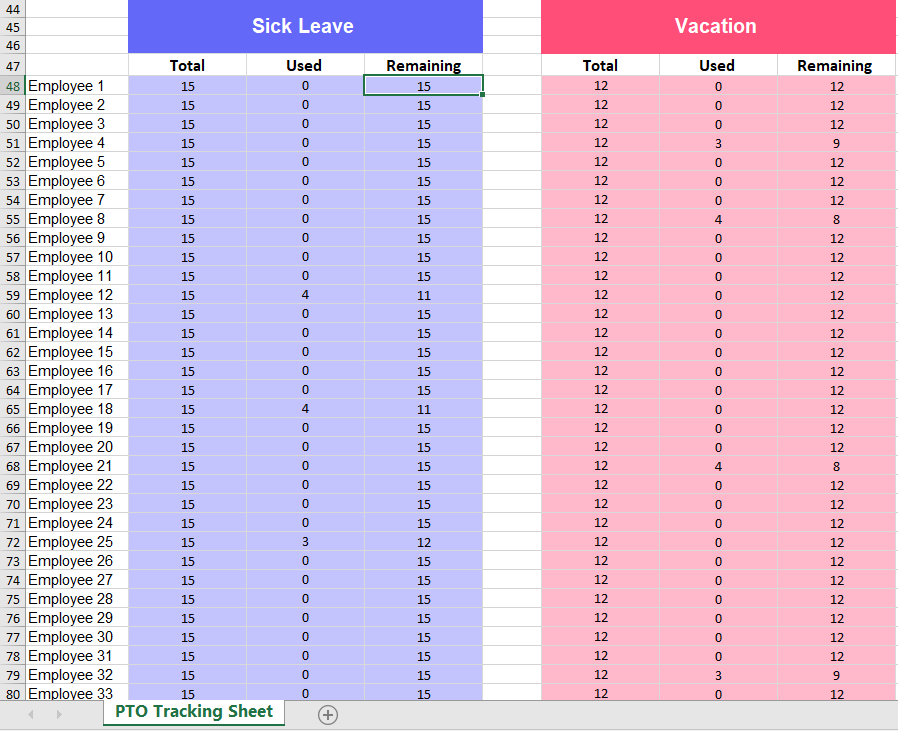
    For years, many companies relied on Excel spreadsheets to track employee leave, manually updating balances, calculating accruals, and double checking formulas every month. While spreadsheets worked for a while, they were time consuming, prone to errors, and difficult to manage as teams grew. That’s exactly why tools like Day Off have become essential, replacing outdated manual methods with a faster, more accurate, and fully automated system.

    Understanding Accruals in Day Off

    Accrual leave simply means that employees earn their time off gradually, usually in relation to how much time they’ve worked. Instead of handing out the full annual leave allowance on the first day of the year, the employee receives a small, consistent amount of leave each pay period or month.


    This approach has become very common because it’s transparent and predictable. Employees know exactly how much leave they have available at any given moment, and HR teams don’t have to manually adjust balances every time someone completes another month of service. It also prevents situations where new employees use all their yearly leave too early.


    Day Off supports this concept natively. The app calculates balances automatically, updates them with every accrual cycle, and gives employees an up to date view of their available days or hours. This real-time visibility makes planning vacations or short absences much easier on both sides.

    Preparing Your Company Account Before Setting Up Accruals

    Before you start creating accrual rules, it’s important to set up a few basics in your Day Off account. Think of this as preparing the ground before planting a tree, when the foundation is right, everything else works smoothly.

    Check Your Company Information

    Make sure all your company details are correct, especially your working schedule.
    Day Off supports different types of schedules, including:

    • Standard weekly schedules (e.g., Monday–Friday or Sunday–Thursday)

    • Schedules based on working hours (for companies that track hours instead of days)

    • Rotating shifts (for teams whose schedules change week by week or follow shift cycles)

    Setting this up correctly is important because it tells the system what counts as a working day or hour, helping Day Off calculate leave and time off accurately.

    Add Public Holidays

    Next, set up your public holidays.
    Day Off lets you add holidays for your country or region. If your company operates in multiple locations, you can assign a different holiday calendar to each office.
    This ensures that when employees request leave, holidays are automatically considered, reducing mistakes and confusion.

    Create Your Leave Types

    Finally, decide which leave types your company will use. Examples include:

    • Vacation days

    • Sick leave

    • Unpaid leave

    • Personal days

    You can also add special types like:

    • Study leave

    • Work from home allowances

    • Maternity or paternity leave

    Each leave type can have its own accrual rules later, so setting them up now creates a strong foundation for accurate tracking.

    Step by Step: How to Set Up Accruals in Day Off

    After finishing your basic setup, you can set up accruals in the settings section under leave policies. Choose the policy you want to set up, commonly Vacation, Annual Leave, or PTO, and then turn on enable accruals. When you activate this option, new settings will appear that let you define how employees earn leave over time, including one of the most important choices: the accrual frequency, which determines how often leave is added to each employee’s balance.

    Weekly Accruals

    Weekly accruals add a small amount of leave to an employee’s balance every week.

    • Your company pays employees weekly

    • You have shift based or hourly workers (retail, hospitality, healthcare)

    • You want employees to see small, regular updates to their balance

    Example:

    If an employee earns 12 days of leave per year, then:

    • They will earn about 0.23 days each week and you can select the day of the week

    • Every week, their balance goes up a little bit

    • It’s easy for them to understand and plan around

    Bi-Weekly Accruals (Every Two Weeks)

    Bi-weekly accruals add leave every two weeks, matching the most common payroll schedule.

    • Your company pays employees every two weeks

    • You want slightly larger accrual amounts but not as frequent as weekly

    • You prefer aligning leave with payroll cycles

    This is the most common accrual method because it fits smoothly with employee paychecks. Everything happens on the same two-week rhythm.

    Example:

    If the policy provides 18 days per year:

    • There are 26 bi-weekly periods in a year

    • Employees get about 0.69 days of leave added every two weeks

    This feels meaningful to employees without overwhelming administrators.

    Monthly Accruals

    Monthly accruals add leave once per month, usually at the beginning or end of the month.

    • Your company wants the simplest possible structure

    • Employees do not need frequent updates

    • You want to avoid too many small accruals

    Monthly accruals are extremely easy to explain and very easy to manage. Employees know exactly when their balance will go up, and the numbers are simple.

    Example:

    If the annual allowance is 18 days, then:

    • Employees receive 1.5 days every month and you can select the day of the month

    • They can quickly understand their yearly entitlement

    This is especially helpful for companies with straightforward PTO policies.

    Semi-Monthly Accruals (Twice a Month)

    Semi-monthly accruals add leave two times per month, usually on the 1st and 15th, or 15th and last day of the month.

    • Your payroll runs on fixed calendar dates

    • You prefer events happening on the same dates every month

    • You don’t want the shifting dates that come with bi-weekly payroll

    Semi-monthly schedules are very predictable. They do not “move” around the calendar the way bi-weekly pay periods do.

    Example:

    If employees earn 18 days per year:

    • They accrue leave 24 times, twice each month

    • Each deposit is 0.75 days

    This gives employees two noticeable increases in their balance every month.

    Annual Leave Entitlements All at Once

    Annual accruals give employees their full leave balance for the whole year in one deposit. This works well for companies that trust employees to manage a yearly balance, want to avoid frequent updates, or already give PTO at the start of the year. It’s a simple approach because there’s only one update to make, and employees can plan longer vacations right away.


    In Day Off, you can also choose a reset month, which marks the start of the new working year and decides when the full balance is given. This means you don’t need an accrual schedule, you can just give employees their entire annual leave entitlement upfront at the beginning of the chosen month.


    For example, if an employee gets 18 days per year, they receive all 18 days on January 1st, their work anniversary, or the reset month you select.

    What the Accrual Report Shows and How It Helps

    The Accrual Report in Day Off provides a clear and complete view of how each employee’s leave balance is developing throughout the year. It shows exactly how much leave an employee has earned, the net amount they are scheduled to receive, and the specific dates when each upcoming accrual will be added to their balance. This timeline style visibility makes it easy to understand how every balance is built, step by step, without needing to reference separate spreadsheets or perform manual checks.

    The report also shows how much leave each employee has already used, so you can quickly compare what they earned and what they took. This makes it easy to spot any issues, confirm that your policies are working correctly, and explain leave balances to employees if they have questions. 


    Day Off also makes it convenient to share or store this information. The entire Accrual Report can be exported to Excel with a single click, allowing you to integrate the data into payroll systems, internal reports, or compliance documents. If you prefer a physical copy, the report can also be printed directly, which is especially helpful during audits, planning meetings, or yearly HR reviews.

    How Day Off Automatically Handles Leave Balances


    After you activate and assign an accrual policy, Day Off automatically handles the calculations. Employees see their balance grow at the start or end of each accrual cycle, depending on how the configuration is set. When someone submits a leave request, and it is approved, the system instantly deducts the correct amount from their balance.


    Day Off also includes clear balance breakdowns, showing how much an employee has earned, how much has been used, and how much is still available. The app even displays the date of the next scheduled accrual, making it easy for employees to plan their time off.

    Best Practices for a Smooth Accrual Setup

    As simple as Day Off makes accruals, a few best practices can help ensure everything runs smoothly. Start by clearly defining your leave policies before you configure them in the system. Having a written, agreed-upon structure prevents confusion later.


    It’s also a good idea to test your accrual rules with a small group before rolling them out to the entire company. This allows you to confirm that calculations match what you expect, especially with carryover rules or special leave types.


    Communication is another vital step. Employees should understand how accruals work, when new hours or days are added to their balance, and what happens if they don’t use their leave before the end of the year. Clear communication prevents misunderstandings and improves trust.


    Finally, review your accrual policies annually. Companies evolve, and leave policies often need adjustments as teams grow or laws change.

    Frequently Asked Questions (FAQ)

    What does “accrual leave” actually mean?

    Accrual leave means employees earn their time off gradually throughout the year instead of receiving all their days at once. Depending on your settings, leave is added weekly, bi-weekly, monthly, or semi-monthly. This makes balances grow in a steady, predictable way and keeps everything fair for both new and long-term employees.

    Do I need to use accruals for every leave type?

    No. Accruals are optional. You can choose which leave types should build up over time, such as Vacation or PTO, and which should not, like Sick Leave, Unpaid Leave, or special leave types. Each leave type can be customized to match your company’s rules.

    Can different employees have different accrual rules?

    Yes. You can assign specific policies to individuals or groups. This is useful if you have part-time employees, interns, senior staff, or teams in different regions. Day Off keeps these policies separate, so changing one will not affect others.

    How does Day Off handle employees who join mid-year?

    Day Off automatically calculates a prorated balance based on their start date. New employees start earning leave from the moment they join, so you don’t need to manually adjust anything.

    Can I change an accrual policy after I’ve created it?

    Yes. You can update the policy at any time. Future accruals will follow the new rules. If needed, you can also manually adjust an employee’s balance to correct anything immediately.

    When does an employee’s balance update?

    Balances update automatically at the start or end of every accrual cycle, based on your settings. Employees always see their current balance and the date of their next accrual, which helps them plan time off with confidence.

    What if an employee requests more leave than they have accrued?

    You decide how the system behaves. If your company allows borrowing leave (negative balances), Day Off supports it. If not, employees will simply be prevented from requesting more time than they currently have.

    How do carryover rules work?

    You can allow employees to move unused leave into the next year and set limits such as:

    • A maximum number of days/hours allowed

    • An expiration date for carried-over leave

    • A reset month when balances refresh

    Day Off automatically applies these rules and keeps everything clean and accurate.

    What’s the difference between semi-monthly and bi-weekly accruals?

    • Bi-weekly: Every 2 weeks, dates shift throughout the year.

    • Semi-monthly: On fixed dates, usually twice a month, 24 times a year, never shifting.

    Choose the one that aligns best with your payroll cycle and internal processes.

    Can employees see how their leave balance was calculated?

    Yes. The Accrual Report shows a complete breakdown of how each balance was built, earned amounts, used amounts, and upcoming accrual dates. This transparency helps reduce misunderstandings and gives employees full confidence in the system.

    Can I export accrual information for payroll or reports?

    Absolutely. You can export the entire Accrual Report to Excel with one click. You can also print it for audits, HR meetings, or onboarding documents. This makes it easy to share clear and accurate information with other teams.

    What happens at the end of the year when balances reset?

    Day Off applies your company’s rules automatically. It can:

    • Reset balances

    • Add carryover days

    • Expire old carryover amounts

    • Grant a new yearly balance (for annual entitlements)

    Once your reset month arrives, everything updates without you having to make manual changes.

    Final Thoughts

    Setting up accruals in Day Off transforms the way your organization manages employee leave. Instead of relying on outdated spreadsheets or manual tracking, you get an automated, fair, and highly transparent system that works in real time. Employees always know how much leave they have, managers can make decisions with confidence, and HR teams regain hours of time previously spent updating numbers.


    By following the steps laid out in this guide, preparing your company settings, defining leave types, configuring accrual rules, and assigning them appropriately, you’ll create a leave management system that is accurate, flexible, and easy to maintain. Day Off’s design makes this process intuitive, and with the help of its reporting tools and customization options, you can tailor accruals to perfectly match your organization’s needs.

  • The 5 Best Employee Absence Trackers for 2025

    The 5 Best Employee Absence Trackers for 2025

    Employee absence tracking has become a vital part of running a smooth and well organized workplace, especially as teams grow and schedules become more demanding. Many businesses used to rely on spreadsheets, emails, or even sticky notes to keep track of time off, but these outdated methods often lead to confusion, errors, and wasted time. Modern absence tracking tools solve these problems by automating requests, updating balances instantly, syncing with calendars, and helping managers avoid scheduling conflicts before they happen. In this article, we review the five best employee absence trackers for 2025 and break down what each one does well, with Day Off standing out as the top choice for its simplicity, powerful features, and user friendly design that perfectly fits the needs of today’s teams.


    Day Off: The Most User Friendly and Efficient Employee Absence Tracker

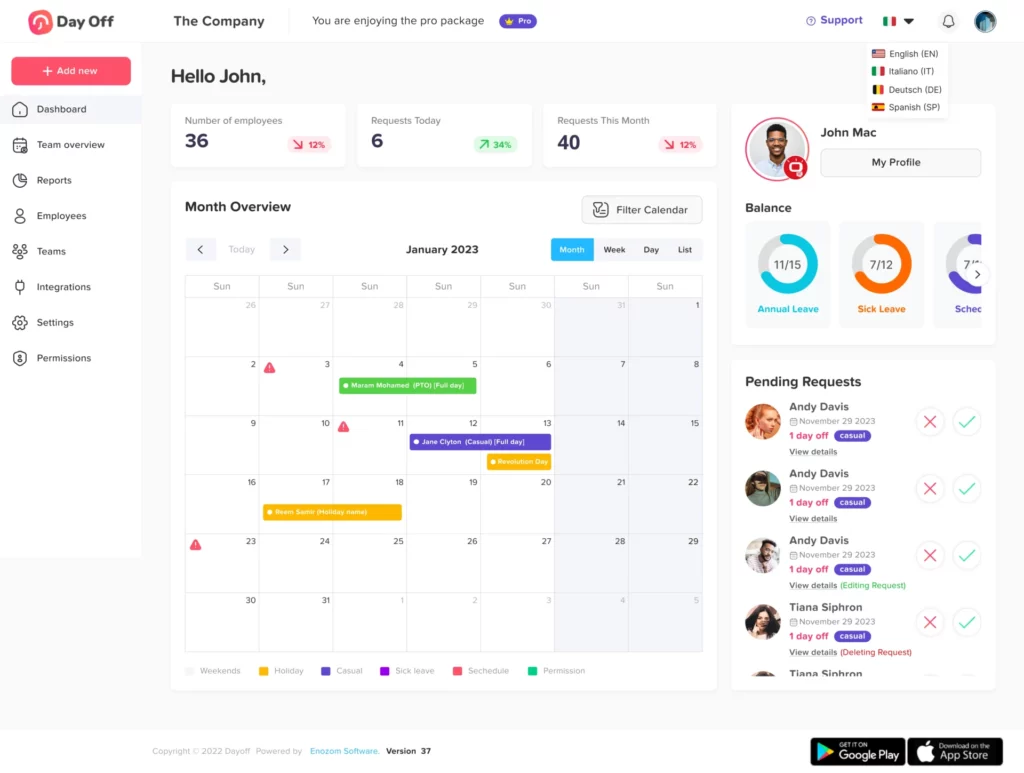
    Day Off has become one of the most popular absence tracking tools because it delivers exactly what teams need without unnecessary complexity. The platform is designed with clarity and user experience in mind, allowing managers and employees to get started immediately without training or complicated setup.

    Day Off Key Features

    Simple and intuitive user interface

    The interface is designed to be accessible for everyone, regardless of technical experience. Employees can request time off in seconds, while managers can review and approve requests without navigating through complicated menus. The entire workflow is intentionally streamlined to reduce administrative time and make daily operations more efficient.

    Real time leave balances

    Many teams struggle with outdated or inconsistent leave balances. Day Off automatically updates every employee’s balance the moment a request is approved or used. This eliminates confusion and ensures that employees always know exactly how many days they have available. Managers can confidently rely on the system without constantly cross checking information.

    Multi approvers

    Some companies need more than one person to approve time off requests. With Day Off, you can set multiple approvers for individual employees and teams. This ensures that requests follow the right approval steps and meet company policies.

    Detailed customization of leave types

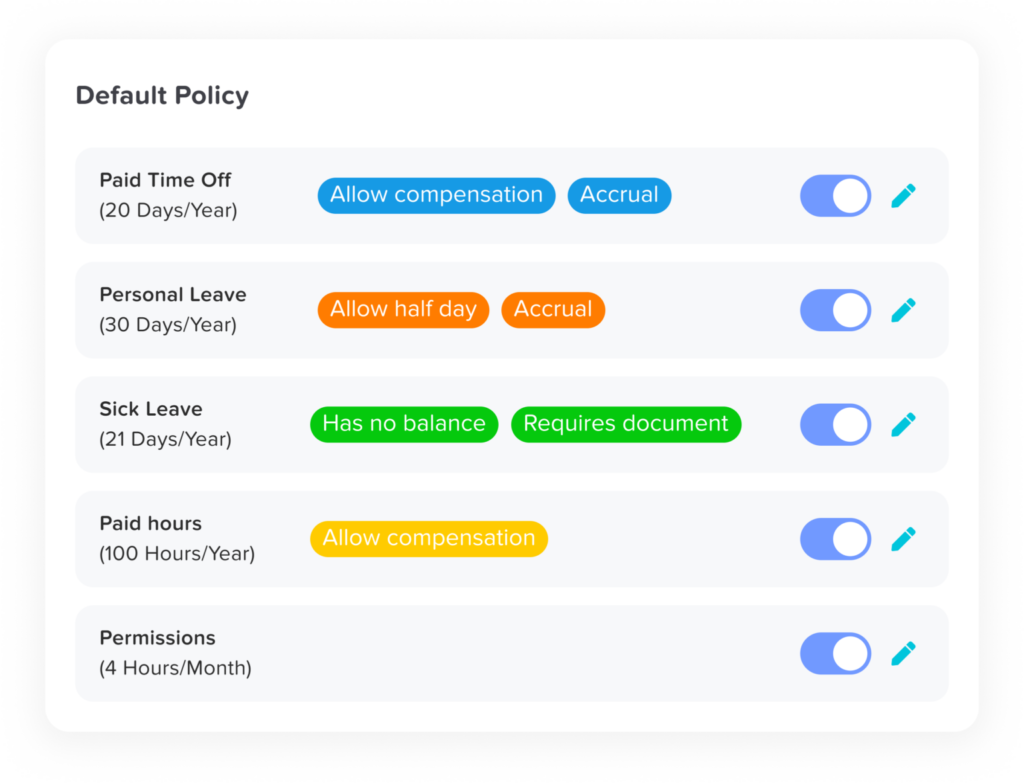
    Not every company uses the same policies, and Day Off recognizes that. The platform allows businesses to create custom leave categories such as annual leave, sick leave, unpaid leave, work from home days, maternity and paternity leave, bereavement leave, or any other type of special absence. Each category can include its own rules, limits, and approval requirements, giving companies full flexibility over their policies.

    Clear and organized team calendar

    The team calendar provides a complete and organized overview of who is off on any given day. This helps prevent overlapping absences, ensures consistent staffing levels, and improves coordination across departments. The layout is well structured and easy to interpret, allowing managers to make scheduling decisions quickly and confidently.

    Calendar integrations

    Day Off integrates seamlessly with widely used calendars, including Google Calendar and Outlook Calendar. Once a time off request is approved, the absence is automatically added to the employee’s calendar. This eliminates the need for manual entry, reduces scheduling mistakes, and keeps everyone aligned, especially in fast moving teams.

    Automated notifications

    Employees and managers receive immediate alerts for submitted requests, approvals, rejections, and status updates. These notifications ensure that no request is overlooked and that communication remains clear at all times. 

    Comprehensive reporting tools

    Day Off provides detailed and actionable reporting features, including summaries of employee absences, individual history logs, sick leave patterns, and monthly or yearly overviews. These reports support HR audits, simplify payroll calculations, and help managers identify trends or potential staffing concerns. Having access to accurate data leads to better decision making and long term planning.

    Work schedules

    Day Off includes a work schedules feature that allows companies to define the specific working hours and days for each employee or team. This is particularly useful for businesses with part time staff, rotating shifts, or flexible work arrangements. The system calculates leave based on actual working schedules, ensuring fairness and accuracy. It also helps managers better understand availability and plan workloads according to real operational hours.

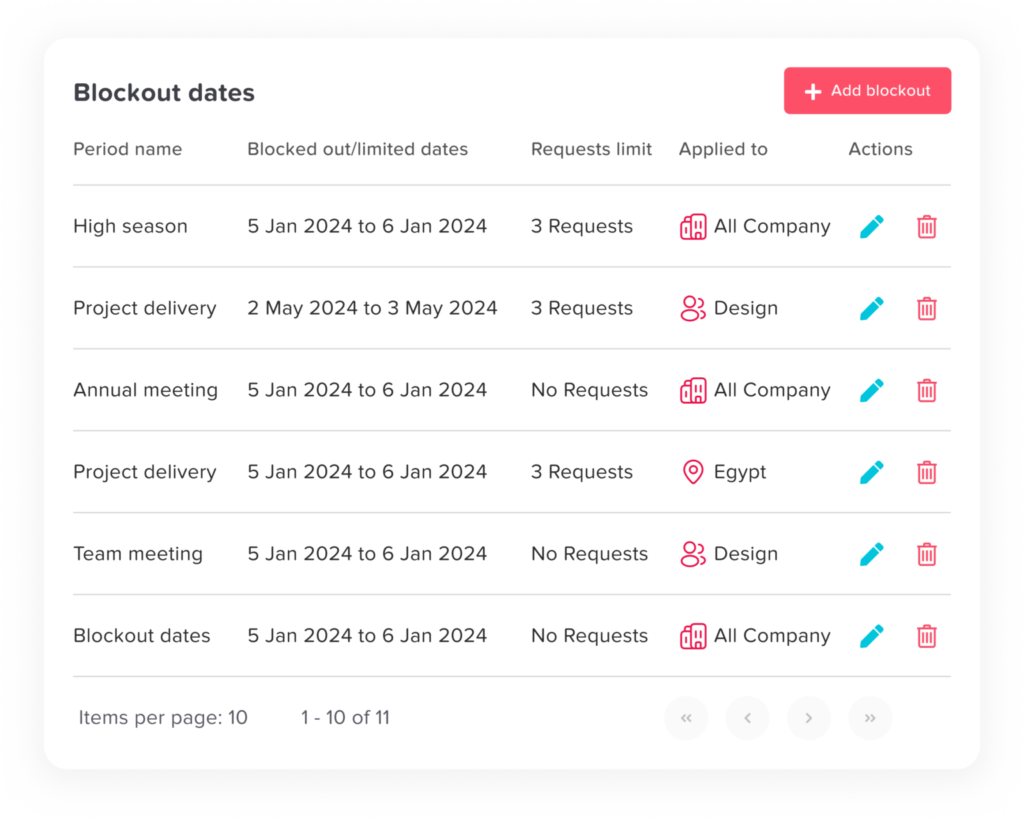
    Blockout dates

    Blockout dates give companies the ability to mark certain days or periods when time off requests are restricted or cannot be submitted. This is valuable during peak seasons, critical deadlines, major company events, or periods when full staffing is essential. By clearly designating blockout dates, Day Off prevents scheduling conflicts and ensures that teams maintain necessary staffing levels during important times.

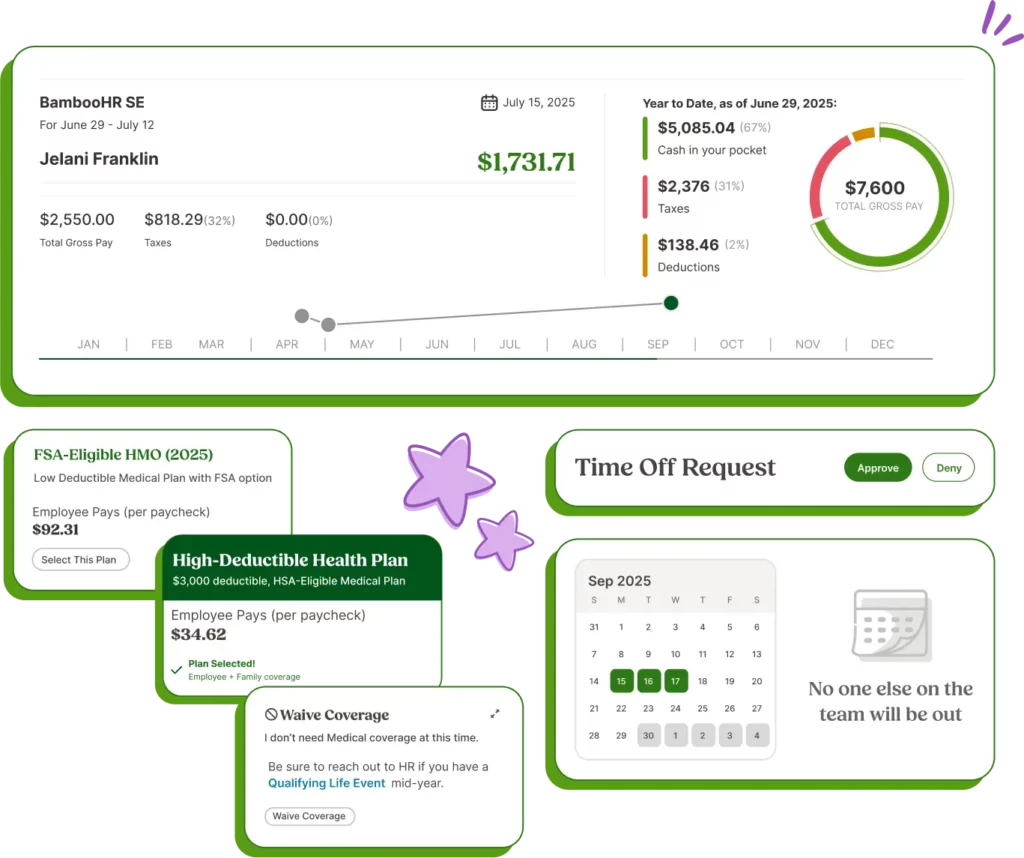
    BambooHR is one of the most comprehensive HR systems available. While its primary focus is broader HR management rather than absence tracking alone, its PTO and leave management tools are highly capable and work smoothly for companies that prefer to manage everything in one platform. This makes BambooHR an especially strong option for organizations with growing HR teams, detailed internal processes, and multi step workflows that require more structure.

    Key Features

    Automated PTO policies

    BambooHR allows companies to build sophisticated PTO policies that match their exact needs. It supports advanced accrual systems, custom holiday rules, department specific policies, and region based requirements for global teams. This level of automation helps organizations maintain consistency and reduces manual HR work, especially in companies with complex or frequently changing policies.

    Employee self service

    Employees can easily check their leave balances, review upcoming holidays, and see who is off in their department without contacting HR. This self service approach reduces unnecessary questions and saves time for both employees and HR teams. It also gives staff more independence by providing immediate access to the information they rely on.

    Advanced HR reporting

    BambooHR includes a wide range of reporting tools that help HR departments analyze trends and make more informed decisions. Managers can review absence patterns, monitor overall employee engagement, and identify potential productivity challenges. These insights are especially valuable for long term workforce planning, budgeting, and policy improvements.

    Payroll integrations

    By integrating directly with payroll systems, BambooHR ensures that PTO payouts, deductions, and adjustments are calculated correctly. This reduces errors, avoids manual data entry, and helps maintain clear financial records. The integration also improves accuracy in payroll processing, which is critical for compliance and employee trust.

    When BambooHR Is the Right Option

    BambooHR is a great choice for companies that need a complete HR system rather than a dedicated absence tracker. It is ideal for organizations that want hiring, onboarding, performance management, time off tracking, and HR analytics all in one place. However, for teams that only need a simple, efficient, and user friendly leave management tool without the extra complexity or cost, Day Off remains the better and more practical option.


    LeaveBoard is designed to streamline HR tasks by automating many of the routine processes involved in managing employee time off. It works particularly well for teams that want a clean, modern tool that saves time and reduces manual effort, but do not need the extensive features that come with larger HR platforms. Its focus on simplicity and automation makes it a practical choice for growing businesses.

    Key Features

    Automated balance calculations

    LeaveBoard automatically updates each employee’s leave balance the moment a request is approved or used. This eliminates manual calculations and reduces the risk of errors. For busy teams, this automation saves significant administrative time and ensures that everyone always sees accurate and up to date information.

    Clear team calendars

    Managers can easily view team availability, department schedules, and company wide calendars in one place. This visibility helps reduce scheduling conflicts, ensures proper coverage, and makes planning much smoother. With this organized view, managers can make better decisions about staffing and workload distribution.

    Integrations with Google and Microsoft

    LeaveBoard integrates with Google Workspace and Microsoft 365, allowing approved absences to sync automatically with employee calendars. This keeps schedules consistent across the tools teams already use and prevents double booking or missed updates. It also helps employees stay aligned without needing to check multiple systems.

    Reporting tools

    The platform includes reporting features that give managers quick access to important data, such as absence summaries, employee leave histories, and department level trends. These insights help with planning, identify patterns, and support HR reviews or payroll checks. Having this information available in a structured format makes managing leave much easier.

    Limitations

    Although LeaveBoard offers strong automation and helpful features, its interface is not as smooth or intuitive as some other tools, such as Day Off. Some users may need time to get used to the layout and workflow. Teams looking for a more polished, beginner friendly experience may prefer a simpler and more straightforward platform.

    Timetastic stands out because of its colorful, wall chart style interface. It is designed to be approachable, clear, and easy for both employees and managers who prefer a visual representation of team schedules. The platform focuses on simplicity, making it a great fit for teams that want a straightforward way to track time off without dealing with complicated features.

    Key Features

    Visual calendar interface

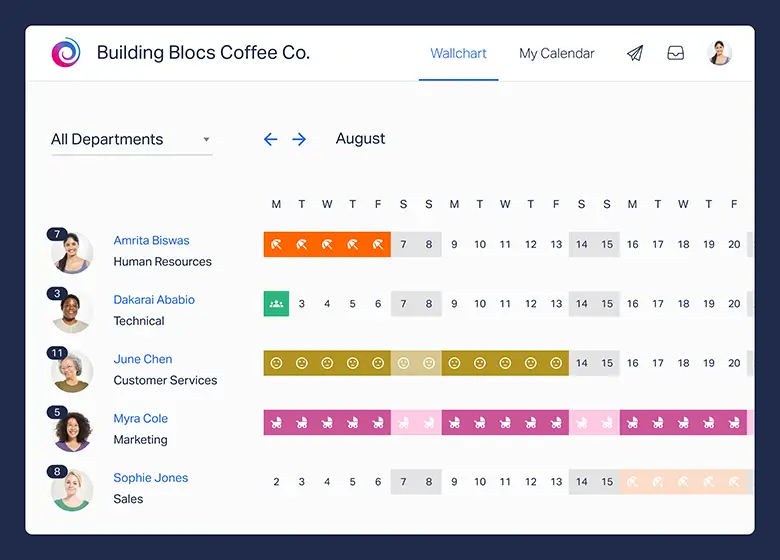
    Timetastic displays team absences in a bright, color coded wall chart that is very easy to understand. Each employee’s leave appears clearly on the calendar, helping managers quickly spot who is unavailable and identify any staffing gaps. This visual approach makes planning smoother and reduces the chances of scheduling conflicts.

    Fast time off requests and approvals

    Submitting and approving requests in Timetastic is designed to be fast and effortless. Employees can send their time off requests directly through the app, and managers can approve them from email, mobile, or web. The simplicity of this process helps teams handle leave requests without delays or confusion.

    Integrations with communication tools

    Timetastic connects with popular tools such as Slack, Microsoft Teams, and major calendar apps. When a leave request is approved, the information automatically appears where teams already communicate and plan their work. This keeps everyone informed without requiring them to open an additional platform.

    Cost effective for small teams

    One of Timetastic’s biggest strengths is its affordability. It offers a pricing structure that works especially well for small businesses or teams that need basic leave tracking without paying for extra features. This makes it a practical choice for companies with tight budgets or simple needs.

    Limitations

    Although Timetastic is great for small teams, it does not offer the advanced customization or detailed reporting that larger or more complex organizations often require. Companies that need flexible leave rules, multi level approval systems, or detailed analytics may find Timetastic too limited for their needs.


    Absence.io is designed for organizations that need more than simple time off tracking. It brings together absence management, time tracking, employee documentation, and scheduling into one platform. This makes it a powerful option for companies with complex HR structures or strict workflow requirements. Its flexibility allows managers to set detailed rules, manage shifts, and maintain organized employee records, all in one place.

    Key Features Explained

    Highly customizable leave structures

    Absence.io gives companies the ability to create detailed and specialized leave policies. You can define different leave types, multiple approval levels, department-specific rules, and unique permissions. This flexibility is valuable for organizations with complex HR requirements or teams that need customized workflows across different departments or locations.

    Built-in time tracking

    In addition to tracking absences, Absence.io offers a built-in time-tracking system that records working hours, overtime, and attendance. This eliminates the need for a separate time tracking tool and helps companies maintain accurate work records. It also supports better payroll calculations and compliance with labor regulations.

    Employee scheduling

    The platform includes scheduling tools that allow managers to build, adjust, and oversee staff schedules with ease. This is especially useful for businesses that rely on rotating shifts or variable staffing, such as retail, hospitality, or healthcare. Clear scheduling helps managers avoid coverage gaps and ensures that each shift is properly staffed.

    Document management

    Absence.io provides a centralized place to store employee documents such as contracts, certificates, medical notes, and performance files. Keeping everything in one system makes it easier for HR teams to stay organized, maintain compliance, and quickly access important information when needed.

    Limitations

    Because Absence.io includes so many features, it can feel complex for smaller teams that only need basic absence tracking. The platform is best suited for larger organizations or companies with advanced HR requirements. Smaller businesses may find the interface overwhelming or more detailed than necessary for their day to day operations.

    Pricing Comparison of the Top 5 Employee Absence Tracking Tools

    Tool Free/Entry Option Typical Paid Price Notes
    Day Off
    Free plan for up to 10 employees, plus a 2-week free trial for paid plans
    Lite plan: $1 per employee/month; Pro plan: $2 per employee/month (minimum $20/month)
    Lite includes essential features; Pro includes multi-approvers, multiple teams, integrations.
    BambooHR
    No public free tier; pricing provided via custom quotes
    Small companies (<25 employees): flat rate $250/month; larger teams: $10–22 per employee/month
    Full HR suite; absence tracking is part of a broader system.
    Timetastic
    Free 1-month trial
    From about £1.20 per user/month ($1.30 USD)
    Simple, visual PTO planner designed for small teams.
    absence.io
    No fully featured free plan publicly available
    From €2.00 (~$2.20 USD) per user/month for absence tracking; complete suite up to €8/user/month
    Modular platform with add-ons such as time tracking and personnel files.
    LeaveBoard
    Free plan for up to 9 employees
    From $1.35 per user/month
    Affordable for small and medium businesses focused on leave tracking.

    Frequently Asked Questions (FAQ)

    What is an employee absence tracker?

    An employee absence tracker is a tool that helps businesses record, manage, and monitor employee time off. Instead of relying on spreadsheets or email threads, it automates requests, approvals, leave balances, and team calendars, making the whole process easier, more accurate, and more organized.

    Why do companies need absence tracking software?

    Manual tracking often leads to mistakes, duplicated work, and miscommunication. Absence tracking software keeps everything in one place, updates information in real time, and helps managers avoid scheduling conflicts. It also saves significant administrative time and gives employees full clarity over their leave balances.

    What features should I look for in a good absence tracker?

    Important features include real time leave balances, simple request and approval workflows, customizable leave types, team calendars, integrations with Outlook or Google Calendar, clear reporting tools, and support for different work schedules. Depending on your company size, you may also need multi approver workflows, blockout dates, and mobile access.

    Which absence tracker is best for small teams?

    Day Off and Timetastic are popular choices for small teams because they are easy to use, quick to set up, and affordable. Day Off is especially strong for small to medium businesses that want a clean, intuitive system without extra HR complexity.

    Which absence tracker is best for larger companies?

    Larger companies often prefer platforms like BambooHR or Absence.io because they include advanced HR features, deeper customization, and integrations with payroll and performance systems. These tools are built to support more complex policies and larger organizational structures.

    How much does absence tracking software typically cost?

    Prices vary widely depending on the tool and the features included. Some platforms start around $1 to $2 per employee per month, while full HR systems can cost hundreds of dollars monthly. Many tools, including Day Off, also offer free plans or free trials so companies can test them before committing.

    Is it easy to switch from spreadsheets to an absence tracking tool?

    Yes. Most modern tools make onboarding simple. You can import employees, set up leave types, define schedules, and start using the platform almost immediately. Many tools, such as Day Off, are designed to be easy for both managers and employees to adopt.

    Do these tools support different leave types?

    Yes. The best absence trackers allow you to define custom leave categories such as vacation, sick leave, unpaid leave, work from home days, maternity or paternity leave, and more. This flexibility ensures the system fits your company’s exact policies.

    Are mobile apps available?

    Most modern absence tracking platforms provide mobile apps so employees can request leave and managers can approve it from anywhere. Day Off, for example, offers a very user friendly mobile experience that makes managing leave on the go easy.

    How do absence trackers improve team communication?

    By keeping all information, requests, approvals, calendars, and balances in one place, these tools reduce back and forth communication and ensure everyone is looking at the same updated schedule. Automated notifications also make sure nothing gets missed.

    Can I set blockout dates or restricted periods?

    Many tools, including Day Off, allow you to set blockout dates where time off requests are limited or disabled. This is helpful during busy seasons, deadlines, or important company events.

    Do these tools support multiple approvers?

    Yes. Platforms like Day Off support multi approver workflows where requests can go through supervisors, managers, or HR staff in sequence. This is useful for companies with layered management structures.

    Can these systems integrate with our existing calendars?

    Most tools connect with Google Calendar, Outlook, Apple Calendar, and other scheduling apps. Once a request is approved, it is automatically added to the employee’s calendar to avoid conflicts or double booking.

    Conclusion

    Choosing the right employee absence tracker can make a significant difference in how smoothly a company operates. With the right tool, managers can plan more confidently, employees gain clarity and independence, and HR teams save countless hours of manual work. The five platforms highlighted in this article each offer valuable features, but the best choice depends on your team’s size, needs, and workflow. Day Off stands out as the most balanced and user friendly option for modern businesses, especially those looking for a simple, reliable, and affordable way to stay organized. Whether you’re a growing startup or an established company, investing in a strong absence management system is a smart step toward building a more efficient, transparent, and well coordinated workplace.


    Smarter time off tracking starts here.

  • Top Employee Holiday Planner Guide: Tools, Features & Best Practices

    Top Employee Holiday Planner Guide: Tools, Features & Best Practices

    Employee holiday planning is one of the pillars of an organized, productive, and healthy workplace. Without a clear system for handling time off requests, managing staffing levels, and communicating schedules, even well functioning teams can fall into confusion, miscommunication, and operational strain. The right holiday planning tools ensure that employees enjoy their rest while the business continues running smoothly.


    In this expanded guide, we will explore the best tools available for managing employee vacations, explain why they stand out, and provide thorough, in-depth insights into how each platform supports a more organized and harmonious workplace.

    Day Off: Employee Leave Tracker App

    Best for: Meduim to large-sized teams looking for simplicity and speed

    Why it stands out:

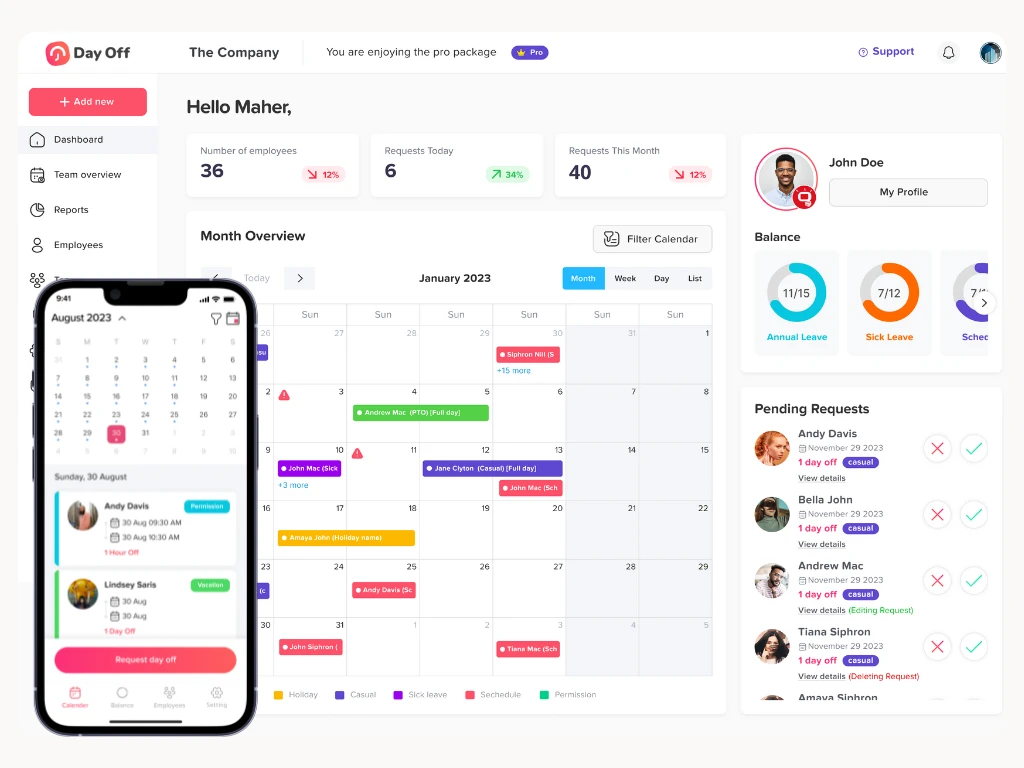
    Day Off is built for teams that want a clean, intuitive, and practical leave management solution without the heaviness of full HR platforms. Instead of complex modules and lengthy onboarding, Day Off focuses on what matters most: tracking leave accurately, handling employee requests quickly and keeping everyone aligned with a clear, easy to read leave calendar.

    Explanation:

    Day Off is especially appealing to organizations that want immediate value with minimal setup. Employees can submit time off requests directly from their phones, managers receive instant notifications, and leave balances update in real time. The system supports a wide range of leave types, annual leave, sick days, emergency leave, unpaid time off, and more, helping teams stay organized without relying on spreadsheets or manual tracking.


    Its visual interface is clean, fast and friendly, making it accessible to non-technical users who can confidently navigate the app within minutes. The combination of low cost, simplicity and practical functionality makes it an ideal option for growing teams or small companies that need structure without extra layers of complexity.


    Day Off also includes helpful features like bulk actions, team specific policies, flexible carryover settings, and exportable reports, giving teams the structure they need without overwhelming them. For organizations ready to move on from spreadsheets and adopt an efficient, streamlined system, Day Off delivers immediate value and a smoother, more transparent way to manage time off.

    Best for: Companies with complex leave rules or multi-location teams
    Key strength: Highly customizable workflows for different types of leave

    Explanation:

    Zoho People is a versatile and powerful HR platform designed for organizations that require detailed, highly adaptable leave structures. It’s especially valuable for companies operating across multiple departments, shifts, time zones or regions with differing labor regulations. With Zoho People, every aspect of leave can be tailored, including custom leave types, accrual formulas, carry-over rules, conditional eligibility, blackout periods and multi-level approval chains.


    Beyond leave management, Zoho People supports a wide range of HR functions such as attendance monitoring, shift and roster planning, time tracking, employee record management and onboarding. This makes it an excellent fit for businesses with dynamic or round-the-clock staffing needs, including retail, manufacturing, hospitality and healthcare, where precision and automation are essential.


    The platform’s dashboards and reports provide deep visibility into workforce patterns, helping HR teams identify trends like peak leave periods, potential understaffing and departments with high request volumes. This level of insight allows companies to make data-driven decisions, optimize scheduling, and maintain smooth daily operations, even in the most complex organizational environments.

    Best for: International or multi-country teams
    Key strength: Global holiday calendars and compliance support

    Explanation:

    Factorial HR is especially valuable for companies with distributed or international teams, where managing different labor laws, public holidays and regional regulations can quickly become overwhelming. The platform automatically adapts holiday calendars based on each country’s rules and observances, removing the manual workload from HR teams and reducing the risk of compliance errors.


    Its leave planner lets organizations create tailored policies for every location, track individual entitlements, manage multi-step approvals and generate detailed, exportable reports for audits or payroll. Because Factorial centralizes everything, teams can view who’s off across regions at a glance, simplifying coordination for global projects.


    Beyond leave management, Factorial offers a robust suite of core HR tools, including payroll integrations, performance reviews, document management, onboarding workflows and legally compliant digital signatures. This makes it a strong all-in-one platform for fast-growing companies that operate across borders and want a unified system to support their entire workforce.


    As international remote work becomes more common, solutions like Factorial help organizations maintain fairness, transparency and consistency while still adapting to the unique conditions of each region.

    Best for: Small to medium-sized businesses that need a simple, reliable, and user-friendly leave tracking system
    Key strength: A focused and streamlined tool built specifically to manage employee holidays, absences, and approvals without the complexity of a full HR suite

    Explanation:

    TimeOff Management is designed for companies that want to move away from spreadsheets and manual tracking and adopt a clear, automated system for managing employee leave. The platform provides a clean interface where employees can easily request time off, managers can review and approve requests, and HR can oversee all absence data from one centralized dashboard.


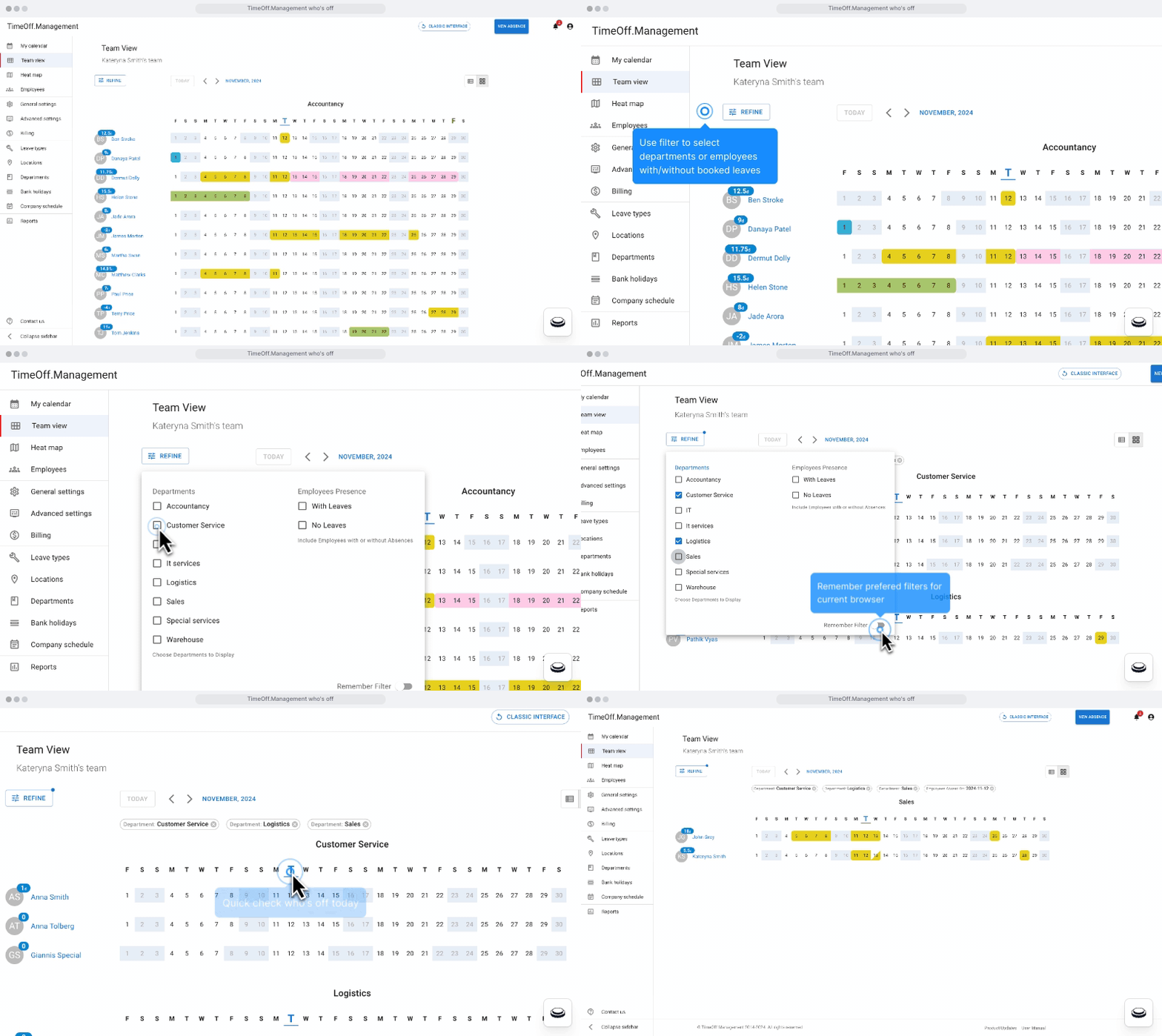
    The system offers a visual team calendar that shows who is off and when, making it easier to prevent overlapping vacations or unexpected understaffing. Managers can filter by team, department, role, or individual employee to get the exact visibility they need. Capacity limits ensure that too many people from the same team cannot book time off at the same time.


    One of TimeOff Management’s strengths is its flexibility in defining leave types. Companies can create customized categories such as annual leave, sick leave, unpaid leave, parental leave, emergency leave, or any other type relevant to their policy. Each leave type can include unique rules, such as whether approvals are required, if notice is needed, or whether documentation is mandatory.


    The tool also automates important workflows. Employees receive clear confirmations, managers get instant notifications, and administrators can set rules like blackout dates, minimum notice periods, or maximum days off allowed simultaneously. Real-time updates help prevent errors, miscommunication, or overlooked requests.


    Reporting features allow HR teams to generate overviews, identify patterns in absence trends, track seasonal peaks, and ensure compliance with company policies. This data is helpful for resource planning, budgeting, and understanding team wellness.


    TimeOff Management is an ideal solution for businesses that need structure and automation without committing to an expensive, overly complex HR platform. It’s easy to implement, simple for employees to use, and scalable enough to support growing teams.

    Best for: Small to mid-sized companies looking for a modern leave management and attendance solution
    Key strength: Offers both time off tracking and time clock features in a single, lightweight system

    Explanation:

    Calamari is a flexible and modern HR tool designed to simplify leave management while also offering strong attendance-tracking capabilities. It’s ideal for companies that want a sleek, easy to use digital solution but don’t need a full enterprise grade HR suite.


    The leave management module allows employees to request time off directly from the system or through integrated apps like Slack, Microsoft Teams, and Google Workspace. Managers receive instant notifications and can approve or decline requests in seconds. The system updates balances automatically and logs every action for clarity and transparency.


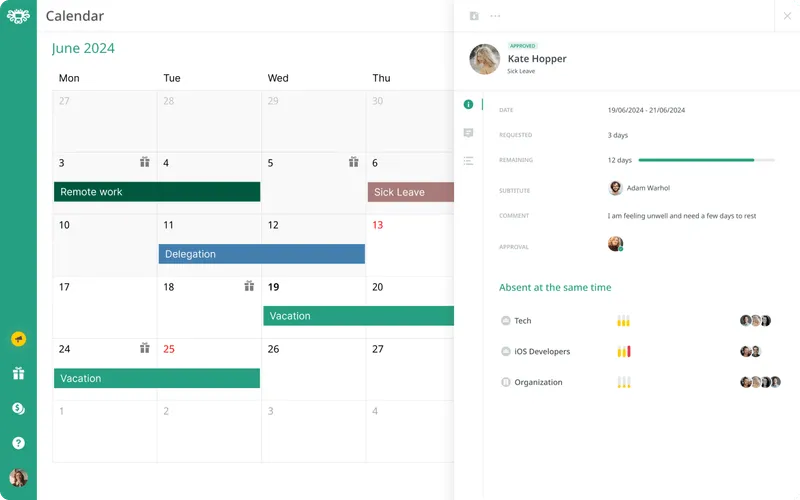
    Calamari offers a visually clear calendar view where teams can see who is off on specific days, which helps prevent scheduling conflicts and ensures adequate staffing. Filtering options allow managers to check absences by team, location, or role, supporting better resource planning.


    Another distinguishing feature is the platform’s time and attendance module. Employees can clock in and out using QR codes, mobile devices, or web browsers, making it useful for hybrid or on-site teams. This dual functionality, leave planning and attendance, gives companies a more complete view of employee availability and ensures smoother workforce management.


    Administrators can configure different leave types, set approval sequences, enforce rules such as notice periods, and control who can see what information. Reports and analytics help HR identify absence patterns, monitor unused holidays, and ensure compliance with internal policies.

    Calamari stands out for its clean interface, ease of onboarding, and strong integration options. It’s a solid choice for companies that want a reliable, modern tool that balances simplicity with advanced features.

    Comparison Table: Leave Management Tools

    Tool Best For Key Strength Ease of Use Why It Stands Out
    Day Off
    Medium, large teams
    Simple, fast, intuitive leave tracking
    Very easy
    Most balanced option: quick to set up, easy to use, and focused on what teams need without extra complexity.
    Zoho People
    Complex policies, multi-location teams
    Highly customizable workflows
    Moderate
    Great for companies needing deep rules and multi-step approvals
    Factorial HR
    International teams
    Global calendars & compliance
    Easy, moderate
    Ideal for managing regional rules and distributed teams
    TimeOff Management
    Small, medium teams
    Simple, clean leave tracker
    Very easy
    Perfect for teams moving away from spreadsheets
    Calamari
    Small, medium teams
    Leave + attendance tracking
    Easy
    Combines time off and time-clock features in one tool

    Why an Employee Holiday Planner Matters

    A well-designed employee holiday planner is more than just a scheduling tool, it is a foundational system that supports organizational structure, employee well-being, and overall productivity. Without a proper method to manage time off requests and staffing levels, companies risk miscommunication, decreased morale, and operational disruption. Below is an expanded explanation of why an employee holiday planner is essential.

    Ensures Fairness and Transparency

    Fairness is at the heart of any successful workplace. A structured holiday planner establishes clear rules and ensures that time-off decisions are based on documented policies, not personal preference or guesswork.


    By centralizing all requests in one place, businesses eliminate confusion about who asked for time off first, whether a manager denied a request fairly, or whether employees accidentally overlap their vacations. The planner provides complete visibility, helping workers trust the process and reducing friction between team members.


    Clear audit trails, balanced scheduling rules, and transparent decision-making help ensure that every employee feels valued and treated equally.

    Supports Business Continuity

    When too many people from the same team or department take time off at once, productivity can suffer dramatically. Projects may stall, customer service may slow down, and meeting deadlines becomes more difficult.


    A reliable holiday planner provides companies with the ability to plan staffing levels in advance. It helps managers visualize who will be away during specific periods, making it easier to redistribute responsibilities, adjust workloads, and prepare temporary coverage.


    This structured approach minimizes disruptions and protects the business from unexpected operational gaps, especially during peak seasons or critical project phases.

    Reduces Administrative Work

    Managing time off requests manually, through emails, messages, or spreadsheets, quickly becomes overwhelming. HR and managers may spend hours each week answering questions, checking calendars, calculating balances, and updating multiple documents.


    A modern holiday planner automates much of this process. Employees submit requests digitally, the system calculates leave balances automatically, and managers receive instant notifications. Approvals are logged and updated without extra work.


    This automation frees up HR teams and supervisors to focus on strategic work rather than administrative tasks.

    Improves Employee Satisfaction

    When employees understand their holiday entitlements, see their remaining balance, and feel confident in the request-and-approval process, they feel respected and supported.


    A streamlined system eliminates frustration from lost requests, delayed approvals, or unclear policies. It empowers employees to plan ahead, booking vacations, personal days, or family responsibilities with confidence.


    Happy employees are more engaged, more productive, and more likely to stay with the company long-term.

    Aids Compliance With Labor Laws

    Leave regulations differ dramatically between regions, industries, and contract types. Violating these rules can lead to penalties, legal disputes, or employee dissatisfaction.


    A centralized holiday planner helps businesses stay compliant by tracking legally required entitlements, preventing unauthorized leave deductions, and documenting all leave activity. For companies with employees across multiple regions, this is especially important.

    Core Components of a Strong Employee Holiday Planner

    A truly effective holiday planner combines structure, automation, visibility, and flexibility. Below are the essential components that make a planner powerful and reliable.

    Holiday Policies and Entitlements

    A strong system starts with clearly defined rules that employees can easily reference. These include:

    • Annual leave entitlement: Total days given per year, based on role or seniority.

    • Carry-over policies: How many unused days employees can transfer to the next year.

    • Public holidays: Predefined days the company recognizes as paid or unpaid holidays.

    • Unpaid leave eligibility: When and how employees can request unpaid days.

    • Sick leave guidelines: Requirements for reporting and documentation.

    • Special leave categories: Maternity/paternity leave, bereavement leave, jury duty, study leave, and other unique entitlements.

    These rules ensure consistency and protect both the business and employees.

    Employee Profiles

    A holiday planner should store key information for each employee to ensure accurate scheduling. Profiles typically include:

    • Employment type: Full-time, part-time, temporary, or contractor

    • Seniority: Length of service, which may affect leave entitlement

    • Department or team: Useful for managing coverage across roles

    • Leave balances: Automatically updated when time off is approved

    • Historical leave usage: Helps identify patterns, planning behavior, or compliance concerns

    This data helps managers make informed decisions while maintaining fairness across teams.

    Calendar View

    A visual calendar is essential for understanding staff availability. A comprehensive planner should:

    • Show who is off, and on which days

    • Allow users to filter by team, department, or role

    • Display capacity limits to avoid understaffing

    • Highlight national and company holidays

    • Distinguish between pending, approved, and declined requests

    This clarity reduces scheduling conflicts and helps managers maintain proper staffing levels.

    Automated Workflows

    Automation is the key to reducing manual work. Effective planning systems:

    • Allow employees to submit leave requests digitally

    • Notify managers instantly when approval is needed

    • Log approvals or declines with timestamps

    • Update leave balances automatically

    • Send reminders or alerts for upcoming absences

    This creates a smooth, efficient process that eliminates delays and miscommunication.

    Reporting and Analytics

    Reports provide valuable insights into workforce patterns. Analytics may include:

    • Absence trends: Which departments take the most time off

    • Seasonal spikes: Predictable peaks in holiday requests

    • Unused vacation days: To encourage healthy work-life balance

    • Burnout indicators: Employees who rarely take time off

    • Departmental staffing risks: Areas consistently short-staffed

    These insights help HR plan better, forecast staffing needs, and improve workplace well-being.

    Integration with Other Systems

    The best holiday planners work seamlessly with other business tools, such as:

    • Payroll systems: Ensuring accurate payment for paid/unpaid leave

    • HRIS platforms: Centralizing employee data

    • Scheduling or rota software: Aligning shifts with leave schedules

    • Communication apps: Sending notifications via email, Slack, or Teams

    Integrations eliminate the need for duplicate data entry and ensure consistency across systems.

    FAQ: Employee Holiday Planners

    Why should businesses use a holiday planner instead of spreadsheets?

    While spreadsheets work for very small teams, they quickly become messy, error-prone, and difficult to update as the company grows. A dedicated holiday planner automates calculations, prevents overlapping leave, offers real-time visibility, and provides clear workflows for requests and approvals. This saves time, reduces confusion, and ensures much better accuracy than manual methods.

    Can a holiday planner handle different types of leave?

    Yes. Modern holiday planners allow companies to create and customize multiple leave types, such as annual leave, sick leave, parental leave, unpaid leave, and emergency leave. Each leave type can include unique rules like approval requirements, documentation needs, or carry-over limits. This ensures the planner matches the organization’s exact policies.

    How does a holiday planner improve workplace productivity?

    Holiday planners ensure teams are always properly staffed by preventing too many employees from taking leave at the same time. Managers can see availability at a glance, adjust workloads, and plan resources in advance. With fewer scheduling conflicts and less administrative work, employees and managers can focus more on meaningful tasks.

    Are digital holiday planning tools suitable for remote or hybrid teams?

    Absolutely. Digital holiday planners are ideal for distributed teams because they offer real-time updates, mobile access, notifications, and visibility across locations and time zones. Employees can request leave from anywhere, and managers can approve it instantly, making coordination across remote or hybrid teams simple and efficient.

    Conclusion

    An employee holiday planner is one of the most valuable tools any organization can implement. It brings structure, clarity, and fairness to how time off is managed, ensuring that both employees and managers benefit from a transparent and efficient system. By adopting digital tools and best practices, companies can reduce administrative burdens, promote work-life balance, prevent staffing shortages, and create a more harmonious work environment.


    In an era where employee well-being and operational efficiency are more important than ever, a well-designed holiday planner is not just a convenience, it’s a strategic asset. Whether your team is small and growing or large and globally distributed, the right tool will help you stay organized, productive, and ready to meet the demands of a modern workplace.

    Smarter time off tracking starts here.

  • How to Track PTO for WFH Teams With Day Off

    How to Track PTO for WFH Teams With Day Off

    Remote work hides the usual office signals: you can’t glance across the room to see who’s in, who’s out, or who’s heads-down. A clear, kind PTO process fixes that by making availability obvious and decisions simple. The write-up below keeps your existing framework but adds slower, plainer explanations for every point, what to do, when to do it, and who needs to know, plus short examples so people can follow the policy without guessing.


    You’ll also find practical notes for setting it up in Day Off Vacation Tracker: how to add and label leave types (PTO, sick, holidays), how to create a WFH type, and how to allow same-day WFH submissions alongside scheduled PTO. Where useful, we call out lightweight approval flows, coverage and handoff checklists, and simple calendar/Slack status habits, so teammates can see at a glance who’s available, who’s away, and who’s in focus time. The goal is a process that’s easy to use, transparent by default, and gentle on everyone’s time.

    Name your leave types so nobody has to guess

    List the types of time off in words everyone understands Vacation, Sick, Personal, Parental, Bereavement, Unpaid, Local Holidays, and WFH (Working From Home) for visibility. When names are clear, employees don’t DM HR asking “which one do I pick?”, managers don’t have to reclassify requests later, and your reports stop mixing apples with oranges. Consistent labels also help new hires learn “how we do things here” without a long orientation.

    How to track it in Day Off:

    Create each leave type once, then toggle simple options: does it deduct from a balance or is it informational only (like WFH)? Can it be half-day or hourly? Should it require an attachment (e.g., certain leaves)? These switches let you match the tool to your policy instead of bending your policy to the tool.

    a screenshot of creating a leave type on Day Off

    Choose one accrual style and keep it steady

    People relax when the math is predictable. Pick a single approach and stick to it:

    • Lump sum: all days drop in at the start of the year, easy to explain, and easy for long-term trip planning.

    • Monthly accrual: a little bit adds up each month, feels fair mid-year, and lines up with payroll cycles.

    • Hourly accrual: earn PTO as hours are worked, perfect for part-timers and variable schedules.
      Explain your choice with an example (“You’ll see ~1.67 days added each month”), so employees can eyeball whether their balance makes sense.

    How to track it in Day Off:

    Build a policy for each approach (days or hours), attach the right policy to the right people, and let the app do the deposits automatically. No more hand-editing balances or chasing spreadsheets.

    Use carryover and caps that are kind to people and kind to the business

    Carryover lets people use rest they didn’t get to take; caps prevent giant balances from piling up forever. A common pattern is “carry up to 5 days, and set a maximum of 1.5× the annual grant.” Add a clear expiry date for extra days (e.g., “use by March 31”) so there are no last-minute surprises. This combo encourages healthy time off and keeps your liability in check.

    How to track it in Day Off:

    Turn on carryover in the policy, set the amount and the expiry window, and the rollover happens for you. If you later change the cap, update the policy once; everyone attached to it follows the new rules.

    Write notice rules and an approval path that won’t jam up

    State the basics in one short paragraph people will actually read: “Vacations should be requested 10 business days ahead; sick time can be same-day; emergencies are fine, just let us know.” Then say who approves and who backs them up. This prevents awkward waits when a manager is also out, and it sets the tone that the process is fair, not random.

    How to track it in Day Off:

    Pick one approver for small teams, or add a second approver for critical roles and sensitive leave types. Approvers get notified instantly; they can approve in a click, and the system leaves a tidy audit trail without email chains.

    Allow partial days so people don’t waste a full day for a two-hour task

    Life is full of short commitments, doctor visits, school runs, deliveries. Let people take half-days or even hours instead of a whole day. This keeps calendars honest, reduces “soft absences,” and protects PTO balances from being burned up on tiny things.

    How to track it in Day Off:

    Enable half-day/hourly for the leave types that should allow it. The deduction is automatic, and the calendar entry shows the correct time window, so teammates know if someone is still around that morning or back later in the day.

    Make coverage visible in the tools people already check

    The best PTO system doesn’t live in a PDF, it shows up on the calendar and, ideally, in your team chat. Ask people to add a short handover note for any absence longer than a day: who’s covering, what can wait, and how to escalate. This tiny habit avoids hot-potato work and makes “who’s on point?” obvious.

    How to track it in Day Off:

    Connect your Google/Outlook calendar so approved time off appears where everyone looks. If you use chat notifications, surface requests and approvals there too. The goal: nobody has to chase a link to find out who’s away.

    Respect local differences with locations and holidays

    Laws and holidays aren’t the same everywhere. Keep a short addendum for each country or state that says the minimums, the public holidays, and anything special (like sick-pay rules). Assign people to the right location on day one so their balances and holidays just work.

    How to track it in Day Off:

    Create teams/locations, load the relevant holiday calendars, and attach the correct policy to each group. A new hire in another country gets the right setup automatically, no manual fixes later.

    The handy WFH type you can combine with PTO on the same day

    Real life isn’t binary. Someone might work from home in the morning and take half-day PTO in the afternoon. You want the calendar to show both states, available and away, without messing up PTO math.

    How to track it in Day Off (step-by-step):

    • Create a leave type called “WFH (Working From Home)”. Mark it as no balance / informational so it never deducts from PTO. You can also set it to auto-approve to avoid delays for everyday WFH.

    • Make sure PTO types allow half-days or hours. This lets employees split a single date into two clean pieces.

    • Teach the two-request pattern: for the same date, employees submit WFH for the part they’ll be working (e.g., 9–1) and Half-Day Vacation for the part they’ll be off (e.g., 1–5). These are two small requests on the same date; the app treats them separately.

    • Enjoy cleaner visibility: the team calendar shows WFH (AM) and PTO (PM) side by side, managers can plan coverage, and PTO balances only change for the PTO portion.
      Why this works well: It’s simple, it honors real schedules, and it avoids the messy “one request with mixed meanings” problem.

    A remote-friendly workflow you can roll out in one afternoon

    • Request: The employee picks a leave type, sets dates or hours, and adds a short note (“visiting family,” “school pickup”). Clear requests reduce back-and-forth and put the context right where the approver needs it. Day Off: Employees can submit from web or mobile, see their balance up front, and avoid guessing.

    • Auto-checks: Basic rules run first, Is there enough balance? Is the request overlapping something big? Is there a blackout period? Catching issues early prevents delicate follow-up later. Day Off: Policies and balances are enforced automatically; conflicts are visible on the calendar.

    • Approval: The right person (or two people) reviews and clicks approve. Fast approvals signal trust and keep planning moving. Slow approvals create avoidable anxiety, so keep it lightweight. Day Off: Approvers get instant notifications and one-click actions; everything is logged.

    • Sync: Once approved, the leave shows up on the team calendar and (if enabled) nudges your chat tool. Nobody has to remember to copy dates into a shared doc. Day Off: Calendar integrations handle this automatically; you can add your handover note to the event so it’s easy to find.

    • Handover: For multi-day absences, add three lines: who is covering, what can wait, and how to escalate if needed. This makes roles and expectations clear while someone is away. Day Off: Put this text directly into the request comment or the calendar description so it travels with the event.

    • Review: Once a month, skim balances and overlaps. Nudge people who haven’t taken a break in a while, and spot weeks where too many folks are out. Day Off: Use the calendar and balance views, no exports or complicated spreadsheets needed.

    Reporting and guardrails that keep things smooth

    A screenshot of the balances report on Day Off
    • Balances at a glance: Managers should be able to see who’s low, who’s close to a cap, and who hasn’t taken time in months. This prevents last-minute scrambles and burnout.

    • Forecast overlaps: A weekly or monthly view of who’s away helps you move deadlines or shuffle on-call before it hurts.

    • Fairness checks: Look for patterns, teams or demographics that rarely take PTO may need a nudge or a culture fix.

    • Guardrails: Block requests that exceed balance by default; allow negative balances only when you explicitly permit borrowing (e.g., for new joiners). Add blackout dates for launches or audits so coverage holds.

    • Day Off: These are policy settings and simple views; once configured, the app enforces them quietly in the background.

    What Day Off is (and why people use it)

    Day Off is a tool that keeps all your time-off info in one place. people send leave requests, managers approve or deny them, and everybody can see who’s out on a shared calendar. it runs in a browser and on phones, so you don’t have to email back and forth or maintain a messy spreadsheet. the goal is fewer surprises and fewer “who approved this?” moments.

    who it’s for

    it’s good for small teams that want to stop using spreadsheets, and it scales to companies with many teams and locations. it has features like approval flows, carryover rules, reports, and calendar/chat integrations, but it stays simple to use. if your team already lives in google calendar, outlook, slack, or microsoft teams, day off plugs into those tools so people don’t need a new routine.

    Main Features

    Clear approvals that don’t get stuck

    employees click “request,” choose the dates and the leave type, and add a note if needed. the right manager gets a notification, checks the calendar for conflicts, and approves in one click. if you need more control, you can add two approvers so a second person (for example, HR) has to sign off as well. this keeps decisions fast and leaves an audit trail you can trust.

    Leave types you can shape to your rules

    you’re not stuck with one fixed list. create vacation, sick, personal, parental, bereavement, unpaid, and anything else you use. each type can be set to use a balance (like vacation) or have no balance (like WFH for visibility only). you can also turn on half-days, hourly requests, auto-approval for low-risk types, and even allow negative balances if your policy permits borrowing. this way the tool matches your policy, not the other way around. 

    Policies and accruals that run on autopilot

    tell the system how time off is earned: all at once (lump sum), monthly, or another cadence you prefer. add carryover rules (how much unused time can roll into next year) and caps so balances don’t grow forever. once set, the math runs itself, so managers and HR don’t have to fix balances manually. 

    Carryover with clear limits and expiry

    you can let people keep some unused time and also set an expiry date so old days don’t linger forever. this is kinder for employees and safer for the business. day off supports carryover limits (by days or hours) and an optional “use by” date, and it can report what rolled over, what expired, and what remains. 

    A calendar view people actually use

    the built-in calendar shows approved leave and official holidays. you can view a whole month to spot busy weeks, switch to a week view for details, or use a simple list. this makes planning easier: you can see, at a glance, if too many folks are off on the same day.

    Integrations with your daily tools

    approved leave can sync straight to google calendar and outlook, and you can connect slack or microsoft teams so requests and approvals show up where the team already chats. managers can approve from chat, and employees can check balances or submit without leaving teams/slack. 

    Blockout dates for busy periods

    if you have times when time off isn’t allowed, like product launches, end-of-quarter close, or peak holidays, you can set blockout dates so people don’t request those days by mistake. that keeps coverage solid and avoids awkward “sorry, we can’t approve this” emails.

    Built for multiple teams and locations

    for multi-office or global teams, you can create teams/locations, set local working days/weekends, and load public holidays so each group sees what applies to them. this avoids one big, confusing calendar and lets you run different policies per location. 

    Reports that answer common questions in seconds

    need to know who has how much time left, who used what, or how accruals are behaving? there are simple balance, detailed usage, accrual, and carryover reports. these make one-on-ones, audits, and planning much faster, with less copy-paste.

    Mobile apps for quick actions on the go

    employees and managers can submit or approve from their phones. this helps when folks are on job sites or traveling and can’t get to a laptop right away.

    The WFH setup that works with half-day PTO on the same day

    some days are mixed: you might work from home in the morning and take half-day vacation in the afternoon. here’s a simple, clean way to show that in day off:

    • make a leave type called “WFH (working from home)” and mark it has no balance so it never consumes PTO. if you want to keep admin light, turn on auto-approve for WFH. it’s just for visibility.

    • allow half-days or hours on your regular PTO type. that way people can book only the time they’re actually off.

    • submit two small requests for the same date: one WFH block for the hours you’ll be working, and one PTO block for the hours you’ll be off. the calendar will show both, and only the PTO block reduces the balance. simple, transparent, and no math headaches.

    why this matters: the team knows when you’re reachable, managers can plan coverage, and your PTO number stays accurate.

    Vacation Tracker Pricing

    • basic (free): built for small teams or trials. single approver, one policy/team/location, up to 10 employees.

    • Lite Package ($1 per person/month): For mid-sized teams, up to 25 employees, Three leave policies and three locations. 

    • pro ($2 per person/month, $20 minimum): unlimited employees, multi-approvers, multi teams/locations, and integrations (google, outlook, slack, teams).
      these limits come from the pricing page and a recent post.

    Startup

    Free
    • 10 Employees
    • Single Approver
    • Single Policy
    • SingleTeam
    • SingleLocation

    Startup

    $1 Lite Package
    • 25 Employees
    • Single Approver
    • Three Policies
    • Unlimited Team
    • Unlimited Locations

    Startup

    $2Pro
    • Unlimited
    • Multi Approvers
    • Multi Teams
    • +5 Integrations
    • 24/7 support

    FAQs

    Can We Let People Take Just A Few Hours?

    Yes. Turn on half-day/hourly for the leave types you choose (like Vacation or Sick). Day Off will deduct only the exact hours taken and show that time block on the calendar. Teammates can see when you’re around and when you’re out, which makes planning easier.

    Can We Stop Time Off During Busy Weeks?

    Yes. Add blockout dates for launches, audits, or peak seasons. Requests that hit those days are blocked or clearly flagged before anyone submits them. This avoids last-minute cancellations and keeps coverage strong.

    Can We Have Leave Types That Don’t Eat The Balance (Like WFH Or Training)?

    Yes. Set the leave type to Has No Balance so it shows on the calendar without reducing PTO. This is great for WFH, training, travel time, or volunteer days. You get visibility while keeping PTO numbers accurate.

    Do We Have To Leave Email To Approve?

    No. Connect Slack or Microsoft Teams so managers can approve right from chat. Approved leave can also sync to Google or Outlook calendars automatically. That means fewer emails and fewer manual updates.

    Can We Combine WFH And A Half-Day Of PTO On The Same Day?

    Yes. Submit two small requests for the same date: one WFH block for the hours you’ll work, and one Half-Day PTO block for the hours you’ll be off. The calendar shows both, so everyone knows your schedule. Only the PTO part deducts from your balance.

    Can Employees See Their Balance Before They Request?

    Yes. Employees can see their current balance and upcoming public holidays in the app. This helps them plan without asking HR first. It also reduces back-and-forth messages.

    Can Managers See Overlaps Before Approving?

    Yes. The team calendar shows who’s off and when, across days or weeks. Managers can spot conflicts, like two key people off the same day, before they click approve. That keeps projects on track.

    What Happens If The Manager Is On Leave Too?

    Add a backup approver. If the main approver is away, the backup gets the same notifications and can approve in a click. Requests won’t sit waiting and employees get quick answers.

    Can We Run Different Rules For Different Teams Or Countries?

    Yes. Create multiple policies and locations, each with its own holidays and rules. Assign people to the right one so they only see what applies to them. This keeps things fair and reduces mistakes.

    Can We Allow (Or Block) Negative Balances?

    Yes. You choose whether people can borrow time (use PTO before it’s earned). Some teams allow it for new hires or special cases, others block it. Set this per leave type or policy to match your rules.

    Can We Set Carryover And Expiry Automatically?

    Yes. Add carryover limits (for example, up to 5 days) and an expiry date (like “use by March 31”). Day Off moves and expires time for you, then keeps a record. Everyone knows the deadlines in advance.

    Can We Change Someone’s Balance Manually?

    Yes. Use Adjustments to add or remove hours/days when needed, like a goodwill day, a correction, or comp time. Every change is logged so audits are simple. You keep control without touching a spreadsheet.

    Can We Import Starting Data From A Spreadsheet?

    Yes. You can bulk import employees, starting balances, and assigned policies. This makes switching from a manual tracker fast. You don’t have to re-enter data one by one.

    Can We Require Documents For Certain Leaves?

    Yes. For types like medical or parental leave, you can require an attachment. Approvers will see the file with the request, so there’s no email chase. Everything stays in one place.

    Can Employees Cancel Or Edit A Request?

    Usually yes for pending requests. After approval or once the date starts, managers or admins can edit or adjust if something changes. This keeps records accurate without confusion.

    Does It Work On Phones?

    Yes. There are mobile apps for iOS and Android. Employees can request time off, and managers can approve, even when they’re away from a laptop. It keeps things moving.

    Can We Export Data For Payroll Or Analysis?

    Yes. You can export balances and usage to CSV/XLSX. This helps payroll, audits, and deeper reporting. Many teams do a quick monthly export to keep finance in sync.

    Can We Track Comp Time Or Time-In-Lieu?

    Yes. Create a custom leave type like “Comp Time.” You can run it with a balance (and grant time as needed) or mark it No Balance if it’s just for visibility. It fits whatever policy you use.

    Can We Set Different Accruals For Different Roles Or Seniority?

    Yes. Build multiple policies (e.g., 15 days for new hires, 20 for seniors) and assign them to the right groups. If someone’s role changes, you can update their policy in a few clicks. The system handles the math.

    Can We Control Who Sees Or Uses Certain Leave Types?

    Yes. Tie leave types to specific policies, teams, or locations. People only see the options that apply to them. That reduces wrong selections and support tickets.

    Can We Remind People To Use Their Time Before It Expires?

    Yes. Use reports to find large balances and send an announcement or team message. Friendly reminders help people plan breaks before the deadline. It supports wellbeing and prevents last-minute rushes.

    Conclusion

    Tracking time off shouldn’t be a headache, especially for remote teams. Set clear rules, let people book hours or half-days, and make everything visible on a shared calendar. With Day Off, requests route to the right approver, balances update on their own, and WFH can sit neatly next to a half-day of PTO on the same date. Start small: add your leave types (including WFH), set your accrual and carryover rules, connect Google/Outlook and Slack/Teams, and run a quick test. In a few minutes, your team will know how much time they have, who’s out, and what’s approved, no spreadsheets, no guesswork, just a smooth, fair process.

    Smarter time off tracking starts here.

  • USA Official Holidays 2026

    USA Official Holidays 2026

    This guide lists every USA official holiday in 2026, the exact date, what typically closes, and simple planning ideas for each. When we say “USA official holidays 2026,” we mean federal holidays set by Congress; federal offices follow these nationwide. Many private employers and banks align with this calendar, but they aren’t required to by law, and practices can vary.


    We’ll also note observed dates when a holiday lands on a weekend (Saturday holidays are usually observed on Friday; Sunday holidays on Monday) so you can plan PTO requests, travel, appointments, and childcare without surprises. Keep in mind that states may recognize additional holidays and schools or local services may set their own schedules. Use this as your quick reference for 2026, and double-check with your employer or school for specific closures.

    2026 Federal Holiday Calendar

    Holiday 2026 date Day Federal observed day Built-in long weekend? Why it matters
    New Year’s Day
    Jan 1
    Thu
    Jan 1
    Year start; standard closures
    Martin Luther King Jr. Day
    Jan 19
    Mon
    Jan 19
    Yes
    3rd Monday in Jan
    Washington’s Birthday (Presidents Day)
    Feb 16
    Mon
    Feb 16
    Yes
    3rd Monday in Feb
    Memorial Day
    May 25
    Mon
    May 25
    Yes
    Last Monday in May
    Juneteenth National Independence Day
    Jun 19
    Fri
    Jun 19
    Yes
    Fixed date; Friday holiday
    Independence Day
    Jul 4
    Sat
    Jul 3 (Fri)
    Yes
    Observed Friday since the 4th is Saturday
    Labor Day
    Sep 7
    Mon
    Sep 7
    Yes
    1st Monday in Sep
    Columbus Day
    Oct 12
    Mon
    Oct 12
    Yes
    2nd Monday in Oct
    Veterans Day
    Nov 11
    Wed
    Nov 11
    Fixed date; mid-week
    Thanksgiving Day
    Nov 26
    Thu
    Nov 26
    Possible
    4th Thursday in Nov
    Christmas Day
    Dec 25
    Fri
    Dec 25
    Yes
    Fixed date; Friday holiday

    Each USA Official Holiday 2026

    New Year’s Day: Thursday, January 1, 2026

    The start of the Gregorian calendar year; among the most universally observed US holidays.

    Closures & operations: Federal offices and USPS closed; most banks closed; many private offices closed or on reduced hours. Public transit often runs on a holiday/Sunday schedule.

    HR/payroll: Not mandated for private employers, but commonly paid. If your pay date falls on Jan 1, it typically moves to the prior business day.

    Travel & prices: Surge pricing on New Year’s Eve; Jan 1 itself is usually quiet for flights.

    Smart PTO: Pair Wed, Dec 31 (NYE) + Thu, Jan 1 + Fri, Jan 2 for a long rest (employer policy dependent).

    Martin Luther King Jr. Day: Monday, January 19, 2026

    Honors Dr. King’s leadership in the civil rights movement; designated as a day of service encouraging volunteering.

    Closures & operations: Federal offices, USPS, most banks closed; many schools closed. Retail generally open with winter promotions.

    HR/payroll: Private-sector paid observance is common but not guaranteed.

    Travel & prices: Popular 3-day ski weekend; book mountain lodging early.

    Smart PTO: Take Fri, Jan 16 for a 4-day stretch (Jan 16–19) with 1 PTO.

    Washington’s Birthday (Presidents Day): Monday, February 16, 2026

    Federally named Washington’s Birthday, widely marketed as Presidents Day honoring US presidents.

    Closures & operations: Federal/USPS/banks closed; schools typically closed; retail heavily promotional (appliances, mattresses, winter gear).

    HR/payroll: Confirm cutoffs for ACH/wire since banks are shut; move urgent payroll the previous business day.

    Travel & prices: Busy ski slopes and winter destinations; traffic builds Friday afternoon.

    Smart PTO: Take Fri, Feb 13 to turn it into a 4-day trip (Feb 13–16).

    Memorial Day: Monday, May 25, 2026

    Remembrance of US military personnel who died in service; flags at half-staff until noon, then raised.

    Closures & operations: Federal/USPS/banks closed; ceremonies and parades nationwide. Pools/parks open seasonally.

    HR/payroll: Payroll due dates shift if they fall on the holiday. Hourly staffing needs rise in hospitality/retail.

    Travel & prices: Summer kickoff, expect peak demand for beaches, national parks, and flights the Thursday, Monday window.

    Smart PTO: Take Fri, May 22 for a 4-day (May 22–25). Families: reserve campgrounds months ahead.

    Juneteenth National Independence Day: Friday, June 19, 2026

    Commemorates June 19, 1865, when news of emancipation reached Galveston, Texas, celebrations of freedom and Black culture.

    Closures & operations: Federal/USPS/banks closed; more private employers add this paid day each year. Community festivals and educational events are common.

    HR/payroll: Friday bank closure, schedule funding a day earlier; communicate cutoffs to managers.

    Travel & prices: A natural 3-day weekend that’s less crowded than Memorial/July 4; good for city breaks.

    Smart PTO: Add Mon, Jun 22 (or Thu, Jun 18) for an easy 4-day getaway.

    Independence Day, Saturday, July 4, 2026 (Observed Friday, July 3)

    US independence in 1776; fireworks, parades, barbecues.

    Closures & operations: Federal holiday observed Friday, Jul 3; most government offices, USPS, and banks close Friday.

    Many employers also close Saturday/Sunday anyway.

    HR/payroll: If you run weekly payrolls on Friday, plan earlier approval/funding; some markets and services run adjusted hours on Jul 3.

    Travel & prices: One of the heaviest travel weeks of summer; fireworks crowding near major metros. Book flights early; consider early-morning departures.

    Smart PTO: Take Thu, Jul 2 for a 4-day weekend (Jul 2–5). Road-trip? Leave before Friday noon to dodge the worst traffic.

    Labor Day: Monday, September 7, 2026

    Honors workers and the labor movement; unofficial end of summer.

    Closures & operations: Federal/USPS/banks closed; schools often start within days of this date. Retail is open with major sales; many pools close for the season.

    HR/payroll: Seasonal staff taper off; update schedules and PTO balances going into Q4.

    Travel & prices: High return-traffic Monday; shoulder-season deals begin the week after.

    Smart PTO: Add Fri, Sep 4 to extend to 4 days (Sep 4–7).

    Columbus Day: Monday, October 12, 2026

    Federally, Columbus’s arrival in the Americas; many jurisdictions observe Indigenous Peoples’ Day emphasizing Native cultures and history.

    Closures & operations: Federal/USPS/banks closed; many schools closed; retail mostly open.

    HR/payroll: Mid-October is benefits-enrollment season, use the long weekend for communications and deadlines.

    Travel & prices: Peak fall foliage in New England and the Rockies, lodging sells out; reserve early.

    Smart PTO: Take Fri, Oct 9 for 4 days (Oct 9–12).

    Veterans Day: Wednesday, November 11, 2026

    Honors all US military veterans; distinct from Memorial Day. Parades, ceremonies, and school programs are common.

    Closures & operations: Federal/USPS/banks closed; many schools closed; retailers run veteran-focused discounts.

    HR/payroll: Mid-week closure can disrupt mid/late-week funding cycles; plan approvals earlier.

    Travel & prices: Not a huge travel spike; great time for off-peak city visits.

    Smart PTO: Take Mon–Tue (Nov 9–10) and Thu–Fri (Nov 12–13) for 9 days (Nov 7–15) with 4 PTO.

    Thanksgiving Day: Thursday, November 26, 2026

    Gratitude, gatherings, and the biggest meal of the year; football and volunteer events are staples.

    Closures & operations: Federal/USPS/banks closed; most schools closed Thu–Fri. Many employers also close Fri, Nov 27 (not federally required).

    HR/payroll: If your pay date is Fri the 27th and you close that day, fund/pay earlier. Some exchanges use early-close hours around this period, confirm when scheduling trades.

    Travel & prices: Busiest US travel week of the year. Peak outbound Tue/Wed; peak return Sun. Book early, travel early-morning, and avoid tight layovers.

    Smart PTO:

    • If you get Fri off: take Mon–Wed (Nov 23–25), 9 days (Nov 21–29) with 3 PTO.

    • If not: take Wed 25 + Fri 27, 5 days (Nov 25–29) with 2 PTO.

    Christmas Day: Friday, December 25, 2026

    Christian holiday widely observed culturally in the US; closures are among the broadest of any holiday.

    Closures & operations: Federal/USPS/banks closed; many restaurants/retail closed or had limited hours. Transit often runs holiday schedules.

    HR/payroll: Year-end payrolls, bonuses, and benefit deductions cluster in December, set internal cutoffs early.

    Travel & prices: Peak demand mid-Dec through New Year; prices surge for warm-weather and international trips.

    Smart PTO:

    • Take Mon–Thu (Dec 21–24), 10 days (Dec 19–27) with 4 PTO.

    • Bridge to New Year’s 2027 with Mon–Thu (Dec 28–31), 9 days (Dec 25–Jan 2) with 4 PTO.

    Are these holidays “official” for public and private sectors?

    Public sector: Yes. These dates are the official federal holiday schedule, and federal agencies, courts, and USPS observe them nationwide, including the Friday/Monday “observed” day when a holiday falls on a weekend.

    Private sector: Usually, but not guaranteed. Many companies (and some banks and nonprofits) mirror the federal list, but there’s no law that requires it. Actual policies can vary by employer, union contract, and location, and some institutions (like stock markets or schools) use their own calendars. Always check your company or campus schedule for the specific closures you can expect.
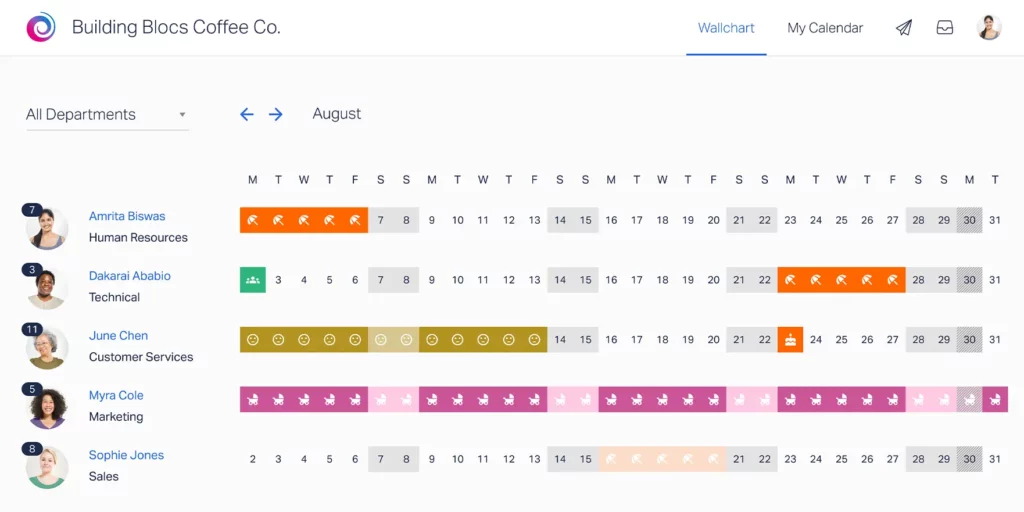
    Public sector (government)

    For federal employees, the 2026 U.S. federal holidays are paid days off. Most agencies are closed on the holiday itself, or on the observed day when the date falls on a weekend. Essential operations (e.g., public safety, transportation security) may still staff shifts, with holiday rules applying per agency policy.

    Observed rule

    • If the holiday falls on Saturday, observed Friday

    • If the holiday falls on Sunday, observed Monday

    Mail (USPS)
    Post offices close, and there’s no regular mail delivery on federal holidays. Self-service kiosks and online services remain available.

    States and cities
    Many state and local governments follow the federal list, though some rename or add holidays (for example, many observe Indigenous Peoples’ Day on the same date the federal calendar lists as Columbus Day). State courts and agencies publish their own calendars, which can differ slightly.

    What this means for you (public-sector workers)
    You can plan around these closures. Court and agency deadlines that would fall on a holiday typically move to the next business day. When in doubt, check your department or court’s posted calendar for confirmation.

    Private sector (most businesses)

    Private employers set their own holiday calendars. Many mirror the federal list because it keeps them in sync with customers, vendors, banks, and government offices, but it isn’t automatic or required by law.

    Common practice

    • Most companies close for the “big six”: New Year’s Day, Memorial Day, Independence Day, Labor Day, Thanksgiving, Christmas.

    • Juneteenth is increasingly included.

    • When a holiday lands on a weekend, many employers observe Friday (for Saturday) or Monday (for Sunday) but policies vary.

    Industries that often stay open
    Hospitals and clinics, airlines and transit, hotels, restaurants, retail, utilities, logistics, and public safety frequently operate on holidays (sometimes with reduced hours).

    Pay and time off

    • There’s no federal requirement for paid holidays or extra “holiday pay.”

    • Overtime depends on hours worked (e.g., over 40 in a week), not the calendar day.

    • Any premium pay, comp time, or extra PTO comes from company policy or a union contract.

    • Some sectors follow separate calendars (e.g., banks often follow the Federal Reserve schedule; stock exchanges publish their own).

    What this means for you (private-sector)
    Don’t assume, check your company’s 2026 holiday memo or handbook. Many firms also give the Friday after Thanksgiving, but some don’t. If you need certainty for travel or childcare, confirm observed dates and any holiday-pay rules with HR in advance.

    Banks, markets, and schools (the gray area)

    Banks

    Not federal agencies, but most follow the Federal Reserve holiday schedule and close their branches on those dates (or the observed date). ATMs and online banking stay available, but processing pauses:

    • Plan payroll, bill pay, ACH, and wires at least one business day earlier.

    • Mobile check deposits made on a holiday usually post next business day.

    • Drive-thru/branch hours can differ from the app, check your bank’s notice.

    Stock & bond markets

    U.S. exchanges (NYSE/Nasdaq) publish their own calendars. They typically close on federal holidays and sometimes close early (often 1 p.m. ET) on certain days—most commonly the day after Thanksgiving (Black Friday), and occasionally around Independence Day or Christmas. The bond market often follows SIFMA recommendations, which can include additional early closes. Always confirm with the exchange or your broker.

    Schools

    Most K–12 districts close on major federal holidays. The Friday after Thanksgiving, winter break, spring break, and teacher in-service days vary by district. Colleges and universities post academic calendars well in advance; campus services may run reduced hours on holidays.

    What this means for you

    • Money moves: Send payroll, invoices, and wires early; expect deposits to settle next business day when a holiday intervenes.

    • Trading: Check your broker’s 2026 market calendar for full/early closes before placing time-sensitive orders.

    • Family logistics: Pull your district’s 2026 school calendar now to plan childcare and travel around long weekends and breaks.

    FAQs

    Are USA Official holidays 2026 automatically paid days off for private employees?

    Not by law. Federal holidays in USA official holidays 2026, are mandatory for federal workers, but private employers set their own rules. Many companies pay for the “big six” (New Year’s Day, Memorial Day, Independence Day, Labor Day, Thanksgiving, Christmas) and often Juneteenth, check your 2026 holiday memo or handbook.

    Tip: If you’re unsure, ask HR for your company’s official 2026 holiday list and whether they offer paid time or premium pay when you work a holiday.

    Do “observed” days (like Fri, July 3, 2026) count the same for pay and time off?

    Usually, yes, if your employer follows the federal pattern. When a holiday falls on a Saturday, many companies observe it on Friday; when it falls on Sunday, on Monday. If your company observes it, it’s treated like the holiday for pay and PTO rules.

    Tip: Put the observed date on your calendar: Independence Day 2026 is Saturday, observed Friday, July 3.

    How do I use the holidays to stretch my PTO?

    Bridge a holiday to the weekend with one or two PTO days.

    • MLK Day (Mon, Jan 19): Take Fri, Jan 16, 4 days with 1 PTO.

    • Presidents Day (Mon, Feb 16): Take Fri, Feb 13, 4 days with 1 PTO.

    • Memorial Day (Mon, May 25): Take Fri, May 22, 4 days with 1 PTO.

    • Juneteenth (Fri, Jun 19): Add Mon, Jun 22, 4 days with 1 PTO.

    • Independence Day observed (Fri, Jul 3): Take Thu, Jul 2, 4 days with 1 PTO.

    • Labor Day (Mon, Sep 7): Take Fri, Sep 4, 4 days with 1 PTO.

    • Veterans Day (Wed, Nov 11): Take Mon–Tue and Thu–Fri, 9 days with 4 PTO.

    • Thanksgiving (Thu, Nov 26):

      • If you get Fri off, take Mon–Wed, 9 days with 3 PTO.

      • If not, take Wed + Fri, 5 days with 2 PTO.

    • Christmas (Fri, Dec 25): Take Mon–Thu (Dec 21–24), 10 days with 4 PTO, or bridge Dec 28–31 to reach New Year.

    Does overtime change if I work on a holiday?

    Under federal law, overtime is based on hours worked (e.g., over 40 in a week), not the holiday itself. Holiday premiums (time-and-a-half, double time) are company policy or union contract decisions.

    Tip: If you’re non-exempt, check both your handbook and state law. Some CBAs add premium pay or comp time for holiday shifts.

    If I’m salaried (exempt), does a holiday reduce my PTO balance?

    If the company closes for the holiday and you perform no work, you’re typically paid without using PTO. If you take extra days around the holiday, those extra days usually do come from PTO.

    Tip: Avoid “just checking in” on closed days, some employers treat that as “worked” and can affect how the day is coded.

    What if I’m part-time or my regular day off lands on the holiday?

    Policies vary. Some employers pro-rate holiday pay for part-time staff; others offer a floating holiday if your regular day off is the holiday.

    Action: Ask HR: “If my schedule skips Monday and the holiday is Monday, do I receive pro-rated pay or a floating day?”

    Can my employer swap a federal holiday for a floating holiday?

    Yes. Private employers can set different holiday mixes (e.g., add a floating day, swap Columbus Day/Indigenous Peoples’ Day, or give Black Friday). Get the 2026 list in writing.

    Do banks and mail closures affect my paycheck?

    They can. USPS and many banks close on federal/observed days, which may delay payroll funding, direct deposits, and reimbursements.

    Plan: Submit timecards early on holiday weeks. If payday falls on a holiday, expect payment the prior business day or the next, per your payroll provider’s schedule.

    When should I request popular holiday PTO to improve my chances?

    As early as your system allows, often 60–90 days ahead for Memorial Day, July 4, Labor Day, Thanksgiving week, and Christmas week.

    Tip: Know the tie-breaker (seniority, lottery, first-come). Offer coverage swaps to help managers approve your request.

    Can I combine sick leave and PTO around holidays?

    You shouldn’t plan sick time in advance. If you become ill near a holiday, normal sick-leave rules apply. Some employers restrict switching a pre-approved PTO day to sick leave after the fact.

    Tip: Read the section in your handbook on “consecutive PTO + sick leave around holidays.”

    I work in healthcare/retail/hospitality. How does PTO work when we stay open?

    Holiday closures may not apply, but you may have holiday premium pay, comp time, or priority access to future PTO, all policy/contract based.

    Ask your manager:

    • Do we pay a holiday premium or give a comp day?

    • How do shift bids work for holidays?

    • Are there blackout dates for PTO?

    I’m remote in another state. Which holiday list applies to me?

    Usually, your assigned work location or company-wide list. Some companies align holidays to your local state; others use HQ.

    Action: Confirm with HR now so you know which USA official holidays 2026 dates your team will observe.

    What happens if a holiday falls during my approved PTO week?

    You’re typically not charged PTO for the holiday itself if the company is closed that day. The rest of the days still deduct from your PTO balance.

    Do schools follow the same holiday schedule (for childcare planning)?

    Mostly for the big days, yes, but districts add in-service days, breaks, and sometimes the Friday after Thanksgiving. Pull your district calendar now and match it to your PTO plan.

    Any quick ways to avoid travel and childcare headaches?

    • Book peak holiday trips 6–12 weeks ahead.

    • Fly early morning or red-eye on heavy days (Tue/Wed before Thanksgiving, Sun after).

    • Line up backup childcare for mid-week holidays like Veterans Day (Wed, Nov 11, 2026).

    • Set bill pay and transfers to one business day earlier in holiday weeks.

    Conclusion

    Use USA official holidays 2026 as your base plan: note the exact dates, the observed Friday/Monday rules, and which services usually close (federal offices, USPS, many banks). Then layer on your own details, your employer’s holiday list, school calendar, and any travel or childcare plans. Put popular PTO requests in early, bridge holidays to weekends for longer breaks, and move payroll/bill payments up when a closure is coming. A few simple steps now will save you stress (and money) later.

    Smarter time off tracking starts here.

  • Smart Vacation Tracker | Employee Leave & Absence Management

    Smart Vacation Tracker | Employee Leave & Absence Management

    Managing employee leave, vacations, and absences is critical for any organization. Without proper systems, businesses risk facing payroll mistakes, project delays, and employee dissatisfaction. A smart vacation tracker solves these challenges by providing a modern, digital solution for employee leave and absence management.


    Instead of relying on outdated spreadsheets or manual updates, companies can use a vacation tracker to automate requests, approvals, and PTO balances, ensuring accuracy, fairness, and transparency.

    What Is a Smart Vacation Tracker?

    A vacation tracker is a tool that allows companies to record, monitor, and manage employee time off in one place. Unlike manual tracking methods, a smart vacation tracker uses automation and real time updates to handle all aspects of leave management. Employees know exactly how many vacation days they have left, managers can see who is off at any given time, and HR no longer has to deal with confusing spreadsheets or endless email threads.

    For example, if an employee requests two weeks off in July, the system automatically checks their balance, applies company rules, and updates the team calendar so managers can plan accordingly. This level of automation reduces confusion and ensures everyone stays on the same page.

    Key Features of a Smart Vacation Tracker

    Automated Leave Requests & Approvals

    With a smart vacation tracker, employees no longer need to send emails or chase down managers for approval. Instead, they can request time off through a web portal or mobile app. The request is instantly sent to the manager, who gets a notification and can approve or decline with just one click. This not only saves time but also creates a documented record of every request.


    For managers, automation means fewer interruptions and faster decision making. For employees, it eliminates the frustration of waiting days for a response. The entire process becomes smooth, professional, and transparent.

    Real Time PTO & Vacation Balances

    One of the most common sources of conflict in leave management is unclear PTO balances. Without proper systems, employees may not know how many days they have left, leading to disputes and payroll issues. A vacation tracker solves this by automatically updating balances after every approval.


    Employees can log in anytime to check their available days, while HR can generate accurate reports instantly. This transparency reduces misunderstandings and ensures everyone has equal access to their leave data. It also encourages employees to actually use their vacation time, supporting work life balance.

    Shared Absence Calendar

    Planning workloads becomes much easier with a centralized absence calendar. This feature shows exactly who is off on any given day, preventing scheduling conflicts. Managers can quickly see if too many people in the same department are taking time off simultaneously and adjust accordingly.

    The calendar can also integrate with tools like Google Calendar, Outlook, Microsoft Teams, or Slack, ensuring that absence information is visible across platforms the team already uses. For businesses with multiple teams or global offices, this centralized visibility is essential for smooth operations.

    Custom Leave Policies

    Not all companies follow the same leave rules, which is why customization is essential. A vacation tracker allows HR to set up unique leave policies tailored to the company’s structure and local labor laws. For example, some organizations may offer unlimited PTO, while others use accrual systems. Some may allow carryover days, while others enforce a “use it or lose it” policy.


    By setting these rules directly into the tracker, businesses ensure consistent application across all employees. This reduces human error and makes it clear for employees exactly what they are entitled to, helping avoid confusion or feelings of unfair treatment.

    Advanced Reporting & Insights

    Beyond day to day tracking, vacation trackers provide valuable analytics. Managers can identify trends, such as frequent absences before or after weekends, and address potential issues like disengagement or burnout. HR teams can monitor leave usage across departments to ensure workloads are balanced.

    For example, if one department consistently takes fewer vacation days, it might indicate overwork or a cultural issue discouraging time off. Reports can also be used for compliance audits, making it easy to demonstrate that the company is following labor laws.

    Mobile Accessibility & Remote Friendly

    In today’s workplace, flexibility is key. Employees expect to manage their leave just like they handle other tasks on their smartphones. A vacation tracker with a mobile app allows employees to request leave, check balances, and view the absence calendar anytime, anywhere.


    For managers, this means they can approve or decline requests even when traveling or working remotely. For global teams across different time zones, this level of accessibility ensures that leave management never gets delayed, keeping workflows smooth and responsive.

    Smarter time off tracking starts here.

    Benefits of Using a Vacation Tracker

    • Saves Time for HR & Managers:  Automation eliminates repetitive tasks like updating spreadsheets or answering balance inquiries, freeing HR to focus on strategic initiatives.

    • Reduces Errors: With automatic calculations and payroll integrations, mistakes in PTO balances or salary adjustments become a thing of the past.

    • Improves Employee Satisfaction:  Transparency builds trust. Employees appreciate knowing their requests are handled fairly and efficiently.

    • Boosts Productivity: With real time calendars and reporting, managers can allocate resources better and avoid being caught off guard by unexpected absences.

    • Supports Compliance:  Automated systems keep accurate records that comply with labor laws, reducing the risk of fines or disputes.

    • Encourages Work Life Balance: By making vacation tracking easy and transparent, companies encourage employees to actually take time off, reducing burnout.

    • Scales with Growth: Whether a company has 10 employees or 10,000, a vacation tracker adapts, making it a long term solution.

    Why Businesses Need Smart Absence Management

    Absences are a natural part of work life, but when poorly managed, they create serious disruptions. For example, if two key employees take the same week off, a project might miss its deadline. If HR miscalculates PTO, employees may feel cheated, harming morale and trust.

    A smart vacation tracker allows businesses to move from reactive to proactive absence management. Instead of scrambling when issues arise, managers can plan ahead with accurate data and forecasting. This keeps operations running smoothly while ensuring employees are supported.

    FAQs

    What is the best vacation tracker for medium to enterprise businesses?

    For medium to large organizations, the best vacation tracker is one that scales smoothly as teams grow. Look for a solution like Day Off that supports multiple departments, custom approval workflows, and region-specific policies while remaining easy to use. It should integrate with your HR and payroll systems, provide role-based access, and offer analytics that help you plan resources more effectively. A well-designed platform streamlines leave management across the company, reduces administrative load, and gives everyone, from HR to managers to employees, clarity and control.

    Can employees check their remaining vacation days?

    Yes. A good vacation tracker updates leave balances in real time. Employees can log in anytime, on desktop or mobile, to see how many days they have left, what’s pending approval, or what’s already been used. No more emailing HR just to confirm your balance.

    Does a vacation tracker also cover sick leave and public holidays?

    Absolutely. Most systems let you customize different leave types, so you can manage vacation, sick days, unpaid leave, maternity or paternity leave, and even public holidays all in one place. Everything is tracked consistently and automatically reflected on the calendar.

    How does a vacation tracker help HR managers?

    It takes a lot of repetitive work off HR’s plate. Instead of juggling spreadsheets, HR teams get automatic updates, ready-to-export reports, and built-in compliance features. It reduces human error, prevents scheduling conflicts, and keeps payroll accurate, freeing up time for more meaningful tasks.

    Is my team’s data safe in a vacation tracker?

    Yes. Trusted providers use encrypted cloud storage, secure servers, and follow data protection laws such as GDPR. Role-based access ensures only the right people can view sensitive information. Your team’s data is stored safely and backed up automatically.

    Can it support remote or global teams?

    Yes. The best trackers are designed for hybrid and international workforces. They handle multiple time zones, currencies, and region-specific holiday calendars, so everyone’s leave is calculated fairly and accurately, no matter where they’re based.

    Does it integrate with other tools we use?

    Many vacation trackers connect easily with payroll software, calendars like Google or Outlook, and chat tools such as Slack or Microsoft Teams. Once a leave request is approved, it automatically appears in your systems, no extra work required.

    What about part-time or hourly employees?

    Modern leave systems can prorate leave automatically based on contracted hours or work schedules. That means part-timers get fair, accurate leave balances without extra manual calculations.

    Can managers approve requests on mobile?

    Yes. Most tools send instant notifications to managers, who can approve or decline leave directly from their phone. It’s quick, easy, and keeps things moving even when people are on the go.

    Does a vacation tracker help with compliance?

    Definitely. It helps ensure the business follows labor laws and internal policies by automatically enforcing rules, like not exceeding balances or honoring mandatory public holidays. It also keeps an audit trail, which is useful during inspections or disputes.

    Can it remind employees to actually take their vacation days?

    Yes. Many platforms include gentle reminders for employees who haven’t used their time off in a while. Encouraging regular breaks helps prevent burnout and keeps productivity high.

    How long does setup take?

    Usually just a few minutes. Most vacation trackers are designed for self-setup, add your team, define policies, import existing balances, and you’re ready to go. Some tools even offer onboarding help if you prefer a guided start.

    Is it worth it for a small business?

    Definitely. Even for a small team, a vacation tracker pays for itself in time saved, fewer errors, and better transparency. It helps everyone stay organized, from HR to managers to employees.

    Final Thoughts

    A smart vacation tracker is more than a convenience it’s a necessity for modern businesses. By automating leave requests, ensuring accurate balances, and providing transparent reporting, it improves efficiency, compliance, and employee satisfaction.

    For businesses, it means fewer disruptions and better planning. For employees, it means fair and stress free leave management. Ultimately, a vacation tracker is not just about tracking days off it’s about building a healthier, more productive workplace.

  • Leave Tracking App: Simple PTO with Day Off

    Leave Tracking App: Simple PTO with Day Off

    Spreadsheets and email threads weren’t built to manage vacations, sick days, parental leave, and public holidays. A modern leave tracking App centralizes policies, requests, approvals, balances, and calendars so your team can plan confidently and payroll stays clean. This guide breaks down what a leave tracking App should actually do, how to evaluate one in the real world, and how to roll it out without drama. Then we dive deep into Day Off, features, pricing, where it shines, and how to deploy it fast.

    What a leave tracking App really does (and why it matters)

    A good leave tracking App does four things: capture requests, route approvals, keep accurate balances, and show who’s off. The small stuff,partial days, time zones, carryover, delegation, conflicts, and audit trails, turns it from a tool people avoid into one they love.

    Capture requests without policy back-and-forth

    Employees should be able to ask for time off in minutes, on the web or mobile, and get instant, helpful checks while they fill the form.

    • Smart checks in real time: Enough balance? Any blackout dates? Is a doctor’s note required? The app tells you up front.

    • Friendly guidance, not errors: If the balance is short, show how much is missing and when the next accrual lands. If dates hit a blackout, suggest nearby dates.

    • Clear forms, fewer clicks: Pick dates, type of leave, optional notes, upload documents, done.

    • Local awareness: Public holidays and time zones are built in so people don’t need to guess.

    • Clean record from the start: Every request gets a neat summary (dates, hours/days, balance impact) so there’s no messy follow-up later.

    Result: fewer “Is this allowed?” pings and a request that’s correct the first time.

    Route approvals to the right humans (fast)

    Approvals should be quick and obvious, no chasing, no mysteries.

    • Right approver automatically: The app knows the manager, plus a backup when they’re out.

    • Single or multi-step flows: Some teams need only the manager; others need HR or project leads too. Both are easy.

    • One-tap approvals anywhere: Approve in the app, email, or chat (Slack/Teams) with context attached.

    • Useful context included: Dates, leave type, balance change, and who else is off to avoid coverage surprises.

    • Gentle nudges and escalations: Automatic reminders if something sits too long, with a clear audit trail of who did what and when.

    Result: requests don’t linger in “pending,” and teams keep moving.

    Keep a precise, auditable ledger

    This is the hard part: the math. If the ledger is right, payroll is quiet and employees trust the numbers.

    • Accruals that match policy: Monthly, bi-weekly, or hire-anniversary accruals; part-time and variable schedules supported.

    • Carryover rules handled: Caps, expiries, and grace periods applied automatically.

    • Proration done right: Joiners, leavers, mid-year changes, unpaid leave, balances adjust cleanly.

    • Fair increments: Half-days or hours, minimums, and rounding rules that you control.

    • Corrections with receipts: Admins can fix mistakes with notes, and every change is logged for audit.

    • Snapshots and exports: See balances “as of” a date; plug clean data straight into payroll and reports.

    • Multi-country ready: Public holidays, local rules, and different leave types (paid, unpaid, parental, sick) in one place.

    Result: accurate balances, fewer disputes, and a smooth month-end.

    Make availability visible to everyone who needs it

    When people can see who’s away, planning gets easier and there are fewer surprises.

    • Shared team calendar: Color-coded by leave type, filterable by team, location, or project.

    • Personal dashboards: Each person can see current balance, upcoming requests, and simple forecasts (“After this trip, you’ll have 3 days left.”).

    • Calendar sync: Push to Google/Microsoft calendars so schedules stay in one view.

    • Privacy controls: Show just enough detail, reason or no reason, based on your policy.

    • Manager views and reports: Spot coverage gaps, plan staffing, and export what payroll needs in seconds.

    Result: fewer “Who’s off next week?” messages, better coverage, and calmer planning.

    15 must-have capabilities (with practical explanations)

    Flexible leave types & policies

    Real life is more than vacation and sick days. You’ll probably need parental, bereavement, unpaid time, volunteering days, study leave, and country-specific categories. A good app lets you create as many types as you need, set simple rules for each one, and update those rules without calling engineering. That means you can respond to policy changes quickly and keep everything consistent for everyone.

    Multiple accrual models

    Not every company earns time off the same way. Some grant days once a year, others accrue monthly or every payroll, and many reset balances on the hire anniversary. You also need clean proration for people who join or leave mid-year and accurate payouts at termination. The right app handles all of this so you’re not fixing edge cases in spreadsheets.

    Carryover controls with caps and expiry

    Without limits, old leave piles up and planning becomes a headache. Carryover rules help you set clear boundaries, like how much can roll into the next period and when leftover days expire. When the app applies those rules automatically and warns people ahead of time, employees plan better and you avoid the last-minute rush to use up days.

    Approval workflows you can actually change

    Different teams need different approval paths. Sometimes the manager is enough; other times HR or a project lead must sign off, and managers need a delegate while they’re away. A flexible workflow editor lets you set the path by team, leave type, or person and adjust it as your organization changes. The result is fast, predictable approvals without IT tickets.

    Org modeling for teams, locations, and calendars

    Distributed companies run on different schedules. Working days and public holidays vary by location, and policies can change by role or region. Your app should understand teams inside teams, multiple offices, and time zones so balances and rules are always right. When the structure matches your org, you get fewer policy disputes and cleaner math.

    Calendar sync with Google and Outlook

    People already live in their calendars, so approved leave should show up there automatically. Personal calendars keep individuals organized, and shared team calendars help everyone spot conflicts early. With instant updates and privacy-friendly titles when needed, you move from reactive fire-fighting to proactive planning.

    Chat integrations for Slack and Microsoft Teams

    Workflows are faster when they happen where people talk. If employees can request time off, check balances, and managers can approve directly in chat, you cut delays and boost adoption. Helpful notifications with context reduce “Did you see this?” messages and keep everyone in the loop without switching apps.

    Balances in hours and days

    Day-based balances don’t fit every role. Part-time schedules, variable shifts, and hourly work need hour-level precision, while others prefer simple day counts. A good system lets you mix both, convert cleanly when policies change, and keep the math transparent. That fairness builds trust and stops confusion.

    Blackouts, minimum staffing, and warnings

    Some periods are too critical for many people to be off at once. Blackout dates and minimum staffing rules protect launches, quarter-end, and support coverage. When the app warns or blocks requests at the time of entry, you avoid awkward reversals later and keep service levels steady.

    Self-service for employees and managers

    Everyone should have answers without pinging HR. Employees need to see their balance, upcoming time off, and the rules that apply to them. Managers need a clear view of who’s out, quick approvals, and simple filters to check coverage. When the basics are self-serve, HR can focus on exceptions, not lookups.

    Bulk admin actions and imports

    Setup and reorganizations are easier with bulk tools. You’ll want to import employees, set opening balances, move people between teams, and fix historical quirks in one go. Safe previews and the ability to undo mistakes make big changes less risky and save hours of manual work.

    Clean audit trails and helpful notifications

    Trust depends on clear records. Every request, approval, change, and balance movement should have a timestamp, a user, and a reason. Notifications that summarize what changed reduce status checks and long email threads. With a reliable trail, questions get answered quickly and disputes fade.

    Reports and exports for payroll and HRIS

    End-of-period work should not mean copy-paste marathons. You need simple summaries for each period, detailed ledgers per employee, and accurate “as of” snapshots. Clean CSVs, scheduled exports, and APIs or connectors feed your payroll or HRIS automatically, so pay is right and reconciliation is calm.

    Mobile apps managers actually use

    Approvals shouldn’t wait for laptops. A fast, reliable mobile app lets employees submit from anywhere and managers approve with context in a few taps. Push notifications bring the right details to the lock screen, and quick comments or document uploads keep the process moving while people are on the go.

    Security you can explain to your compliance lead

    Security should be clear, not mysterious. Data needs strong encryption in transit and at rest, backups with defined recovery goals, and hosting in audited environments. Role-based access, SSO and SCIM, and separation of duties keep permissions tight, and data residency options help you meet regional requirements. When you can explain the setup in plain language, audits go smoother and risks drop.

    When all fifteen work together, flexible policies, accurate math, smooth approvals, clear visibility, and strong security, you end up with a leave system people trust and actually enjoy using.

    Deep dive: Day Off Vacation Tracker

    Day Off Vacation Tracker is a cloud-based leave tracker with a clean interface and quick setup. It’s popular with small and mid-size teams and works for distributed orgs too. The core idea is simple: make requests easy, approvals fast, math correct, and calendars in sync, without forcing HR to babysit the process.

    Custom leave categories, rules, and rollover

    You can define your own leave types, beyond basic vacation and sick, and set rules for each type. Policies support balances in days or hours, and you can turn carryover on with caps and optional expiry, so unused time doesn’t pile up forever. The admin screens and knowledge base cover creating types, setting units (days vs. hours), and applying carryover limits with expirations.

    Teams, locations, and a shared calendar

    Teams get a shared calendar that shows official holidays alongside approved requests, so managers can spot conflicts early. You can add or localize holidays per location and keep a consistent view of who’s out across offices and time zones.

    Automatic calendar updates to Google & Outlook

    Approved time off can flow straight into Outlook and Google Calendar. Day Off has dedicated pages for both integrations and support syncing your own events, your team, or your subordinates, so the right people see the right availability without manual entry.

    Work where you chat: Slack & Teams

    Employees can request time off, and managers can approve right from Slack or Teams. Day Off provides a Slack app and a Teams integration so requests, balances, and notifications live where your team already works, reducing pings and speeding decisions.

    iOS and Android, done right

    iOS and Android apps make on-the-go requests and approvals simple. That’s helpful for hybrid teams, frontline staff, and managers who aren’t always at a desk. With a leave tracking App in your pocket, employees can submit PTO, add notes or attachments, and check balances in seconds, while managers approve with a tap. Push notifications reduce approval lag, and mobile calendars make it easy to see who’s out next, even across time zones. Secure sign-in and one-tap actions keep workflows moving without a laptop.

    Plans and pricing (as of Sep 2025)

    The Free plan targets small teams and includes up to 10 employees with a single approver, single policy, single team, and single location. The Pro plan is USD $2 per employee per month (minimum $20) and unlocks unlimited employees, multi-approver workflows, multi-team/location support, and integrations like Google, Outlook, Slack, and Teams. Check the pricing page for any changes before you buy. With a Lite package ($1 per person/month): limited number of employees, daily leave types, and up to 3 policies.

    Startup

    Free
    • 10 Employees
    • Single Approver
    • Single Policy
    • SingleTeam
    • SingleLocation

    Startup

    $1 Lite Package
    • 25 Employees
    • Single Approver
    • Three Policies
    • Unlimited Team
    • Unlimited Locations

    Startup

    $2Pro
    • Unlimited
    • Multi Approvers
    • Multi Teams
    • +5 Integrations
    • 24/7 support

    A step-by-step implementation blueprint

    Draft your policy on paper first

    Write the rules before you touch settings. Define your leave types, who’s eligible, how time accrues (grant vs. monthly vs. per-payroll), carryover caps and expiry, when documentation is required, and any blackout periods. Decide these now so configuration mirrors reality on day one.

    Day Off example: You’ll map each leave type and rule later under Policies; having the decisions ready makes setup fast and avoids rework.

    Create the workspace and model your org

    Start by reflecting how your company actually operates. Add locations with their working days and local holidays. Create teams and sub-teams that match your org chart so calendars and approvals make sense to managers.

    Day Off example: Create your company workspace, add locations with regional calendars, then build teams and sub-teams so calendars roll up neatly.

    Configure accruals and carryover

    Set grant sizes, choose the cadence (monthly, bi-weekly, anniversary), and define proration rules for joiners and leavers. Turn on carryover with caps and optional expiry to prevent balance creep. Test the math with a few real employee histories to catch edge cases early.

    Day Off example: Configure accrual rules per leave type, enable carryover with caps/expiry, then run spot checks by impersonating three real profiles with different hire dates.

    Set approval routing

    Keep it simple to start: one approver per employee. Add a second approval level only where risk is higher or coverage is critical. Always assign a delegate so requests don’t stall when someone’s away.

    Day Off example: Set each employee’s primary approver, add level-two approvers for sensitive teams, and assign time-boxed delegates for vacations.

    Connect calendars and chat

    Sync approved leave to Outlook and Google so visibility lives where people already plan their weeks. Enable Slack or Teams so employees can request and managers can approve without leaving the chat. Adoption increases when the app appears in the calendar and chat.

    Day Off example: Enable Outlook/Google sync for teams and managers; install the Slack or Teams app so “request,” “approve,” and “check balance” work in chat.

    Import people and seed opening balances

    Load employees, assign them to the right teams and locations, and add starting balances. Always spot-check a sample to make sure names, managers, and balances are correct before go-live.

    Day Off example: Use the bulk import to load users and balances, then sanity-check about 10% across different teams and employment dates.

    Pilot for two weeks

    Roll out to one team first. Watch where they stumble and fix the friction fast, policy text, notifications, blackout rules, or approval routing. Track a few simple metrics: approval cycle time, rejections for policy reasons, and balance corrections.

    Day Off example: Give the pilot team the chat commands and calendar sync, then review the audit log and notifications to see where delays happen.

    Company-wide launch with a one-pager

    Share a simple “How to request leave” guide and a 60-second video. Ask managers to approve from chat to keep the cycle time short. Make it clear where to see balances and the team calendar so HR doesn’t become a help desk.

    Day Off example: Link employees to the web and mobile flows; include the team calendar URL and the chat slash-commands in your one-pager.

    Month-one review and tune

    After four weeks, adjust what people actually used: tighten or loosen notifications, tweak calendar visibility, and set carryover warnings to fire earlier if needed. Lock your reporting/export cadence with payroll so month-end is calm.

    Day Off example: Schedule a monthly balance snapshot, confirm the export format payroll wants, and set reminders for pending approvals that age past two days.

    Day Off App – for Medium & Entrepreneurial Teams

    Policy design tips you’ll thank yourself for later

    • Use hours for part-timers; days for everyone else. Mixing units by policy keeps math fair without awkward conversions. If you later change a team’s unit, document the conversion rule so people understand their new balance.

    • Set carryover caps and expiries. Caps stop balances from inflating; expiries nudge people to actually take time off. Add friendly reminders a few weeks before expiry so employees can plan instead of scrambling.

    • Explain exceptions in plain language. If negative balances are allowed, if medical documentation is required, or if probation limits apply, write it clearly in the policy and mirror it in the app so approvals don’t become debates.

    • Map holidays per location. Multi-country or multi-state teams need the right public holiday calendars attached. This prevents accidental denials, surprise approvals, and mismatched balances.

    • Always define a handoff. Every approver should have a named delegate with a clear start and end date. That way, the system, not an email thread, is your single source of truth for “who approves when my manager is out?”

    FAQs

    Does Day Off support comp time / TOIL?

    Yes. Create a “Comp Off” leave type that reflects your policy, full days, half-days, or hours, and route it for approval like any other request. You can require notes or proof (e.g., weekend shift) and decide whether it accrues separately or simply deducts from a comp-time balance. It then appears in balances, calendars, and reports so payroll and managers see it clearly.

    How many approvers can we assign per person?

    Up to two. You can run true two-step approvals (for example, Manager/HR) and set temporary delegates so requests don’t stall when someone is away. Many teams start simple with one approver and add a second only for sensitive roles or peak seasons; Day Off lets you switch that per employee or team without re-onboarding.

    Can we block critical dates so people can’t book leave?

    Yes. Use Blockout Dates to hard-block requests during launches or quarter-end, or set soft warnings that still allow exceptions. You can scope these windows by team or location, add a reason so employees understand the rule, and grant one-off overrides with a note for the audit trail.

    Will calendars update automatically, and can managers see team/subordinate time off?

    Yes. Approved leave can sync to Google Calendar and Outlook, so visibility lives where people plan their week. Managers can view team and direct-report time off, and you can choose privacy settings (busy-only titles vs. named leave types) to match your policy. Changes and cancellations update calendars automatically, so schedules stay accurate.

    Can we mix hours and days?

    Yes. Balances can be tracked in days or hours, which is ideal if you have part-timers, variable shifts, or hourly roles alongside standard day-based staff. Pick the unit per policy, keep your conversion rules documented if you ever switch, and report across both without losing clarity for payroll.

    Does it handle multiple locations and local holidays?

    Yes. Set up locations with their working days and public holiday calendars, then assign teams and people accordingly. This keeps accruals, blackouts, and availability aligned to local rules, useful for distributed orgs where weekends and holidays differ, and essential to avoid accidental approvals or denials.

    Can employees and managers work directly in Slack or Microsoft Teams?

    Yes. Employees can request time off, check balances, and see status updates in chat, while managers approve with one click and get reminders if something sits too long. This reduces context-switching, shortens approval cycles, and keeps a clean audit trail tied to the original chat action.

    Is there a mobile app?

    Yes. Native iOS and Android apps let employees submit requests with notes or attachments and let managers review, comment, and approve on the go. Push notifications surface new requests and changes immediately, and the mobile calendar view helps everyone see upcoming absences without opening a laptop.

    What about importing our people and starting balances?

    There’s a bulk import using a CSV/Excel template with a preview step before you commit changes. You can load employees, assign teams and managers, and seed opening balances in one pass, then run a quick spot-check to catch typos or mismatched managers. All imports are logged so you can trace who changed what and when.

    How long is the Pro free trial?

    Day Off offers a Pro trial, but the exact length can vary. Check the live pricing page or ask sales to confirm before you start, and verify what happens to your data when the trial ends. It’s smart to test a full cycle, including requests, approvals, exports, during the trial and keep an export of your configuration and sample reports for comparison.

    Conclusion

    Spreadsheets and email threads weren’t built for PTO. A modern leave app brings policies, requests, approvals, balances, and calendars into one place so people can plan with confidence and payroll stays quiet. In this guide, we showed what “good” really means, the four core jobs, the 15 capabilities that prevent rework, and a rollout blueprint you can follow step by step.


    If Day Off fits your stack, the path is straightforward: model your locations and teams, set accruals and carryover, wire up calendars and chat, import people and balances, pilot for two weeks, then tune and launch. Validate your edge cases, anniversary grants, probation rules, and payouts, and you’ll have a system that’s fast to use, easy to trust, and simple to audit.


    Bottom line: pick a tool that gets the math right, removes approval friction, and makes availability visible. Do that, and you’ll swap chaotic PTO admin for calm, predictable planning.


    Smarter time off tracking starts here.

  • Vacation Tracking App: PTO& Leave Tracker

    Vacation Tracking App: PTO& Leave Tracker

    Keeping track of who’s off, and when, doesn’t have to be a maze of spreadsheets, email threads, and calendar chaos. A modern vacation tracking app centralizes requests, approvals, balances, holidays, and reporting so your team can plan confidently and managers can keep work humming along. This page breaks down what to look for in a vacation tracker and highlights how Day Off can streamline time‑off management for teams of any size.

    What is a vacation tracking app?

    A vacation tracking app (often called PTO or leave management software) is a dedicated system for submitting, approving, recording, and reporting employee time off. Instead of juggling multiple tools, everything lives in one place: employees see their balances, managers review requests with context, and administrators export accurate records for payroll and planning. The strongest apps also automate accruals, carryovers, and resets, enforce policy rules (like black out dates or minimum notice), and sync with calendars so visibility extends beyond HR to the rest of the organization.

    Why it matters

    • Clarity for employees: Staff can check real time balances, understand how pending requests affect them, and preview future accruals. This transparency removes guesswork (“Do I still have PTO left?”) and reduces back and forth with managers or HR. Clear visibility also helps people plan responsibly around teams and deadlines.

    • Control for managers: Approvals happen with full context: who else is off, project deadlines, and coverage needs. Managers can set approval paths (e.g., direct manager, department head) and apply rules like maximum concurrent absences. The result is fewer conflicts and a more predictable workload.

    • Accuracy for HR/Finance: Properly configured rules eliminate manual math. The system logs who approved what and when, making audits easier and helping payroll reconcile paid vs. unpaid time. Consistent records also support compliance with local labor requirements.

    • Less overhead: Automated notifications, calendar sync, and one‑click exports replace manual updates. That means fewer interruptions, lower administrative burden, and more time for strategic work rather than chasing spreadsheets.

    Meet Day Off Vacation Tracker

    Day Off is a lightweight, cloud‑based vacation & PTO tracker built for real‑world teams. It focuses on the parts of leave management people touch every day, requesting time, approving it quickly, and seeing who’s out, without forcing you into a heavy HR suite. It supports multiple leave types (PTO, sick, parental, unpaid, custom) and lets you tailor policies, accruals, and approvals to match how your organization already works.

    At a glance:

    • Simple, fast setup, no heavy implementation: Create a workspace, add your policy, invite your team, and you’re live. No consultants, no months‑long rollout.

    • Clear employee self‑service and manager dashboards: Employees request from desktop or mobile, while managers get a clean queue with conflict indicators and notes.

    • Flexible policies per team or location: Define different allowances, accrual rates, and holidays for each team, country, or union group without maintaining separate tools.

    • Calendar views for who’s out and when: Team and company calendars make staffing gaps visible ahead of time so project plans stay realistic.

    • Integrations for the tools you already use: Connect to shared calendars and chat apps so requests, approvals, and visibility live where your team is already working.

    Core features you’ll actually use

    Employee self-service

    Employees can request time off in seconds from web or mobile, single day, multi-day, or even partial day to keep schedules precise. Each request includes notes and a chosen leave type, and the system shows real time entitlements: current balance, what’s already used, what’s pending, and a projected balance after the request. That clarity cuts back and forth (“How much do I have left?”) and gives people confidence before they press submit.

    Approvals & workflows

    Start with a simple one step approval for most teams, then layer in a second step for sensitive roles like finance or field operations. Approvers are assigned by person, team, or location so requests always land with the right decision maker, even as people move around the org. Email and chat notifications follow each request from submission to decision, and gentle reminders nudge overdue approvals so nothing stalls.

    Policies & accruals

    Track every kind of leave, PTO, sick time, volunteer days, study leave, or any custom category, with clean color coding and quick filters. Accruals mirror your policy exactly: annual grants, monthly or biweekly accruals, and tenure based tiers are all supported, with automatic balance calculations. Carryover rules keep liabilities in check through configurable caps, expirations. Balances can reset on the calendar year, fiscal year, or each employee’s work anniversary to match your HR calendar.

    Scheduling & visibility

    Team calendars make it effortless to see who’s out by day, week, or month. Filter by team, location, role, or leave type to plan coverage at a glance. Country specific public holidays are imported so you don’t overbook or deny legitimate time off, and conflict indicators flag overlapping absences before an approver hits “approve.”

    Reporting

    Generate date-bounded exports for payroll or leadership in a couple of clicks, by person, team, or leave type, so pay runs and quarterly reviews stay tight. Built in insights surface patterns like frequent Friday/Monday absences, under used entitlements, and teams operating near minimum staffing, helping managers take action rather than guess.

    Integrations

    Approved time flows automatically to Google Calendar and Outlook so meetings and deadlines reflect reality. Slack and Teams integrations let people submit, approve, and check status right where they already work, trimming inbox clutter and speeding up decisions.

    Pricing at a glance

    Startup

    Free
    • 10 Employees
    • Single Approver
    • Single Policy
    • SingleTeam
    • SingleLocation

    Startup

    $1 Lite Package
    • 25 Employees
    • Single Approver
    • Three Policies
    • Unlimited Team
    • Unlimited Locations

    Startup

    $2Pro
    • Unlimited
    • Multi Approvers
    • Multi Teams
    • +5 Integrations
    • 24/7 support

    Day Off keeps pricing straightforward so teams can start fast and scale without surprises. Basic (Free) is perfect for small teams piloting a structured PTO process: request and approve time off, run a single policy per team or location, view team calendars, and export what payroll needs. It’s everything you need to move off spreadsheets, without spending a cent.


    Pro (Paid) adds the muscle for growing organizations. You get multi step approvals for sensitive roles, support for multiple teams and locations, richer reporting that surfaces trends and exceptions, and deeper integrations that plug into your existing tools. The emphasis is governance and cross-team visibility while staying lightweight and affordable.


    Smart path to value: Start on Free to validate policy settings and drive adoption. When you’re ready for multi team policies, tighter auditability, or integrations that automate the busywork, upgrade to Pro in place, no data migrations, no reset for your users.

    Integrations & calendar sync

    A great vacation tracker meets people where they already work. Day Off pushes approved leave to shared calendars so project managers, recruiters, and stakeholders plan around real availability, not guesswork. Chat integrations bring the workflow into Slack and Microsoft Teams, so managers can review requests from a notification, approve in seconds, and keep queues moving. For distributed companies, spread across time zones and functions, this shared visibility turns potential surprise gaps into smooth, predictable coverage.

    Mobile access

    With iOS and Android apps, PTO becomes truly self service. Employees can submit requests in seconds, include context like travel dates or handoff notes, and check real time balances from anywhere. Managers get push notifications and can approve with a tap, handy in meetings, on-site visits, or while traveling. The result is a faster loop, fewer inbox pileups, and a time off process that keeps pace with how your team actually works.


    How to set up Day Off in under an hour

    Create your workspace

    Go to Day Off and spin up your workspace with the company name and default timezone/first day of week. Don’t stress over perfection here; you can refine later. The goal is to get a working shell so the rest of the setup has a place to live.

    Define leave types

    Add the few categories you’ll truly use (e.g., PTO, Sick, Unpaid). For each, decide whether it accrues over time or is a fixed grant. Keep names short and unambiguous, and set visibility so employees only see what applies to them.

    Set accrual rules

    Choose grant vs. accrual, then lock in frequency (annual, monthly, weekly, semi-monthly, or biweekly). Add carryover caps (how much can roll forward) and expiration windows (when rolled days expire). The system will handle the math; your job is to reflect your policy exactly as written.

    Import public holidays

    Select the countries/regions where your teams work so non-working days land on the calendar automatically. This prevents accidental denials on public holidays and gives managers realistic views of coverage.

    Create teams/locations & assign approvers

    Mirror your org: define teams and locations, then assign a primary approver to each. Add a backup approver for resilience, vacations and out-of-office shouldn’t stall decisions. If some roles need tighter control, you can layer in multi-step approvals later.

    Add employees

    Invite people by email or import an Excel sheet that includes start dates, locations, leave policies. This ensures everyone starts with accurate entitlements and prevents “My balance looks off” on day one.

    Connect integrations

    Turn on calendar sync (Google/Outlook) so approved leave appears where everyone already plans their week. Enable chat approvals (Slack/Teams) and set notification preferences so reminders go to the right channels, fewer emails, and faster responses.

    Test end to end, then launch

    Run a dry run: submit a request, approve it, confirm it appears on calendars, and verify it shows up in reports/exports. When everything checks out, announce the rollout with a simple one-pager that explains how to request, how approvals work, and who to contact for balance questions.

    Who benefits most

    Large companies & distributed enterprises

    Standardize policy without flattening local nuance. Use multi step approvals and clear audit trails to balance governance with speed, apply team/location specific rules to handle complexity, and rely on calendar/chat integrations to keep decisions moving across time zones. Reporting at scale surfaces coverage hotspots and entitlement trends so leaders can act before issues escalate, all while working alongside your existing HR and payroll systems, not replacing them.

    Small & midsize businesses

    Roll out structured PTO in minutes, not months. Day Off gives lean People teams a clean approval flow, accurate balances, and team calendars without buying a full HR suite or retraining the whole company. Managers get the signal they need; employees get self-service clarity.

    Agencies & consultancies

    Protect delivery timelines with real visibility. Conflict alerts and partial day requests help you staff around client deadlines, while calendar sync keeps project leads and account managers aligned. Reporting surfaces patterns early so you can rebalance before it hurts a milestone.

    Nonprofits & schools

    Support varied contracts and regional realities. Handle part time and seasonal schedules, respect local public holidays, and track unique categories like volunteer or study leave. Approvals can mirror campuses or programs, keeping governance tight without adding admin overhead.

    Retail, hospitality, & field teams

    Built for shift work and on the floor operations. Mobile requests and tap to approve keep lines moving, location specific policies prevent mistakes, and backup approvers keep coverage decisions from stalling when a manager is off duty.

    How Day Off compares to spreadsheets and heavy HR suites

    Versus spreadsheets

    Spreadsheets work, until they don’t. As headcount and policies grow, versions drift, formulas break, and no one is sure which tab is “the truth.” Day Off gives you a single, reliable source of data: accruals, carryovers, and balance resets calculate automatically; reminders keep approvals moving; and every action is time-stamped for auditability. Employees see real time balances before they submit, managers approve in context, and admins stop firefighting formula errors.

    Versus all-in-one HR suites

    Big suites do everything, which often makes simple PTO feel slow and complicated. Day Off focuses on time off, so setup is fast, training is minimal, and adoption sticks. You keep your current HR/payroll stack, pay only for what you use, and still get the flexibility enterprises need, policies by team or location, multi step approvals for sensitive roles, and native calendar/chat integrations, without a months-long implementation.

    Bottom line: Day Off replaces your spreadsheet without replacing your HR system, delivering speed, accuracy, and control where they matter most.

    FAQs

    Can employees submit partial-day requests from mobile?

    Yes, on iOS, Android, and web, employees can request single , multi , or partial day leave (by hours or start/end time), add notes, choose a leave type, and preview their balance impact before submitting. They receive status updates and notifications after submission, so they always know where the request stands.

    How do approvals work across different teams and locations?

    Requests can be routed by person, team, or location. Use one-step approvals for most cases, or enable multi step flows for sensitive roles or departments. Add delegate/backup approvers to prevent bottlenecks when someone is away.

    Will managers get notified automatically?

    Yes. Managers receive email and chat notifications for requests in their approval scope, plus automatic reminders for overdue items. To ensure the right people are notified, include the manager in the approval path; you can optionally add an admin as a second step for oversight and escalation.

    What leave types can we track?

    You can track PTO, Sick, Unpaid, Volunteer, Study, and any custom leave type you define. Color coding and filters keep calendars and reports easy to read. Each leave type can have its own accrual, carryover.

    Can we mirror our accrual policy exactly?

    Yes. Configure annual grants or monthly/biweekly accruals, add tenure-based tiers, and apply proration and rounding rules so balances calculate precisely. You can also allow or prevent negative balances and make the calculation visible to employees for full transparency.

    Do you support carryover limits and expirations?

    Yes, set carryover caps, define use by dates. The system enforces these rules automatically at reset, updates balances for you, and can warn employees when time is close to expiring to encourage timely use.

    When do balances reset?

    You can reset on the calendar year, fiscal year, or each employee’s work anniversary. First year employees can be prorated automatically, and midyear policy changes can be applied..

    Can we import public holidays?

    Yes. Import country or region specific public holidays per location so calendars reflect non working days automatically. You can also add company wide holidays and location specific custom days, helping teams avoid conflicts and plan staffing across time zones.

    Conclusion

    A well chosen vacation tracking app removes the friction from time off management by centralizing requests, approvals, balances, and reporting in one place. With automated accruals and carryover rules, calendar sync, and mobile access, teams get real time visibility while HR and finance gain clean, audit ready records. The result is fewer scheduling surprises, stronger compliance, and happier employees, without the spreadsheet chaos.

    Smarter time off tracking starts here.

  • Vacation Tracking for Remote and In-Office Employees: A Complete Guide

    Vacation Tracking for Remote and In-Office Employees: A Complete Guide

    Vacation tracking isn’t just about counting days off, it’s a vital part of how an organization protects employee well-being, ensures proper coverage, stays compliant with labor laws, and manages workloads fairly. In hybrid environments, the challenge grows: multiple time zones, varying public holidays, asynchronous approvals, and uneven visibility into who’s away can all create friction. This guide walks you through how to design a clear time-off policy, choose the right tools, implement efficient workflows, and track results for teams that blend remote and in-office work.

    Why vacation tracking matters

    • Well-being and retention: Time off isn’t optional, it prevents burnout. Teams where people actually take vacations tend to stay longer and perform better. Tracking makes it normal and easy to plan.

    • Smooth operations: When absences are visible and scheduled, there are no surprises. Customers are still supported, projects keep moving, and on‑call calendars don’t fall apart.

    • Fairness and trust: Clear, consistent rules reduce “Why did their request get approved and mine didn’t?” moments. Fairness builds trust, especially across locations and job types.

    • Legal compliance: Countries, states, and provinces have different minimums and rules. Accurate records help you meet them and avoid fines or disputes.

    • Accurate finances: Unused paid time off shows up as a liability. Clean tracking keeps payroll and finance numbers right.

    What’s different for remote vs. in‑office teams

    Visibility & comms

    • In‑office: An empty desk, overheard conversations, and quick hallway chats provide ambient context; if someone steps out, others notice and adjust in real time.

    • Remote: Since there are no visual cues, absence must be explicitly stated. Use shared calendars, clear Slack/Teams statuses, OOO email, and lightweight bot reminders; without these, tasks quietly queue up and dependencies break.

    Time zones

    • Hybrid teams span regions and daylight‑saving rules. Show request and approval timestamps in each participant’s local time, surface overlaps automatically, and state response‑time expectations (e.g., “next business day in requester’s timezone”) to avoid accidental delays.

    Public holidays & local laws

    • Statutory rights vary by country and sometimes by state/province. Your system should assign each person to the right jurisdiction, pull in the correct public‑holiday calendar, and respect local constraints (e.g., sick‑note thresholds, carryover rules) without manual workarounds.

    Capacity planning

    • In‑office: Plan desk/shift coverage, front‑desk presence, and visitor days so customers and teammates can find help on site.

    • Remote: Plan “follow‑the‑sun” handoffs, incident and release backups, and on‑call coverage with documented playbooks so no single time zone becomes a bottleneck.

    Cultural norms

    • Remote teammates may feel pressure to stay “always on.” Normalize announcing time off: set OOO, update status with return date and backup, and post a brief handover note. No personal details required, just impact and who to contact.

    Design principle

    • Make absence visible without oversharing. Automate the basics and default to kindness. People shouldn’t have to justify rest, and systems, not memory, should keep work moving.

    Policy pillars (how we make decisions)

    • Local law first, company clarity second. We comply everywhere and then standardize the employee experience with plain language and examples, so people don’t need to read statutes to know what to do.

    • Automation over memory. Calendar blocks, status sync, and reminder nudges happen automatically so approvals don’t depend on someone remembering a process or a manager being online.

    • Short policy, strong examples. Rules are minimal; examples cover edge cases (mid‑year hires, part‑time schedules, cross‑border teams) to remove guesswork.

    • Fairness across locations. Local holidays are honored; floating days help level differences so international teams can plan together without penalizing anyone’s region.

    • Take real rest. Managers model healthy PTO, nudges prevent over‑accrual, and we discourage work while OOO so people truly recover.

    Time‑off types (what they’re for)

    • Paid Vacation / PTO: Uninterrupted time for rest, travel, or personal matters. Only dates are needed; reasons are optional. Managers plan coverage; employees share a simple handover.

    • Sick Leave: For your own illness or to care for an immediate family member. Where law requires a separate bucket, we provide it. We may request a doctor’s note after a defined threshold (e.g., 3 consecutive days) but never ask for diagnosis details.

    • Parental & Family Leave: Maternity, paternity, adoption, and caregiver leave. We start with the legal entitlement in each location and publish any company top‑ups (duration, pay level, eligibility) in one place for transparency.

    • Bereavement, Jury Duty, Military Leave: Granted as required by law and applied with empathy. Approvals focus on dates and impact; documentation is minimal and stored privately.

    • Public Holidays: We follow the official local calendar for each employee. Where some locations have fewer holidays, we offer floating holidays employees can use for cultural/religious days or personal observances.

    Why this helps: Clear categories and examples speed up approvals, keep reporting accurate, and reduce back‑and‑forth.

    Day Off Vacation Tracker

    Day Off is a lightweight PTO/leave tracker that centralizes requests, approvals, balances, and team visibility. It’s built for remote and in-office teams that live in Slack or Microsoft Teams and want their calendars (Google/Outlook) to update automatically, so nobody has to copy/paste time-off dates again. There are mobile apps for iOS and Android, so people can request or approve from anywhere.

    Core features

    • Chat-first requests & approvals (Slack & Teams):
      Employees can request time off right inside Slack or Microsoft Teams, and managers get instant pings with one-click approve/deny. You also get a daily “Who’s off” digest so the team starts the day knowing coverage, plus simple import/linking of employees from your workspace to keep the roster tidy. 

    • Calendar sync (Google & Outlook):
      Approved leave can flow into Google Calendar or Outlook automatically, and you can choose the scope, just your calendar, you + subordinates, your whole team, or (on Outlook) even the whole company. This cuts down on meeting conflicts and makes coverage gaps obvious before they become problems. 

    • Policy engine (types, accruals, carryover):
      Create your own leave types (vacation, sick, unpaid, etc.), track balances in days or hours, and set rules for accrual and carryover so the system, not a spreadsheet, does the math. Handy if you run multiple policies for different roles or regions.

    • Approvals & controls (with guardrails):
      You can assign up to two approvers per employee for smoother coverage and faster decisions. Admins get bulk actions to update policies or balances for many people at once, and the dashboard calendar supports blockout dates so busy periods don’t get overbooked.

    • Multi-location & holidays:
      Day Off supports multiple locations and working patterns, and employees can see official holidays for their country right in the app, which is useful for distributed teams that don’t share the same calendar. 

    • Reporting & visibility:
      HR/finance can pull balance, accrual, and carryover views, while managers get at-a-glance team calendars and notifications. It’s enough to monitor usage and liability without needing a heavy HRIS.

    • Announcements (built-in broadcast):
      Need to tell everyone “Friday is a company day off” or “Q4 blackout starts next week”? Send announcements to all employees, or only a specific team or location, and they’ll receive them via mobile push and email.

    Mobile apps (on-the-go requests & approvals)

    Both Android and iOS apps let employees submit requests, check balances, and receive status updates; managers can review and approve quickly. This keeps the process moving even when people are away from their desks.

    Pricing

    • Basic Free forever: up to 10 employees with a single approver, policy, team, and location, ideal for very small teams or trials.

    • Pro $2 per employee/month (min $20/month): unlocks unlimited employees, multiple approvers, teams, and locations, plus integrations with Google, Outlook, Slack, and Teams.

    • Lite $1 per person/month: supports a limited number of employees, includes daily leave types, and allows up to 3 policies.

    Accrual models (pick one per country or company‑wide)

    Explain the model and include one concrete example so people can self‑serve.

    Front‑loaded annual grant

    • Everyone receives their yearly hours or days at the start of the year (or on their work anniversary). Simple to grasp and easy for planning long trips.

    • Watch mid‑year hires: grant a prorated amount so balances stay fair. Publish the exact formula (by months or by days) so there’s no mystery.

    Periodic accrual (monthly or per pay period)

    • Employees earn time bit by bit (e.g., 1/12 each month or a slice each payroll). Finance likes it because liabilities build steadily rather than in one lump.

    • Be clear about when hours become usable (immediately after each accrual run vs. the day after payroll closes).

    Unlimited PTO (UPTO) with guardrails

    • No set bank of days, but you still need boundaries or people take less time.

    • Set expectations (e.g., “Target at least 15 business days/year, excluding public holidays”), define approval rules, exclude legally separate buckets (sick, parental), and track time away for capacity planning even if you don’t track balances.

    Accrual math: step by step

    Suppose your policy is 15 days per year, and a day is 8 hours.

    • Annual hours: 15 × 8 = 120 hours/year.

    • Biweekly accrual (26 pay periods): 120 ÷ 26 = 4.615384615… hours, display 4.615 h per period (system rounds at payout or display).

    • Monthly accrual (12 months): 120 ÷ 12 = 10 hours/month.

    • Part‑time example (60% schedule): 120 × 0.60 = 72 hours/year, which ÷ 12 = 6 hours/month.

    • Cap example: Many companies cap balances at 1.5× the annual accrual to encourage rest. With 120 hours/year, the cap is 180 hours.

    Tip: Show the math in your handbook and in your HRIS so employees can verify their balances without opening a ticket.

    Eligibility and proration (who gets what, and when)

    Start‑date proration

    • If someone starts mid‑year, grant a portion of the annual PTO aligned to the remaining period. Choose a method and publish it:

      • By months: credit based on remaining full months (e.g., starting April 15, May–Dec = 8 months, 8/12 of annual grant; optionally add a half‑month for April).

      • By days: credit based on remaining calendar days in the policy year (remaining days ÷ total days × annual hours).

    • Note which method you use for transparency; don’t mix methods within the same country.

    Probationary periods

    • Some jurisdictions limit delays in access to PTO. If you set a waiting period (e.g., PTO usable after 30 days), keep it short and legal. Accrual may start on Day 1, but usage begins after probation; state this plainly.

    Contractors and interns

    • Spell out eligibility. If excluded, state that their agreements specify time off separately. If included, clarify which buckets apply (e.g., sick leave may be statutory even when PTO isn’t).

    Request windows and increments (how to ask, how far ahead)

    Notice requirement

    For 3+ consecutive days, submit requests ≥10 business days in advance so teams can plan. Emergencies and illness are exceptions.

    For 1–2 days or partial days, give as much notice as possible (aim for 2 business days), understanding that short‑notice shifts might be harder to cover.

    Minimum increments

    Allow small requests so hybrid schedules work: 1 hour minimum, with half‑day (4 hours on an 8‑hour day) as a common shortcut.

    Blackout periods

    Keep these rare and predictable (e.g., year‑end financial close, production freeze). Publish dates once per year, revisit quarterly, and list the exceptions process (e.g., weddings, graduations).

    Self‑service clarity

    Every approved request should auto‑create a calendar entry (Busy or OOO), update Slack/Teams status for the dates, and notify the backup contact.

    Carryover, cash‑out, and forfeiture (what happens to unused time)

    Carryover

    Permit some carryover to reduce year‑end rush (e.g., up to 5 days / 40 hours). Set a use‑by date (e.g., March 31) to encourage early‑year rest.

    Where law dictates more generous carryover, the local rule wins.

    Cash‑out

    In many places, unused earned PTO must be paid out at termination; where optional, state your stance (e.g., “we cash out unused accrued PTO at separation” or “we do not, except where required by law”).

    Use‑it‑or‑lose‑it

    This is restricted or illegal in several regions. Prefer balance caps with friendly reminders to schedule time off before hitting the cap.

    Nudges

    Automate reminders at 60/30 days before carryover deadlines and when balances reach 90% of the cap.

    Approval and escalation (who says yes, and what if they’re out)

    Approver

    Direct managers approve because they know the workload and dependencies. HR reviews only for policy or legal exceptions.

    Auto‑approval

    If a request sits >3 business days without action, auto‑approve (except during published blackout periods). The system pings the manager once per day before auto‑approval triggers.

    Escalation path

    When a manager is OOO, route to a backup approver (delegate or skip‑level). No one should wait because their approver is away. The system should re‑route automatically based on the approver’s OOO status.

    Conflict handling

    If overlapping requests exceed coverage limits, prioritize by submission time, then by critical coverage needs, and propose alternates (e.g., swap days, partial coverage, or backup on‑call).

    FAQs

    Can hourly employees use PTO without affecting overtime pay

    Yes, paid time off shows up as paid hours, but it usually doesn’t count toward overtime. Overtime is based on hours actually worked, not hours paid. So if someone takes a day off and still hits 40 paid hours, they may not qualify for overtime that week. Keep this clear in your handbook so paychecks match expectations.

    How should PTO work for variable-hour, part-time schedules

    Track balances in hours, not days, so you’re not guessing. Tie accrual to hours worked (a small percentage per paid hour) and use a recent average to define what “a day” means for that person. This keeps it fair when shifts change from week to week. Your tool should do the math so managers don’t have to.

    What’s the best way to handle negative PTO balances or “borrowing”

    Allow employees to go a little negative with manager approval, then automatically earn it back as they accrue more time. Set a clear lower limit so balances don’t spiral. If someone leaves while negative, explain upfront how repayment works on the final paycheck, where the law allows it. Transparency avoids awkward surprises.

    Can people take PTO during a probation or onboarding period

    Protected leave (like sick or parental leave) should always be available. For regular vacation, you can permit it, but keep longer trips limited until the ramp-up is done. If accrual hasn’t caught up yet, use the negative-balance option with a small cap. Make these rules visible in the offer letter and handbook.

    What about sabbaticals

    Treat sabbaticals as a separate program, not part of normal PTO. Define who’s eligible (often based on tenure), whether it’s paid or unpaid, and how long it lasts. Plan coverage early and require a handover so work doesn’t stall. Keeping it separate keeps regular PTO simple and easy to track.

    How do company shutdowns or collective holidays interact with PTO

    If the company officially closes, say, the last week of the year, decide whether those days are company-paid or taken from personal PTO. Announce the rule early so people don’t burn their own days by accident. If you mix approaches by country, write it down clearly in each regional annex. Consistency beats case-by-case exceptions.

    Can someone use PTO during their resignation notice period

    They can, but approvals should depend on coverage and handover needs. Some places require paying out unused PTO at termination; clarify whether taking the time or cashing it out changes anything. A simple rule and a short checklist keep the final weeks smooth for everyone. Document the decision in the system.

    What if someone gets sick while on vacation, can they switch to sick leave

    Allow the switch when the person meets your proof standard, where it’s legal, usually a brief note if the illness spans multiple days. People shouldn’t lose their vacation because they are ill. Keep the process lightweight: notify HR, attach the note after returning, and adjust the balance. Compassion plus clear rules goes a long way.

    Do public holidays inside a PTO period count against the person’s balance

    Pick one approach and stick with it: either exclude official holidays from the deduction or include them. Many teams choose to exclude them so people aren’t double-charged. Whatever you choose, apply it consistently within each country to avoid manual payroll fixes. Put examples in the policy so it’s easy to understand.

    How do weather emergencies or office closures affect PTO

    When operations officially close, don’t deduct PTO for the closure window. If someone was already on PTO, decide and publish whether those hours are restored for everyone equally. Simple, uniform treatment prevents one-off debates later. Communicate through the same channel you use for outages and critical updates.

    How do we handle religious observances not on the local holiday calendar

    Offer floating holidays or a small personal day bank that people can use for observances. Keep approvals simple and private; the reason doesn’t need to be shared beyond “floating holiday.” This respects different traditions without adding dozens of regional holidays to the master calendar. Managers get predictability; employees get flexibility.

    Can we offer volunteer time off (VTO)

    Yes, create a separate leave type with an annual cap and light documentation, like the nonprofit name or event. VTO is a strong culture signal and makes it easy to report participation for CSR goals. Keep the request flow the same as PTO so managers don’t learn a new process. Track it separately so it doesn’t eat into vacation.

    Conclusion

    Tracking vacation time shouldn’t feel like a hassle. With a clear policy, simple approval steps, and smart tools that connect with your calendar or chat system, managing time off can be quick and easy.


    The benefits go both ways: employees stay healthier and happier, operations run more smoothly, and there are fewer surprises when it’s time for payroll.

    No matter where your team works, fully remote, in the office, or somewhere in between, the approach is the same: set fair rules, automate the repetitive tasks, and encourage managers to lead by example. When you do that, everyone feels comfortable taking the breaks they’ve earned, and the business keeps running strong without missing a beat.


    Smarter time off tracking starts here.

  • Paid Time Off Accrual 101: Policies, Calculations, and Compliance

    Paid Time Off Accrual 101: Policies, Calculations, and Compliance

    No single PTO approach fits every organization. Your ideal policy balances employee well-being, coverage, compliance, and cost. This expanded guide slows down at every step: it explains how Paid Time Off Accrual works, shows alternative designs with pros/cons, provides ready-to-plug examples and math, and flags common pitfalls. Use it to choose confidently, configure your systems correctly, and roll out with minimal confusion.

    What is Paid Time Off Accrual?

    Paid Time Off Accrual is the method and schedule by which employees earn time away from work while still being paid. It’s the ruleset that decides how much time accumulates, when those hours appear in an employee’s balance, and under what conditions the time can be used. PTO typically covers vacation, sick time, personal days, and sometimes floating holidays. Organizations may keep one combined PTO bank or separate banks (for example, a bank for vacation and a separate bank for sick time). Either way, your accrual rules determine the earning pattern and the usage gates, so clear rules prevent disputes and keep liability predictable.

    Common ways PTO is awarded:

    • Front-loaded. Employees receive a full, fixed amount at the beginning of a defined period (calendar year or hire-anniversary year). This design is simple to understand and great for planning big trips, but it requires guardrails (like waiting periods) so brand-new hires don’t immediately draw down an entire year’s allotment.

    • Per hours worked. PTO grows proportionally to the time an employee actually works (e.g., 1 hour of PTO for every 30 hours worked). This is inherently fair for variable-hour workforces and scales up automatically during busy seasons, but it depends on accurate timekeeping and unambiguous rounding rules.

    • Per accrual period. A fixed amount is added on a regular cadence, each pay period, semi-monthly, or monthly, regardless of hours in that period (common for salaried roles). It’s predictable and easy to communicate, but you must specify how you handle partial periods for new hires or leaves.

    Can employees use PTO anytime?

    Short answer: not always, and that’s reasonable. Having a positive balance does not guarantee time off at any moment. Well-run policies balance employee choice with business coverage so teams can rest without leaving customers stranded.

    Typical, reasonable constraints:

    • Blackout dates for critical periods. For example, retail holidays, fiscal close, and major launch windows. Publish the blackout calendar annually so employees can plan ahead and so denials never feel arbitrary.

    • Minimum tenure or waiting period. Especially for front-loaded plans, you may allow accrual from Day 1 but restrict usage until, say, 30–60 days of employment have passed. This prevents large early draws before onboarding is complete.

    • Advance notice standards. Define lead times for different request types, e.g., 10 business days for planned vacations, same-day for illness. This sets expectations and enables coverage planning.

    • Coverage rules. Examples include “no more than two members of Team X off simultaneously,” or “at least 60% of Tier 1 support staffed.” Give managers permission to deny or shift dates with documented rationale.

    How PTO accrual works: Models, use cases, and watchouts

    Accrual per hours worked

    Employees earn PTO in direct proportion to hours worked, every hour worked contributes a fraction of an hour to the PTO balance. You can choose whether overtime hours also earn PTO and whether paid holidays count toward accrual.

    Best for. Hourly teams, shift-based operations, seasonal businesses, and roles with substantial overtime. Because the model ties earning to actual hours, it feels fair to employees whose schedules fluctuate.

    Pros. Highly equitable for variable schedules; easy to prorate for part-time employees; naturally prevents overuse early in tenure because balances grow gradually.

    Cons. Requires precise time tracking and thoughtful rounding; may feel slow to new hires who haven’t accumulated much time yet; needs explicit handling of non-worked paid time (holidays, jury duty) to avoid confusion.

    Edge cases (decide and document):

    • Do PTO hours accrue overtime? If yes, balances will grow faster during peak periods; if no, say so plainly.

    • Do PTO hours accrue on paid holidays or company shutdowns? Many employers choose yes to keep pace with paid time.

    • Does accrual continue during unpaid leaves or long-term disability? Typically no, but state it explicitly.

    • How do you treat on-call hours or standby stipends? Define whether those count as hours worked for accrual purposes.

    Worked example (full-time baseline).

    • Annual PTO target: 15 days × 8 hours/day = 120 hours.

    • Standard work year: 40 hours/week × 52 weeks = 2,080 hours.

    • Hourly accrual rate = 120 ÷ 2,080 = 0.0577 hours per hour worked (≈ 3.46 minutes per hour).

    • If you prefer to post biweekly, you can convert: 120 ÷ 26 pay periods = 4.62 hours per period (posting doesn’t change the earning logic, just when it appears).

    Worked example (part-time).

    • Same plan (120 hours for a full-time equivalent year).

    • A 24-hour/week employee works roughly 24 × 52 = 1,248 hours/year.

    • Earn rate remains 0.0577.

    • Annual PTO earned ≈ 1,248 × 0.0577 ≈ 71.9 hours. Document rounding, e.g., display 71.75 or 72 based on your rule.

    Accrual per pay period

    Paid Time Off Accrual is credited in even chunks every payroll cycle (weekly, biweekly, semimonthly, or monthly). Hours worked in that cycle are not the driver; employment status is. This model is common for salaried teams with predictable schedules.


    Best for. Organizations that value simplicity and predictability, teams where timekeeping is not hour-by-hour; companies that want easy math and fewer edge cases.


    Pros. Easy to explain; balances grow predictably; lower admin overhead because you don’t need to reconcile hourly nuances each cycle.

    Cons. Requires clear proration rules for new hires, promotions, and leaves; can feel unfair to variable-hour workers if they receive the same accrual as someone working more hours that period.

    Implementation tips.

    • Partial periods: Define how you credit PTO for someone who starts mid-period (e.g., pro-rate based on calendar days employed in the period).

    • Leaves/unpaid time: State whether accrual pauses in any period with unpaid status.

    • Status changes: If an employee moves from part-time to full-time mid-period, specify whether the change affects that period’s accrual or only future periods. Include an example in the handbook

    Front-loaded PTO

    You grant a lump sum at the beginning of the year (Jan 1) or on the hire anniversary (Month/Day). Employees then draw down from that balance throughout the year.


    Best for. Trust-forward cultures, teams that need to plan long vacations early, and organizations seeking the simplest possible calculation model.


    Pros. Extremely easy to understand; empowers early-year planning; straightforward to configure in most HRIS systems.


    Cons. Creates exposure if employees use most of the time and then depart mid-year; can cause coverage crunches early in the year if many people schedule long trips; typically requires waiting periods or negative-balance limits to manage risk.

    Guardrails to consider.

    • Waiting period for usage (e.g., PTO granted Day 1 but usable after 30–60 days).

    • Negative-balance limits (e.g., down to −16 hours with approval) to allow emergencies without open-ended debt.

    • Proration for mid-year hires so new employees receive a fair partial grant (see formulas below).

    Tiered accruals (by tenure or level)

    Paid Time Off Accrual increases at defined milestones (e.g., 0–2 years: 120 hours; 3–5 years: 144 hours; 6+ years: 160 hours), or by job level. The HRIS must automatically update on the exact milestone date.


    Best for. Rewarding loyalty, aligning benefits with career growth, and competing in markets where time-off generosity increases over tenure.


    Pros. Tangible recognition of service; strong retention signal; easy to message (“You gain 2 additional days at your 3-year anniversary”).


    Cons. More moving parts, ensure your system handles mid-year increases (e.g., when someone crosses a milestone in July) without manual intervention.


    Communication tip. Show each employee their next milestone date, the new accrual amount, and an estimate of how their balance will change after the switch.

    Hybrid & bonus PTO

    Combine a base accrual model with occasional awards such as wellness days, company-wide recharge days, or performance bonuses. These are discrete, transparent boosts rather than ad hoc favors.


    Best for. Culture-building and burnout prevention, especially after intense sprints or product launches.

    Pros. Highly visible and morale-boosting; flexible levers for leadership to recognize extra effort without permanently increasing annual accruals.

    Cons. Without clear triggers, awards can feel arbitrary. Publish criteria (e.g., “All-hands weekend support → 1 floating day usable within 30 days”).

    Key policy levers: What to decide and why it matters

    Accrual caps & carryover (rollover)

    Caps prevent large balances from snowballing and keep your PTO liability (unused PTO × average hourly pay) within budget. Carryover policies strike a balance between encouraging rest and maintaining coverage.


    Example. Annual accrual 120 hours; cap 1.5× annual (180 hours). Carry over up to 40 hours; must use by March 31 or it expires. Accrual pauses when the cap is reached and resumes after usage drops the balance below the cap.


    Liability snapshot. If 100 employees carry 40 hours each at an average $30/hour, liability = 100 × 40 × $30 = $120,000. Caps and use-by dates make this predictable and avoid end-of-year panic scheduling.


    Write it down. State clearly when accrual pauses at the cap and how/when it resumes. Include what happens to expired carryover (expires, converts to cash, or moves to a separate bucket). Choose one and document it.

    Waiting periods & eligibility

    When accrual begins (Day 1 vs. after 30 days), when it posts (each payroll vs. month-end), and when it becomes usable (immediately vs. after a waiting period). Distinguish eligibility for full-time, part-time, temporary, and interns.

    Model statement. “Accrual begins on Day 1; balances post each pay period; PTO becomes usable after 60 days.” This sets a clear sequence that systems can automate.

    Negative balances (PTO advances)

    Allows flexibility for emergencies while preventing long-term debt that might need to be reconciled at separation.

    Parameters. Set a maximum negative (e.g., −16 hours), define eligible reasons (bereavement, urgent illness, family emergencies), outline earn-back mechanics, and state what happens to any negative balance at termination (e.g., deducted from final paycheck where lawful).

    Risk control. Require manager + HR approval above a threshold; review quarterly to see if advances are clustering in certain teams (a sign of staffing or culture issues).

    Blackout dates & minimum coverage

    Design. Publish a coverage plan: critical periods, required on-site roles, and team-specific limits (e.g., Tier 1 support must maintain ≥60% staffing at all times). Share the calendar early each year.

    Fairness tools. Rotate holiday priority, use first-come-first-served with timestamping, and offer alternate benefits (e.g., comp day) when denials are necessary.

    Approval standards & SLAs

    Service-level promise. Commit to a decision window (e.g., 3 business days). Slow decisions drive rework and erode trust.

    Criteria checklist. Overlap with other approved leaves, blackout windows, customer impact, and critical deadlines. Require managers to record a brief reason for any denial.

    Escalation. Provide a quick appeal path to a second approver or HR for time-sensitive cases.

    Payout at separation

    State whether unused PTO is paid out at termination, and confirm practices comply with laws in each location.

    Good practice. Show the calculation method (final hourly rate × accrued, unused hours) and when it will be paid (typically on the final paycheck where required).

    Interaction with protected leaves

    Paid Time Off Accrual may run concurrently with some protected leaves (where permitted), or accrual may pause. Spell out: accrual during FMLA/parental/disability leave, the ability/requirement to use PTO during leave, and benefits continuation.

    Manager training. Train leaders not to deny protected leave or penalize usage. Separate leave decisions from performance management.

    Special cases: Sick, disability, and other leaves

    Sick leave (jurisdiction-specific)

    • Accrual & bank structure. State the accrual basis (e.g., 1 hour per 30 hours worked) or front-load where required. Specify whether sick time lives in a separate bank or inside a combined PTO bank, and how that satisfies local sick-time rules.

    • Eligible uses. Define what sick time can cover (self, family member, preventive care, school/office closures for public health, domestic violence/sexual assault/stalking where applicable). Note any location-specific expansions.

    • Notice & documentation. Allow same-day notice for illness. If you require documentation, set a clear threshold (e.g., after 3 consecutive workdays) and accept reasonable proof; never require a diagnosis. Where law prohibits documentation for short absences, say so.

    • Carryover, caps & payout. Clarify minimum carryover where mandated (e.g., carry over up to 40 hours) and any annual use caps permitted by law. Explain payout at separation, typically not required for sick time unless your policy or local law says otherwise.

    • Privacy & retaliation. Managers should request only fitness-for-duty confirmations, not medical details. Explicitly prohibit retaliation for lawful sick-time use.

    Sample policy language (Sick):

    Sick leave accrues at 1 hour for every 30 hours worked (front‑loaded where required by law). Sick time may be used for the employee’s or a family member’s illness, injury, or preventive care. Same‑day notice is permitted for unplanned illness. Documentation may be requested after 3 consecutive workdays, consistent with applicable law. Unused sick leave carries over as required; sick leave is not paid out at separation unless required by law.

    Disability leave (STD/LTD & workers’ compensation)

    • Accrual during leave. State whether PTO continues to accrue during short‑term disability (STD), long‑term disability (LTD), and workers’ compensation. Many employers pause accrual during unpaid portions, spell it out.

    • PTO top‑ups. Clarify if employees may or must use PTO to supplement wage‑replacement benefits (e.g., STD at 60%). Give the order of operations and any maximum top‑up.

    • Benefits continuation. Describe how medical/dental/vision premiums are handled during leave and how arrears are collected if pay is insufficient.

    • Return‑to‑work. Outline fitness‑for‑duty, transitional duty, and ADA interactive‑process steps; confirm job protection per policy and law.

    Sample policy language (Disability):

    While on approved STD, the plan pays 60% of base wages. Employees may elect to use available PTO to supplement up to 100%. Paid Time Off Accrual pauses during unpaid LTD. Health benefits continue per plan terms; employee premiums not collected during leave will be recouped upon return or from final pay as permitted by law.

    Family/medical and other protected leaves (e.g., FMLA, parental, pregnancy, military, jury duty)

    • Concurrency. State when Paid Time Off Accrual runs concurrently with protected leaves (where allowed) and when employees may choose to preserve PTO. Some jurisdictions require the option, not a mandatory call-out exception.

    • Accruals & holidays. Say whether Paid Time Off Accrual continues or pauses during each leave type and how paid holidays intersect (do they extend the leave or are they included?). Provide a simple example.

    • Reinstatement. Confirm return‑to‑work rights (position, pay, and benefits restoration) and how seniority/service dates are treated.

    • Notice & certification. Set timelines for employee notice and certification forms; keep medical information confidential and separate from personnel files.

    Legal note: This guide is not legal advice. Confirm details with counsel based on your locations, employee classifications, and applicable collective bargaining agreements.

    What is Day Off Vacation Tracker?

    Day Off is a lightweight leave/PTO tracker for small and midsize teams. It centralizes time-off requests, balances, approvals, and shared calendars across web and mobile (iOS/Android). The Android app shows ~4.8 from ~987 reviews, 50K+ downloads, and recent updates, so it’s viable for on-the-go approvals and employee self-service. It’s not a full HRIS or payroll system; think “focused PTO tool” that plugs into the tools you already use.

    Core features (what they do in practice)

    Requests & approvals
    Employees submit requests; managers approve/deny with notes. On Pro, you can require multi-step approvals (e.g., team lead → department head), which helps when compliance or coverage needs a second check. Mobile push and email alerts keep both sides responsive. 


    Policies & accruals
    Create multiple leave types (e.g., vacation, sick, PTO, comp time), set accrual methods (e.g., monthly/biweekly), carry-over limits/expiry, and specify whether hours or days are used, as well as per-team calendars/holidays. This allows you to mirror real policy rules without the need for spreadsheets.


    Calendars & visibility
    Team/company calendars show who’s out; approved requests can auto-sync to Google Calendar and Outlook so availability is visible where managers already plan work. You can choose the sync scope (just me, me+subordinates, team, whole company) to avoid oversharing. 


    Integrations (Slack & Microsoft Teams)
    Employees can request time off and see balances right from chat; managers get notifications and daily “who’s off” digests, reducing back-and-forth. This is especially helpful for distributed teams that live in Slack/Teams. 


    Reporting
    Basic reports cover balances and usage by person/team/timeframe, enough for audits, coverage reviews, and quarterly liability snapshots, without the overhead of a full BI tool.

    Plans & pricing (how to pick)

    Startup

    Free
    • 10 Employees
    • Single Approver
    • Single Policy
    • SingleTeam
    • SingleLocation

    Startup

    $1 Lite Package
    • 25 Employees
    • Single Approver
    • Three Policies
    • Unlimited Team
    • Unlimited Locations

    Startup

    $2Pro
    • Unlimited
    • Multi Approvers
    • Multi Teams
    • +5 Integrations
    • 24/7 support
    • Basic: Free forever: Single approver/policy/team/location; up to 10 employees. Good for testing or very small teams. 

    • Pro: $2 per employee/month (min $20): Unlimited employees; multi-approvers; multiple teams/locations; Google/Outlook calendar sync and Slack/Teams. Example: 35 employees, $70/mo or $840/yr. Always defer to the pricing page.

    • Lite ($1 per person/month): limited number of employees, daily leave types, and up to 3 policies.

    FAQ: Essential edge cases

    Can I take partial‑day PTO for an appointment?

    Yes. PTO may be taken in consistent small increments (e.g., 0.25 hour) or half‑day blocks, choose one standard and apply it company‑wide to avoid confusion. PTO covers only scheduled work time; unpaid meal breaks do not require PTO. If you work an irregular schedule, the portion deducted should mirror the hours you were scheduled to work during the time away (e.g., two hours for a mid‑day appointment). Document your standard in the handbook and configure the HR system to enforce the same increment for both accrual postings and deductions.

    If a company holiday falls during my vacation, is PTO deducted?

    No. Company‑observed holidays that occur during approved PTO do not reduce your balance. This keeps holiday pay separate from earned vacation time and prevents double‑charging. For global teams, apply the local holiday calendar tied to the employee’s primary work location. If your organization runs mandated shutdowns, state clearly whether those days are paid administrative time or reduce PTO, and keep the rule consistent year to year to support planning.

    I got sick while on vacation. Can those days count as sick leave instead?

    Yes. Notify your manager as soon as practical (for example, within a few business days of returning) and follow the documentation rules in your sick‑leave policy. Approved days will be reclassified from PTO to sick leave so your vacation bank isn’t depleted. Be clear about how this affects carryover caps and any earn‑back rules; reclassifications should also update the shared calendar to reflect the accurate leave type for compliance reporting.

    Can I backdate a request or cancel after approval?

    Backdating is allowed for legitimate reasons (illness, system outage) within a short window and with manager approval so records stay accurate. Approved PTO can be canceled before the start date; same‑day changes require manager consent to protect coverage and may be denied if shifts are already staffed. Best practice is to include a brief note on the reason for any backdate or cancellation so audits and downstream payroll checks remain straightforward.

    Do overtime hours and paid holidays earn Paid Time Off Accrual?

    Pick a single rule and state it clearly. A common approach is to accrue on all hours worked (including overtime) to keep it equitable for variable schedules, and not accrue during unpaid time. Address paid holidays and paid shutdowns explicitly, either they accrue at the normal rate or they do not, and apply the same standard across locations unless local law requires a different treatment. Publish a one‑line summary in the employee portal so people don’t have to guess.

    Does PTO accrue while I’m on leave (parental, disability, unpaid)?

    Define it by leave type. Typical pattern: accrual continues during paid leaves (e.g., parental leave paid by the company) and pauses during unpaid portions or long‑term disability, unless local law says otherwise. Clarify whether protected leave time counts toward service for tenure‑based accrual tiers and how benefits and seniority are treated. Include one example in your handbook so employees can see how a mid‑year leave affects their year‑end balance.

    Can I use PTO during my resignation notice period, and what about payout?

    PTO during notice is allowed with manager approval to ensure coverage and knowledge transfer. Negative balances are not permitted during notice; employees must have sufficient accrued time to cover requests. Any unused, accrued PTO is paid out according to applicable law and your location‑specific policy, typically on the final paycheck. If critical handoffs are at risk, managers may decline new PTO during notice and instead schedule paid administrative time for company‑required offboarding tasks.

    Can I work from another country instead of using PTO?

    Working from another country is not PTO and can create tax, immigration, payroll, and data‑security obligations for both you and the company. For short personal travel, use PTO. If you want to work while abroad, obtain prior HR approval under the remote‑work policy; approvals usually consider the length of stay, the country’s rules, data access needs, and whether the company is registered to employ there. Without approval, remote work from abroad may be prohibited even if you have your manager’s informal okay.

    Can I donate PTO to a colleague in need?

    If your company offers it, donations flow through a Paid Time Off Accrual donation bank with clear limits (how much can be donated and received), eligibility criteria (e.g., serious illness or declared hardship), and privacy safeguards. Decide whether donations are anonymous and whether they convert hour‑for‑hour or at a standard rate. Payroll will handle any tax implications per local rules; donors and recipients should see transparent balances and approvals in the HR system.

    Who can see the reason for my time off? How is privacy handled?

    Only your manager and HR. Share minimal information (illness, family, personal); medical diagnoses are not required. Any medical documents are stored confidentially and separately from personnel files, and retaliation for lawful use is prohibited. Train managers to avoid probing questions and to use neutral calendar labels (e.g., “Out of Office”) so sensitive details are not disclosed to peers by accident.

    Conclusion

    Clear Paid Time Off Accrual rules turn time off into an asset, not a liability. Choose the model that fits your work patterns, culture, and cash posture; write the rules in plain language with worked examples; and configure your HRIS to enforce caps, carryover, proration, and waiting periods automatically. Pilot for a pay cycle or two, train managers on coverage and approvals, and review data annually to tune the policy. When in doubt, default to transparency (published blackout dates, approval SLAs, visible balances) and guardrails (caps, use‑by dates, negative‑balance limits). The result is predictable coverage, controlled liability, and a culture where people actually unplug and return refreshed.


    Smarter time off tracking starts here.

  • Overtime & Work Hours Simple With Time Duration Calculator

    Overtime & Work Hours Simple With Time Duration Calculator

    Tracking work hours and overtime correctly is one of the biggest challenges for both employers and employees. Even a small error in recording time can create payroll disputes, lead to mistrust, and cause compliance issues with labor laws. A Time Duration Calculator removes these risks by providing precise results in seconds, eliminating the need for manual math or guesswork.


    Whether you’re an employee looking to confirm your overtime pay, a freelancer billing clients, or an HR manager handling dozens of schedules, a time duration calculator makes the entire process smoother, faster, and more reliable.

    What Is a Time Duration Calculator?

    A time duration calculator is a digital tool that calculates the total time between two given points for example, from 9:15 AM to 6:45 PM. Instead of manually subtracting hours and minutes (which often leads to mistakes), the calculator instantly provides an accurate result.


    What makes it so powerful is its ability to handle situations that often confuse manual calculations, such as:

    • Shifts Crossing Midnight: For night shift workers, the calculator can measure hours from one day into the next without errors.

    • Break Time Deductions: You can subtract lunch breaks or coffee breaks easily, ensuring only actual working hours are counted.

    • Multiple Shifts in a Day: If someone works in split shifts, the calculator can add up total hours seamlessly.

    • Conversions into Decimal Format: Many payroll systems require hours in decimals (e.g., 7 hours 30 minutes = 7.5 hours). The calculator does this instantly.

    This level of accuracy is essential for payroll, project billing, and overtime management.

    Why Accurate Time Tracking Is Critical

    Time tracking might sound simple, but its effects on a business go far beyond just calculating hours. Here’s why it matters so much:

    • Fair Payroll
      Employees dedicate their time and skills to their jobs, so accurate pay is the foundation of trust. If time is miscalculated even by 10 minutes a day it adds up to hours of unpaid work over weeks or months. A calculator ensures every minute is counted, so workers feel valued and treated fairly.

    • Regulatory Compliance
      Labor laws often dictate strict rules about maximum working hours, rest periods, and overtime pay. For example, some regions mandate overtime pay after 40 hours per week, while others calculate it daily. Without accurate records, businesses risk fines, lawsuits, or government penalties. A calculator ensures companies stay compliant with these laws.

    • Productivity Insights
      Beyond payroll, time tracking provides valuable insights into how teams spend their time. Managers can identify employees who are consistently overworked, spot bottlenecks in projects, and make smarter scheduling decisions. Over time, this leads to higher efficiency and better resource allocation.

    • Trust and Transparency
      Employees are more engaged when they know their work is recorded fairly. Transparent time tracking prevents disputes and strengthens the relationship between staff and management. It eliminates the “gray area” where workers may feel shortchanged.

    Overtime Tracking Made Simple

    Overtime is one of the most challenging aspects of payroll, but a time duration calculator makes it much easier:

    • Daily Overtime: If an employee’s shift is 8 hours but they stay 9 hours, the calculator clearly shows 1 hour of overtime. This ensures workers are compensated correctly without relying on manual checks.

    • Weekly Overtime: In many countries, overtime is defined on a weekly basis (e.g., after 40 hours). A calculator can quickly sum up total hours across multiple days and highlight when the threshold is exceeded.

    • Partial Overtime: Even small amounts of extra work like staying 15 minutes late add up over time. Many manual systems ignore these small increments, but a calculator records them precisely, ensuring fair pay.

    • Different Rates of Pay: Some companies have tiered overtime rates (e.g., 1.5x for standard overtime, 2x for holiday work). With clear totals from a calculator, payroll teams can easily apply the right pay multipliers.

    Beyond Payroll Everyday Uses of Time Duration Calculators

    The benefits of time duration calculators extend far beyond just payroll. They are versatile tools that can be used in many aspects of work and personal life:

    • Shift Scheduling
      For managers, scheduling shifts is a puzzle. You need to balance coverage, prevent overlaps, and respect labor limits. A calculator makes it easy to measure exact shift lengths and create balanced schedules for employees.

    • Partial Day Leaves
      Sometimes employees don’t take a full day off they may leave a few hours early or arrive late due to personal appointments. A calculator ensures that only the exact hours are deducted from their PTO balance, keeping records fair and precise.

    • Freelancer Billing
      Freelancers often bill clients by the hour. By using a time duration calculator, they can track every session accurately, justify invoices with exact time records, and avoid disputes over billable hours.

    • Event Management
      Organizers can use it to plan sessions, calculate speaker times, and allocate breaks between activities. It ensures smooth event flow without sessions running too long or too short.

    • Study & Fitness Tracking
      Students can time their study sessions to stay consistent, while athletes can measure workout durations. This helps track progress and stay disciplined.

    • Travel & Commute Planning
      Business travelers or commuters can use it to calculate travel times between locations. This helps in planning meetings, estimating arrival times, and avoiding scheduling conflicts.

    Benefits of Using a Time Duration Calculator

    • Saves Time
      Manual calculations can take several minutes and are prone to mistakes. A calculator produces results instantly, freeing up time for more important tasks.

    • Error Free Results
      Human errors are common when working with hours and minutes. With automation, mistakes are eliminated, ensuring accuracy every time.

    • Fairness for Everyone
      Both employers and employees can trust the numbers. No one feels cheated, and disputes are minimized.

    • Boosts Efficiency
      Managers can focus on bigger responsibilities like team performance and strategy instead of wasting hours checking timesheets.

    • Versatility for All Users
      Whether you’re a student, freelancer, HR manager, or business owner, the calculator adapts to your needs personal or professional.

    • Supports Remote Work
      With remote teams becoming common, employees can easily track and share their working hours from anywhere in the world, avoiding miscommunication across time zones.

    Why Businesses Need More Than Just a Calculator

    While a free time duration calculator is incredibly useful, businesses with growing teams often need more advanced solutions that integrate time tracking with leave management, approvals, and PTO policies.


    This is where Day Off, a dedicated leave and PTO management app, comes in.


    With Day Off, companies can:

    • Automate Leave Requests & Approvals. Employees request time off through the app, and managers approve with one click no paperwork or messy email threads.

    • Track PTO & Overtime Automatically  Balances update in real time, so employees always know how many days or hours they have left.

    • Centralized Scheduling in One Dashboard. Managers get a clear overview of all absences, avoiding conflicts and understaffing.

    • Access Anytime, Anywhere  Available on iOS, Android, and the web, making it easy for both desk based and remote teams.

    • Customize Leave Policies. From annual leave and sick leave to floating holidays and unlimited PTO, Day Off adapts to every company’s structure.

    By combining the quick calculations of a time duration calculator with the robust features of Day Off, businesses create a stress free, transparent, and efficient HR system.

    Smarter time off tracking starts here.

    Tips for Maximizing a Time Duration Calculator

    • Always Subtract Breaks
      Don’t forget to account for lunch breaks or personal breaks to avoid overestimating actual work hours.

    • Use It in Real Time
      Enter start and end times immediately instead of waiting until the end of the week. This reduces the risk of forgetting or misreporting hours.

    • Integrate with Payroll Systems
      Export results into payroll software for smooth, automated payment processing. This prevents errors from manual data entry.

    • Set Overtime Rules Clearly
      Make sure employees know what counts as overtime in your company (daily, weekly, or holiday hours). A calculator works best when paired with clear rules.

    • Review Weekly Totals
      Even small daily mistakes add up over the week. Reviewing weekly totals ensures everything stays aligned with company policy and legal requirements.

    FAQ

    How do I calculate hours between two times?

    To calculate hours between two times, you subtract the start time from the end time. For example, from 9:00 AM to 5:30 PM equals 8 hours and 30 minutes. However, manual calculations can get confusing if minutes cross the hour mark (e.g., 9:15 AM to 4:50 PM) or if shifts extend past midnight. That’s why a time duration calculator is the easiest solution it handles hours, minutes, and even overnight shifts automatically.

    Can a time duration calculator handle overnight shifts?

    Yes, most advanced calculators are designed to handle shifts that cross midnight. For example, if you work from 10:00 PM to 6:00 AM, a calculator will correctly record this as 8 hours. This is especially useful for industries like healthcare, security, and manufacturing where night shifts are common.

    Can I use a time duration calculator for partial leave days?

    Absolutely. A time duration calculator is perfect for tracking partial day leave like leaving 2 hours early for an appointment or taking half a day off. Instead of deducting a full day of PTO, the calculator ensures that only the exact hours are deducted, making leave tracking more fair and precise.

    Is a time duration calculator only useful for payroll?

    No, it has many applications beyond payroll. While payroll and overtime tracking are the most common uses, people also rely on these calculators for:

    • Freelancer billing (charging clients accurately)

    • Event planning (timing sessions, breaks, and schedules)

    • Personal productivity (study sessions, workouts, or practice hours)

    • Travel and commutes (estimating total trip times)

    Does a time duration calculator support breaks?

    Yes, many calculators allow you to enter break times so that they are automatically deducted from total hours. For example, if you work 9:00 AM to 5:00 PM with a 1-hour lunch break, the calculator will show 7 hours worked instead of 8. This prevents overestimating hours and ensures accurate payroll.

    How accurate is a time duration calculator compared to manual calculations?

    Manual calculations are prone to errors, especially when adding multiple shifts, handling overnight work, or converting minutes to decimals. A time duration calculator removes human error and guarantees accuracy every single time. This is why businesses prefer using them for payroll compliance.

    Can businesses rely only on a time duration calculator?

    For very small teams, a free calculator might be enough. But as a company grows, it becomes inefficient to manage multiple employees manually. Businesses benefit from dedicated tools like Day Off, which not only includes time tracking but also manages leave requests, PTO balances, approvals, and overtime automatically all in one platform.

    Final Thoughts

    Managing work hours and overtime doesn’t have to be complicated. With a time duration calculator, businesses and individuals can calculate work hours accurately, prevent errors, and ensure fairness across the board.

    Employees gain confidence in their pay, managers save time on administration, and businesses remain compliant with labor laws. And when paired with a full featured leave management app like Day Off, the process goes from simply accurate to fully automated making HR smoother, faster, and stress free.