








Managing employee leave is one of those quiet yet essential tasks that can either run smoothly in the background, or turn into an administrative nightmare. For many companies, especially those moving away from spreadsheets or old manual systems, the idea of “accrual leave” can feel overly technical. But in reality, accruals are simply a fair and organized way to distribute time off.

Day Off has an accrual system that is powerful but still very easy to understand once it’s set up the right way. In this guide, we’ll explain what “accruals” mean in Day Off, show you how to set them up step by step, and help you adjust the system for different types of employees, policies, and company structures.
Whether you’re an HR manager, a team lead, or a business owner setting up Day Off for the first time, this article walks you through the entire process clearly and practically.
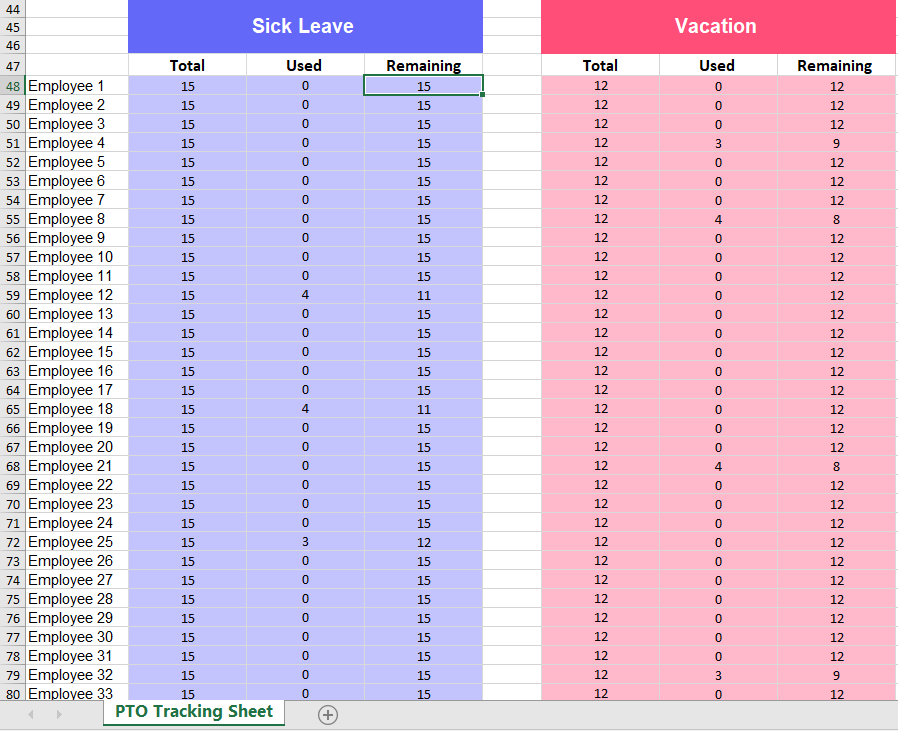
For years, many companies relied on Excel spreadsheets to track employee leave, manually updating balances, calculating accruals, and double checking formulas every month. While spreadsheets worked for a while, they were time consuming, prone to errors, and difficult to manage as teams grew. That’s exactly why tools like Day Off have become essential, replacing outdated manual methods with a faster, more accurate, and fully automated system.
Understanding Accruals in Day Off
Accrual leave simply means that employees earn their time off gradually, usually in relation to how much time they’ve worked. Instead of handing out the full annual leave allowance on the first day of the year, the employee receives a small, consistent amount of leave each pay period or month.
This approach has become very common because it’s transparent and predictable. Employees know exactly how much leave they have available at any given moment, and HR teams don’t have to manually adjust balances every time someone completes another month of service. It also prevents situations where new employees use all their yearly leave too early.
Day Off supports this concept natively. The app calculates balances automatically, updates them with every accrual cycle, and gives employees an up to date view of their available days or hours. This real-time visibility makes planning vacations or short absences much easier on both sides.
Preparing Your Company Account Before Setting Up Accruals
Before you start creating accrual rules, it’s important to set up a few basics in your Day Off account. Think of this as preparing the ground before planting a tree, when the foundation is right, everything else works smoothly.
Check Your Company Information
Make sure all your company details are correct, especially your working schedule.
Day Off supports different types of schedules, including:
Standard weekly schedules (e.g., Monday–Friday or Sunday–Thursday)
Schedules based on working hours (for companies that track hours instead of days)
Rotating shifts (for teams whose schedules change week by week or follow shift cycles)
Setting this up correctly is important because it tells the system what counts as a working day or hour, helping Day Off calculate leave and time off accurately.
Add Public Holidays
Next, set up your public holidays.
Day Off lets you add holidays for your country or region. If your company operates in multiple locations, you can assign a different holiday calendar to each office.
This ensures that when employees request leave, holidays are automatically considered, reducing mistakes and confusion.
Create Your Leave Types
Finally, decide which leave types your company will use. Examples include:
Vacation days
Sick leave
Unpaid leave
Personal days
You can also add special types like:
Study leave
Work from home allowances
Maternity or paternity leave
Each leave type can have its own accrual rules later, so setting them up now creates a strong foundation for accurate tracking.
Step by Step: How to Set Up Accruals in Day Off
After finishing your basic setup, you can set up accruals in the settings section under leave policies. Choose the policy you want to set up, commonly Vacation, Annual Leave, or PTO, and then turn on enable accruals. When you activate this option, new settings will appear that let you define how employees earn leave over time, including one of the most important choices: the accrual frequency, which determines how often leave is added to each employee’s balance.
Weekly Accruals
Weekly accruals add a small amount of leave to an employee’s balance every week.
Your company pays employees weekly
You have shift based or hourly workers (retail, hospitality, healthcare)
You want employees to see small, regular updates to their balance
Example:
If an employee earns 12 days of leave per year, then:
They will earn about 0.23 days each week and you can select the day of the week
Every week, their balance goes up a little bit
It’s easy for them to understand and plan around
Bi-Weekly Accruals (Every Two Weeks)
Bi-weekly accruals add leave every two weeks, matching the most common payroll schedule.
Your company pays employees every two weeks
You want slightly larger accrual amounts but not as frequent as weekly
You prefer aligning leave with payroll cycles
This is the most common accrual method because it fits smoothly with employee paychecks. Everything happens on the same two-week rhythm.
Example:
If the policy provides 18 days per year:
There are 26 bi-weekly periods in a year
Employees get about 0.69 days of leave added every two weeks
This feels meaningful to employees without overwhelming administrators.

Monthly Accruals
Monthly accruals add leave once per month, usually at the beginning or end of the month.
Your company wants the simplest possible structure
Employees do not need frequent updates
You want to avoid too many small accruals
Monthly accruals are extremely easy to explain and very easy to manage. Employees know exactly when their balance will go up, and the numbers are simple.
Example:
If the annual allowance is 18 days, then:
Employees receive 1.5 days every month and you can select the day of the month
They can quickly understand their yearly entitlement
This is especially helpful for companies with straightforward PTO policies.
Semi-Monthly Accruals (Twice a Month)
Semi-monthly accruals add leave two times per month, usually on the 1st and 15th, or 15th and last day of the month.
Your payroll runs on fixed calendar dates
You prefer events happening on the same dates every month
You don’t want the shifting dates that come with bi-weekly payroll
Semi-monthly schedules are very predictable. They do not “move” around the calendar the way bi-weekly pay periods do.
Example:
If employees earn 18 days per year:
They accrue leave 24 times, twice each month
Each deposit is 0.75 days
This gives employees two noticeable increases in their balance every month.
Annual Leave Entitlements All at Once
Annual accruals give employees their full leave balance for the whole year in one deposit. This works well for companies that trust employees to manage a yearly balance, want to avoid frequent updates, or already give PTO at the start of the year. It’s a simple approach because there’s only one update to make, and employees can plan longer vacations right away.
In Day Off, you can also choose a reset month, which marks the start of the new working year and decides when the full balance is given. This means you don’t need an accrual schedule, you can just give employees their entire annual leave entitlement upfront at the beginning of the chosen month.
For example, if an employee gets 18 days per year, they receive all 18 days on January 1st, their work anniversary, or the reset month you select.
What the Accrual Report Shows and How It Helps
The Accrual Report in Day Off provides a clear and complete view of how each employee’s leave balance is developing throughout the year. It shows exactly how much leave an employee has earned, the net amount they are scheduled to receive, and the specific dates when each upcoming accrual will be added to their balance. This timeline style visibility makes it easy to understand how every balance is built, step by step, without needing to reference separate spreadsheets or perform manual checks.
The report also shows how much leave each employee has already used, so you can quickly compare what they earned and what they took. This makes it easy to spot any issues, confirm that your policies are working correctly, and explain leave balances to employees if they have questions.
Day Off also makes it convenient to share or store this information. The entire Accrual Report can be exported to Excel with a single click, allowing you to integrate the data into payroll systems, internal reports, or compliance documents. If you prefer a physical copy, the report can also be printed directly, which is especially helpful during audits, planning meetings, or yearly HR reviews.
How Day Off Automatically Handles Leave Balances
After you activate and assign an accrual policy, Day Off automatically handles the calculations. Employees see their balance grow at the start or end of each accrual cycle, depending on how the configuration is set. When someone submits a leave request, and it is approved, the system instantly deducts the correct amount from their balance.
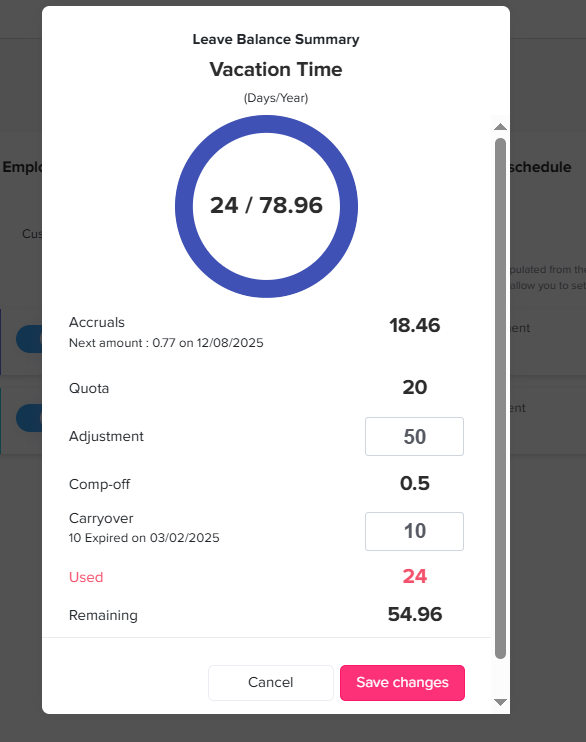
Day Off also includes clear balance breakdowns, showing how much an employee has earned, how much has been used, and how much is still available. The app even displays the date of the next scheduled accrual, making it easy for employees to plan their time off.
Best Practices for a Smooth Accrual Setup
As simple as Day Off makes accruals, a few best practices can help ensure everything runs smoothly. Start by clearly defining your leave policies before you configure them in the system. Having a written, agreed-upon structure prevents confusion later.
It’s also a good idea to test your accrual rules with a small group before rolling them out to the entire company. This allows you to confirm that calculations match what you expect, especially with carryover rules or special leave types.
Communication is another vital step. Employees should understand how accruals work, when new hours or days are added to their balance, and what happens if they don’t use their leave before the end of the year. Clear communication prevents misunderstandings and improves trust.
Finally, review your accrual policies annually. Companies evolve, and leave policies often need adjustments as teams grow or laws change.
Frequently Asked Questions (FAQ)
What does “accrual leave” actually mean?
Accrual leave means employees earn their time off gradually throughout the year instead of receiving all their days at once. Depending on your settings, leave is added weekly, bi-weekly, monthly, or semi-monthly. This makes balances grow in a steady, predictable way and keeps everything fair for both new and long-term employees.
Do I need to use accruals for every leave type?
No. Accruals are optional. You can choose which leave types should build up over time, such as Vacation or PTO, and which should not, like Sick Leave, Unpaid Leave, or special leave types. Each leave type can be customized to match your company’s rules.
Can different employees have different accrual rules?
Yes. You can assign specific policies to individuals or groups. This is useful if you have part-time employees, interns, senior staff, or teams in different regions. Day Off keeps these policies separate, so changing one will not affect others.
How does Day Off handle employees who join mid-year?
Day Off automatically calculates a prorated balance based on their start date. New employees start earning leave from the moment they join, so you don’t need to manually adjust anything.
Can I change an accrual policy after I’ve created it?
Yes. You can update the policy at any time. Future accruals will follow the new rules. If needed, you can also manually adjust an employee’s balance to correct anything immediately.
When does an employee’s balance update?
Balances update automatically at the start or end of every accrual cycle, based on your settings. Employees always see their current balance and the date of their next accrual, which helps them plan time off with confidence.
What if an employee requests more leave than they have accrued?
You decide how the system behaves. If your company allows borrowing leave (negative balances), Day Off supports it. If not, employees will simply be prevented from requesting more time than they currently have.
How do carryover rules work?
You can allow employees to move unused leave into the next year and set limits such as:
A maximum number of days/hours allowed
An expiration date for carried-over leave
A reset month when balances refresh
Day Off automatically applies these rules and keeps everything clean and accurate.
What’s the difference between semi-monthly and bi-weekly accruals?
Bi-weekly: Every 2 weeks, dates shift throughout the year.
Semi-monthly: On fixed dates, usually twice a month, 24 times a year, never shifting.
Choose the one that aligns best with your payroll cycle and internal processes.
Can employees see how their leave balance was calculated?
Yes. The Accrual Report shows a complete breakdown of how each balance was built, earned amounts, used amounts, and upcoming accrual dates. This transparency helps reduce misunderstandings and gives employees full confidence in the system.
Can I export accrual information for payroll or reports?
Absolutely. You can export the entire Accrual Report to Excel with one click. You can also print it for audits, HR meetings, or onboarding documents. This makes it easy to share clear and accurate information with other teams.
What happens at the end of the year when balances reset?
Day Off applies your company’s rules automatically. It can:
Reset balances
Add carryover days
Expire old carryover amounts
Grant a new yearly balance (for annual entitlements)
Once your reset month arrives, everything updates without you having to make manual changes.
Final Thoughts
Setting up accruals in Day Off transforms the way your organization manages employee leave. Instead of relying on outdated spreadsheets or manual tracking, you get an automated, fair, and highly transparent system that works in real time. Employees always know how much leave they have, managers can make decisions with confidence, and HR teams regain hours of time previously spent updating numbers.
By following the steps laid out in this guide, preparing your company settings, defining leave types, configuring accrual rules, and assigning them appropriately, you’ll create a leave management system that is accurate, flexible, and easy to maintain. Day Off’s design makes this process intuitive, and with the help of its reporting tools and customization options, you can tailor accruals to perfectly match your organization’s needs.