


-
Integrations
The Day Off API allows you to seamlessly connect your systems with Day Off and automate key processes. With it, you can programmatically access and manage data such as employee records, leave requests, and balances, helping you reduce manual work and keep everything in sync across your tools.
Setup Steps
1. Go to the API Section in Day Off
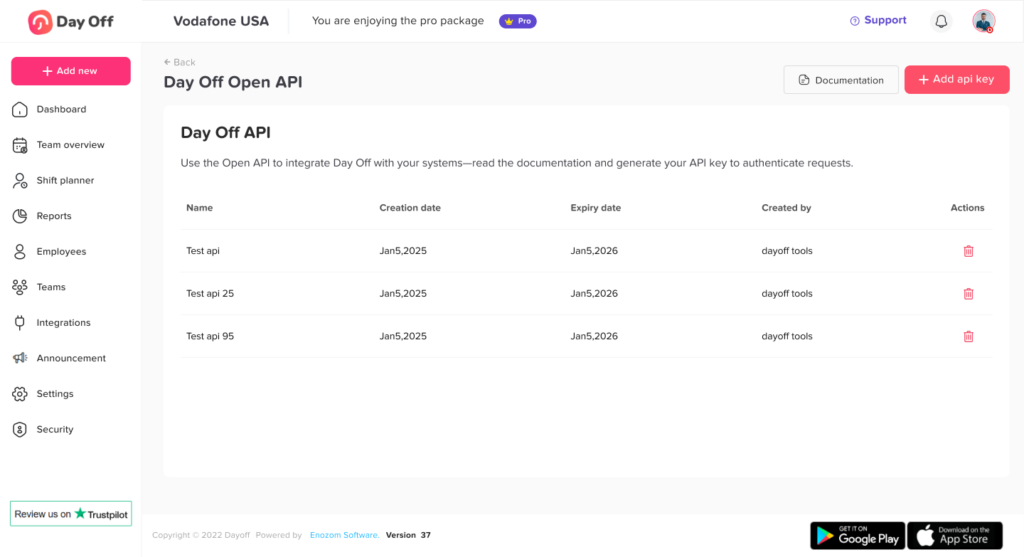
Start by accessing the API settings inside your Day Off account.
- From the main menu, go to Integrations
- Click on API
You’ll land on the API Key Management page.
At first, this page might look empty (as shown in your screenshot), especially if you haven’t created any API keys yet. That’s completely normal.
Think of this page as your control center for anything related to API access.
2. Create a New API Key
Before you can connect to the API, you need to generate an API key. This key acts like a secure password that allows your system to talk to Day Off.
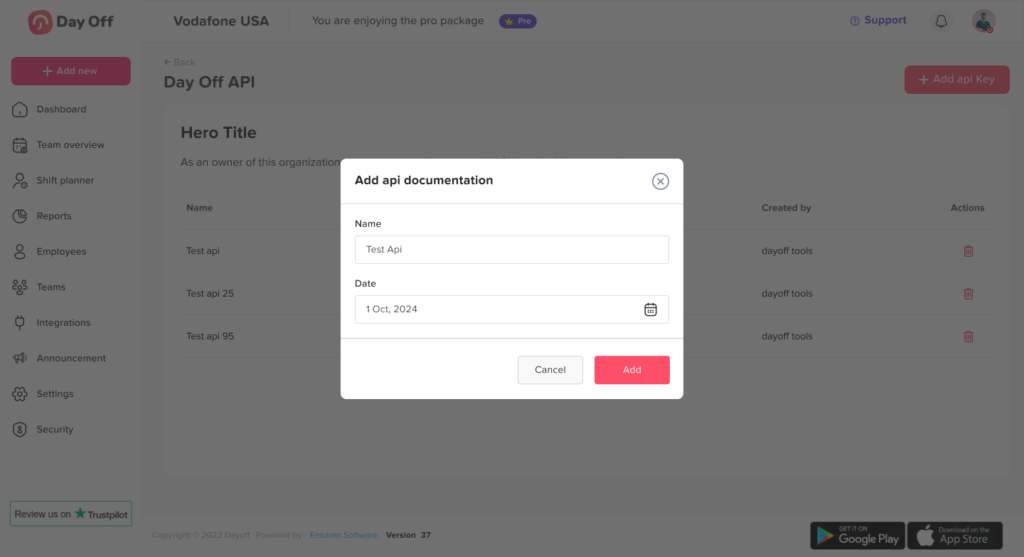
- Click on Add API Key
- A popup window will appear
- Enter a Name for your key: “HR System Integration” or “Zapier Automation”
- Choose an Expiry Date: This adds an extra layer of security
- Click Add
Once created, your API key will be generated.
3. Open and Understand the API Documentation
Now that you have your API key, the next step is to understand how to use it.
- Click on Documentation
- This will open the Day Off API documentation
Inside, you’ll find:
- A list of available endpoints (things you can do with the API)
- Example requests and responses
- Technical details for developers
For example, you can:
- Get a list of employees
- Fetch leave requests
- Check leave balances
- Access teams, roles, and locations
There’s also an option to download the OpenAPI specification, which is useful if you’re working with developers or tools like Postman.
Think of the documentation as your instruction manual for the API.
4. Connect Using Your API Key
To connect your system with Day Off, you’ll need to include your API key when sending requests.
- Add your API key like this:
This step tells Day Off that the request is coming from you.
If the key is missing or incorrect:
- The request won’t work
- You’ll get an error
5. Start Using the Integration
nce everything is set up, you can start using the API.
You can now:
- Get employee information
- Track or manage leave requests
- Keep data synced with your other tools
This helps you save time and avoid doing the same work manually.
Best Practices (Highly Recommended)
To keep your integration secure and reliable:
- Keep your API key private at all times
- Rotate your API keys regularly (create new ones and delete old ones)
- Always set an expiry date for better security
- Never expose API keys in frontend apps or public repositories
- Always refer back to the documentation when building requests
The Day Off API gives you full control and flexibility to connect your systems with Day Off. While the setup is simple, it opens the door to powerful automation and customization.
Once everything is in place, your team can reduce manual work, avoid errors, and keep all systems perfectly in sync.