


Two-Factor Authentication
Protect every Day Off login with a second step. Admins switch it on once for the whole company, and each user then enters a rotating 6-digit code from their authenticator app after their password.
Turn it on from Security
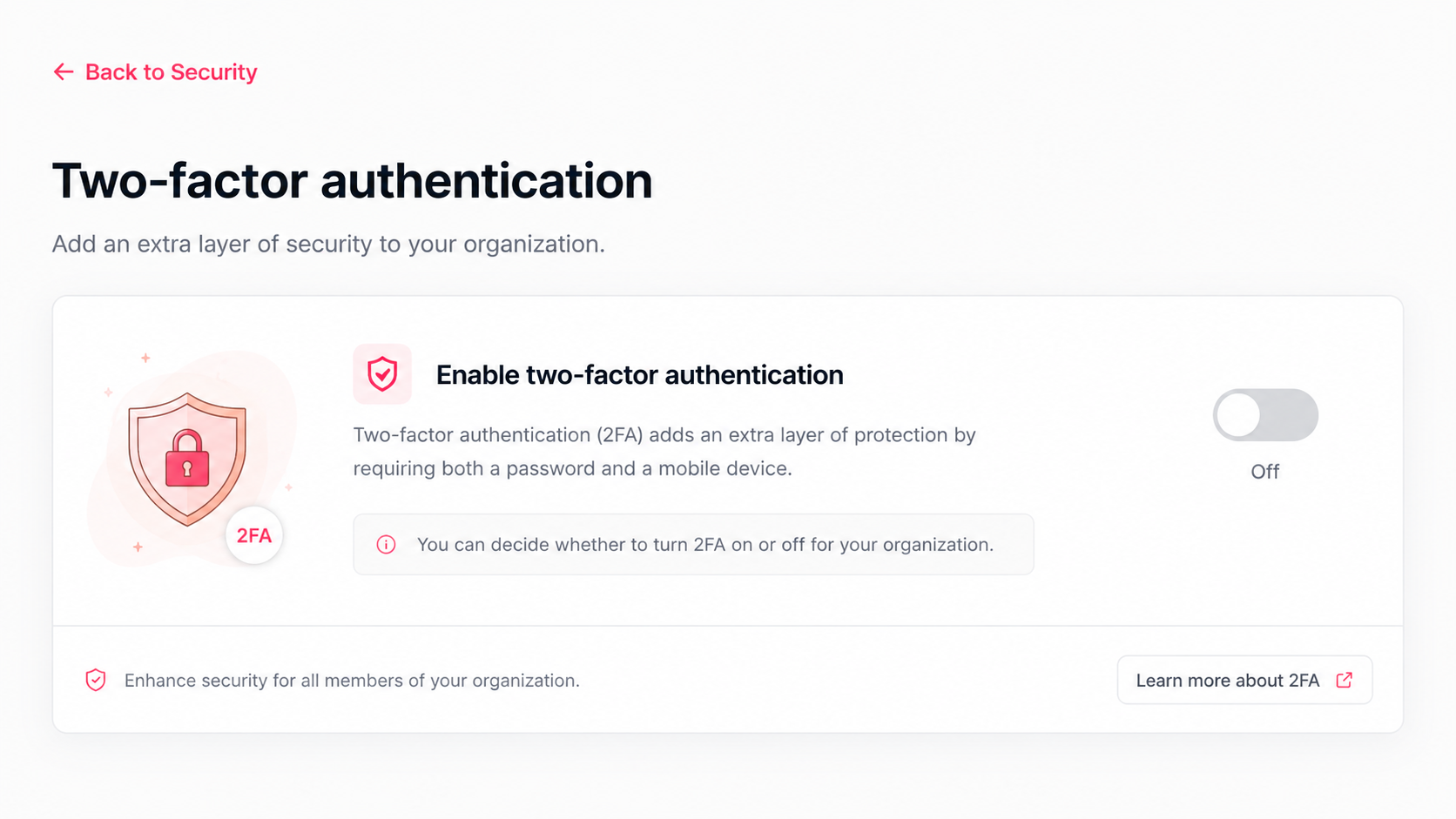
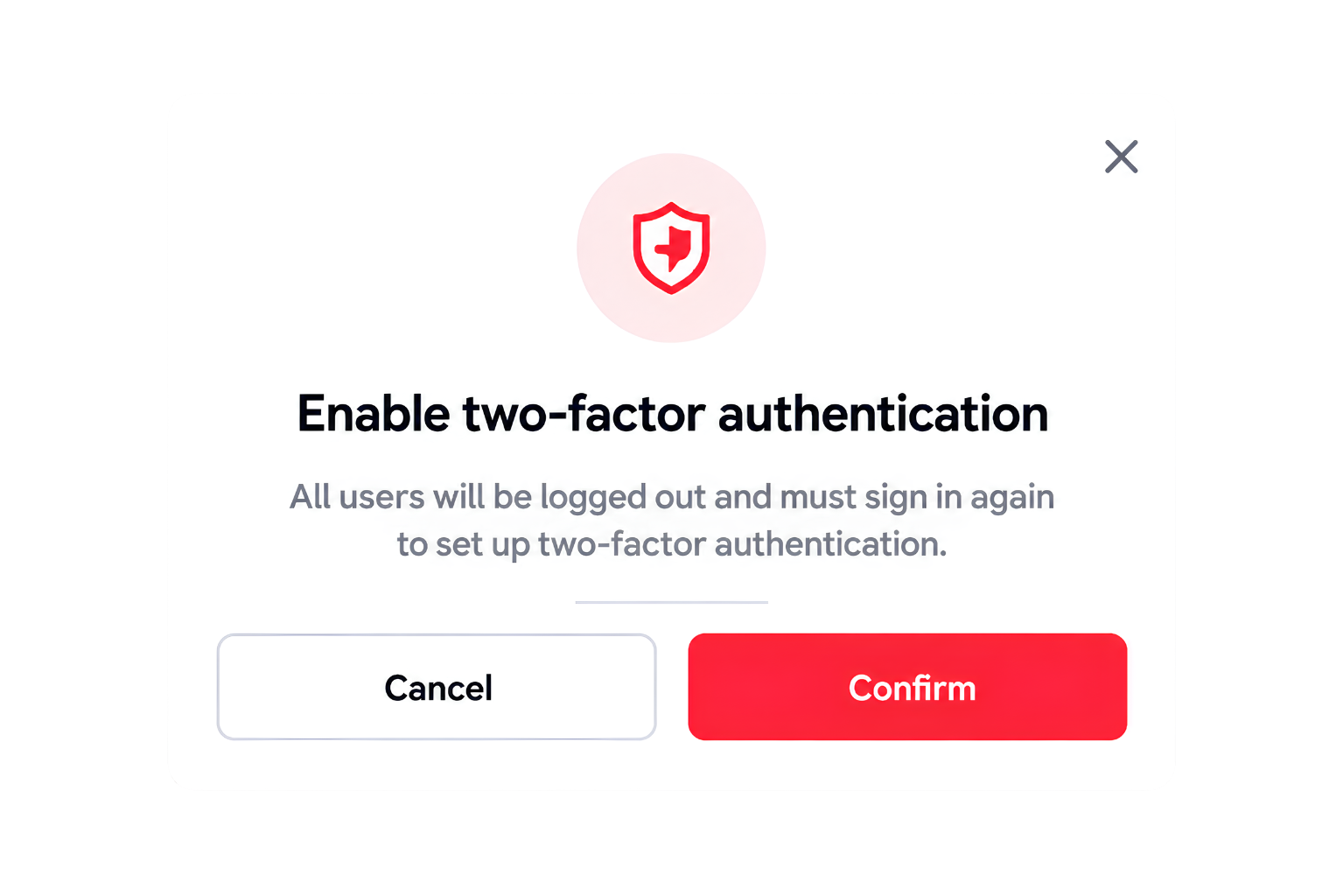
Sign in with an administrator account, open Security in the sidebar, and click the Two-Factor Authentication card. Flip the toggle to on, and a confirmation dialogue appears warning you that users will be logged out. Confirm to activate it. This is a company-wide setting, though you can later disable it for specific people from their individual employee profile.
Everyone re-authenticates and pairs an app
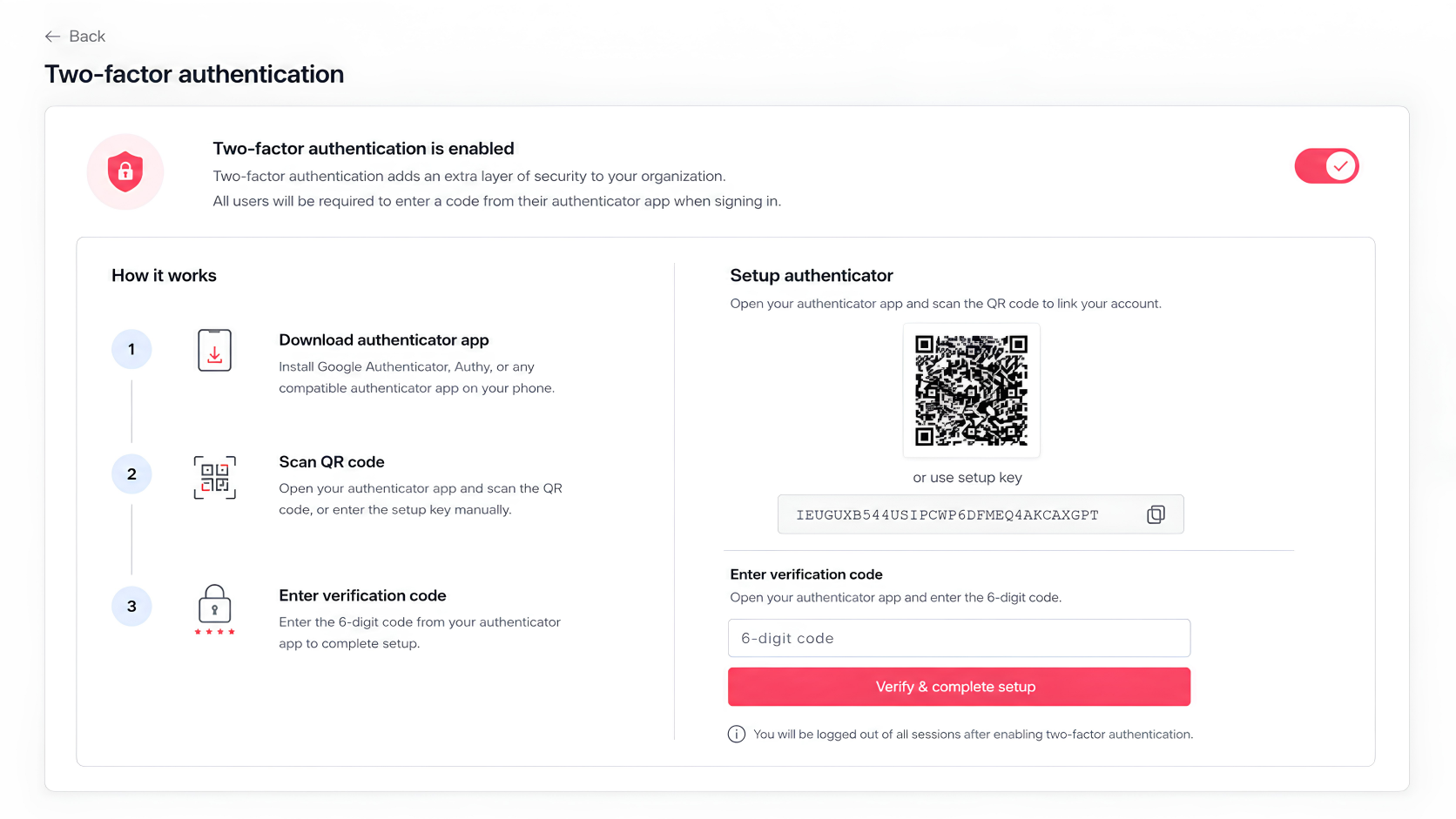
The moment you confirm, all active users including yourself are logged out and sent back to the login screen. On the next sign-in, Day Off pauses the login and shows a setup screen with a QR code, which each person scans using an authenticator app such as Google Authenticator, Microsoft Authenticator, or 1Password. They then type the temporary 6-digit code from the app to finish pairing.
Use the code for every future login, and reset it when needed
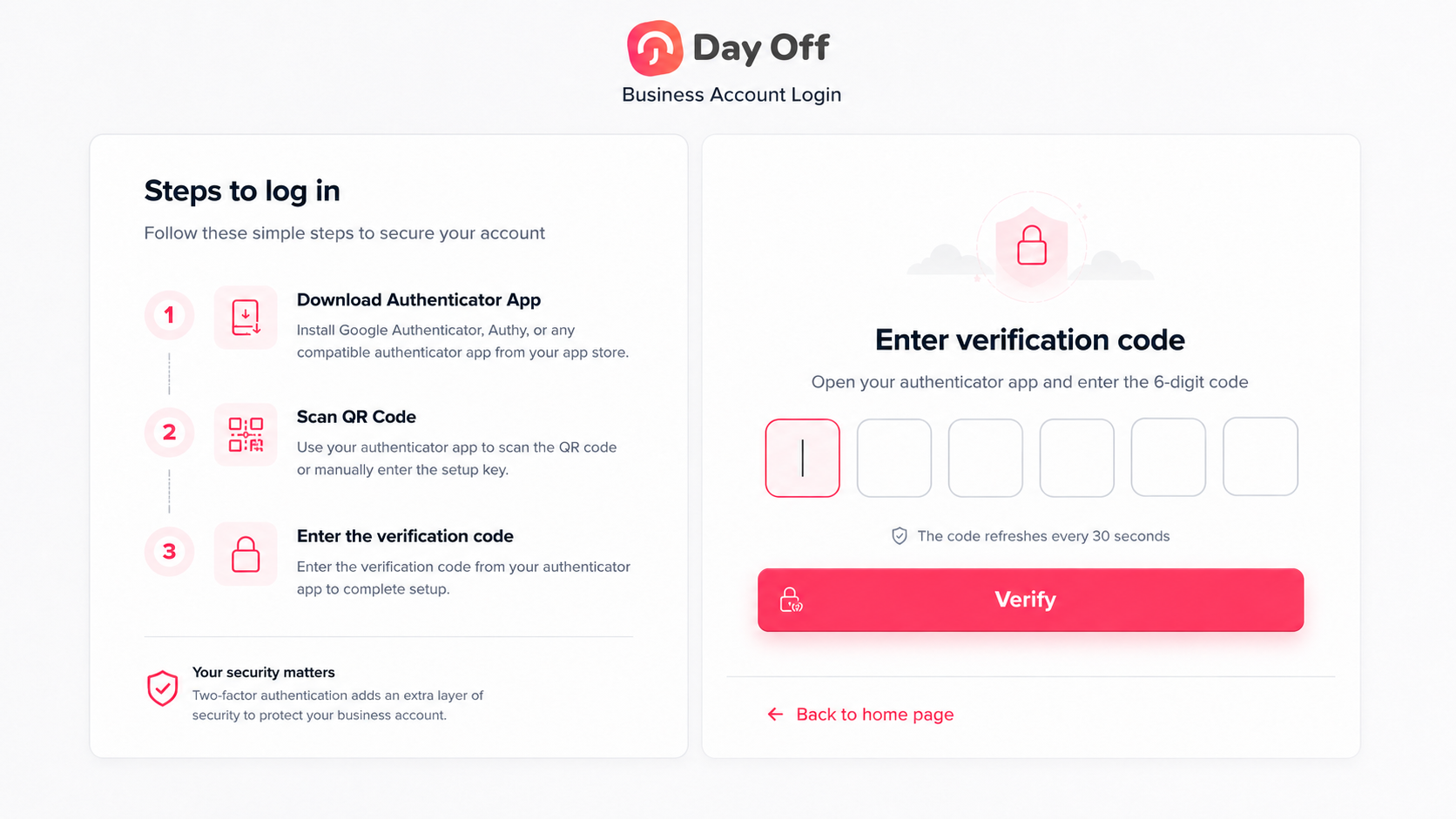
From then on, users enter their password and are prompted for the rotating 6-digit code from their authenticator app. If someone loses their phone or deletes the app, they can’t fix it themselves; an administrator opens their profile, disables two-factor authentication, then immediately re-enables it. That clears the old device link and forces a fresh QR code pairing on their next login.