


-
Calendar Settings
Can I change the calendar options and view?
Admins can control what employees see in the calendar, including whose requests are visible, which request statuses appear, and how much detail is displayed. This helps balance transparency with privacy across the organization.
to change what employees can see in the calendar:
- Open the Day Off dashboard
- Click on Settings from the main menu
- Go to Calendar Options
From there, you can control what appears in the calendar and who can see it.
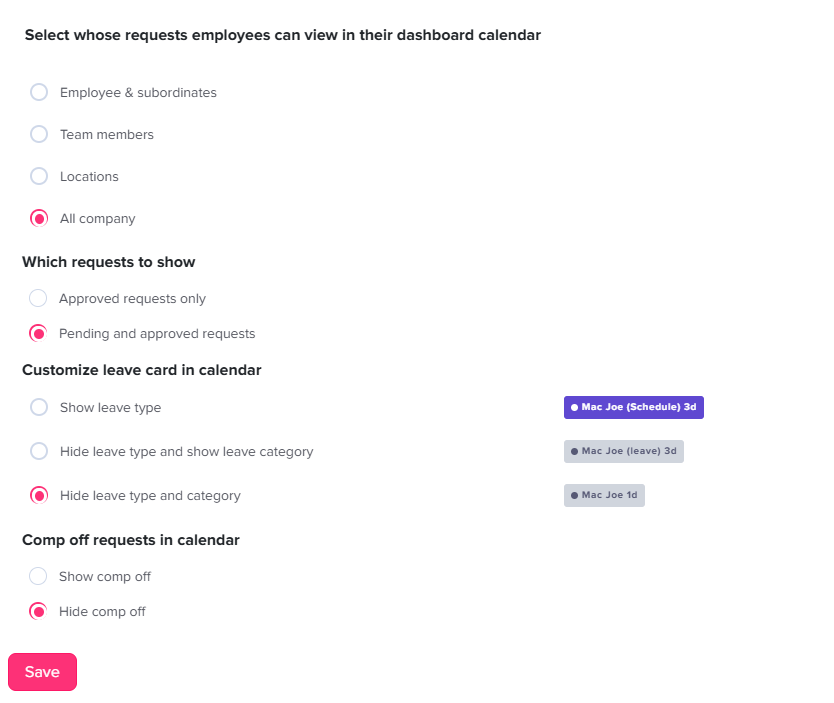
1. Select whose requests employees can view
This setting defines the scope of visibility, in other words, whose time off requests will appear in the employee calendar.
- Employee & subordinates
Employees will only see their own requests and those of employees who report directly to them. - Team members
Visibility is limited to employees within the same team or department, helping teams coordinate without exposing company-wide data. - Locations
Employees can view requests from others within the same office or geographic location. - All company
Employees can see requests from everyone in the organization, providing full transparency across teams.
This setting is important for controlling how much visibility employees have into others’ schedules.
2. Which requests to show
This option controls the status of requests that appear in the calendar.
- Approved requests only
Only confirmed and approved time off requests will be visible. This keeps the calendar clean and avoids confusion from unconfirmed plans. - Pending and approved requests
Both pending and approved requests will be displayed. This gives employees better insight into potential overlaps before requests are finalized.
Choosing the right option depends on whether you want employees to plan based only on confirmed absences or also consider upcoming requests.
3. Customize leave card in calendar
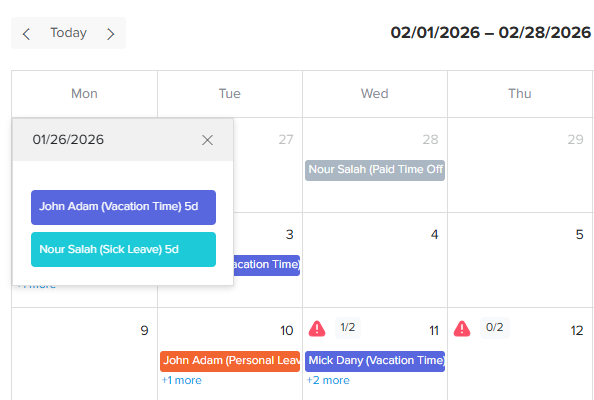
This section controls how much detail is displayed on each leave entry in the calendar.
- Show leave type
Displays full details (e.g., Annual Leave, Sick Leave), giving maximum transparency. - Hide leave type and show leave category
Shows a more general label (e.g., “Leave”) instead of the exact type, offering moderate privacy. - Hide leave type and category
Displays minimal information (e.g., just the employee name), ensuring higher privacy.
This helps organizations balance visibility with confidentiality, especially for sensitive leave types.
4. Comp off requests in calendar
This setting determines whether compensatory off (comp off) requests are visible in the calendar.
- Show comp off
Comp off requests will appear like other leave types, giving a complete view of availability. - Hide comp off
Comp off requests will not be displayed, keeping the calendar simpler or more private if needed.
5. Save your changes
After configuring all settings:
- Review your selections carefully to ensure everything is set as intended
- Click Save to apply the changes
Once saved, these settings will immediately control how employee requests are displayed across all calendars.
You can return to this section at any time to update or adjust the settings whenever needed.
Customize Calendar Week Start
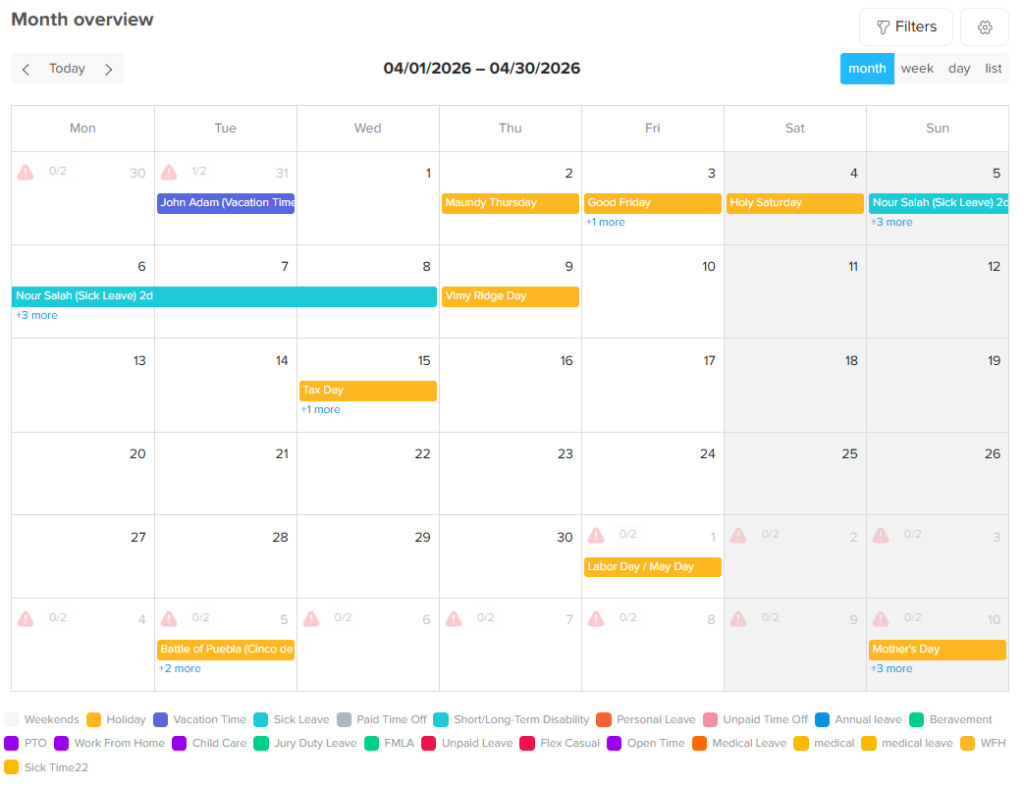
Admins can customize the calendar view by selecting the starting day of the week (e.g., Sunday–Saturday or Monday–Sunday).
- Open the Day Off dashboard
- Go to Settings from the main menu
- Select Work Schedules
- Click on the edit icon next to the schedule
- Choose the preferred week starting day (e.g., Sunday or Monday)
- Scroll down and click Save
Once saved, the calendar view will automatically update and be reflected for all employees based on the admin’s selection.
Final Notes
These settings help you control how the calendar looks and what employees can see. By adjusting them, you can make the calendar simple, clear, and useful for everyone.
You can choose how much information to show, who can see requests, and how detailed each leave entry should be. This helps employees plan better while still keeping privacy where needed.
If your company’s needs change, you can update these settings at any time.
A well-organized calendar makes it easier for teams to plan time off, avoid conflicts, and stay informed.