


-
Calendar Settings
How do I filter the company calendar by location or team?
Filtering the calendar helps you focus only on the people that matter to you, instead of seeing everyone in the company. This makes it much easier to plan ahead, avoid conflicts, and understand who is available within your team or location.
For Employees
Employees can use filters in the calendar to narrow down what they see. However, what you can filter depends on the visibility settings set by your admin.
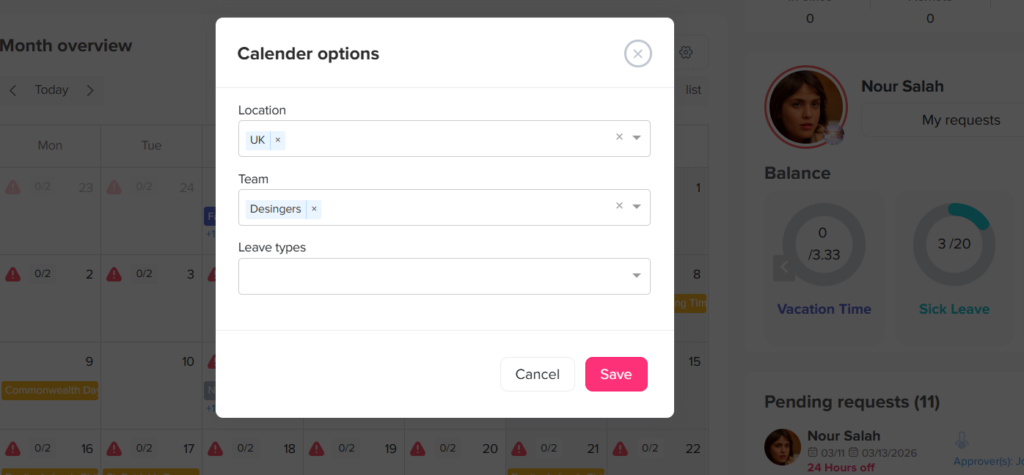
- Open Day Off
- Go to the Calendar section
- At the top of the calendar, locate the filter or dropdown menu
Choose your preferred view:
- Team: Displays only employees within your team or department
- Location: Displays employees from a specific office or branch
Once you select a filter, the calendar will automatically update to show only the relevant employees and their time-off requests.
Important to understand:
- If your calendar is set to show all company requests, you will have more flexibility. You can switch between teams and locations and explore different groups easily
- If your calendar visibility is limited (for example, only your team or your location), then you will only see those employees, and filtering options may also be limited
In simple terms, you can only filter what you are allowed to see. If your access is restricted, the calendar will not show data outside your assigned scope.
For Admins
Admins have full access to all employee data, which means they can filter the calendar without any limitations.
Admins can quickly adjust the calendar view to focus on specific groups or locations:
Steps to filter the calendar:
- Open the Day Off dashboard
- Go to the Calendar section
- Use the filters at the top of the page
Available filter options:
- By team or department: Focus on a specific group
- By location: View employees in a particular office or branch
- Combine filters (if available): Narrow down results further based on your setup
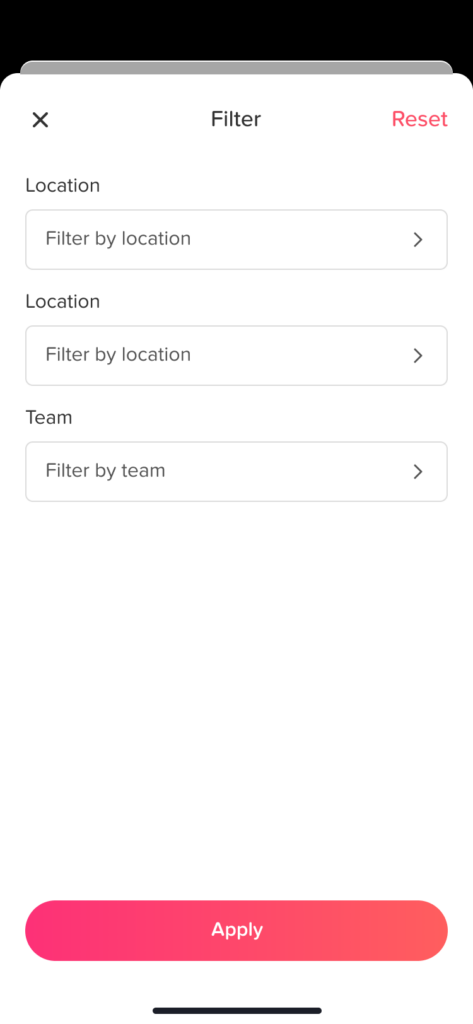
As soon as you apply a filter, the calendar will refresh and display only the selected group, making it easier to review requests and manage availability.
This is especially helpful for admins who manage multiple teams or locations and need to quickly switch between different views.
How to remove filters and show all company requests
If you want to reset the calendar view and see all employee requests again, you can easily remove the applied filters.
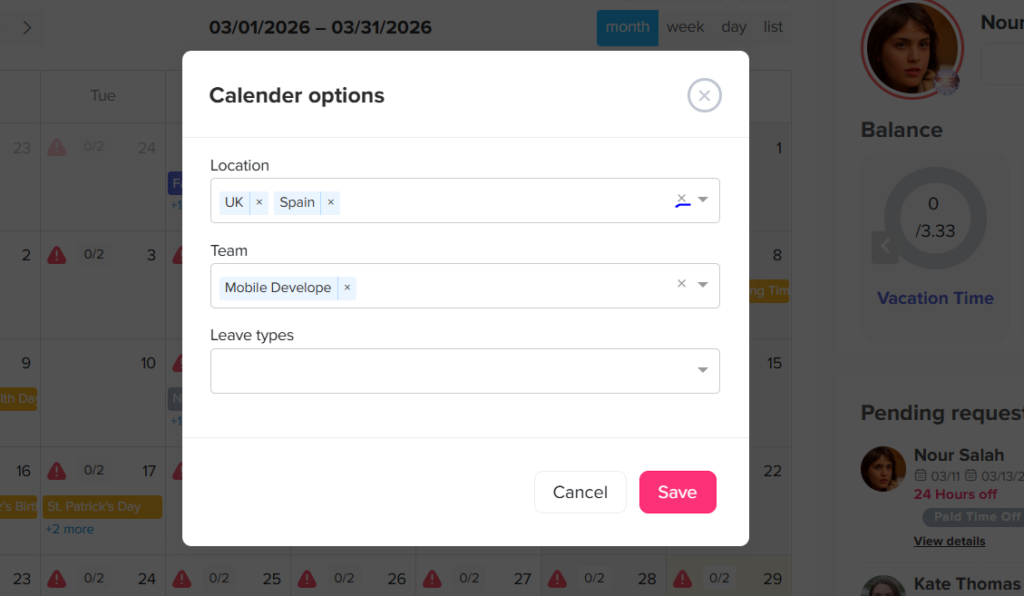
- Open the Calendar in the Day Off app
- Click on the filter button at the top of the calendar
- In the filter window, review the selected filters (such as Location or Team)
- Click the “×” (X) icon next to each selected item (e.g., UK, Spain, or Mobile Developer) to remove it
- Once all filters are cleared, click Save
After applying these changes, the calendar will automatically refresh and display all employee requests across the company.
This allows you to return to the full calendar view at any time.
Why filtering is useful
Using calendar filters gives you a flexible way to view only the information you need, whether it’s your team, a specific location, or the entire company.
By easily switching between filtered and full views, you can plan more effectively, avoid conflicts, and stay aligned with your team’s availability at all times.