


-
Integrations
How do I sync my calendar to Google Calendar?
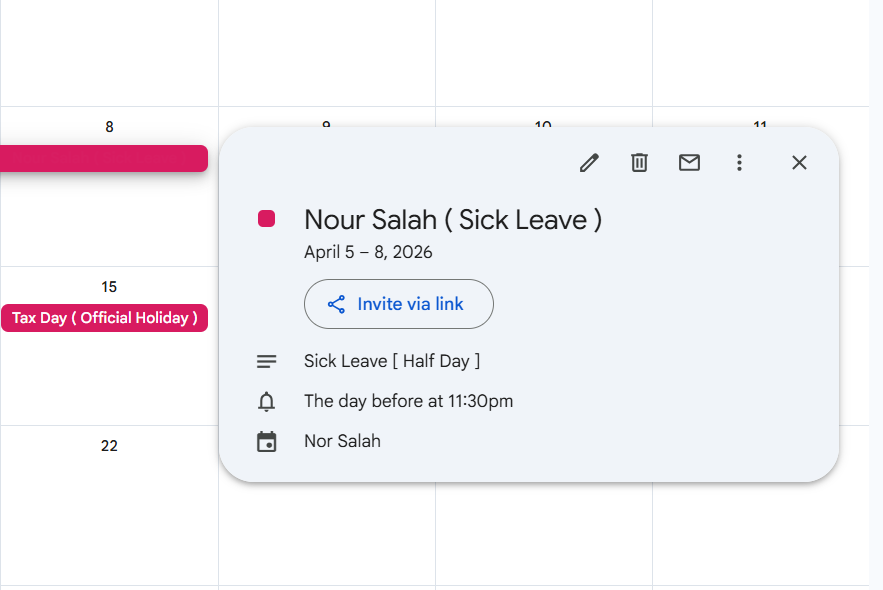
Syncing your Day Off account with Google Calendar allows your time-off requests to appear automatically alongside your meetings and events. This helps you plan your schedule more effectively, avoid overlaps, and always have a clear view of your availability in one place.
For Admins / Employees (Initial Setup)
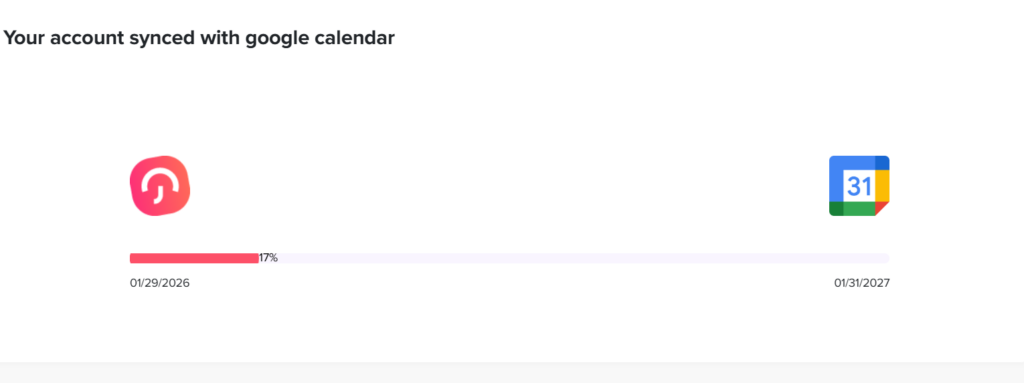
Before you can start syncing, you need to connect your Google account to Day Off.
- Open the Day Off dashboard
- From the main menu, go to Integrations
- Locate the Google Calendar Integration
- Click on Add Integration
- You will be redirected to Google to sign in to your account
- Review the requested permissions and click Allow
This step securely links your Google Calendar with Day Off. It allows the system to automatically create and update events based on your time-off requests, without requiring any manual input from you.
Configure Google Calendar Sync
After connecting your account, you can customize how your calendar behaves and what kind of information gets synced.
Choose what to sync
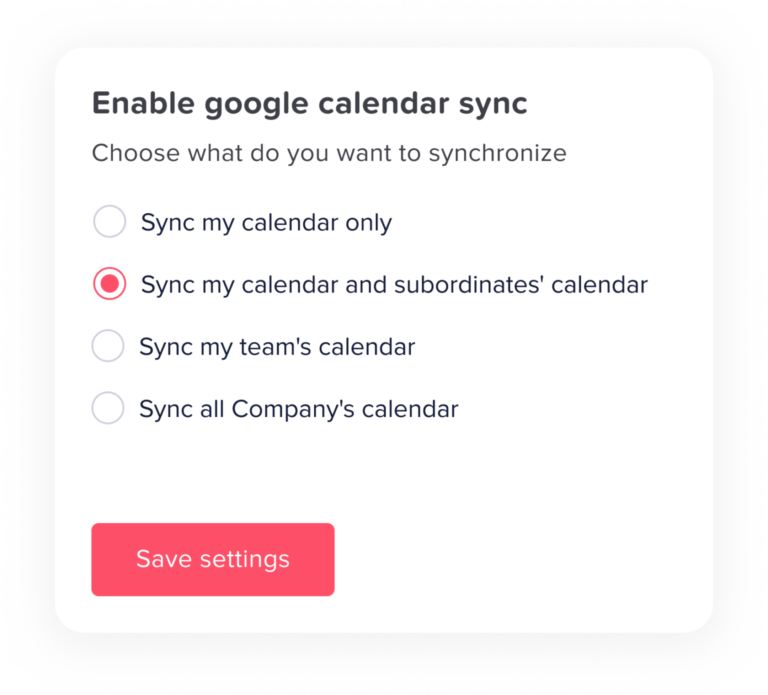
This setting lets you decide how much information you want to appear in your Google Calendar:
- Sync only my requests
Only your personal time-off requests will be added to your calendar.
This is the best option if you prefer a clean and focused calendar that reflects only your own schedule, without any additional information from others. - Include my team’s requests
Your calendar will show both your requests and your team’s requests.
This is useful if you work closely with your team and want to stay aware of who is off, helping you plan work and avoid scheduling conflicts within the team. - Include company-wide requests
All employee time off requests across the organization will be added to your calendar.
This gives you a complete overview of availability across the company, which is especially helpful for admins or roles that require broad visibility.
Each option gives you flexibility to control how detailed your calendar should be.
Select Google calendar
- If you have multiple calendars in your Google account, you can choose exactly where the Day Off data should appear
- For example, you might want to keep a separate calendar just for time-off tracking
- This helps keep your main calendar organized and prevents it from becoming cluttered
Choosing the right calendar ensures that your schedule stays clear and easy to manage.
Set event visibility
This setting controls how your time off events affect your availability in Google Calendar:
- Show as available
Your time off will appear in your calendar, but your availability will remain open. This means others can still schedule meetings with you during that time, which may be useful in flexible work environments - Show as busy
Your time off will block your availability in Google Calendar
This prevents meetings from being scheduled during your leave and helps protect your time off
This option is especially important if you want to avoid interruptions while you are away.
Final Step
After reviewing and selecting your preferences, click Save Settings
Once saved:
- Your time off requests will automatically appear in your Google Calendar
- Any updates, edits, or cancellations in Day Off will sync automatically
- Your calendar will always stay up to date without needing manual updates
Disconnecting Google Calendar
- If you decide to stop syncing, go back to Integrations
- Find Google Calendar Integration
- Click Disconnect
This will stop the connection and prevent any future updates from being sent to your Google Calendar.
Final Note
Syncing your Day Off calendar with Google Calendar helps you stay organized, reduces the risk of scheduling conflicts, and gives you a complete view of your availability, all in one place.