


-
Integrations
How to Integrate Day Off with Microsoft Teams?
Connect Day Off with your Microsoft Teams workspace to streamline leave management and improve team visibility. Employees can easily submit time off requests directly within Microsoft Teams, eliminating the need to switch between platforms and making the process faster and more efficient.
Setup Steps
- Navigate to the Integrations section from the main menu
- Locate Microsoft Teams and click on Add Integration
Once you click Add Integration, Day Off will prompt you to grant permission to connect with your Microsoft Teams workspace.
- Review the requested permissions carefully
- Click Allow to authorize the connection
After authorization, you can proceed to configure the integration settings based on your organization’s preferences.
1. Import Employees from Microsoft Teams
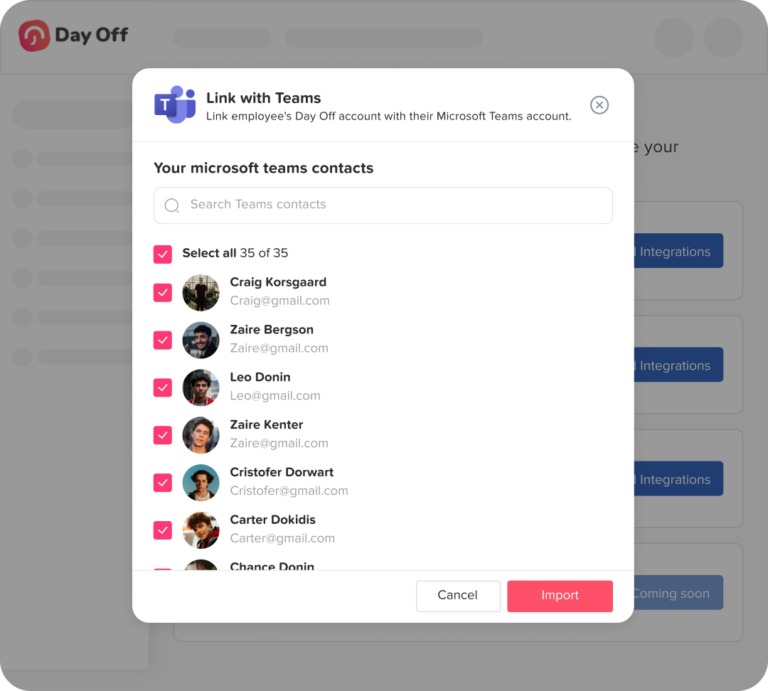
Start by importing your employees from Microsoft Teams to ensure your Day Off directory is aligned with your organization.
- Click on Import employees
- Day Off will sync users from your connected Microsoft Teams workspace
- This helps eliminate manual data entry and keeps employee records consistent
- Ideal for onboarding new employees or syncing large teams quickly
Best Practice:
Perform this step during initial setup or whenever your Teams directory is updated.
2. Enable “Who is Absent” Daily Digest

This feature sends a daily summary of employees who are on leave directly to Microsoft Teams.
- Enable Send daily message with who is absent
- Currently, the digest is sent at the company level (as shown in your configuration)
Why this matters:
It gives teams a quick overview of availability, helping managers and employees plan their workday more effectively.
3. Select Digest Message Style

Customize how absence information is displayed in Microsoft Teams notifications.
- Name only: Displays only employee names for a simple overview
- Name with leave type: Adds context such as vacation or sick leave
- Name with leave type and date: Provides full details for better visibility
Recommendation:
Use name with leave type and date for clearer communication, especially in larger teams.
4. Set Message Delivery Time
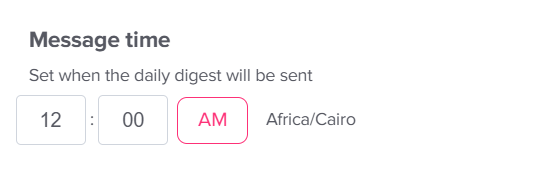
Control when daily notifications are sent to Microsoft Teams.
- Choose the preferred time
- Ensures notifications are delivered each day consistently
- Helps teams start their day with clear visibility on who is absent
Tip:
Schedule messages early in the morning so everyone is informed before the workday begins.
5. Save Your Changes
- Click Save changes to apply your configuration
- The Microsoft Teams integration will become active immediately
Important:
Any unsaved changes will be lost if you leave the page before saving.
Integrating Day Off with Microsoft Teams simplifies how your team tracks absences and plans work. With automated daily digests and customizable message formats, your team stays informed without extra effort.
As your organization evolves, you can easily update these settings to match your communication needs.