


-
Integrations
How to Integrate Day Off with Slack?
Integrating Day Off with Slack enables your team to stay informed with real-time, automated notifications about absences, holidays, and leave updates, right within your Slack channels. Employees can conveniently submit time off requests directly through Slack, while approvers can review and approve or reject requests without leaving the platform.
Setup Steps
- Navigate to the Integrations section from the main menu.
- Locate Slack and click on Add Integration.
- Day Off will prompt you to grant permission to connect with your Slack workspace. Please review the requested permissions carefully, then click Allow to complete the connection.
- Configure the integration settings based on your organization’s preferences.
1. Import Employees from Slack (Optional but Recommended)

Start by importing your employees from Slack to ensure your Day Off directory is aligned with your workspace.
- Click on Import employees
- Day Off will sync users from your connected Slack workspace
- This reduces manual data entry and ensures consistency between systems
- It’s especially useful for growing teams or when onboarding multiple employees at once
Best Practice:
Run this step during initial setup or whenever you add many new employees to Slack.
2. Enable “Who is Absent” Daily Digest
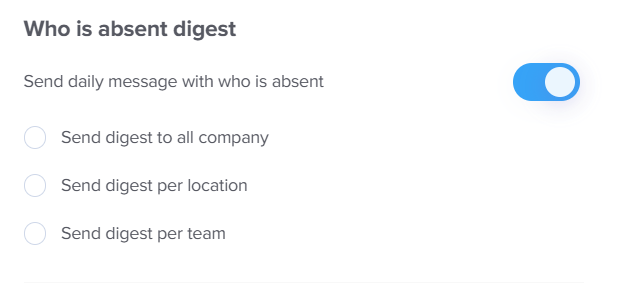
This feature sends a daily summary of employees who are on leave.
- Turn on the toggle for Send daily message with who is absent
- Choose how the digest should be grouped:
- All company: one message for everyone
- By location: separate summaries per office/location
- By team: tailored messages for each team
Why this matters:
It helps managers and teammates quickly understand availability and plan work accordingly without checking Day Off manually.
3. Select Slack Message Style

Customize how the absence information appears in Slack messages.
- Name only: shows just employee names (simple and clean)
- Name with leave type: adds context (e.g., vacation, sick leave)
- Name with leave type and date: provides full detail for better planning
Recommendation:
Use name + leave type + date for maximum clarity, especially for larger teams or cross-functional collaboration.
4. Enable Official Holidays Digest
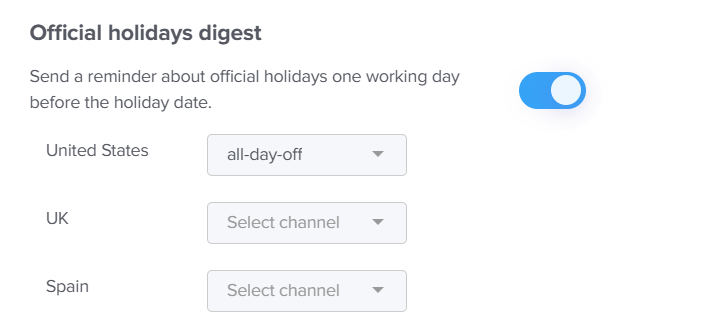
Keep your team informed about upcoming public holidays automatically.
- Enable the Official holidays digest toggle
- Assign a Slack channel for each location you have in your account (e.g., US, UK, Spain, etc.)
- Day Off will send reminders one working day before the holiday
Why this is useful:
It prevents last-minute surprises and helps teams prepare for reduced availability.
5. Set Message Delivery Time
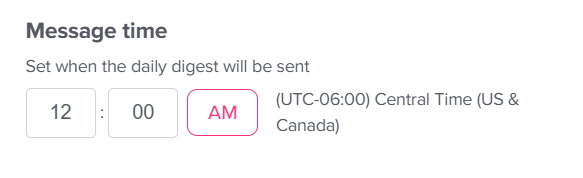
Control exactly when notifications are sent.
- Choose the time for daily digests (e.g., 12:00 AM, Central Time)
- This ensures messages are delivered at a consistent and predictable time
- Align the timing with your team’s working hours or start of day
Tip:
Set the time early in the morning so teams can plan their day ahead.
6. Save Your Changes
- Click Save changes to apply all configurations
- Your Slack integration becomes active immediately after saving
Important:
If you navigate away without saving, your settings will not be applied.
Once set up, the integration runs seamlessly in the background, keeping everyone informed, aligned, and better prepared for daily operations.
If your team structure or communication needs change, you can revisit these settings at any time to adjust channels, notification preferences, or delivery timing.