





-
Calendar Settings
Admins can control how much information employees see in the calendar. This helps keep employee information private while still allowing everyone to know who is off and when.
For Admins
To adjust these settings:
- Open the Day Off dashboard
- Go to Settings from the main menu
- Select Calendar Options
- Find the section called Customize leave card in calendar
- Choose one of the following options:
1. Hide leave type and show leave category
Employees will not see the exact leave type (like Annual Leave or Sick Leave)
Instead, they will see a general label such as “Leave”
The employee name will still be visible, so others know who is off
This option is useful if you want to give some idea that the person is on leave, but without sharing specific details
In simple terms, employees can see that someone is off, but not exactly why.
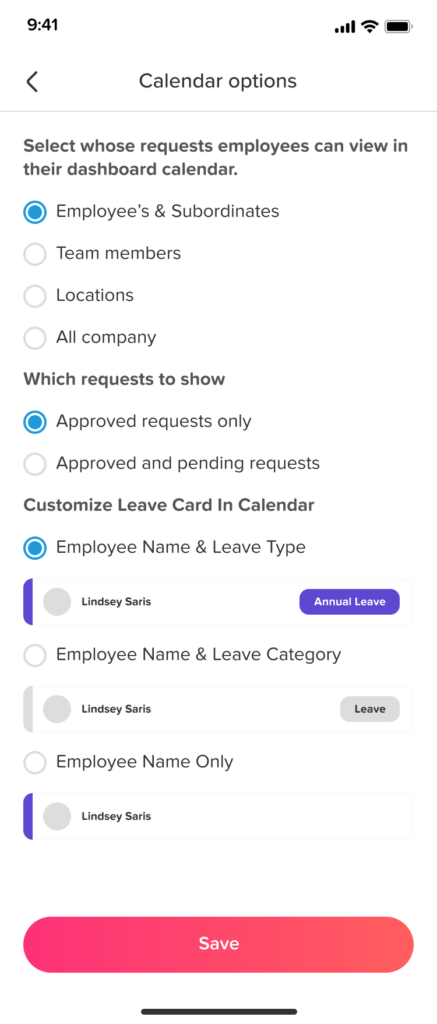
2. Hide leave type and category
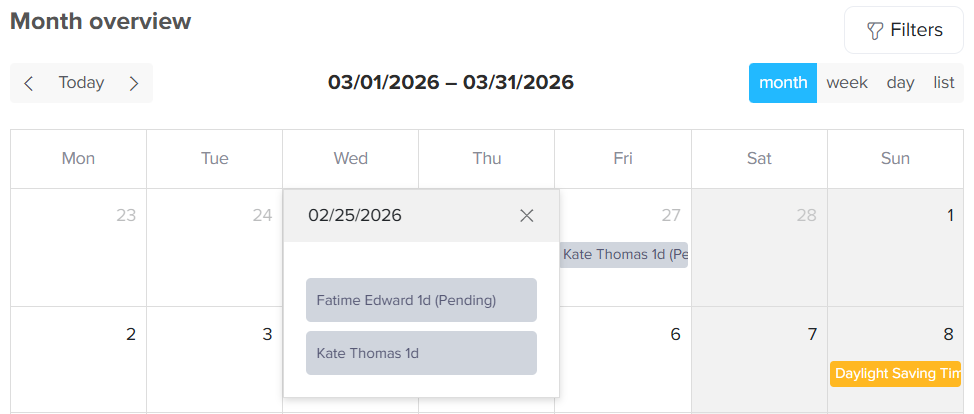
Employees will not see any information about the leave type or category
Only the employee name will appear on the calendar
No reason, type, or additional details will be shown
This is the most private option. Employees will only know that someone is off, without any extra information.
Important Note
These settings affect employees only
Admins will still see everything, including:
- Leave type
- Dates
- Reasons or notes
- Any attached documents
- Employee leave balances
So even if information is hidden from employees, admins always have full access.
3. Final Step
After choosing the option you prefer, click Save
The changes will apply immediately, and employees will start seeing the updated view in their calendar.
By adjusting these settings, you can control the level of privacy in your organization while still keeping the team informed about availability.
This flexibility ensures that sensitive information remains protected, while employees can still plan effectively by seeing who is off and when.