







Managing employee working hours becomes increasingly difficult as a company grows. When employees record their time in spreadsheets, paper forms, emails, or chat messages, HR teams must spend hours checking entries, correcting mistakes, calculating overtime, and preparing information for payroll. Learning how to Automate Employee Timesheets helps businesses replace these repetitive tasks with a structured system that records hours, applies company rules, flags errors, and prepares accurate timesheets with less manual work.

Automated timesheets are not only useful for payroll. They also give managers a clearer view of attendance, overtime, labor costs, employee availability, project hours, paid time off, and scheduling patterns.
However, successful timesheet automation requires more than purchasing a time tracking tool. Businesses must define their working hour policies, configure approval workflows, connect attendance with leave records, train employees, and create a reliable process for handling missed punches and other exceptions.
This guide explains how employee timesheet automation works, how to implement it, which features to prioritize, and how to avoid common mistakes.
What Is Employee Timesheet Automation?
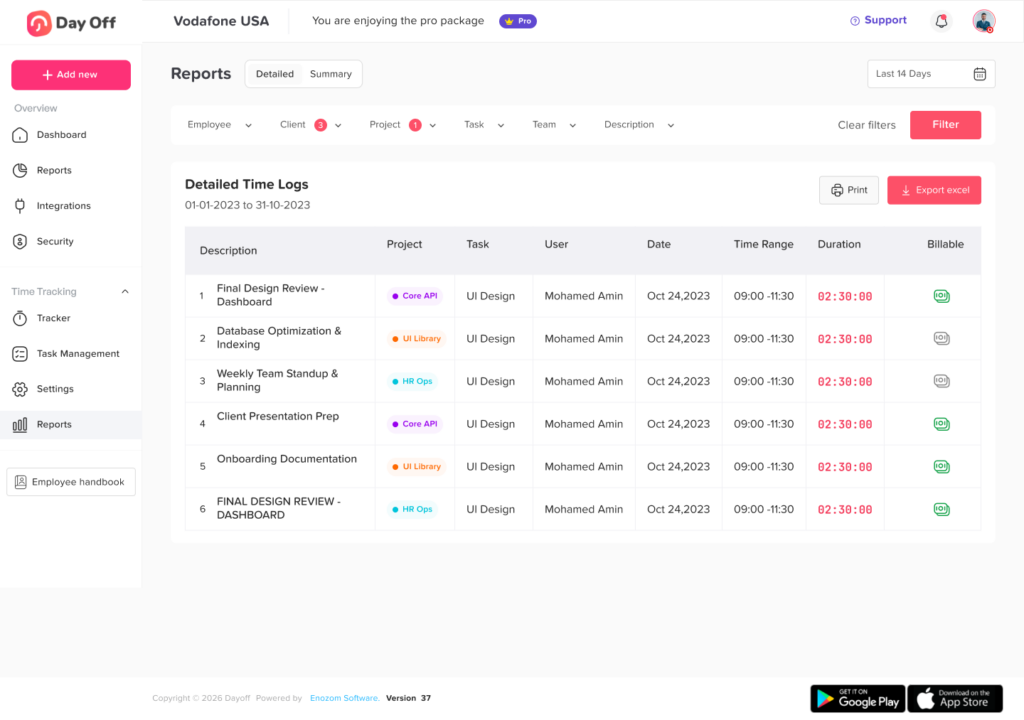
Employee timesheet automation is the process of using software to capture, calculate, review, approve, and store employee working hours.
Instead of asking employees to manually calculate how many hours they worked, an automated system records information such as:
- Clock in and clock out times
- Scheduled starting and ending times
- Paid and unpaid breaks
- Regular working hours
- Overtime hours
- Late arrivals
- Early departures
- Paid time off
- Sick leave
- Public holidays
- Remote work
- Project or client hours
- Timesheet corrections
- Manager approvals
The system then uses predefined rules to convert those records into a structured timesheet.
For example, an employee may clock in at 8:57 AM, take a 30-minute unpaid lunch break, and clock out at 5:32 PM. Instead of requiring the employee or manager to calculate the total manually, the system can calculate regular hours, break time, and possible overtime automatically.
Manual vs. Automated Employee Timesheets
Manual timesheets may work for a very small team, but they often become difficult to manage as the number of employees, locations, shifts, and pay rules increases.
| Timesheet Task | Manual Process | Automated Process |
|---|---|---|
| Recording work hours | Employees enter hours into paper forms or spreadsheets | Employees clock in through a web or mobile app |
| Calculating total hours | HR calculates hours manually | The system calculates hours automatically |
| Tracking breaks | Employees estimate or enter break time | Breaks are recorded or deducted according to configured rules |
| Detecting missed punches | HR searches for incomplete entries | The system flags missing clock-ins or clock-outs |
| Managing overtime | Managers review each timesheet | Overtime is calculated according to company rules |
| Recording PTO | Leave is tracked in a separate file | Approved leave appears in the employee record |
| Approving timesheets | Managers exchange emails or sign forms | Managers receive digital approval requests |
| Preparing payroll | HR copies information between systems | Approved data can be exported or integrated with payroll |
| Keeping records | Files are stored in folders or email threads | Records are stored in a centralized system |
Automation does not remove every responsibility from employees, managers, or HR. It removes repetitive calculations and gives each person a clearer role in the process.
Why Businesses Automate Employee Timesheets
Reduce manual data entry
Manual timesheets require employees to remember their hours and HR teams to transfer those hours into payroll or reporting systems. Every additional entry creates another opportunity for a mistake.
An automated system captures working-time information when the activity happens. This reduces the need to reconstruct an employee’s week several days later.
Improve timesheet accuracy
Employees may forget when they started work, estimate their break duration, enter the wrong date, or accidentally report the same hours twice.
Automation can identify:
- Overlapping time entries
- Missing punches
- Unusually long shifts
- Work recorded on approved leave days
- Hours submitted outside the pay period
- Duplicate entries
- Breaks that do not follow company policy
- Overtime that requires approval
These checks help managers investigate problems before timesheets reach payroll.
Process payroll more efficiently
Payroll preparation often becomes delayed because HR is waiting for missing timesheets, chasing approvals, or correcting inaccurate totals.
An automated workflow can send reminders before the deadline, flag incomplete records, route timesheets to the correct manager, and lock approved periods. This gives payroll teams cleaner information to work with.
Create consistent records
When teams use different spreadsheets or managers follow different processes, employee hours may be handled inconsistently.
A centralized timesheet system allows the company to apply the same structure across employees, departments, and locations while still supporting different schedules or policies where necessary.
Provide better labor information
Automated timesheets can help businesses understand:
- Total hours by employee
- Overtime by department
- Labor hours by location
- Scheduled hours compared with actual hours
- Absence patterns
- Project profitability
- Unapproved work
- Attendance trends
- Payroll preparation time
This information can support staffing, scheduling, budgeting, and operational decisions.
Connect time tracking with PTO
Timesheets and leave records should not operate as completely separate systems.
When approved PTO is not connected to time tracking, a vacation day may appear as an unexplained absence or an incomplete timesheet. HR may then need to compare multiple calendars, spreadsheets, and approval messages.
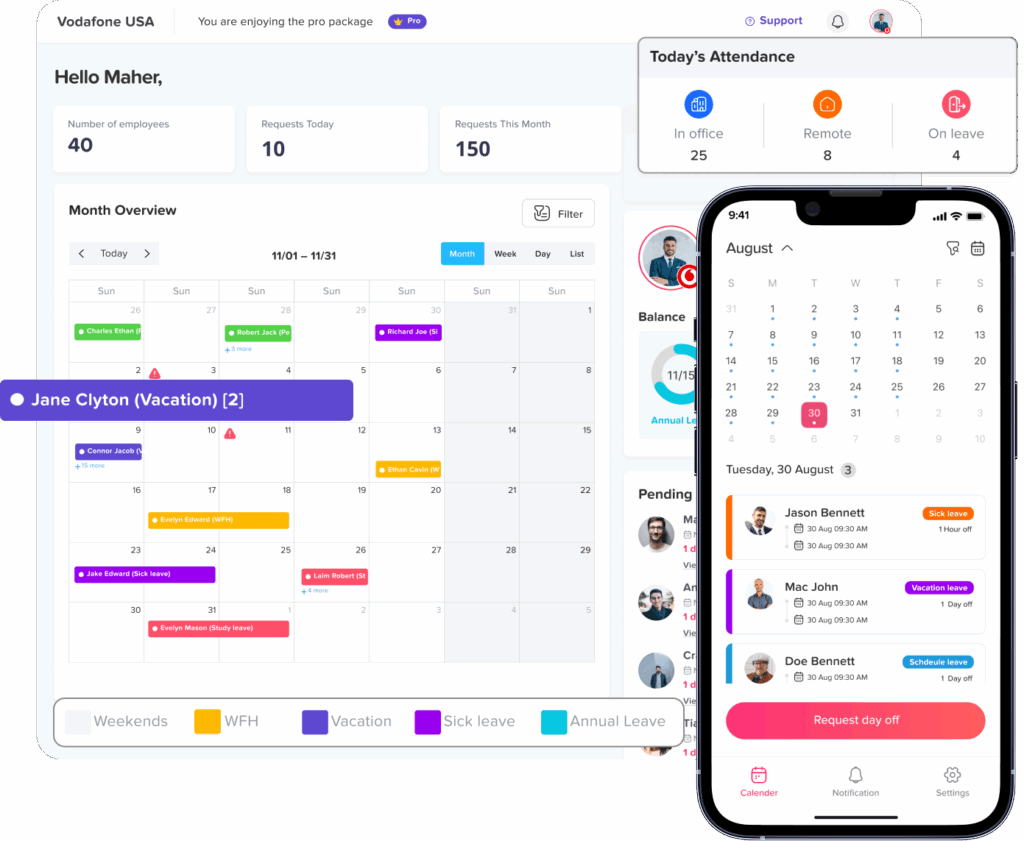
Connecting attendance, timesheets, and leave management allows approved vacation, sick leave, and other absence types to appear in the employee’s record automatically.
How Automated Employee Timesheets Work
A typical automated timesheet workflow includes several stages.
Step 1: Work time is captured
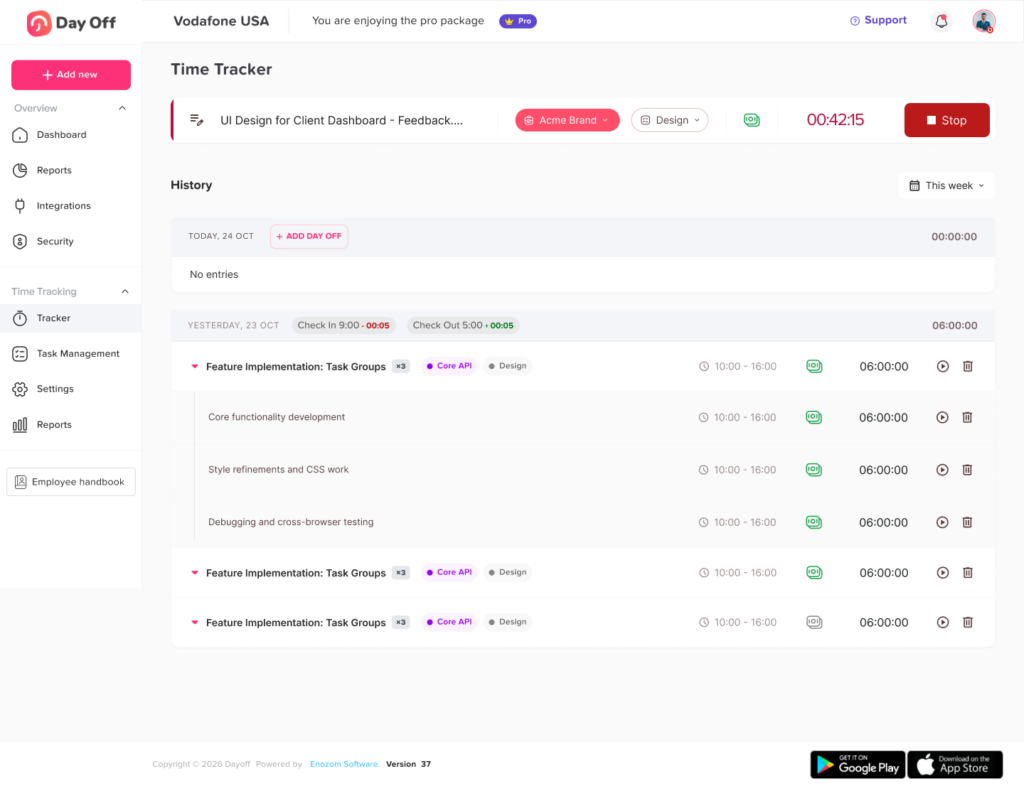
Employees record their time through an approved method, such as:
- Web based clock in
- Mobile application
- Shared workplace device
- Digital kiosk
- Desktop timer
- Manual entry with approval
- Schedule-based attendance record
- Project timer
The right method depends on the type of work being performed.
Office employees may clock in through a browser, field employees may use a mobile app, and consultants may use project timers to record billable work.
Step 2: The system applies time rules
After time is recorded, the software applies configured rules.
These may include:
- Standard daily hours
- Weekly working-hour limits
- Paid and unpaid break rules
- Overtime thresholds
- Weekend rules
- Holiday rules
- Shift differentials
- Grace periods
- Rounding rules
- Flexible schedule limits
- Required rest periods
Rules should reflect the company’s written policies and the employment requirements that apply in each jurisdiction.
Step 3: Exceptions are detected
The system checks the timesheet for missing or unusual information.
For example, it may flag an employee who:
- Clocked in but never clocked out
- Worked longer than the scheduled shift
- Recorded zero break time
- Worked during approved PTO
- Submitted an entry after the deadline
- Changed a previously approved record
Exceptions should be reviewed rather than silently corrected.
Step 4: Employees review their records
Before submission, employees should have an opportunity to review their hours and request corrections.
This is especially important when the system automatically calculates breaks, overtime, or schedule differences.
How to Automate Employee Timesheets Step by Step
Document the current timesheet process
Before introducing automation, map the existing workflow from beginning to end.
Record:
- How employees currently submit hours
- How frequently timesheets are submitted
- Who checks the entries
- Who approves overtime
- Which calculations HR performs
- How corrections are requested
- When payroll receives the information
- Where records are stored
- Which recurring problems delay payroll
Speak with employees, managers, HR, finance, and payroll. Each group may experience different problems.
Employees may struggle to remember hours, while payroll may struggle with late approvals and inconsistent formats.
Define the purpose of automation
Decide what the business is trying to improve.
Common goals include:
- Reducing payroll preparation time
- Improving attendance records
- Tracking billable project hours
- Managing overtime
- Connecting PTO with attendance
- Supporting remote employees
- Standardizing processes across locations
- Replacing spreadsheets
- Creating a clear audit history
- Tracking scheduled versus actual hours
Clear goals help the company evaluate software and measure results.
Define which employees need timesheets
Not every employee may need to follow the same process.
Group employees based on factors such as:
- Hourly or salaried status
- Full time or part time employment
- Fixed or flexible schedules
- Office, remote, or field work
- Department
- Location
- Shift type
- Project based work
- Overtime eligibility
- Payroll frequency
For example, hourly employees may need to record exact starting, ending, and break times. Salaried employees may only need to track attendance, exceptions, or project allocation.
The company should confirm its approach with qualified legal or payroll professionals because employee classification and time recording obligations vary by jurisdiction.
Write clear time tracking policies
Technology cannot fix an unclear policy.
Before configuring the system, document rules for:
- When employees should clock in
- When employees should clock out
- Whether early clock ins are permitted
- How breaks are recorded
- Whether employees may edit entries
- How missed punches are corrected
- When overtime requires approval
- How remote work is recorded
- How travel time is handled
- How on call time is handled
- When timesheets are due
- Who approves timesheets
- What happens after approval
- How disputes are resolved
Policies should be understandable and accessible to employees.
Choose the time capture method
Select a recording method that fits the work environment.
Web clock in
Suitable for employees who work primarily from a computer. Employees sign in through a browser and record the beginning and end of their work period.
Mobile clock in
Useful for remote, mobile, field, or multi-location employees. The application should make it easy to record time without encouraging employees to work outside approved periods.
Shared kiosk
Suitable for workplaces such as restaurants, warehouses, shops, and clinics. Employees use a shared device to clock in and out.
Project timer
Useful for agencies, consultants, contractors, and service teams that need to assign hours to clients, projects, or tasks.
Manual time entry
Sometimes necessary for corrections, off site work, or employees who cannot use real-time clocking. Manual entries should include a reason and, where appropriate, manager approval.
Businesses may use more than one method, but every method should feed into the same central timesheet process.
Configure schedules and working hour rules
Accurate automation depends on accurate configuration.
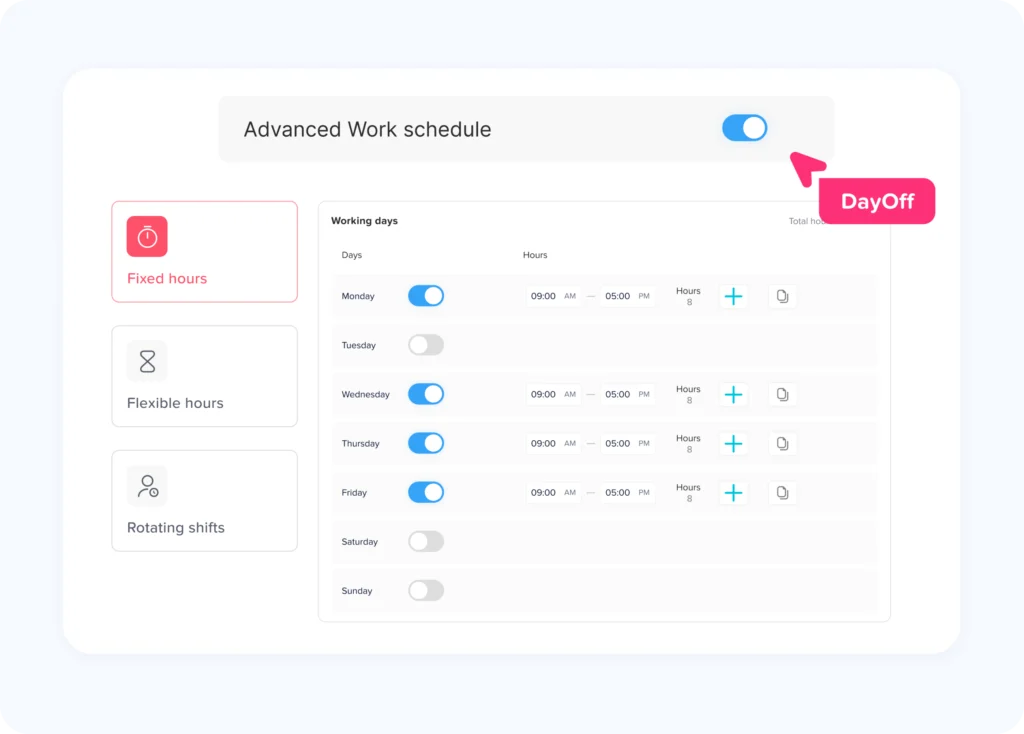
Set up:
- Employee workdays
- Shift start and end times
- Flexible work windows
- Expected daily hours
- Weekly hour totals
- Break requirements
- Weekend settings
- Holiday calendars
- Overtime rules
- Time zones
- Pay periods
Do not assume every employee follows the company’s default schedule. Part-time employees, rotating teams, overnight workers, and employees in different countries may need separate configurations.
Connect leave records to timesheets
Approved leave should be reflected automatically wherever possible.
The system should recognize:
- Full day PTO
- Half day leave
- Hourly leave
- Sick leave
- Unpaid leave
- Public holidays
- Parental leave
- Other approved absences
For example, when an employee has approved vacation on Friday, the timesheet should not incorrectly mark Friday as an unexplained absence.
A platform such as Day Off can help businesses keep leave requests, employee schedules, attendance information, timesheets, and team availability in a connected system.
Configure exception rules
| Exception | Possible Automated Response | Recommended Human Action |
|---|---|---|
| Missing clock-out | Mark the entry as incomplete and notify the employee | Confirm the actual ending time |
| Late clock-in | Compare the punch with the scheduled start | Check whether the delay was approved |
| No recorded break | Flag the shift for review | Confirm whether the employee worked through the break |
| Unplanned overtime | Notify the manager | Determine whether the work was authorized |
| Work during approved PTO | Create a conflict alert | Verify the leave or time entry |
| Manual edit | Save the original value and request a reason | Approve or reject the correction |
| Excessively long shift | Generate a warning | Investigate scheduling, safety, or recording issues |
| Duplicate time entry | Block or flag the duplicate | Remove the incorrect entry |
The system should not automatically delete legitimate work time simply because it falls outside the schedule. Scheduled hours and hours actually worked are not always the same.
Build the approval workflow
Define exactly who reviews each employee’s timesheet.
A simple workflow may be:
- Employee records time.
- Employee reviews and submits the timesheet.
- Direct manager reviews exceptions.
- Manager approves or returns the timesheet.
- HR reviews unresolved issues.
- Payroll receives the approved record.
- The pay period is locked.
Larger organizations may require more than one approval level for overtime, project billing, or payroll adjustments.
Approval routing should be based on current employee assignments. When an employee changes manager or department, the workflow should be updated immediately.
Set reminders and deadlines
Automated reminders reduce the need for HR to chase employees individually.
Useful notifications include:
- Reminder to clock out
- Missing punch alert
- Timesheet due reminder
- Manager approval reminder
- Overtime warning
- Unusually long shift alert
- Correction request
- Upcoming payroll cutoff
- Rejected timesheet notification
Notifications should be useful without becoming excessive. Too many alerts may cause employees and managers to ignore important messages.
Essential Features for Automated Timesheet Software
Simple clock in and clock out
Employees should be able to record time without navigating through multiple screens. A complicated process increases missed punches and incorrect entries.
Automatic hour calculations
The system should calculate:
- Total shift duration
- Paid hours
- Unpaid breaks
- Regular hours
- Overtime
- Leave hours
- Holiday hours
Flexible work schedules
Look for support for:
- Fixed schedules
- Flexible hours
- Rotating shifts
- Part time schedules
- Overnight shifts
- Remote teams
- Multiple time zones
Timesheet approvals
Managers should be able to approve, reject, comment on, or return timesheets for correction.
Edit history
Every correction should preserve useful information, such as:
- Original entry
- Updated entry
- Person who made the change
- Date of the change
- Reason for the correction
- Approval status
This creates accountability without preventing legitimate corrections.
Overtime alerts
The software should notify managers when employees approach or exceed configured limits.
An alert does not replace payment obligations or local employment rules. Its purpose is to help managers respond before unexpected overtime becomes a recurring operational problem.
PTO integration
Approved leave should connect directly with attendance and timesheet records.
Payroll export or integration
The system should prepare information in a format that payroll can process reliably.
Reporting
Useful reports may cover:
- Regular hours
- Overtime
- Breaks
- Absences
- Late arrivals
- Missed punches
- Pending approvals
- Timesheet changes
- Hours by location
- Hours by project
Role based permissions
Employees, managers, HR, payroll administrators, and system administrators should have access only to the information and actions required for their roles.
Timesheet Automation and Legal Recordkeeping
Timesheet requirements differ between countries, states, industries, employment types, and collective agreements. Businesses should review their processes with qualified legal, HR, tax, and payroll professionals.
For covered, nonexempt workers in the United States, the Fair Labor Standards Act requires employers to maintain accurate information about hours worked and wages earned. Employers may choose their own timekeeping method, but the records must be complete and accurate.
The Department of Labor states that covered employees generally must be paid for all compensable hours worked. It also explains that short rest breaks are generally counted as working time, while a genuine meal period may be unpaid when the employee is completely relieved from duties.
Under federal FLSA recordkeeping guidance, payroll records are generally retained for at least three years, while records used to calculate wages, including time cards and work schedules, are generally retained for two years. Other federal, state, local, contractual, or industry rules may require longer retention.
The IRS separately advises businesses to retain employment tax records for at least four years after the tax becomes due or is paid, whichever is later.
Automation should therefore preserve records rather than simply generate temporary totals.
How to Handle Missed Punches Automatically
A missed punch happens when an employee forgets to record the beginning or end of a work period.
A fair automated process should:
- Mark the timesheet as incomplete.
- Notify the employee promptly.
- Allow the employee to submit the missing time.
- Require a reason for the correction.
- Send the request to the appropriate manager.
- Preserve the original record.
- Record who approved the change.
- Include the corrected hours in payroll.
Avoid automatically inserting the employee’s scheduled ending time without verification. The employee may have left early, worked late, or followed a changed schedule.
Companies should also monitor repeated missed punches. A recurring pattern may indicate insufficient training, difficult software, device access problems, or a policy issue.
How to Automate Overtime Tracking
Overtime automation begins with clearly defined rules.
The system should know:
- Which employees are eligible
- Which hours count toward overtime
- Whether overtime is calculated daily, weekly, or differently
- How holidays and PTO affect calculations
- Whether overtime requires advance approval
- Who receives threshold alerts
- How approved overtime reaches payroll
For covered, nonexempt employees under the federal FLSA, overtime is generally required at one and one-half times the employee’s regular rate for hours worked beyond 40 in a workweek. State or local rules may impose additional requirements.
An approval policy can help control unauthorized overtime, but employers should not use approval rules to remove compensable time that was actually worked. Managers should address unauthorized work through scheduling, supervision, and policy enforcement rather than inaccurate timesheets.
Best Practices for Automating Employee Timesheets
To create a reliable process:
- Keep clock in and clock out simple.
- Use one centralized source for working time records.
- Connect approved PTO with attendance.
- Configure schedules before launching.
- Give employees access to their own records.
- Preserve edit and approval history.
- Use alerts for meaningful exceptions.
- Require managers to review unusual entries.
- Test payroll calculations before full implementation.
- Create a backup process for system outages.
- Review permissions regularly.
- Train new employees during onboarding.
- Revisit rules when policies or employment requirements change.
- Collect feedback after each of the first few payroll cycles.
- Audit automated calculations periodically.
Automation should support accurate decisions, not remove human review entirely.
FAQ
What does it mean to automate employee timesheets?
Automating employee timesheets means using software to capture working hours, calculate totals, identify incomplete records, route timesheets for approval, and prepare approved data for payroll or reporting.
Can timesheets be fully automated?
Many parts of the process can be automated, including hour calculations, reminders, exception alerts, overtime calculations, approval routing, PTO synchronization, and payroll exports.
Human review is still important for missed punches, disputes, unusual overtime, incorrect schedules, and policy exceptions.
How do employees submit automated timesheets?
Employees may clock in and out through a mobile app, browser, desktop tool, kiosk, or timer. At the end of the period, they review the generated timesheet and submit it to their manager.
How can a company automate timesheets for remote employees?
Remote employees can record time through a web or mobile application. The system should support flexible schedules, time zones, breaks, corrections, PTO, and manager approvals without requiring employees to be in a physical office.
Can PTO be added to timesheets automatically?
Yes. When the leave and timesheet systems are connected, approved vacation, sick leave, and other absences can appear in the employee’s attendance or timesheet record automatically.
How should automated timesheets handle missed clock-outs?
The system should flag the incomplete entry, notify the employee, request the correct time and reason, and route the correction to a manager. It should not invent an ending time without verification.
Can automated timesheets calculate overtime?
Yes. Software can calculate overtime using configured rules and alert managers when employees approach or exceed a threshold. The configuration must match the laws, policies, contracts, and employee classifications that apply.
Do salaried employees need automated timesheets?
Some salaried employees may need to track project hours, attendance, client work, leave, or working time for operational or legal reasons. The appropriate process depends on the employee’s role, classification, location, and company requirements.
How does timesheet automation help payroll?
It gives payroll teams approved, structured working-hour data. This reduces manual entry, identifies missing information earlier, and makes regular hours, overtime, unpaid time, and leave easier to review.
How long does it take to implement timesheet automation?
Implementation depends on the number of employees, schedules, locations, approval levels, payroll systems, and policy complexity. A reliable launch normally includes process mapping, rule configuration, pilot testing, payroll validation, training, and gradual rollout.
Conclusion
The most effective way to Automate Employee Timesheets is to improve the entire time-recording workflow, not simply replace a spreadsheet with an online form.
A reliable automated process captures working hours when they occur, applies clear rules, connects approved leave with attendance, identifies exceptions, routes records to managers, and prepares approved information for payroll. It also preserves the correction and approval history needed to understand how each final timesheet was created.
Before implementation, businesses should document their current process, define employee groups, confirm working-hour policies, configure schedules, test calculations, and train both employees and managers. Regular audits and employee feedback can then help the process remain accurate as the company grows.
With Day Off, organizations can manage employee time tracking, work schedules, attendance, leave requests, PTO balances, team availability, and timesheets in one connected system. Bringing this information together gives HR teams and managers a clearer, more organized way to manage employee time while reducing repetitive administrative work.