








Introducing a new PTO and Time Tracking System can improve how a company manages leave, attendance, work schedules, employee hours, and team availability. But choosing the software is only part of the job. The real challenge is moving employees and managers from the old process into a new one without creating confusion, inaccurate balances, missed punches, duplicate records, or resistance to the change.
A successful rollout should answer practical questions before employees ever log in.
Where will PTO requests be submitted? Who approves them? Which leave balances will employees see? When should employees clock in and out? Should they track only their working day or individual projects and tasks? What happens if someone forgets to clock out? When does the old spreadsheet or attendance system stop being used?

These questions matter because PTO and time tracking affect everyday employee routines.
The best rollout therefore combines accurate system configuration, clear communication, employee training, manager preparation, testing, and ongoing review.
This guide explains how to roll out a new PTO and time tracking system step by step, how to reduce employee confusion, what to check before launch, and how a connected platform such as Day Off can bring PTO, attendance, work schedules, time tracking, projects, tasks, and reports into one system.
What Is a PTO and Time Tracking System?
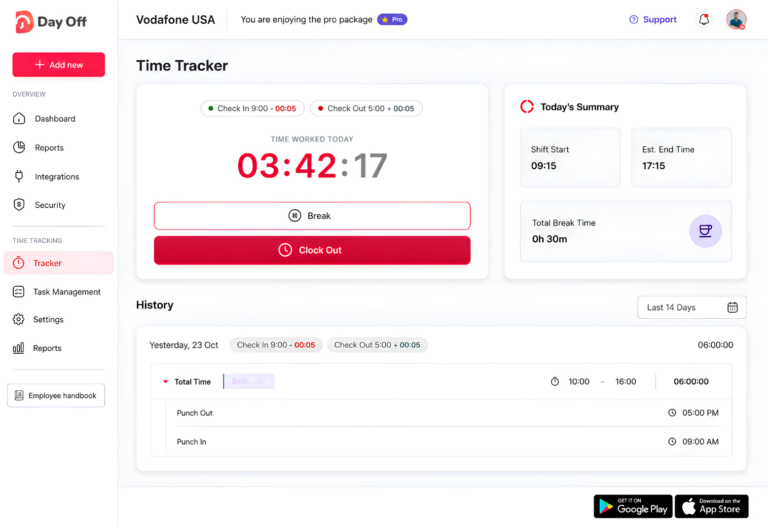
A PTO and time tracking system combines two important areas of workforce management.
PTO Tracking
PTO tracking records employee leave, including information such as:
- Vacation
- Sick leave
- Personal leave
- Unpaid leave
- Maternity or paternity leave
- Compensatory time off
- Half-day leave
- Hourly leave
- Other company-specific leave types
The system can help employees see available balances and submit requests while managers review approvals and HR maintains leave records.
Time Tracking
Time tracking records when and how employees work.
Depending on the company’s needs, this may include:
- Clock-in time
- Clock-out time
- Breaks
- Total working hours
- Late arrivals
- Early departures
- Overtime
- Projects
- Tasks
- Billable time
When these two areas work together, managers get more context.
If an employee does not clock in on Tuesday, the system should ideally help determine whether the employee was absent, on approved PTO, scheduled not to work, or simply missed a punch.
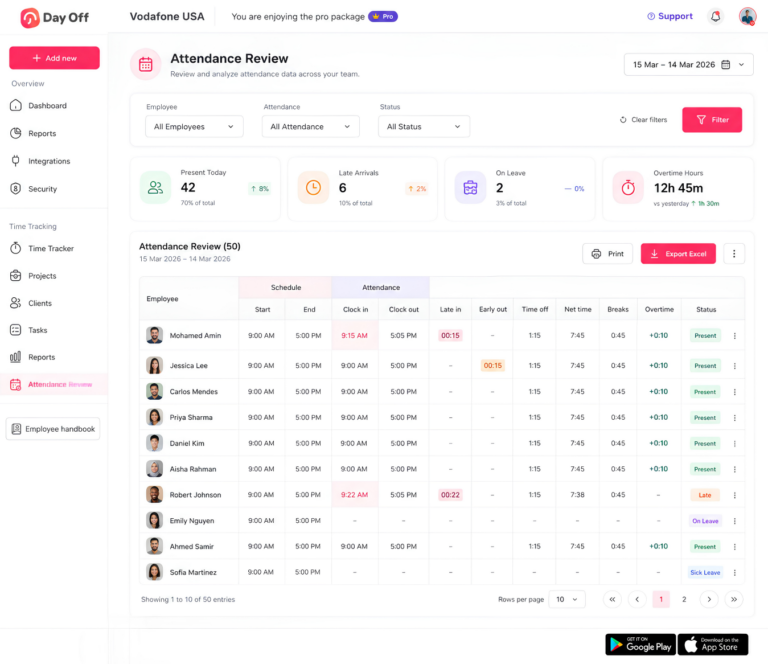
Day Off connects PTO management with time tracking and attendance. Its current Time Tracker supports work-hour tracking, projects and tasks, while Attendance Review compares scheduled and actual attendance, including late arrival, early departure, time off, breaks, net working time, and overtime.
Why the Rollout Matters as Much as the Software
A technically correct system can still fail if employees do not understand how to use it.
Imagine HR configures every leave policy perfectly, imports balances, creates schedules, and enables time tracking.
Then employees continue to:
- Request vacation through email
- Send sick leave messages through chat
- Forget to clock in
- Track time in the old spreadsheet
- Ask HR for balances instead of checking the system
- Submit project hours somewhere else
- Ask managers to approve requests verbally
The company now has several sources of truth.
That creates exactly the problem the new system was supposed to solve.
Technology adoption guidance from Microsoft recommends treating communication, training, pilots, support, and adoption measurement as part of the implementation itself. Microsoft also recommends testing with representative users and maintaining feedback channels rather than treating launch day as the end of implementation.
For PTO and time tracking, this is particularly important because employees interact with the system frequently.
The rollout needs to change both technology and habits.
Step 1: Audit the Current PTO and Time Tracking Process
Do not begin by copying everything from the old system into the new one.
First understand how the current process actually works.
Document:
PTO
- Leave types
- Annual allowances
- Accrual rules
- Carryover limits
- Carryover expiry
- Leave year
- Eligibility rules
- Waiting periods
- Minimum or maximum request duration
- Half-day rules
- Hourly leave rules
- Approval workflows
- Blockout periods
- Existing employee balances
Attendance
- Working days
- Working hours
- Shift patterns
- Flexible schedules
- Break rules
- Clock-in expectations
- Clock-out expectations
- Missed punch procedures
- Late arrival handling
- Early departure handling
- Overtime review
Time Tracking
If employees track work by project, also document:
- Active projects
- Clients
- Tasks
- Project owners
- Employee assignments
- Billable work
- Estimated hours
- Reporting requirements
The goal is to establish what should move into the new system and what should be changed before rollout.
Look for Problems in the Existing Process
This is also the right time to identify weaknesses.
Common examples include:
- PTO balances that do not match payroll records
- Different managers following different approval rules
- Employees using outdated leave policies
- Requests stored in emails
- Missing attendance records
- Duplicate spreadsheets
- Projects that no longer exist
- Former employees still appearing in reports
- Different teams using different definitions of overtime
- Work schedules that have never been formally documented
Moving inaccurate information into new software does not fix it.
It simply makes the inaccurate information digital.
Step 2: Decide What the New System Will Be Used For
A common implementation mistake is launching too many workflows without defining what employees are actually expected to do.
Create a simple statement of purpose.
For example:
Starting October 1, employees will use the new system to request PTO, view leave balances, clock in and out, and review their own attendance records.
Or:
Starting October 1, employees will submit leave requests and track working time against assigned projects and tasks in one system.
That gives everyone a clear boundary.
Decide Which Time Tracking Model You Need
Not every business needs the same level of time tracking.
Day Off currently provides two company-wide time tracking modes.
Clock In / Clock Out
Employees record the beginning and end of their workday without attaching time to projects or tasks.
This works well when the main goal is attendance.
Task Tracker
Employees track time against projects and, where applicable, specific tasks.
This provides more detailed information about where working hours are spent.
Day Off applies the selected mode company-wide, so administrators should choose the model before employees begin using the tracker.
Choosing the correct workflow before launch avoids telling employees to learn one process and then changing it immediately afterward.
Step 3: Clean and Validate Employee Data
Employee information is the foundation of the rollout.
Before inviting employees, verify:
- Employee name
- Team
- Location
- Role
- Manager
- Approver
- Work schedule
- Leave policy
- Opening PTO balance
- Employment status
Errors here can affect much more than a profile page.
Assigning the wrong work schedule could affect attendance comparisons or hourly PTO calculations.
Assigning the wrong leave policy could show an incorrect balance.
Assigning the wrong manager could send requests to the wrong approver.
Validate PTO Balances Carefully
Opening balances deserve particular attention because employees notice balance errors immediately.
For each employee, review:
Previous balance
- Accrued leave
- Carryover
- Manual adjustments
- Used leave
= Current available balance
If possible, reconcile balances against the previous source before launch.
Day Off provides leave reports for balances, detailed request history, accruals, carryover, and total leave usage, which can help HR review leave data after setup.
Do Not Ignore Historical Requests
Decide what will happen to:
- Already approved future PTO
- Pending PTO
- Previous leave records
- Carryover
- Manual adjustments
For example, if an employee already has two weeks of approved vacation next month, that absence should appear in the new process before employees begin relying on the team calendar.
Step 4: Configure Leave Policies Before Inviting Employees
Employees should not be the people who discover configuration mistakes.
Before launch, test every major leave policy.
Check:
- Leave type names
- Balance units
- Allowances
- Accrual frequency
- Carryover
- Expiry
- Approval requirements
- Half-day availability
- Hourly requests
- Eligibility
- Policy assignments
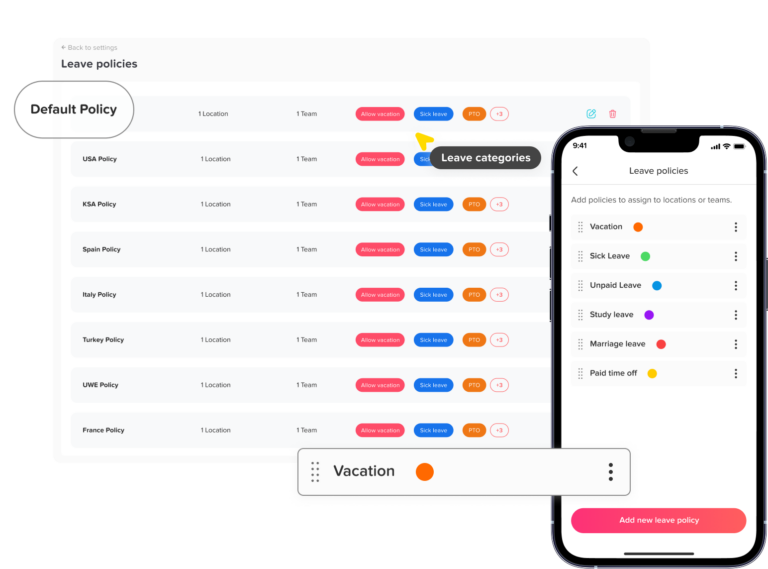
Day Off allows organizations to create multiple leave policies, include different leave types within those policies, configure settings such as auto-approval and half-day availability, and assign policies by location, team, or individual employee.
Test Real Employee Scenarios
Do not test only the easiest request.
Try situations such as:
- One-day vacation
- Half-day leave
- Multi-day PTO
- Leave crossing a weekend
- Leave crossing a public holiday
- Employee with low balance
- Employee with carryover
- Hourly leave
- Employee on a rotating schedule
Real testing catches configuration problems that a simple one-day request may not reveal.
Step 5: Set Up Work Schedules Correctly
Work schedules connect PTO and attendance.
An employee’s expected working time determines whether:
- The employee should be working that day
- Leave should be deducted
- The employee arrived late
- The employee left early
- Extra time may count as overtime
Day Off currently supports four work schedule types:
- Fixed Days
- Fixed Hours
- Flexible Hours
- Rotating Shifts
Fixed Hours can define exact working periods and can support split working periods. Flexible Hours define required hours without fixed start and end times, while Rotating Shifts allow repeating multi-week schedules.
Why Schedule Accuracy Matters
Consider an employee scheduled:
9:00 AM to 5:00 PM
If the employee clocks in at:
9:25 AM
the system needs the expected 9:00 AM start time to identify the 25-minute difference.
Likewise, hourly PTO calculations need accurate expected working hours.
Day Off’s Attendance Review compares the scheduled start and end with actual clock-in and clock-out activity and can display late time, early departure, breaks, approved time off, net working time, and overtime.
This means schedule setup should happen before, not after, employees start time tracking.
Step 6: Configure Projects and Tasks Before Launching Task Tracking
If the company chooses project-based time tracking, prepare the project structure before employees arrive.
Employees should not see an empty project list on launch morning.
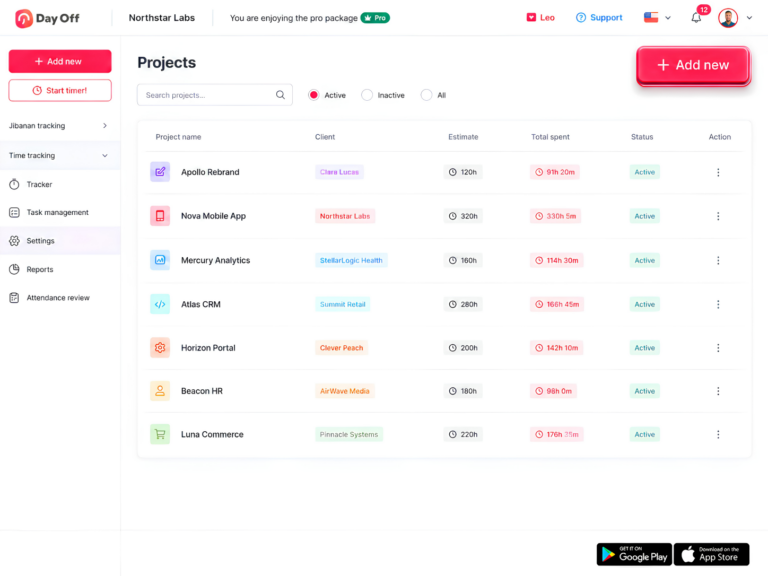
In Day Off, projects can include:
- Project name
- Client
- Project code
- Color
- Billable status
- Estimated hours
- Active or inactive status
Managers can then compare estimated time with actual time recorded against the project.
Tasks can sit beneath projects and be assigned to employees.
Keep the Project Structure Simple
Avoid creating hundreds of overly specific categories.
For example, instead of:
- Client X email
- Client X meeting
- Client X design
- Client X small edits
- Client X admin
- Client X calls
you might begin with:
Project: Client X
Tasks:
- Design
- Meetings
- Development
- Support
The structure should give management useful data without making every employee spend unnecessary time deciding where one 15-minute activity belongs.
Explain What Employees Must Select
In Day Off’s Task Tracker, a project must be selected before a time entry can be saved. A task can then provide additional detail where needed.
That makes project setup and training an important part of rollout.
Step 7: Test the System With a Pilot Group
Do not make the first real test a company-wide launch.
Select a small group representing different employee situations.
For example:
- One manager
- One HR administrator
- One standard employee
- One part-time employee
- One employee with a different schedule
- One project-based employee
- One shift worker
The pilot should use real workflows.
Ask them to:
- Log in
- Check their PTO balance
- Submit a leave request
- Approve a request
- Cancel a request
- Clock in
- Clock out
- Track a project
- Track a task
- Review attendance
- Review time history
Microsoft recommends pilot deployments with actual business users, champions, and technical stakeholders, together with a defined feedback method and accessible self-help information.
What Should the Pilot Look For?
Ask questions such as:
- Is the employee balance correct?
- Does the right manager receive the request?
- Is the schedule correct?
- Are public holidays correct?
- Is the tracker easy to find?
- Are project names understandable?
- Are employees clear about when to start and stop time?
- Can managers identify missing attendance?
- Does the exported data contain what HR needs?
- What questions keep appearing?
Fix these problems before company-wide launch.
Step 8: Explain Why the Company Is Making the Change
Employees may react very differently to PTO software and time tracking.
PTO self-service can feel helpful.
Time tracking can feel more sensitive.
If employees suddenly receive a message saying: Starting Monday, everyone must track their time.
many will immediately wonder:
- Why?
- What is being measured?
- Is this monitoring productivity?
- Who can see my hours?
- Will every break be questioned?
- How will this affect payroll?
- What happens if I forget?
- Is this replacing our existing process?
Answer these questions directly.
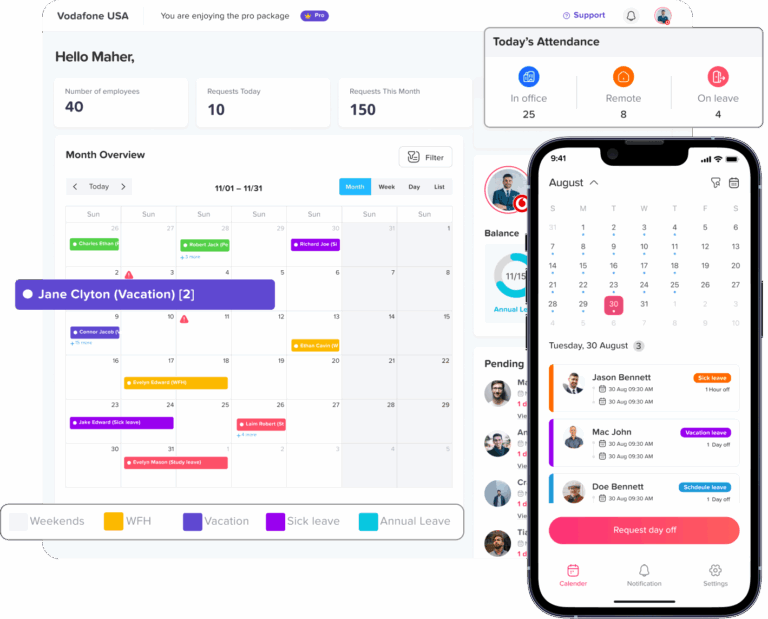
Microsoft’s change-management guidance recommends communicating what is changing, why it is changing, when it takes effect, where employees can find more information, and whom they should contact with questions.
Explain the Employee Benefit, Not Only the HR Benefit
Instead of saying: We are implementing new software to improve workforce administration and reporting.
say what changes for employees.
For example: You will be able to see your PTO balance, submit leave requests, view approvals, track your working time, and see upcoming team absences from one system.
That is easier to understand.
Be Transparent About Time Tracking
Employees should know:
- When they are expected to start tracking
- When they should stop
- Whether breaks are tracked
- Whether project tracking is required
- Who reviews their records
- How corrections work
- What happens after a missed clock-in
- Whether the data supports payroll, attendance, billing, planning, or another purpose
Avoid leaving employees to guess.
Step 9: Tell Employees Exactly What Is Changing
A rollout announcement should clearly show the difference between the old and new process.
| Process | Before | After Launch |
|---|---|---|
| PTO requests | Email or spreadsheet | Submit through the PTO system |
| PTO balance | Ask HR | View directly in the system |
| Approvals | Email or chat | Manager approves inside the system |
| Team availability | Separate calendar | Shared leave calendar |
| Start of work | Manual timesheet | Clock in |
| End of work | Manual timesheet | Clock out |
| Project time | Spreadsheet | Project/task tracker |
| Attendance review | Manual comparison | Schedule vs actual attendance |
This gives employees something concrete to remember.
Set a Clear Cutover Date
Do not leave the old and new processes running indefinitely.
For example:
Until September 30: Existing process remains active.
October 1: All new PTO requests and time records must use the new system.
The historical spreadsheet may remain available for reference, but employees should know which system is now authoritative.
Multiple active processes can create conflicting balances, duplicate requests, and incomplete attendance records.
Step 10: Train Managers Before Employees
Managers should never learn the system because an employee submits the first request.
Train managers first.
They need to understand:
- How approvals work
- How to see balances
- How to review overlapping leave
- How to review attendance
- How to handle missing time
- How to review overtime
- How to answer common employee questions
- When to contact HR
- Which old processes are no longer allowed
Day Off’s approval workflow allows managers to review request information and approve or reject requests, while authorized administrators can perform override actions where appropriate.
Managers are important because employees often copy their behavior.
If managers continue accepting vacation requests through chat after launch, employees will keep using chat.
Step 11: Keep Employee Training Short and Role-Specific
Employees generally do not need a 60-minute presentation about every administrative feature.
Show them what they will actually use.
PTO Training
Employees should know how to:
- Log in.
- Check their PTO balance.
- View the team calendar where permitted.
- Submit a request.
- Select the correct leave type.
- See whether the request is pending or approved.
- Cancel or change a request if your process allows it.
Clock In / Clock Out Training
Show employees:
- Where to start work time.
- What happens while the timer is running.
- How to end the working day.
- How breaks should be handled.
- What to do after a missed clock-in or clock-out.
Task Tracker Training
Show employees:
- Where to open the tracker.
- How to choose the correct project.
- How to select a task.
- How to add a description where needed.
- How to start the timer.
- How to stop the timer.
- How to review their history.
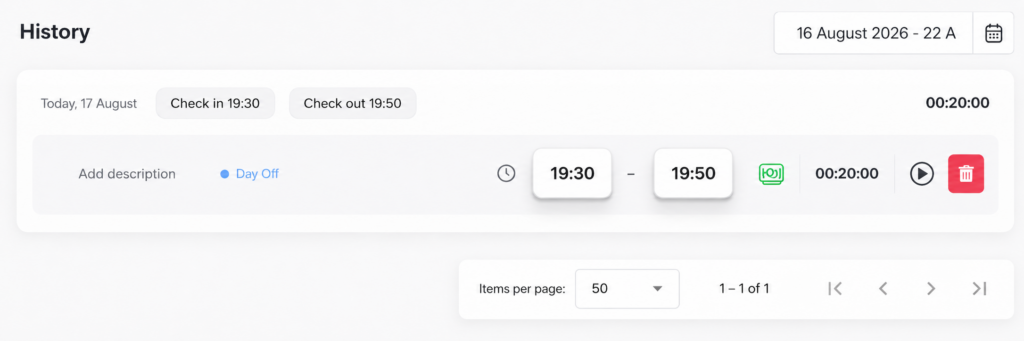
Day Off’s current tracker stores completed entries in a history log showing project, task, description, time range, and duration.
Microsoft’s implementation guidance also recommends meaningful training based on real job scenarios rather than overwhelming users with unnecessary information, and it emphasizes that training should continue after launch.
Step 12: Create a Simple Employee Quick Guide
Employees should not need to contact HR every time they forget one step.
Create a one-page guide containing:
Taking Time Off
Need PTO?
Open Day Off → Select the leave type → Choose dates → Submit request.
Starting Work
Starting your day?
Open Time Tracking → Start your time.
Tracking a Task
Working on a task?
Select the correct project → Select the task → Start timer.
Ending Work
Finished for the day?
Stop the timer or end the working day.
Need Help?
Add:
- HR contact
- Manager contact
- Knowledge Base link
- Internal support channel
Day Off maintains a Knowledge Base covering setup, leave management, work schedules, approvals, time tracking, projects, tasks, attendance review, and reporting, which can support employees and administrators after launch.
Step 13: Launch With a Clear First-Day Checklist
On launch day, check more than whether the website works.
HR Checklist
- Employees can access their accounts.
- PTO balances are correct.
- Leave policies are assigned correctly.
- Work schedules are assigned.
- Managers have the right permissions.
- Existing future leave appears correctly.
- Time tracking mode is correct.
- Projects are active.
- Tasks are available.
- Employee questions have a support path.
Manager Checklist
- Review pending requests.
- Confirm team schedules.
- Check that employees can access the system.
- Watch for missing clock-ins.
- Redirect requests sent through the old process.
Employee Checklist
- Log in successfully.
- Check PTO balance.
- Review work schedule.
- Find the request screen.
- Find Time Tracking.
- Complete the required tracking workflow.
A smooth first login matters because it establishes confidence in the new system.
Step 14: Review Attendance Daily During the First Week
The first week will reveal configuration and training problems quickly.
Do not wait until payroll review.
Check:
- Employees with no clock-in
- Employees with incomplete clock-outs
- Incorrect schedules
- Unusually high late time
- Incorrect overtime
- Approved leave appearing as absence
- Employees using the wrong project
- Employees forgetting tasks
- Unexpected missing data
Day Off Attendance Review organizes schedule and attendance information together. Managers can compare expected start and end times with actual attendance and review late time, early departure, approved time off, net working time, breaks, and overtime.
Treat Early Errors as Rollout Feedback
If 30 employees make the same mistake, it may not be an employee problem.
The instruction may be unclear.
For example:
Problem: Employees keep forgetting to select projects.
Possible cause: Project selection was never explained as required.
Response: Update the quick guide and reinforce the step.
Rollout data should improve the process.
Step 15: Review Time Tracking Reports
Once employees begin tracking regularly, managers can use reports to identify whether the process is producing useful information.
Day Off currently offers both Detailed and Summary time reports.
Detailed Report
Useful when managers need individual time entries, including:
- Employee
- Project
- Task
- Description
- Date
- Start and end time
- Duration
- Billable status
Summary Report
Useful when managers want aggregated information across:
- Employees
- Projects
- Clients
- Teams
- Locations
- Dates
Both views use the same tracked time data but present it differently.
Reports can also be filtered and exported to Excel, allowing teams to review only the relevant employee, project, task, client, team, location, or period.
During rollout, reports help answer an important question:
Are employees using the system in the way the company intended?
Step 16: Measure Adoption, Not Just Installation
Inviting 100 employees does not mean 100 employees have adopted the system.
Look for evidence of actual use.
Useful rollout metrics include:
- Percentage of employees who logged in
- Percentage who verified their PTO balance
- Percentage using the new request process
- Number of requests still arriving by email
- Percentage of required employees clocking in
- Missing clock-outs
- Incorrect project selections
- Manager approval delays
- Number of support questions
- Number of balance corrections
- Number of attendance corrections
Microsoft recommends measuring user adoption after implementation and using surveys, direct usage data, interviews, and other feedback methods to identify gaps.
Do Not Measure Only Employee Compliance
Also measure whether management processes improved.
For example:
- Are PTO approvals faster?
- Are fewer balance questions reaching HR?
- Are managers able to see who is unavailable?
- Are attendance errors easier to identify?
- Is payroll preparation easier?
- Is project time more complete?
- Are fewer requests being lost?
The goal is not simply to make employees click more buttons.
The system should solve an operational problem.
Step 17: Gather Feedback After the First Two Weeks
After employees have used the system in real situations, ask targeted questions.
Avoid: Do you like the new system?
Ask:
- Was your PTO balance correct?
- Was it clear where to submit a request?
- Did you know who approves your request?
- Was clocking in and out easy to remember?
- Were project names easy to understand?
- Were you able to correct a time entry when necessary?
- What step caused the most confusion?
- What information could you not find?
Specific questions produce useful changes.
Separate Training Problems From Configuration Problems
For example:
Employee selected wrong leave type
Could be training.
Employee cannot see correct leave type
Could be policy configuration.
Employee repeatedly arrives “late” despite starting on time
Could be an incorrect schedule.
Employee cannot save task time
Could be missing project setup.
The solution depends on the cause.
Step 18: Turn the New System Into the Single Source of Truth
A rollout is complete when employees no longer need to ask: Which record is correct?
If PTO is approved through one system but tracked in another spreadsheet, attendance is stored elsewhere, and managers maintain separate calendars, inconsistencies will continue.
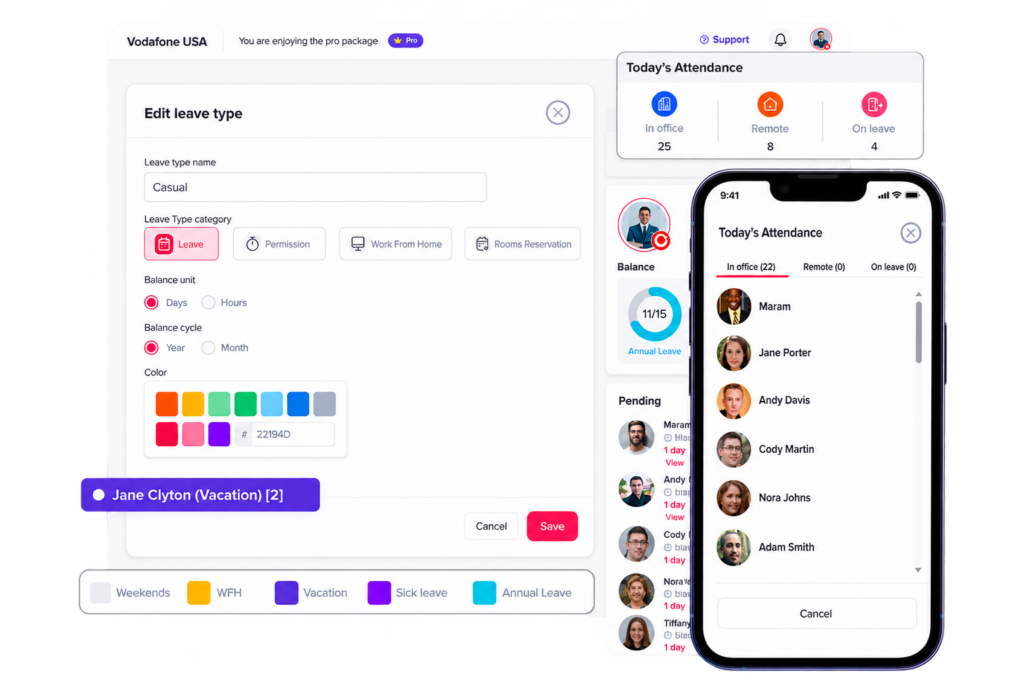
Day Off is designed to connect several of these records.
The platform currently brings together:
- Leave requests
- PTO balances
- Leave policies
- Approval workflows
- Team availability
- Work schedules
- Clock-in and clock-out activity
- Projects
- Tasks
- Attendance review
- Time reports
- Leave reports
Its Time Tracker page describes the platform as connecting punch-ins, punch-outs, daily tasks, leave requests, absences, attendance, and work schedules within the same Day Off environment.
This connection is particularly useful because PTO and attendance provide context for each other.
An employee who is not clocked in may be:
- On approved PTO
- On a scheduled day off
- Absent
- Late
- Missing a time entry
Keeping these records connected makes that difference easier to identify.
A Practical PTO and Time Tracker Rollout Timeline
A rollout does not need to take months, but it should have clear phases.
| Phase | Main Activities |
|---|---|
| Planning | Audit policies, schedules, balances, projects, and existing processes |
| Configuration | Set up employees, leave policies, approvals, schedules, time tracking, projects, and tasks |
| Validation | Reconcile balances and test real scenarios |
| Pilot | Test with managers and representative employees |
| Communication | Explain what is changing, why, when, and where employees get help |
| Training | Train managers first, then employees |
| Go-Live | Stop using old processes for new transactions |
| First Week | Review attendance, requests, missed punches, and support questions |
| First Month | Audit reports, gather feedback, correct processes, and measure adoption |
| Ongoing | Train new hires, maintain policies, review data, and update guidance |
The exact timeline depends on workforce size and complexity.
A 15-person company with one work schedule may move quickly.
A company with several locations, rotating shifts, multiple leave policies, project billing, and different approval structures should spend more time validating the setup.
Common Mistakes When Rolling Out PTO and Time Tracking
Launching Before Balances Are Verified
One incorrect PTO balance can immediately reduce employee confidence.
Validate first.
Not Explaining Why Time Tracking Is Being Introduced
Employees should know what the data is for.
Avoid leaving them to assume the worst.
Keeping the Old Request Process Alive
If managers still accept requests through chat or email, the new calendar will never contain complete information.
Training HR but Not Managers
Managers are the people employees ask first.
They need to understand the process.
Making Tracking Too Complicated
Too many projects, tasks, fields, and categories can reduce adoption.
Start with the level of detail the business actually needs.
Ignoring Work Schedules
Attendance data is only as useful as the schedule it is compared against.
Treating Go-Live as the End
The first weeks provide the most useful feedback.
Review the data and adjust.
Using Time Tracking as a Substitute for Management
A time tracker records hours.
It does not automatically explain productivity, quality, workload, or employee performance.
Managers still need context.
How Day Off Supports a PTO and Time Tracking Rollout
Day Off brings leave management, work schedules, attendance, time tracking, projects, tasks, and reporting into the same system. That matters during a rollout because the company does not have to treat PTO, attendance, and working time as completely separate processes.
When employees request time off, managers can review those absences alongside work schedules and team availability. When employees track working time, Attendance Review can compare actual attendance with the schedule already assigned to them. Project-based teams can also record time against projects and tasks instead of maintaining a separate timesheet process.
For companies replacing spreadsheets, manual attendance logs, or disconnected PTO and time tools, this creates a clearer workflow where time away from work and time spent working are managed together.
PTO and Leave Management
A successful rollout starts with accurate leave policies and balances. Employees are far more likely to trust a new PTO system when the allowance, accrual, carryover, and request rules they see match the company’s actual policy from the first day.
Day Off allows companies to create multiple leave policies and add the leave types required by each policy, such as vacation, sick leave, personal leave, or paid hours. Each policy can then be assigned at the location, team, or individual employee level, which is useful for companies where different groups receive different leave entitlements.
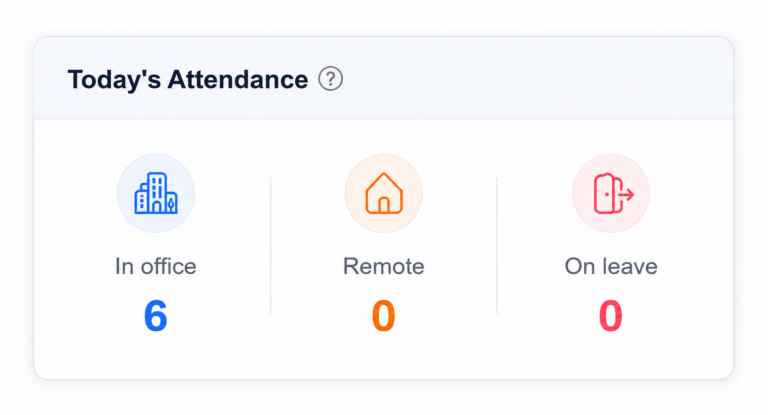
Leave types can also be configured with rules that reflect how the organization actually manages time off. Depending on the setup, administrators can define options such as:
- Leave balances in days or hours
- Half-day availability
- Auto-approval
- Negative balance rules
- Accrual
- Carryover
- Carryover limits
- Document requirements
- Different leave types within the same policy
Accrual rules allow companies to distribute leave over time rather than granting the entire allowance at once. Day Off supports accrual frequencies including weekly, biweekly, semi-monthly, and monthly, and accruals can follow a fiscal-year or employee-anniversary structure.
Carryover rules can also be configured so unused leave moves into the next period. Companies can allow the full remaining balance to roll over or apply a maximum number of days or hours, helping the system reflect the organization’s actual year-end PTO rules.
Once the policies are in place, employees can submit leave requests through the system instead of sending requests through email, chat, or spreadsheets. Managers receive the request with details such as the leave type, dates, duration, employee information, and approval flow, allowing them to approve or reject it from one place. Authorized administrators can also access override actions where necessary.
Work Schedules That Match How Employees Actually Work
Work schedules are not only a scheduling feature. They are one of the connections between PTO tracking and attendance.
Day Off uses an employee’s assigned work schedule to determine which days and hours the employee is expected to work. The schedule also supports more accurate leave deductions when an employee submits time off.
Day Off currently supports four work schedule types.
Fixed Days
Fixed Days is the simplest schedule.
Administrators define which days of the week are working days and which are weekends, without specifying exact start and end times.
For example:
Working days: Monday to Friday
Weekend: Saturday and Sunday
This can work well for companies that mainly need day-based leave tracking and do not need attendance to be measured against an exact shift start.
Fixed Hours
Fixed Hours adds specific working times.
For example:
Monday: 9:00 AM to 5:00 PM
Tuesday: 9:00 AM to 5:00 PM
The schedule can also contain separate working periods within the same day when employees work split shifts.
Exact hours become particularly important when the company wants to compare expected attendance with actual clock-in and clock-out activity.
Flexible Hours
Flexible Hours is designed for employees who have a required amount of working time without a fixed start or finish.
For example, an employee may need to work:
8 hours per day
without being required to start exactly at 9:00 AM.
This makes the schedule more appropriate for flexible or remote teams where total working time matters more than a strict clock-in time.
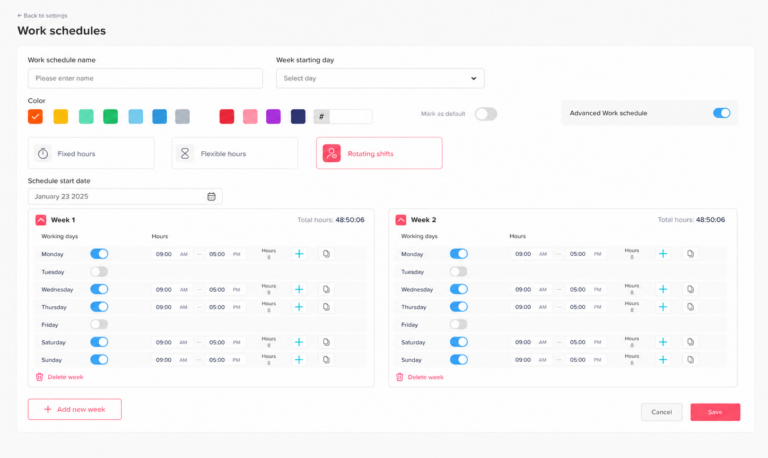
Rotating Shifts
Rotating Shifts support schedules that change across multiple weeks.
For example:
Week 1: Monday to Friday
Week 2: Tuesday to Saturday
Week 3: Different start and end times
The cycle can then repeat.
This is useful for businesses such as healthcare, support, hospitality, manufacturing, and other operations where employees do not follow the same weekly pattern throughout the year.
Why Work Schedules Matter During Rollout
Work schedule accuracy affects more than the calendar.
Suppose an employee is supposed to work from:
9:00 AM to 5:00 PM
and clocks in at:
9:22 AM
Day Off can compare the actual attendance with the scheduled start to identify late time.
But if that employee is incorrectly assigned an 8:00 AM schedule, the attendance record will suggest the employee is more than an hour late even though the problem is actually the schedule configuration.
That is why companies should validate every employee’s schedule before asking them to start tracking time.
Time Tracking
Once schedules are ready, companies can decide how employees should record their actual working time.
Day Off currently supports two company-wide time tracking approaches:
Clock In / Clock Out
Clock In / Clock Out is designed for straightforward attendance tracking.
Employees start their working day when they begin work and end it when they finish. The resulting time records can then be compared with the employee’s assigned schedule.
This model works well for companies that mainly want answers to questions such as:
- When did the employee start?
- When did the employee finish?
- How long did the employee work?
- Was the employee late?
- Did the employee leave early?
- Did the employee work overtime?
It is simpler because employees do not need to categorize every period of work by project or task.
Task Tracker
Task Tracker adds another layer of detail.
Instead of only recording that an employee worked from one time to another, tracked time can be associated with a project and task.
For example:
Project: Website Redesign
Task: Homepage Development
or:
Project: Client A
Task: Monthly Reporting
This allows managers to see not only how long employees worked, but also where those hours were spent.
Day Off’s time tracker uses a live start/stop timer and can attach sessions to projects and tasks. Completed sessions are stored in a history log showing details such as the project, task, start time, end time, duration, and billable status. Start and end times can also be adjusted when a session needs correction.
Choosing the Right Mode Before Launch
The company should decide which tracking approach employees will use before the rollout begins.
If the main goal is attendance, Clock In / Clock Out may be enough.
If the business also wants project costing, client reporting, workload analysis, or billable-time visibility, Task Tracker provides more detail.
The selected approach determines the workflow employees will follow each day, so changing it immediately after launch can create unnecessary confusion.
Projects and Tasks
For project-based companies, time tracking becomes much more useful when working hours are attached to meaningful work rather than stored as one total number.
Day Off allows companies to organize project time using clients, projects, and tasks.
A project can be linked to a client and can be used to organize time around a specific area of work. Day Off also supports project time estimates and allows projects to be maintained as active or completed, helping managers separate current work from projects that no longer need new time entries.
Tasks provide a more detailed level inside the project.
For example:
Client: Acme Ltd.
Project: Mobile App
Tasks:
- UI Design
- Development
- Testing
- Client Meetings
Instead of seeing only:
Employee A worked 8 hours
a manager can potentially see how those hours were distributed across actual project activities.
Day Off’s task management also allows tasks to be assigned to employees and compared against estimated time, which gives managers another way to compare planned effort with actual tracked work.
Why Project Setup Matters During a Rollout
Project-based time tracking can become confusing if the structure is not prepared before employees begin using it.
If employees see duplicate, outdated, or unclear project names, they may record time inconsistently.
For example, one employee might choose:
Website
while another chooses:
Website Project
and another uses:
Client Website 2026
If all three represent the same work, reporting becomes fragmented.
Before launch, companies should therefore:
- Remove outdated projects
- Use clear project names
- Link the correct clients
- Assign relevant tasks
- Define time estimates where useful
- Make sure employees can find the work they are expected to track
The goal is not to create as many categories as possible. It is to create enough structure to make the resulting time data useful.
Attendance Review
Attendance Review is where the relationship between scheduled time and actual time becomes much clearer.
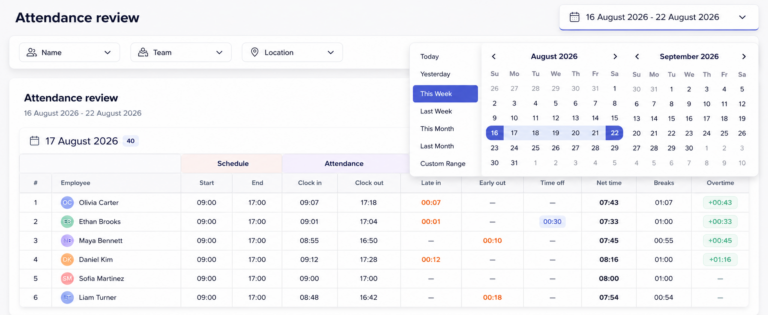
Day Off organizes Attendance Review by date and shows both the employee’s expected schedule and actual attendance.
Managers can review:
- Scheduled start
- Scheduled end
- Clock-in
- Clock-out
- Late time
- Early departure
- Approved time off
- Net working time
- Breaks
- Overtime
The system treats the schedule as the expected working pattern and attendance as what actually happened. Late arrival, early departure, and overtime are then calculated from the difference where the schedule contains the necessary start and end information.
Example
Suppose an employee is scheduled:
9:00 AM to 5:00 PM
but their actual record shows:
Clock in: 9:18 AM
Clock out: 5:35 PM
Attendance Review can help the manager identify that the employee started after the scheduled time while also working beyond the scheduled end.
That is more useful than looking at the clock-in time alone.
PTO Adds Important Context
Attendance should not automatically treat every missing clock-in as an unexplained absence.
If the employee was on approved leave, that information is relevant to the attendance record.
Day Off’s Attendance Review includes a Time off field, and days without normal attendance can show leave information instead of ordinary clock-in and clock-out values. Administrators can also add a day off from the Attendance Review when a missing record needs to be aligned with leave.
This is one of the main advantages of combining leave and time tracking.
A manager looking at a missing punch can distinguish between situations such as:
- Employee was on approved leave
- Employee was not scheduled to work
- Employee forgot to clock in
- Employee was absent
- Employee arrived late
That provides much better context than a standalone time clock.
Attendance Review During the First Weeks of Rollout
This page is particularly useful immediately after launch.
Managers can quickly spot patterns such as:
- Employees who repeatedly forget to clock out
- Incorrect schedules
- Unexpected late-time calculations
- Missing attendance records
- Leave that has not been recorded correctly
- Overtime that appears unusually high
These patterns can reveal whether the problem is employee training or system configuration.
Reporting
A rollout should eventually produce more reliable information, not simply move the same manual records into another interface.
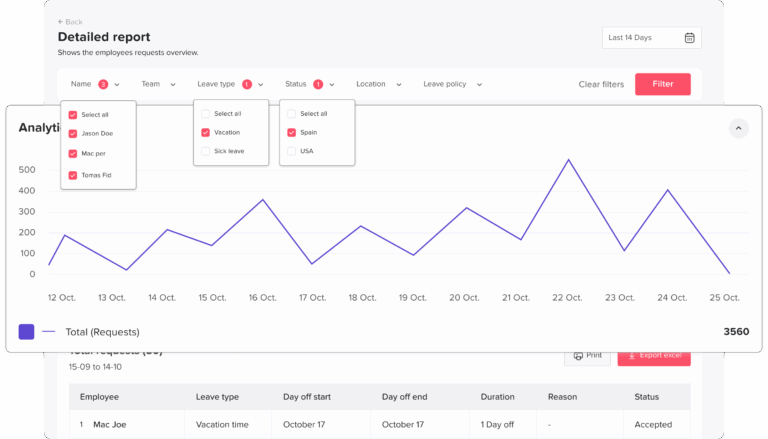
Day Off provides reporting for both leave management and tracked working time, giving HR and managers several ways to review the information captured in the system.
PTO and Leave Reports
Day Off includes several dedicated leave reports.
Balances Report
The Balances Report shows leave allocation and usage by employee and leave type.
HR can use it to see how much leave has been allocated, how much has been used, and what remains.
Detailed Report
The Detailed Report provides a request-level history.
It can show requests within a selected date range and includes statuses such as accepted, pending, rejected, or deleted.
This is useful when HR needs to investigate exactly what happened rather than only seeing a total balance.
Total Report
The Total Report summarizes how many days or hours employees have used during a selected period.
This is useful for higher-level leave usage analysis.
Accruals Report
The Accruals Report focuses on leave earned over time.
It can show information such as:
- Employee
- Leave policy
- Accrued amount
- Next accrual date
- Earned leave
Carryover Report
The Carryover Report helps HR review leave moved forward from a previous cycle, including remaining carried-over leave and applicable expiry information.
Together, these reports help HR answer questions such as:
- How much PTO does this employee have?
- How much has the team used?
- When is the next accrual?
- How much carryover remains?
- What requests created this balance?
Time Tracking Reports
Time Tracking includes both Detailed and Summary reporting views.
The Detailed report shows individual tracked sessions. This is useful when HR or managers need to inspect the exact record behind a total, including the project, task, employee, date, time range, duration, and billable status.
The Summary report uses the same tracked-time data but aggregates it so managers can analyze totals by dimensions such as:
- Employee
- Project
- Client
- Team
- Location
- Date
This makes the Summary view more useful when the question is:
Where is working time going?
rather than:
What happened during this exact time entry? (day-off.app)
Filtering and Exporting Data
Reports can also be narrowed by relevant filters before they are reviewed or exported.
For time tracking, filters can include criteria such as:
- Employee
- Client
- Project
- Task
- Team
- Location
- Description
The selected report can then be exported to Excel, and the export reflects the active date range and filters rather than automatically exporting the entire account history. (day-off.app)
This can be useful when teams need to prepare information for:
- Payroll review
- Client billing
- Attendance analysis
- Project reviews
- Internal reporting
- HR audits
One Connected View of Working Time and Time Off
The strongest benefit during a rollout is not any single feature.
It is the connection between them.
An employee’s assigned schedule defines when they are expected to work.
Their time tracker records what they actually worked.
Their PTO records explain approved time away.
Attendance Review compares the schedule with what happened.
Reports then provide a way to analyze the resulting leave and working-time data.
That creates a more complete sequence:
Work Schedule → Expected Time
Time Tracker → Actual Time
PTO → Approved Time Away
Attendance Review → Scheduled vs Actual
Reports → Analysis and Records
For companies moving away from separate spreadsheets, manual punch records, email-based PTO requests, and disconnected project timesheets, that connection can make the rollout easier to manage.
Employees get a clearer process for requesting leave and tracking work, while managers gain better visibility into who is working, who is away, how schedules compare with actual attendance, and where tracked working time is being spent.
Frequently Asked Questions
How do you introduce a new time tracking system to employees?
Start by explaining why the company is introducing time tracking, what employees will be expected to record, how the information will be used, and when the new process begins.
Then provide simple training based on real daily actions, such as clocking in, clocking out, selecting projects or tasks, and correcting mistakes. Managers should usually be trained first so they can answer questions consistently after launch.
How do you get employees to use time tracking software?
Make the process simple and explain how it benefits employees as well as management.
Employees are more likely to use a new system consistently when they understand its purpose and do not see it as unnecessary extra administration. Clear instructions, short training, easy access to support, and a defined cutover date can all improve adoption.
Companies should also review early usage and fix repeated problems instead of assuming every missed entry is an employee issue.
How do you introduce time tracking without making employees feel monitored?
Transparency is important.
Explain exactly what the company is tracking, why the information is needed, who can review it, and how it will be used. Avoid presenting time tracking as a way to watch every employee action.
Instead, focus on legitimate business purposes such as attendance records, accurate working hours, project planning, workload visibility, client billing, or overtime review.
Employee concerns about surveillance and micromanagement are a common issue when businesses introduce time tracking, which is why communication should happen before the system goes live.
Should you test a PTO and time tracking system before rolling it out to everyone?
Yes. A pilot group can help identify incorrect PTO balances, schedule problems, confusing projects, approval issues, missed punch workflows, and training gaps before they affect the whole company.
The pilot should include different types of users, such as managers, standard employees, shift workers, and employees with different schedules.
Once the pilot is complete, HR can correct the configuration and improve training materials before company-wide launch.
How long does it take employees to adjust to a new PTO and time tracking system?
There is no fixed adjustment period because it depends on the size of the company, complexity of the workflows, employee roles, and how different the new system is from the previous process.
Companies should pay particular attention to the first few weeks after launch. Review missing clock-ins, approval delays, incorrect PTO requests, project selection errors, and common employee questions.
The rollout should be considered successful when employees consistently use the new system for PTO and working time without relying on old spreadsheets, emails, or manual processes.
Final Thoughts
Rolling out a new PTO and time tracking system is not only about introducing new software. It is about making sure employees understand the new process, managers know how to support it, and the company starts with accurate policies, balances, schedules, and attendance rules.
A successful rollout should include clear communication, manager and employee training, a pilot period, a defined go-live date, and regular reviews during the first few weeks. This helps reduce missed punches, incorrect leave requests, duplicate processes, and employee confusion.
With Day Off, companies can manage PTO, work schedules, attendance, time tracking, projects, tasks, and reporting in one connected system. That gives employees a simpler way to manage both time off and working time, while giving managers better visibility into attendance, leave, and team availability.