


-
Calendar Settings
Can I see my colleagues’ requests?
Yes, employees can view their colleagues’ time off requests, depending on the visibility settings configured by the organization. This helps improve transparency and allows teams to plan better by being aware of who is off and when.
For Employees
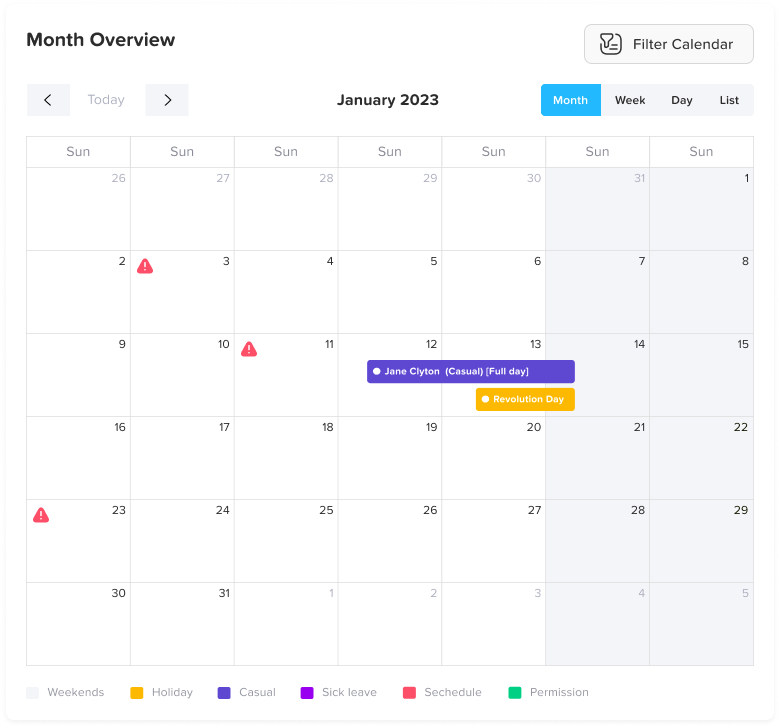
Employees can view their colleagues’ leave through the calendar or team view, making it easier to coordinate time off and avoid overlaps.
- Open the Day Off app
- Navigate to the Calendar or daschboard section
- Browse through the dates
- Approved time off requests from colleagues will appear directly on the calendar
- You can see who is off on specific days, helping you plan accordingly
- In some cases, you may also see the type of leave and the pending requests (depending on company settings)
This visibility helps employees avoid submitting requests during already busy or understaffed periods.
Visibility Limitations
What you can see may vary based on your organization’s privacy settings:
- You may only see requests from your team or department, not the entire company
- Some organizations may hide leave types or specific details for privacy reasons
- Pending or rejected requests may not always be visible
These settings ensure a balance between transparency and employee privacy.
For Admins
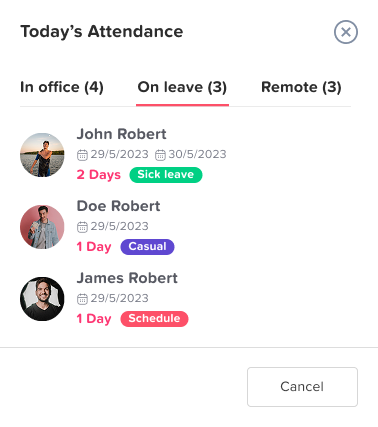
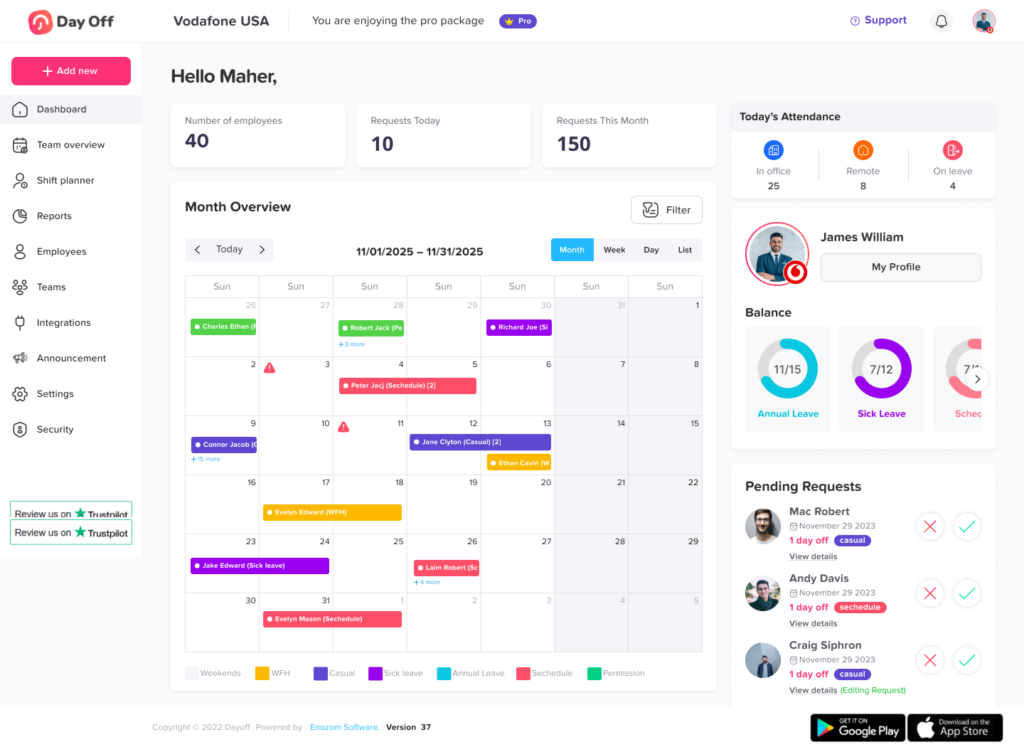
Admins have complete visibility and control over all employee leave requests, allowing them to monitor, manage, and take action when needed.
- Open the Day Off dashboard
- View all requests across different teams, departments, and locations
- Easily identify request statuses such as approved, pending, or rejected
- Select any request to open a detailed view
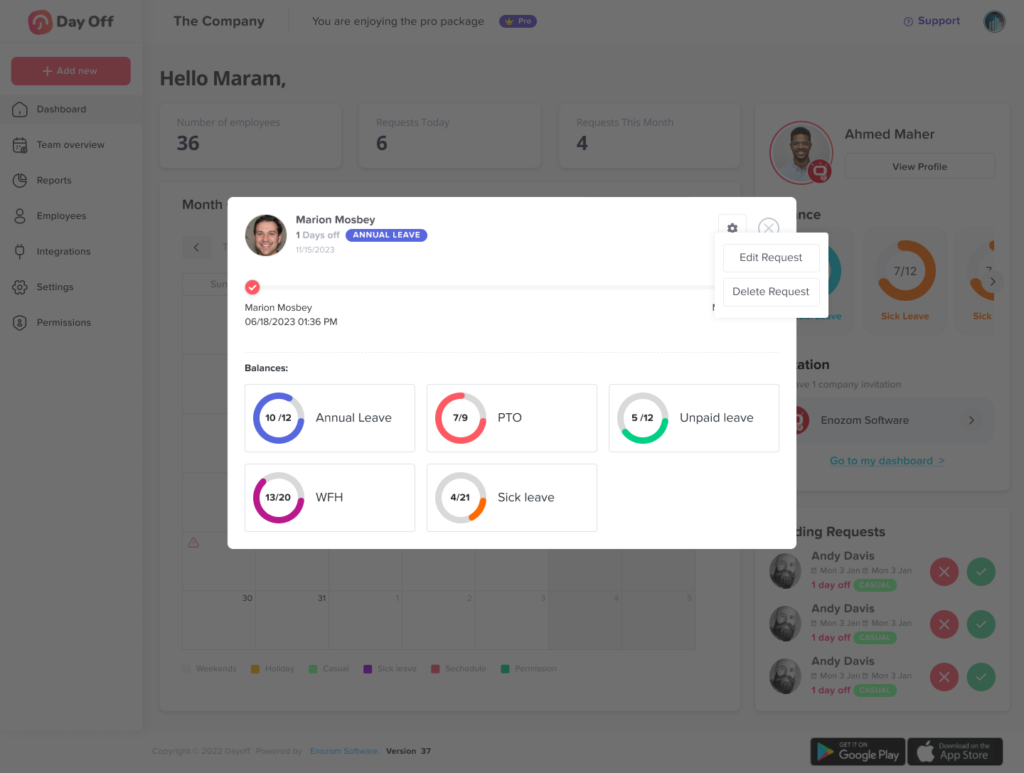
When clicking on a specific request, admins can access comprehensive information, including:
- The leave type (e.g., annual, sick, etc.)
- The selected dates and duration of the request
- Any reason or notes provided by the employee
- Attached documents, if submitted
- The employee’s leave balance for each leave type
In addition to viewing details, admins have full control over requests and can:
- Edit the request if changes are needed
- Delete the request if it was submitted incorrectly or is no longer valid
Admins can also configure what employees are allowed to see in the calendar, ensuring that visibility settings align with company policies and privacy preferences.
Calendar Interaction
The calendar provides an interactive and visual way for admins to explore and manage requests efficiently.
- Open the calendar in the Day Off
- Navigate through dates to identify days with existing requests
- Click on any specific date or request entry
Once selected:
- A detailed view will appear showing which employees are off on that day
- Clicking on an individual request will reveal full request details, including leave type, dates, and any additional information
- If available, admins can also review reasons, attachments, and leave balances directly from this view
From the same interface, admins can take immediate action by editing or deleting requests, making the calendar not just a viewing tool but a central place for managing time-off across the organization.