


-
Leave Policies
- Can employees view their leave policy details?
- Can I set carryover rules for unused leave?
- How do accrual rules work in a leave policy?
- How do I create a leave policy?
- How do I edit or update an existing leave policy?
- How do I set a request period for leave requests?
- How to Allow Compensation for a Leave Type?
- How to Create a Leave Type with No Balance
- How to require a mandatory comment or reason when submitting a leave request?
- How to set a negative balance for leave?
- How to set a notice period for leave requests?
- Is it possible to set probation period rules for leave?
- What is a leave policy and how does it work in Day Off?
- What is the Difference Between a Leave Policy and a Leave Type?
Can I set carryover rules for unused leave?
Yes, you can set carryover rules to control how unused leave is handled at the end of a leave cycle. This gives you flexibility to either allow employees to keep their remaining balance, limit how much they can carry forward, or set an expiration period for unused days.
Steps to configure carryover rules
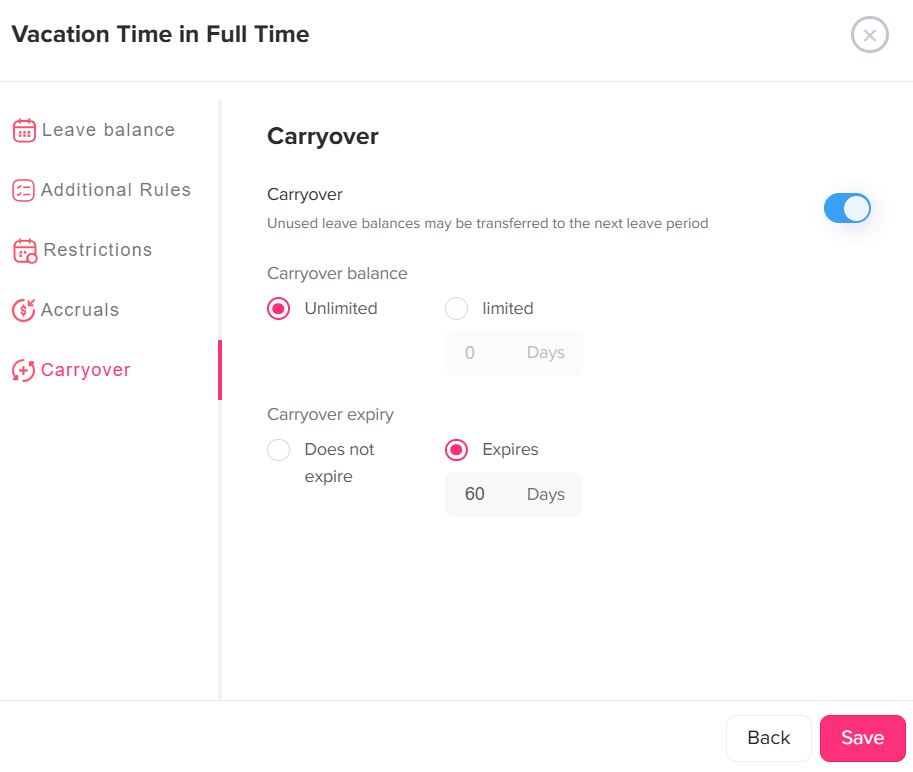
1. Go to Settings
Open the main Settings area where all system configurations are managed, including leave policies and rules.
2. Navigate to Leave Policies
Access the section that contains all your company’s leave policies, such as full-time, part-time, or any custom leave policies.
3. Click the edit icon next to the leave type
Choose the specific leave type you want to apply carryover rules to. This allows you to configure settings individually for each leave type.
4. From the left-side menu, select Carryover
Open the Carryover tab, where you can define how unused leave balances should be treated at the end of the leave period.
5. Enable the Carryover toggle
Turn on the carryover option to allow unused leave to be transferred to the next leave cycle. If this is disabled, any unused balance will not be carried forward.
6. Choose the carryover balance
Decide how much unused leave employees can carry over:
- Unlimited: Employees can carry forward their full remaining balance without any limits.
- Limited: Set a maximum number of days (or hours) that can be carried forward, even if the employee has more unused leave.
7. Set the carryover expiry
Define what happens to the carried leave after it is transferred:
- Does not expire: Carried leave remains available indefinitely.
- Expires: Set a number of days after which the carried leave will expire if not used.
What does this mean for employees?
At the end of each leave cycle, any unused leave will be handled automatically based on your configuration. Employees will clearly know whether their unused days are carried forward, limited, or subject to expiration, helping them better plan their time off.
Can admins edit carryover for a specific employee?
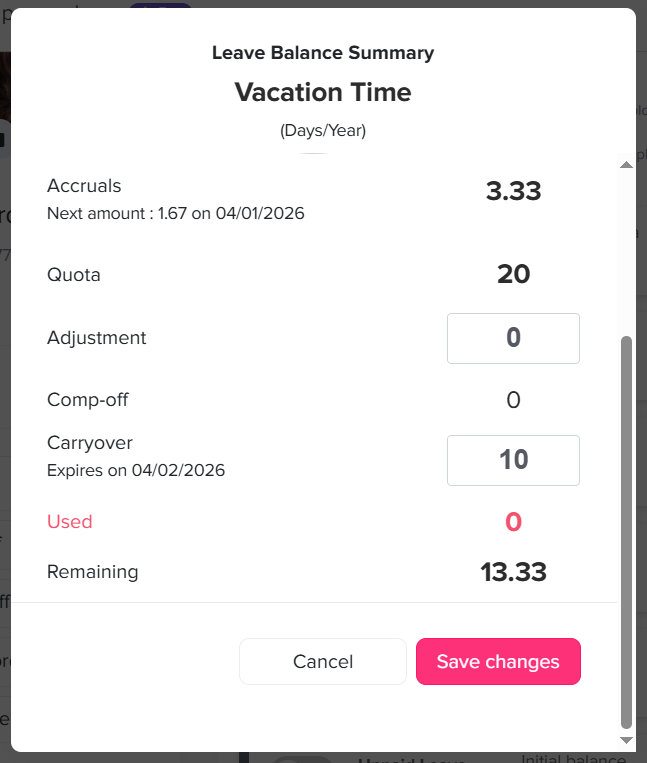
Yes, admins can manually adjust the carryover balance for any employee. This is useful in special cases where exceptions need to be made or corrections are required.
- Go to the Employees list.
- Click on the employee to open their profile.
- Navigate to the Balance section.
- Click the edit icon next to the leave type you want to update.
- Locate the Carryover section within the leave balance settings.
- Adjust the carryover value as needed.
- Click Save to apply the changes.
Once saved, the updated carryover balance will be immediately reflected in the employee’s leave records. This allows admins to maintain flexibility while ensuring accurate leave tracking.
Can employees view their carryover balance and expiry?
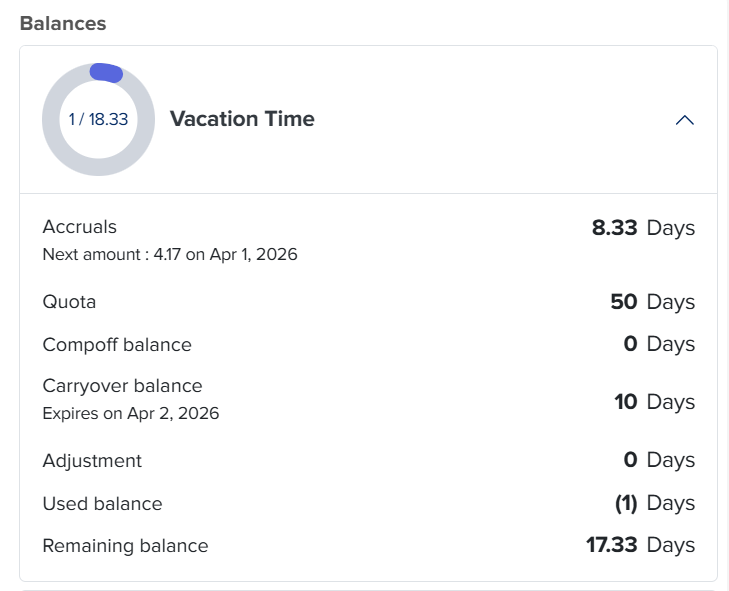
Yes, employees can easily see how much leave has been carried over and whether it has an expiration date.
- Go to the Balance section.
- Click on the relevant leave type.
In the detailed view, employees will be able to see:
- The carryover amount transferred from the previous period
- Whether the carryover has an expiration date
- The exact expiry date (if applicable)
This helps employees stay informed about their available leave and ensures they use any expiring balance on time.
By setting up carryover rules, you can handle unused leave in a clear and flexible way. Admins can adjust balances when needed, and employees can easily see what has been carried over and when it may expire. This ensures transparency, better planning, and a smoother leave management experience for everyone.