





-
Leave Policies
- Can employees view their leave policy details?
- Can I set carryover rules for unused leave?
- How do accrual rules work in a leave policy?
- How do I create a leave policy?
- How do I edit or update an existing leave policy?
- How do I set a request period for leave requests?
- How to Allow Compensation for a Leave Type?
- How to Create a Leave Type with No Balance
- How to require a mandatory comment or reason when submitting a leave request?
- How to set a negative balance for leave?
- How to set a notice period for leave requests?
- Is it possible to set probation period rules for leave?
- What is a leave policy and how does it work in Day Off?
- What is the Difference Between a Leave Policy and a Leave Type?
By default, adding a reason when submitting a leave request is optional. Employees can include a comment to provide more context, and this will be visible to admins during the review process. However, you can make this field mandatory to ensure that every request includes a reason.
Steps to require a reason
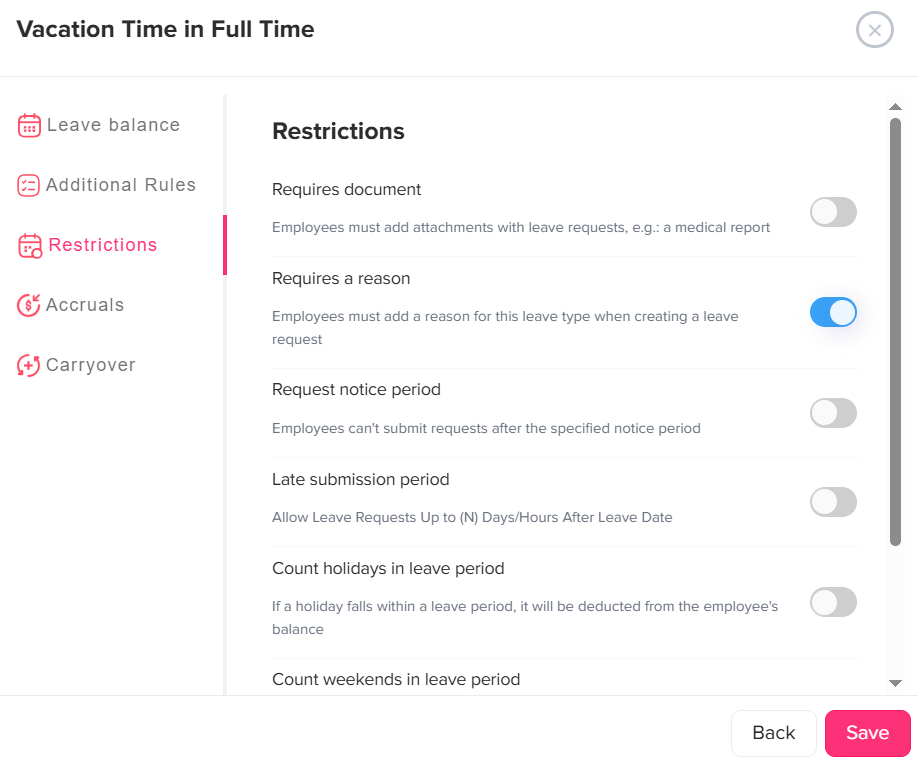
- Go to Settings & integrations → Settings
Open the Settings section where all leave configurations are managed. - Navigate to Leave Policies
Access the list of all leave policies in your organization, click on the edit icon near the required leave policy. - Click the edit icon next to the leave type
Select the leave type where you want to require a reason. - From the left-side menu, select Restrictions
Open the Restrictions section where request-related rules are configured. - Enable the “Requires a reason” toggle
Turn on this option to make adding a reason mandatory for this leave type. - Click Save
Apply your changes to activate the requirement.
What does this mean for employees?
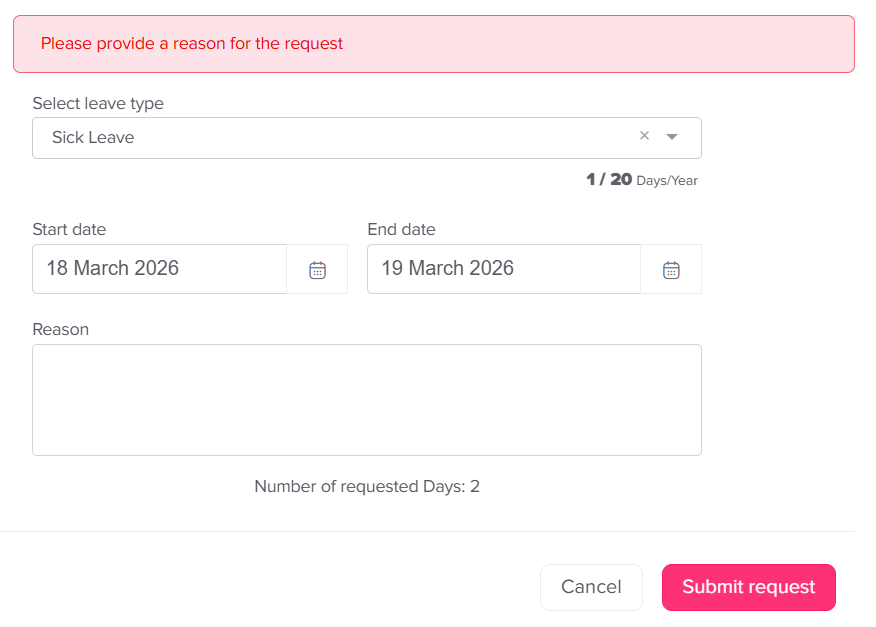
Once this option is enabled, adding a reason becomes a required step when submitting a leave request. Employees will need to provide a clear explanation before they can proceed. If they try to submit the request without a reason, a message will appear prompting them to fill it in, and the request will not be submitted until the required information is provided.
Can approvers see the reason for a leave request?

Yes, the reason provided by the employee is clearly visible to approvers at every stage of the request.
- While the request is pending, approvers can review the reason to better understand the context before making a decision
- After the request is approved or rejected, the reason remains available as part of the request details
- The reason is also included in Absence → Reports, allowing admins and managers to track and review past requests easily
This ensures full transparency, helps approvers make more informed decisions, and keeps a clear record of all leave requests over time.