


-
Leave Policies
- Can employees view their leave policy details?
- Can I set carryover rules for unused leave?
- How do accrual rules work in a leave policy?
- How do I create a leave policy?
- How do I edit or update an existing leave policy?
- How do I set a request period for leave requests?
- How to Allow Compensation for a Leave Type?
- How to Create a Leave Type with No Balance
- How to require a mandatory comment or reason when submitting a leave request?
- How to set a negative balance for leave?
- How to set a notice period for leave requests?
- Is it possible to set probation period rules for leave?
- What is a leave policy and how does it work in Day Off?
- What is the Difference Between a Leave Policy and a Leave Type?
How do I create a leave policy?
Creating a leave policy in Day Off helps you clearly define how time off works in your company. You can decide how many days/hours employees get, what types of leave are available, and what rules apply, all in one place.
Don’t worry, everything is simple and flexible, and you can adjust it anytime.
Step 1: Go to Leave Policies
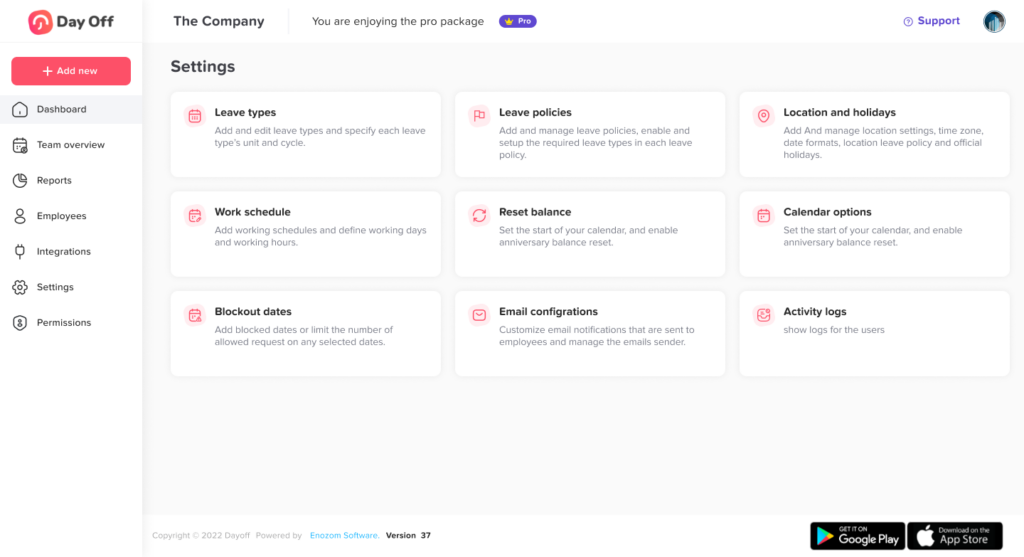
Start by navigating to where all your policies are managed:
- Go to Settings
- Click on Leave Policies
- Click Add new leave policy
This will open a new window where you can start building your policy.
This page shows all your existing policies, so you can always come back later to edit or create new ones
Step 2: Enter Policy Name
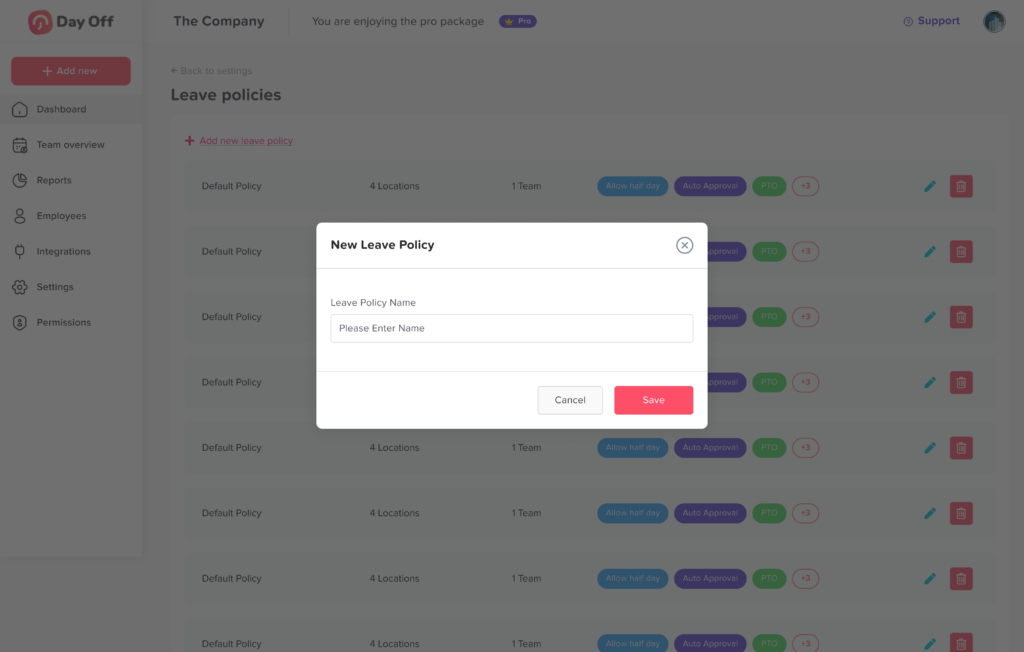
Now give your policy a name.
Enter a name like:
- Full Time Employees
- Part Time
- Remote Team
Choose a name that clearly describes who this policy is for.
This will help you stay organized, especially if you have multiple policies.
- Click Next to continue
Step 3: Add and Select Leave Types
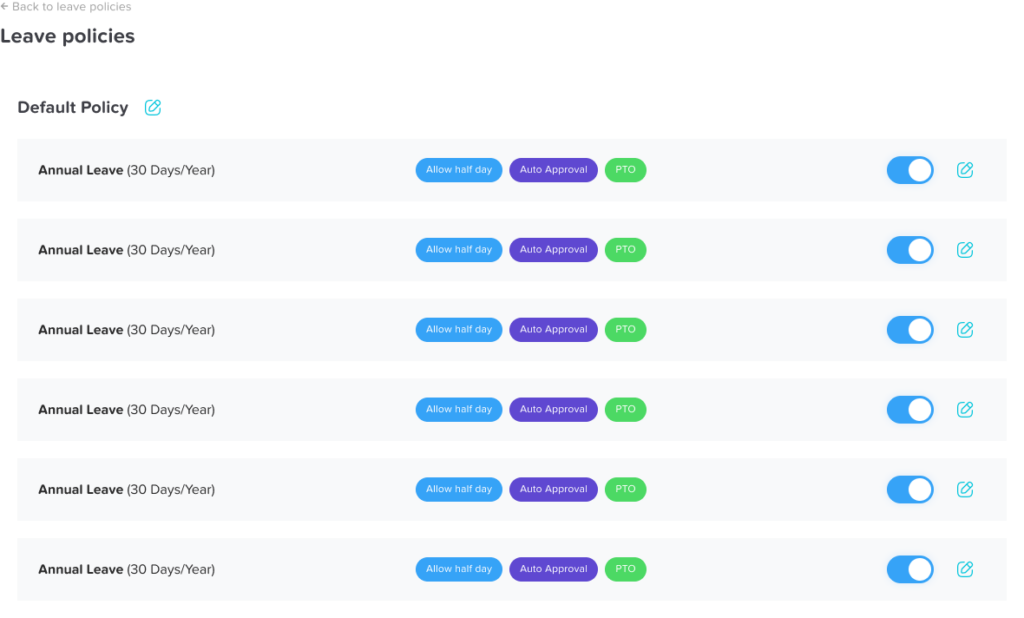
Here, you decide what types of leave are included in this policy.
- Turn on the leave types you want, such as:
- Vacation Time
- Sick Leave
- Paid Time Off
- Personal Leave
- You can turn off any leave types you don’t need
- Click the edit icon to customize each one
There’s no limit, you can include as many leave types as your company needs.
This step helps you tailor the policy to match your company’s structure.
Step 4: Configure Leave Balance
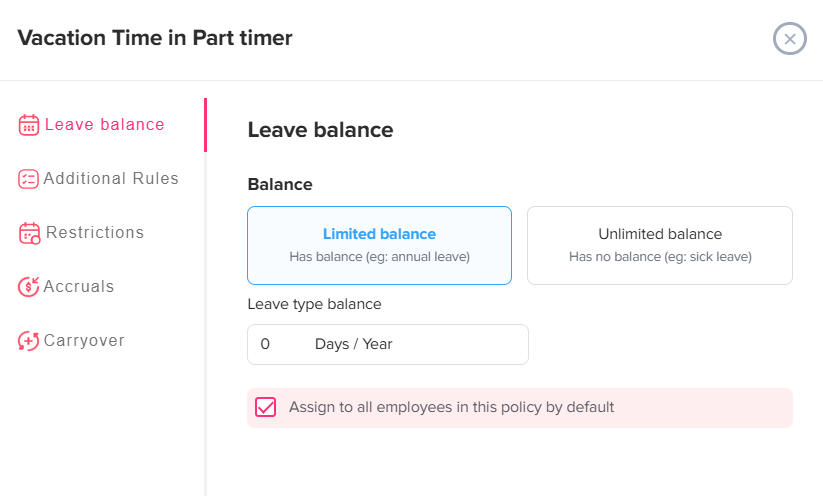
Now you decide how much leave employees get.
For each leave type:
- Choose:
- Limited balance: set a fixed number (e.g., 20 days per year)
- Unlimited balance: no limit (commonly used for sick leave)
- Enter the number of days or hours (if limited)
- Optionally apply this to all employees in the policy
This step defines how much time off employees are allowed to take.
Take your time here, this is one of the most important parts of the policy.
Step 5: Set Additional Rules
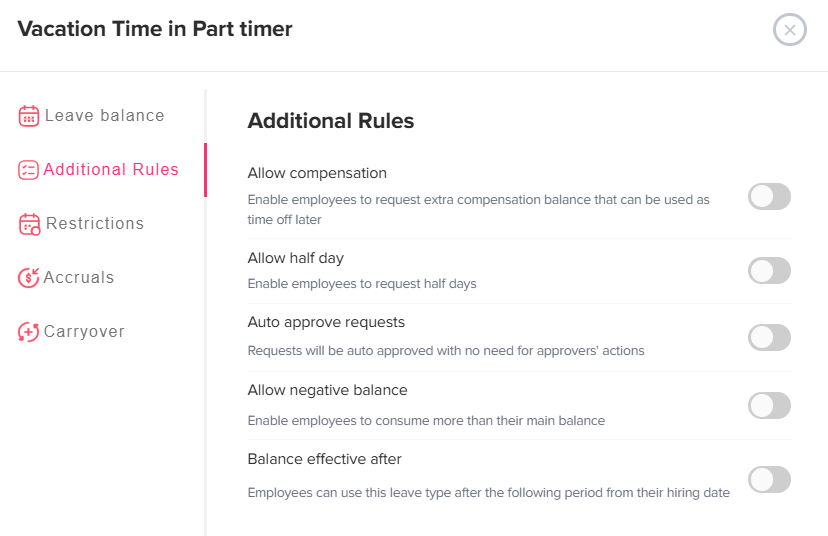
In this section, you can control how flexible or strict your leave policy is, depending on your company’s rules and culture.
You can enable the following options:
- Allow half days: Employees can request leave for half a day instead of a full day.
- Auto approve requests: Leave requests are approved automatically without requiring manager action.
- Allow negative balance: Employees can request leave even if they don’t have enough balance. Their remaining balance will go into negative, meaning they are borrowing leave from future allocations.
- Balance effective after: Employees can only start using their leave balance after a specified period (e.g., after probation).
These settings give you the flexibility to align the system with real-life company policies.
For example, some companies allow employees to go into a negative balance as a form of advance leave, while others enforce strict limits and do not permit this.
Step 6: Add Restrictions (Optional)
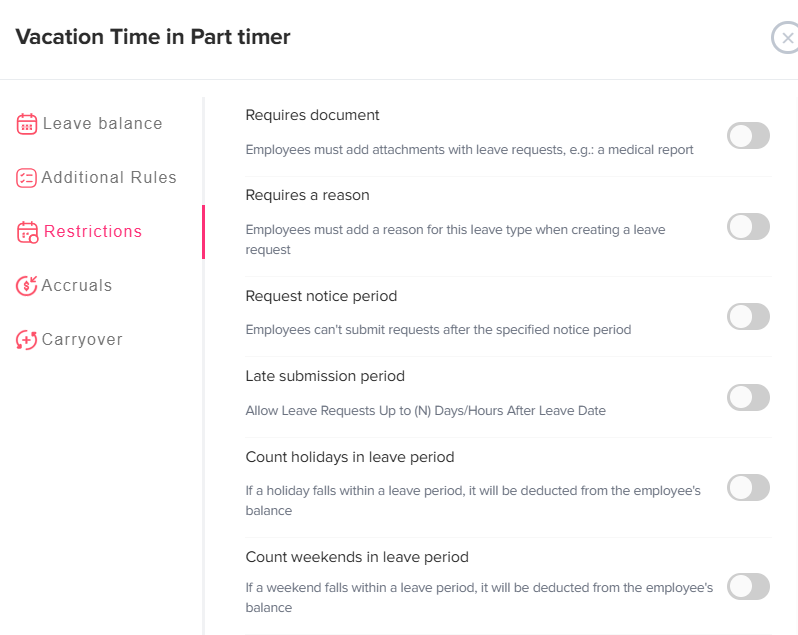
This step lets you add conditions to leave requests.
You can require:
- A document (like a medical certificate)
- A reason for the leave
- Request Notice Period
Set how many days in advance leave must be requested
Helps teams plan ahead - Late Submission Period
Allow requests after the leave date
Useful for emergencies - Count Holidays in Leave Period
Decide if holidays are deducted from leave balance
Keeps calculations consistent - Count Weekends in Leave Period
Choose whether weekends count as leave days
Matches your company policy - Request Period
Set minimum and maximum leave duration
Prevents very short or very long requests
Step 7: Set Accrual Rules (Optional)
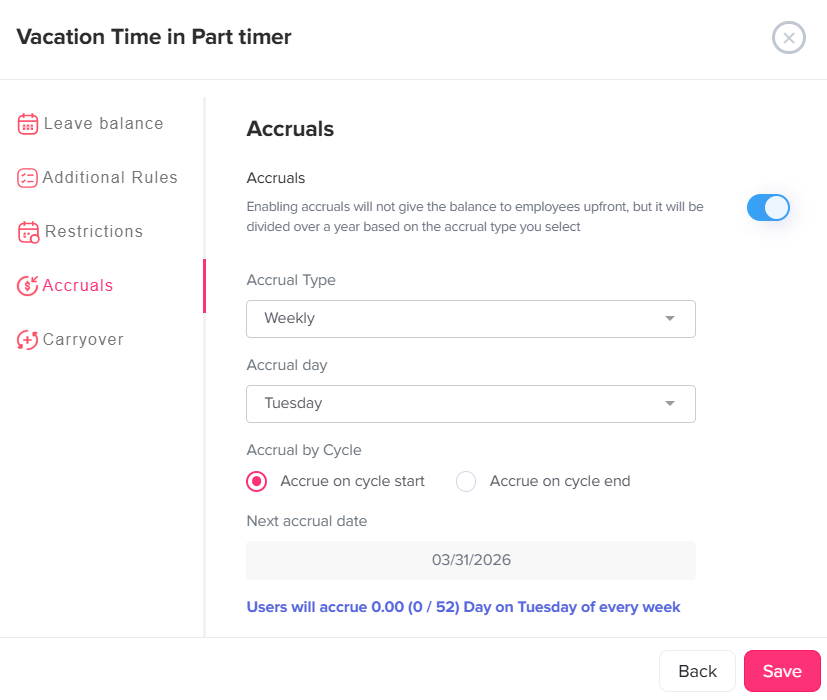
If your company provides leave gradually over time, you can enable accruals instead of giving the full balance upfront.
- Turn on Accruals
- Choose how often leave is added:
- Weekly
- Monthly
- semi-monthly
- bi-weekly
- Select when the leave is credited:
- At the start of the cycle
- At the end of the cycle
Example:
Instead of giving 24 days at once, employees earn 2 days each month.
Step 8: Configure Carryover (Optional)
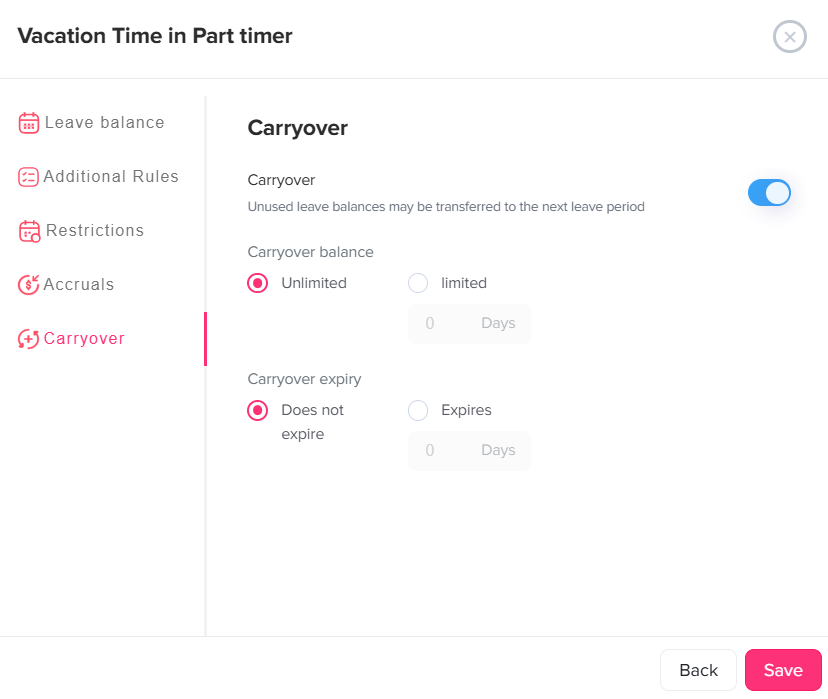
This setting lets you decide what happens to unused leave at the end of a period.
- Enable Carryover to allow unused leave to roll over
- Choose:
- Unlimited carryover: no limit
- Limited carryover: set a maximum (e.g., 5 days)
- Optionally set an expiration for carried leave
Why it matters:
Helps you control whether unused leave is saved for later or expires based on your company policy.
Step 9: Save Your Policy
- Click Save
Your leave policy is now created and ready to use.
Step 10: Assign the Policy
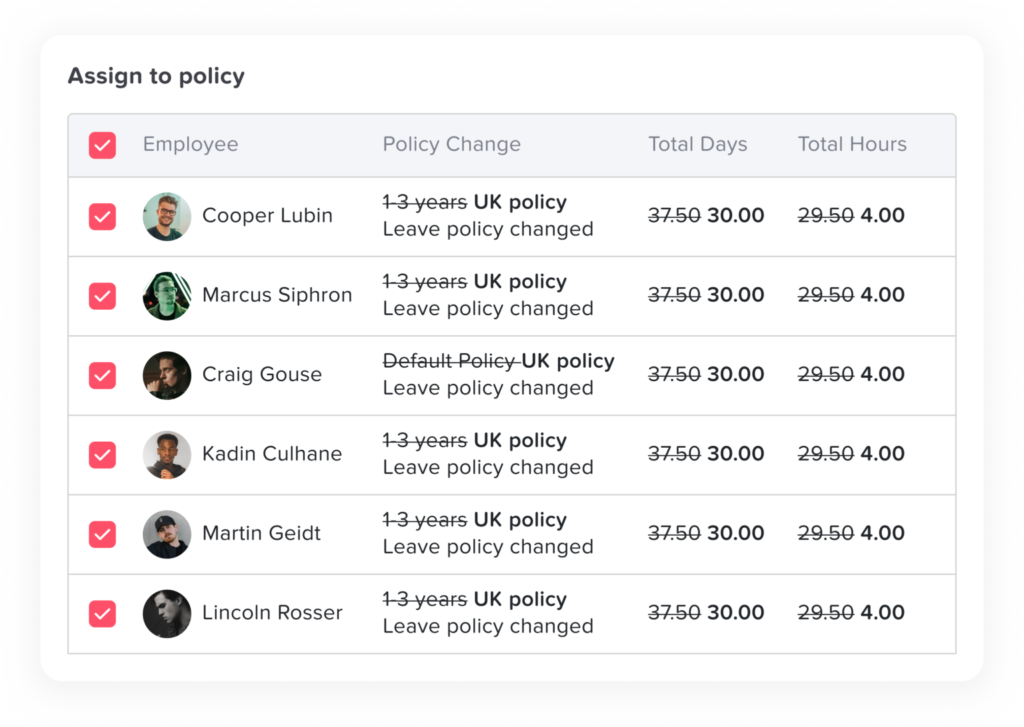
After creating your policy, you’ll need to assign it so it takes effect.
- Locations: automatically applies to all employees in that location
- Teams: useful when different teams have different leave rules
- Individual employees: for fully customized setups
This flexibility helps you apply the right policy to the right people with ease.
Creating a leave policy in Day Off is simple once you break it down step by step. You have full control over how time off works, from balances and rules to approvals and flexibility.
Once everything is set up, Day Off takes care of the rest automatically, saving you time and keeping everything organized.