


-
Leave Policies
- Can employees view their leave policy details?
- Can I set carryover rules for unused leave?
- How do accrual rules work in a leave policy?
- How do I create a leave policy?
- How do I edit or update an existing leave policy?
- How do I set a request period for leave requests?
- How to Allow Compensation for a Leave Type?
- How to Create a Leave Type with No Balance
- How to require a mandatory comment or reason when submitting a leave request?
- How to set a negative balance for leave?
- How to set a notice period for leave requests?
- Is it possible to set probation period rules for leave?
- What is a leave policy and how does it work in Day Off?
- What is the Difference Between a Leave Policy and a Leave Type?
How do I edit or update an existing leave policy?
You can update an existing leave policy at any time to reflect changes in your company’s rules or requirements. Whether you need to adjust leave balances, modify restrictions, or enable new features, editing a policy ensures your leave setup stays accurate and aligned with your organization’s needs.
Steps to edit a leave policy
1. Go to Settings
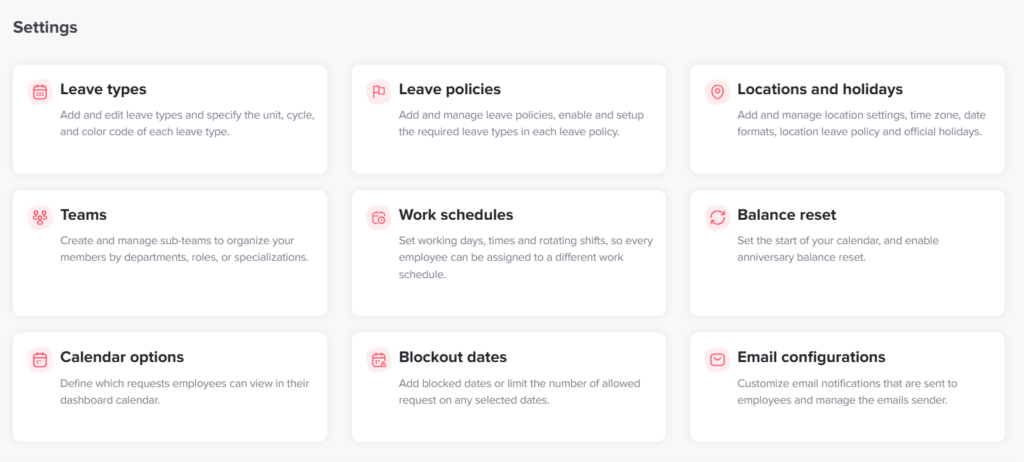
Open the Settings section, which is the central place for managing all system configurations. This is where you can control everything related to leave policies, employee settings, and overall system behavior.
2. Navigate to Leave Policies
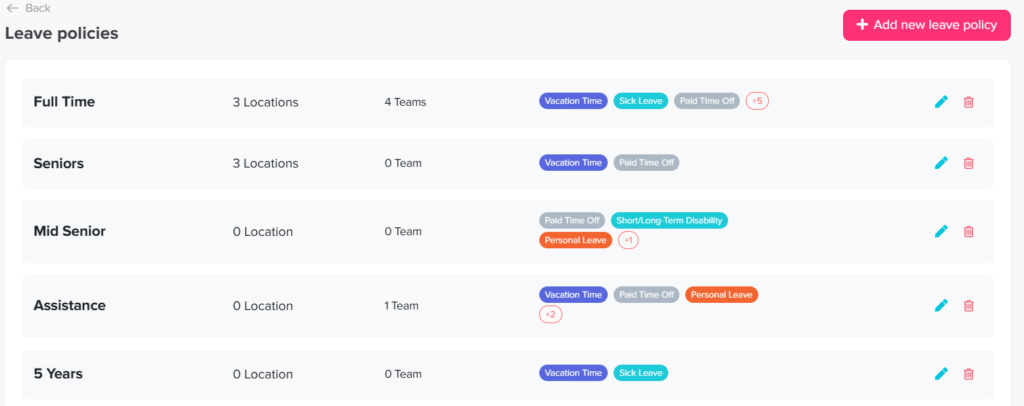
Enter the Leave Policies section to view all the policies created in your organization. Each policy may include multiple leave types and can be assigned to different groups of employees.
3. Click the edit icon next to the leave policy
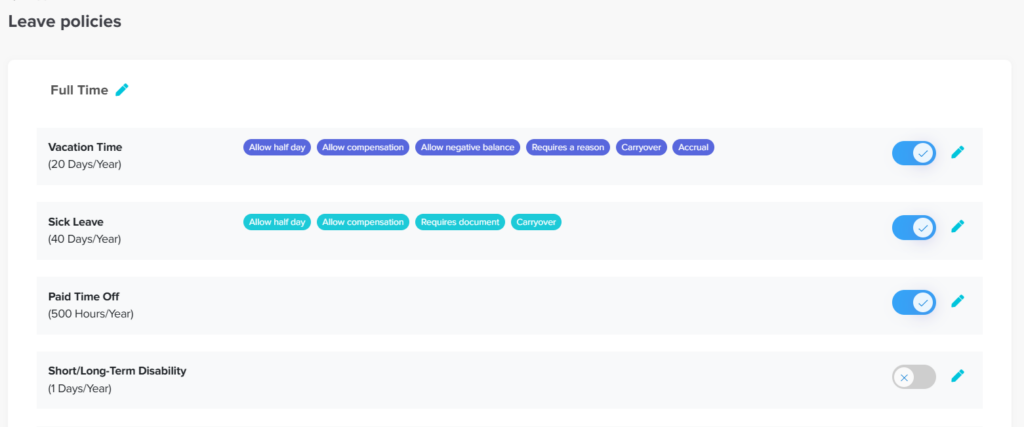
Select the specific leave policy you want to update. This will open the full policy view, where you can review and manage all associated leave types and their configurations.
4. Review the leave types in the policy
Inside the policy, you will see a list of all leave types that are currently enabled (such as annual leave, sick leave, etc.). This gives you a clear overview of what is included in the policy.
5. Enable or disable leave types (if needed)
You can choose to enable new leave types or disable existing ones depending on your requirements. Disabling a leave type will remove it from the policy, while enabling one makes it available for employees under this policy.
6. Click the edit icon next to the leave type
Select the specific leave type you want to update. Each leave type has its own settings, allowing you to customize rules independently within the same policy.
7. Choose the section you want to update
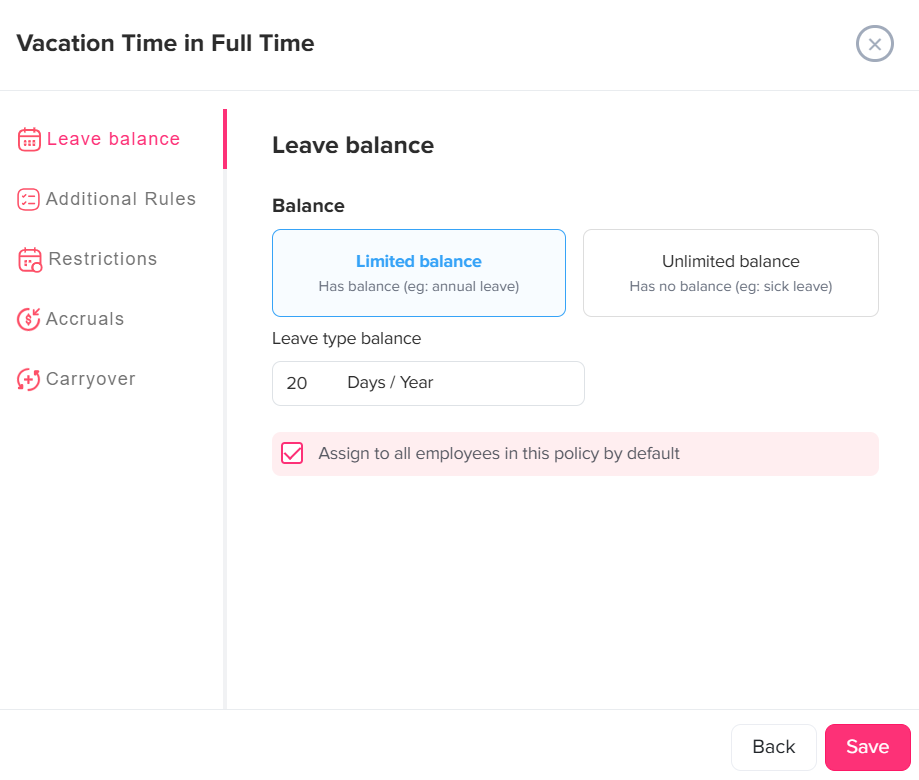
From the left-side menu, select the section that matches the type of change you want to make:
- Leave Balance: Adjust how much leave employees are entitled to (quota, allocations, etc.)
- Additional Rules: Configure advanced settings such as negative balance or probation period restrictions
- Restrictions: Control how leave requests are submitted (e.g., notice period, request limits, required reasons)
- Accruals: Define how leave is earned gradually over time instead of being granted upfront
- Carryover: Set rules for handling unused leave at the end of a period
Each section allows you to fine-tune a specific part of the leave policy.
8. Make the required changes
Update the settings based on your needs. This may include changing values, enabling or disabling certain features, or adjusting limits to better match your company’s policy. Take time to review each change to ensure it aligns with your intended rules.
9. Click Save
Once all updates are complete, click Save to apply the changes. The updated settings will immediately take effect for the selected leave policy.
What does this mean for employees?
Any changes made to a leave policy will automatically apply to all employees assigned to that policy. Depending on what was updated, this may affect their leave balance, how they submit requests, or how their leave is calculated and tracked.
By regularly reviewing and updating your leave policies, you can keep your system aligned with your company’s needs, ensure consistency across teams, and provide a clear and smooth experience for both admins and employees.