


-
Leave Policies
- Can employees view their leave policy details?
- Can I set carryover rules for unused leave?
- How do accrual rules work in a leave policy?
- How do I create a leave policy?
- How do I edit or update an existing leave policy?
- How do I set a request period for leave requests?
- How to Allow Compensation for a Leave Type?
- How to Create a Leave Type with No Balance
- How to require a mandatory comment or reason when submitting a leave request?
- How to set a negative balance for leave?
- How to set a notice period for leave requests?
- Is it possible to set probation period rules for leave?
- What is a leave policy and how does it work in Day Off?
- What is the Difference Between a Leave Policy and a Leave Type?
How do I set a request period for leave requests?
Setting a request period allows you to control the minimum and maximum number of days or hours an employee can request in a single leave request. This helps ensure that leave requests stay within acceptable limits based on your company’s policy.
Steps to configure request period rules

1. Go to Settings
Open the Settings section where all leave configurations are managed.
2. Navigate to Leave Policies
Access the list of all leave policies in your organization, click on the edit icon near the required policy.
3. Click the edit icon next to the leave type
Select the leave type you want to apply request period rules to.
4. From the left-side menu, select Restrictions
Open the Restrictions section where you can manage request-related rules.
5. Enable the “Request Period” toggle
Turn on this option to define limits for leave requests.
6. Set the minimum and maximum values
- Minimum: The least number of days or hours an employee can request
- Maximum: The maximum number of days or hours allowed in a single request
7. Click Save
Apply your changes to activate the request period rule.
What does this mean for employees?
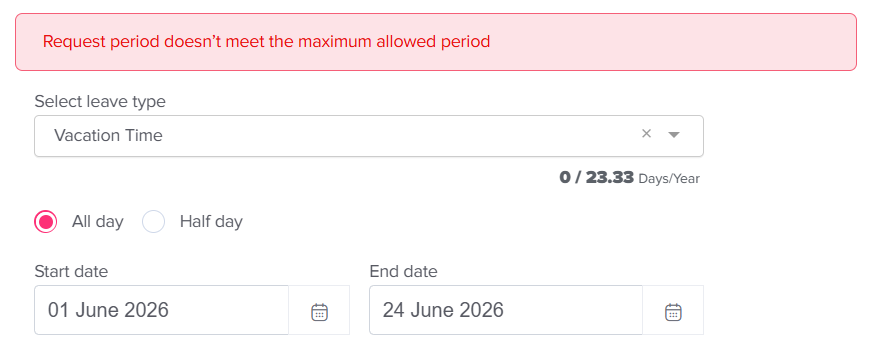
Employees will only be able to submit leave requests within the defined range. If they try to request less than the minimum or more than the maximum allowed, they will receive an error message and will not be able to proceed.
Can admins override this restriction?
Yes, admins can still submit leave requests on behalf of employees even if the request does not meet the defined limits, allowing flexibility for special cases.
- Go to the Employees list.
- Click on the employee to open their profile.
- Click Add a Day Off (located under the employee profile picture).
- Select the leave type and choose the dates.
- Click Submit.
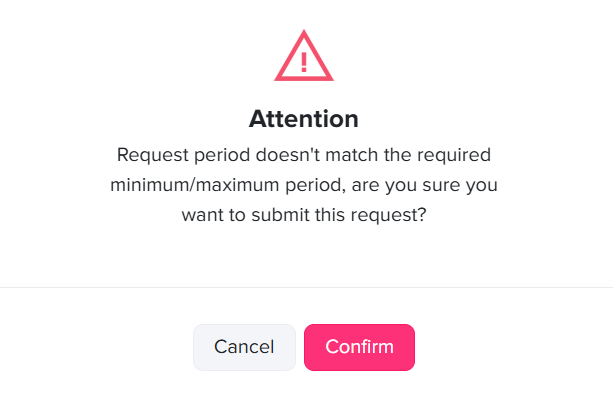
- A message will appear indicating that the request does not meet the defined request period limits.
- Click Confirm to proceed with submitting the request.
This ensures that admins can handle exceptions when needed, while the system still enforces the rules for regular employee requests.