


-
Leave Types
How to add a new leave type?
Every company handles time off a little differently, and Day Off gives you the flexibility to reflect that. By adding a new leave type, you can align the system with your company’s policies and how your team actually takes time off.
Creating a new leave type is simple, just follow the steps below:
Steps to add a leave type
From the left-side menu, go to Settings, then navigate to Leave Types. Click Add Leave Type to get started.
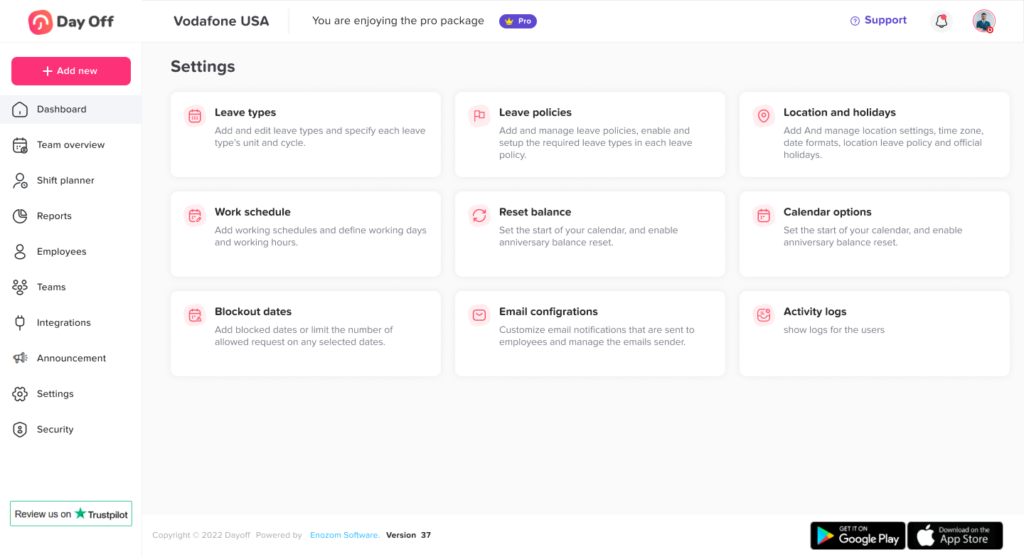
Enter the leave type name
In the Leave type name field, enter a clear and descriptive name for the leave type (e.g., Annual Leave, Sick Leave).
Select the leave type category
Choose the leave type category based on how requests should behave:
- Leave: Employees can submit only one request per day for this leave type.
This is typically used for full-day absences like annual or sick leave. - Permission: Employees can submit multiple requests within the same day.
This is ideal for short or partial-day requests, such as leaving for a few hours. - Work From Home: Used for remote work requests.
This typically follows a daily request structure similar to leave. - Rooms Reservation: Used to book rooms or resources within the organization.
Choose the balance unit
Select how the leave will be measured and requested:
- Days: Leave is requested in full days or multiple days.
You can also allow half-day requests if this option is enabled in your leave policy. - Hours: Leave can be requested in hours or full/multiple days.
Employees can select the start and end time of their leave, allowing for more precise, partial-day requests.
Select a color
Assign a color to the leave type. This color will appear in calendars, dashboards, and reports.
Using distinct colors makes it easier to:
- Quickly identify different types of leave
- Spot patterns or overlaps
- Improve overall visibility for managers and HR
Save the leave type
Once everything is set up, click Save to create the leave type.
If you change your mind, click Cancel to discard your changes.
Activate and configure the leave type in a policy
Creating a leave type is just the first step. To make it available for employees, you need to add it to a leave policy.
Go to your Leave Policy and include the new leave type in the policy assigned to your team or specific employees. Until this step is completed, the leave type will not appear in employee requests.
Configure leave type settings
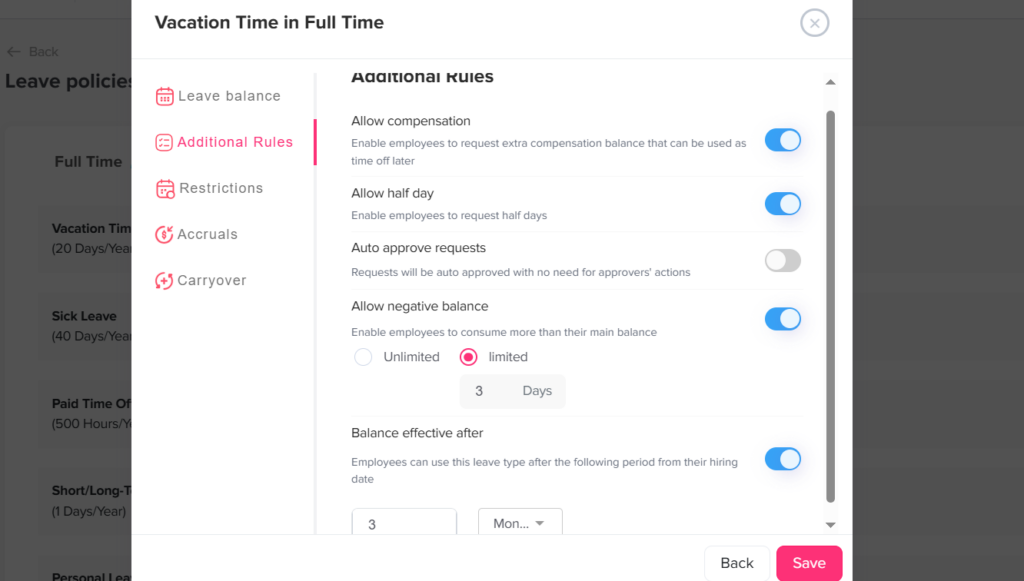
After adding the leave type to a policy, you can fully customize how it works. The settings are grouped below to help you configure everything more easily:
Balance and accrual settings
- Balance allocation
Set a fixed number of days or hours, allow unlimited leave, or configure accrual over time. - Accrual rules
Control how leave is earned (for example, monthly or yearly accrual). - Carryover rules
Decide whether unused leave can roll over to the next period. - Negative balance
Allow or prevent employees from requesting leave beyond their available balance.
Request behavior and limits
- Balance unit & partial requests
Enable or restrict half-day and hourly requests based on your policy. - Request limits
Set minimum or maximum request durations, or limit how far in advance leave can be requested. - Notice period
Define how far in advance employees must submit their leave requests. - Late submission period
Set a time limit for submitting leave requests after the leave date has passed.
Approval and validation
- Approval workflow
Choose whether requests are automatically approved or require approval.
If approval is required, you can define approvers and set up multiple approval levels for each employee individually. - Required document
Require employees to upload supporting documents (such as a medical certificate) when submitting a request.
Employee eligibility and rules
- Probation period restrictions
You can control whether employees on probation are allowed to request this leave type.
You can also define when the leave balance becomes available, for example, making it accessible only after a specific period (such as 3 months from the employee’s joining date).
Calendar and calculation settings
Weekends
Choose whether weekends are counted or excluded from the leave duration.
- If included: weekends will be deducted from the employee’s leave balance
- If excluded: weekends will be skipped and not counted as leave days
Public holidays
Choose whether official holidays are counted or excluded from the leave duration.
- If included: public holidays will be deducted from the leave balance
- If excluded: public holidays will not be counted as part of the leave
Review and adjust when needed
Leave policies may change over time. You can always return to the leave type settings to adjust balances, rules, or restrictions as your company’s needs evolve.
Taking a few minutes to carefully configure each option ensures that leave requests are handled consistently and align with your organization’s policies.