


-
Leave Types
Can I track leave in hours?
To allow employees to request and track time off in hours, you need to create a leave type with the balance unit set to hours. This configuration ensures that requests under this leave type are calculated hourly instead of in full or half days.
Step 1: Create a Leave Type in Hours
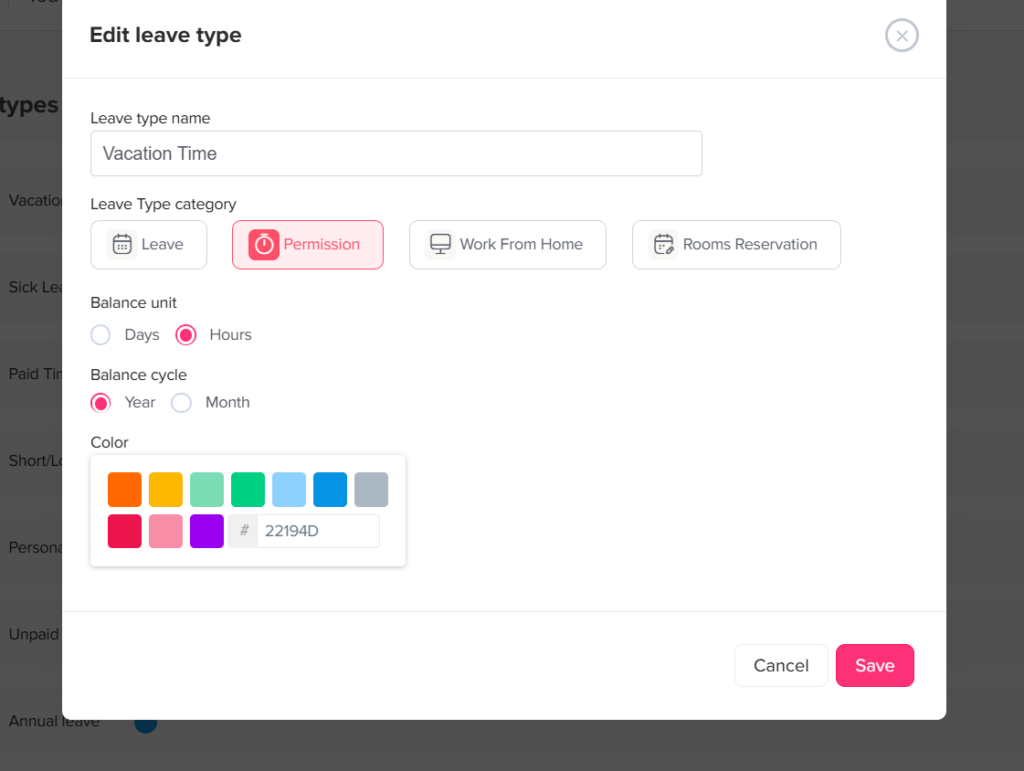
- Go to Settings: From your dashboard, navigate to the Settings section where all system configurations are managed.
- Open Leave Types: Within Settings, select Leave Types to view and manage all existing leave categories.
- Click “Add a New Leave Type”: Click the option to create a new leave type. This will open a form for defining its details.
- Enter a name: Provide a clear and descriptive name (e.g., “Paid Time Off” or “Short Leave”) so employees can easily identify it when submitting requests.
- Select a category: Choose the appropriate category for the leave type, depending on how you want it to be classified and reported.
- Set the balance unit to “Hours”: Change the balance unit from days to hours. This is the key step that enables hourly tracking and allows employees to request partial-day leave.
- Choose a cycle: Define the leave cycle (e.g., monthly or yearly), which determines how balances are allocated and reset over time.
- Select a color: Assign a color to the leave type to help visually distinguish it in calendars and reports.
- Click Save: Save your changes to create the leave type. It will then be available for assignment and use.
Step 2: Activate the leave type in a policy
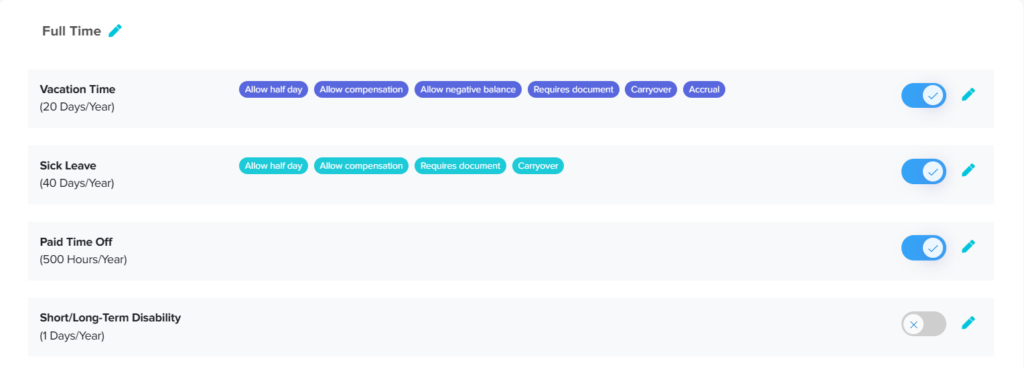
- Go to Settings
- Open Leave Policies
- Select an existing policy or click Create Policy
- Navigate to the Leave Types section within the policy
- Add or enable the newly created leave type
- Configure the leave type rules (balances, accruals, limits, etc.)
- Click Save
Why this matters:
A leave type will not be usable unless it is linked to a policy. Policies control who can request the leave and under what rules.
Step 3: Add a work schedule in hours
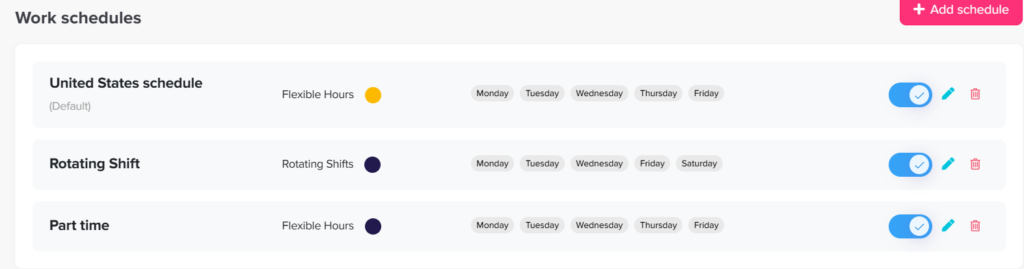
To ensure accurate leave calculations when tracking in hours, you need to configure a work schedule that defines how many hours employees are expected to work.
Steps to set up a work schedule (hours-based)
- Go to Settings: Access the Settings section from your dashboard.
- Open Work Schedule: Click on Work Schedule to manage existing schedules or create a new one.
- Create or edit a schedule
- Edit the default schedule, or
- Click Add Work Schedule to create a new one
- Select working days: Choose the days employees are expected to work (e.g., Monday to Friday). Weekends will be automatically excluded based on your selection.
- Choose a schedule type: You can select from three types of schedules:
- Fixed Hours: Define a start and end time for each working day while allowing flexibility within that range.
- Flexible Hours: Define the number of working hours per day without setting specific start and end times. This is the most suitable option for hourly leave tracking.
- Rotating Shifts: Assign shifts based on a rotation pattern (e.g., morning or night shifts), typically used for shift-based teams.
- Define working hours (for Fixed or Flexible schedules): Enter the number of hours employees are expected to work each day (e.g., 8 hours per day).
This ensures leave is deducted accurately when requested in hours. - Save the work schedule: Click Save to apply the configuration.
Summary
To successfully track leave in hours, make sure you complete all three steps:
- Create a leave type with the balance unit set to hours
- Assign the leave type to a policy so employees can use it
- Configure a work schedule in hours to ensure accurate calculations
When all three are properly set, employees will be able to request leave in hours, and the system will deduct balances precisely based on their working schedule.