


-
Leave Policies
- Can employees view their leave policy details?
- Can I set carryover rules for unused leave?
- How do accrual rules work in a leave policy?
- How do I create a leave policy?
- How do I edit or update an existing leave policy?
- How do I set a request period for leave requests?
- How to Allow Compensation for a Leave Type?
- How to Create a Leave Type with No Balance
- How to require a mandatory comment or reason when submitting a leave request?
- How to set a negative balance for leave?
- How to set a notice period for leave requests?
- Is it possible to set probation period rules for leave?
- What is a leave policy and how does it work in Day Off?
- What is the Difference Between a Leave Policy and a Leave Type?
How to Allow Compensation for a Leave Type?
The Compensation (Comp Off) feature allows employees to earn extra leave when they work additional hours, weekends, or official holidays. To use this feature, you need to enable it for a specific leave type inside your leave policy.
Steps to Enable Compensation
1. Go to Leave Policies
- Navigate to Settings
- Click on Leave Policies
- Open the policy you want to edit
This is where you manage all leave rules, including compensation.
2. Select the Leave Type
- Find the leave type you want to allow compensation for (e.g., Vacation or paid time off)
- Click the edit icon next to it
Each leave type has its own settings, so compensation must be enabled individually.
3. Enable Compensation
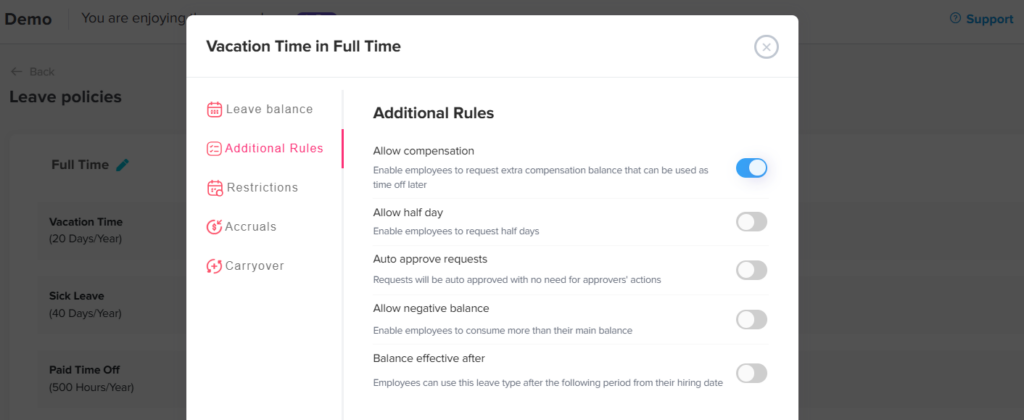
- From the left-side menu, go to additional rules
- Look for the Allow Compensation option
- Turn it ON
This allows employees to submit compensation requests for this leave type.
4. Save Your Changes
- Click Save to apply the updates
The feature will now be active for that leave type.
How Admins Add a Comp Off Request for an Employee
Admins can directly grant Comp Off to employees when they’ve worked extra hours, weekends, or holidays. This allows you to quickly reward extra effort without requiring the employee to submit a request.
Step 1: Go to the Employees List
- Navigate to the Employees section from the main menu
- Browse or search for the employee you want to assign Comp Off to
This is where you manage all employee-related actions, including adding compensation.
Step 2: Open the Employee Profile
- Click on the employee’s name to open their profile
- Under the employee’s profile picture, you will find the Add Comp Off option
This shortcut allows you to quickly assign compensation directly from the employee’s profile.
Step 3: Click on “Add Comp Off”
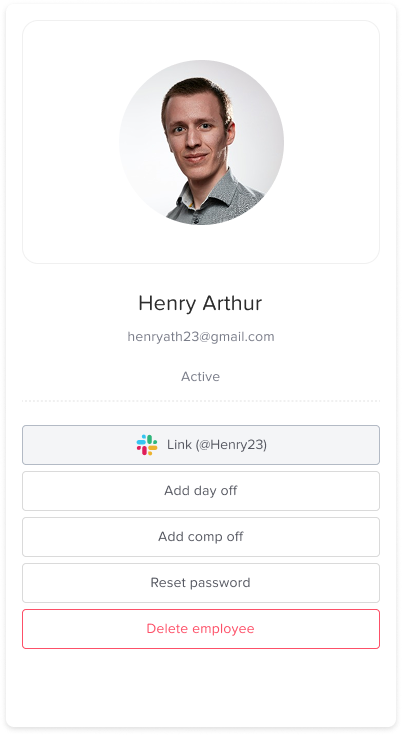
- Click the Add Comp Off button to open the request form
This form is specifically designed for adding compensation requests on behalf of the employee.
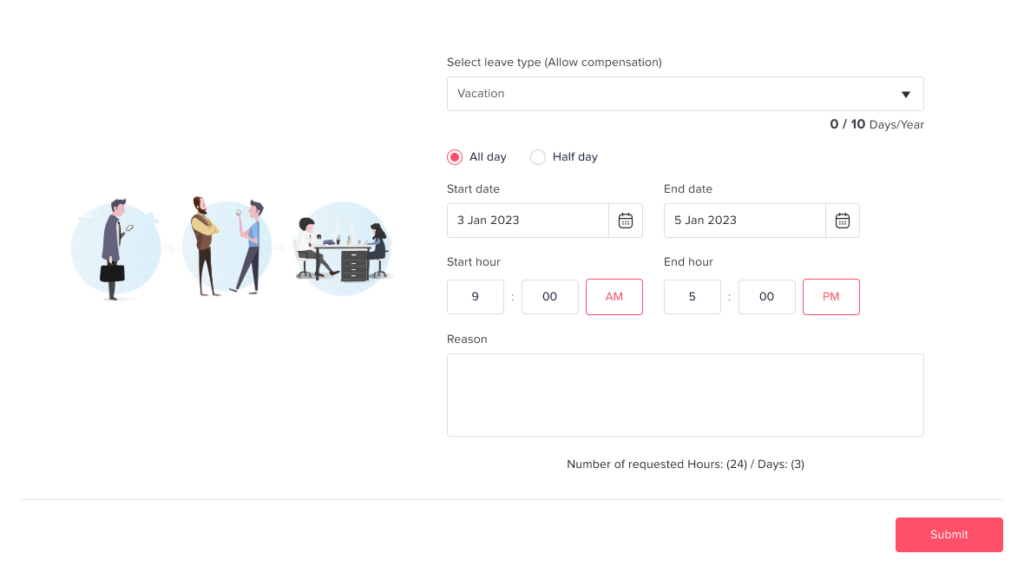
Step 4: Fill in the Request Details
You’ll need to enter the relevant information:
- Leave Type
Select the appropriate leave type (e.g., Comp Off) where the balance will be added - Date(s)
Choose the date or dates when the employee worked extra hours/days - Duration (Days/Hours)
Enter how much time should be credited (e.g., number of hours or full days)
Make sure the details accurately reflect the extra work done.
Step 5: Submit the Request
- Click Submit to confirm
Once submitted, the system will process the request immediately.
What Happens After Submission?
- The extra time will be added directly to the employee’s balance under the selected leave type
- The employee can use this balance later when requesting time off
- The employee will receive a notification informing them that a Comp Off request has been added on their behalf
How to Add Comp Off for Multiple Employees (Bulk Action)
If multiple employees worked extra hours on the same date, you can save time by adding Comp Off for all of them at once using the bulk action feature.
Step 1: Go to the Employees List
- Navigate to the Employees section
- You’ll see a list of all employees in your organization
This is where you can manage multiple employees at once.
Step 2: Select Multiple Employees
- Use the checkbox next to each employee’s name
- Select all employees who should receive Comp Off
You can select as many employees as needed.
Step 3: Open Bulk Actions
- After selecting employees, click on the Bulk Actions button
- Choose Add Comp Off from the dropdown
This allows you to apply the same action to all selected employees at once.
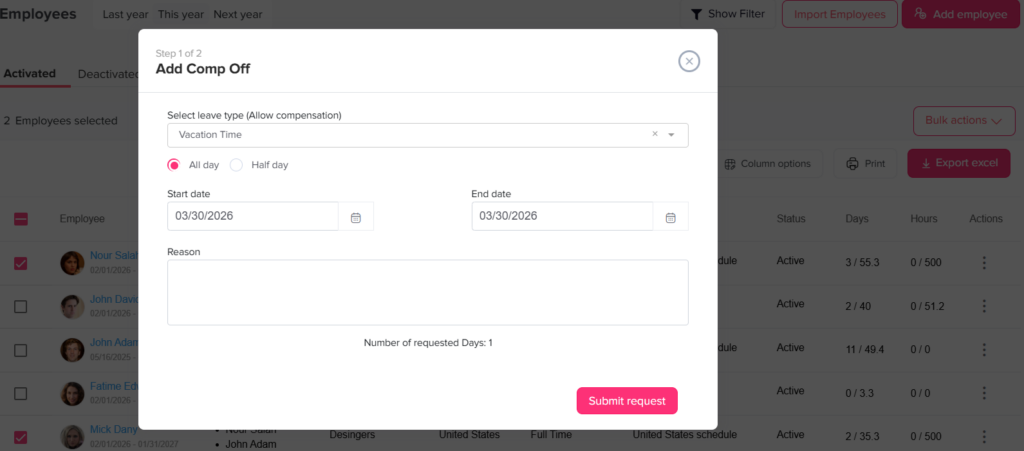
Step 4: Enter Comp Off Details
Fill in the required information:
- Leave Type: Select the Comp Off leave type
- Date(s): Choose the date(s) when the extra work was done
These details will be applied to all selected employees.
Step 5: Submit the Request
- Click Submit to confirm
The system will process the request for all selected employees.
What Happens Next?
- The extra time will be added to each employee’s balance under the selected leave type
- All selected employees will receive a notification about the Comp Off added to them
- They can use this balance later when requesting time off
Using bulk actions makes it quick and efficient to reward multiple employees at once, especially useful after holidays, events, or overtime shifts.
How Employees Add a Comp Off Request
Employees can request Comp Off when they work extra hours, weekends, or official holidays. This allows them to convert that extra time into leave they can use later.
Step 1: Go to Your Dashboard
- Log in to your Day Off account
- Click on My Requests
This is where you can view your leave balance and submit requests.
Step 2: Click on “Request Comp Off”
- At the top of the page, click Request comp off
This will open the compensation request form.
Step 3: Fill in the Request Details
Enter the required information:
- Leave Type
Select the Comp Off leave type - Date(s)
Choose the date(s) when you worked extra - Duration (Hours/Days)
Enter how much extra time you worked - Notes (Optional)
Add any details or explanation if needed
Make sure the information matches the actual extra work you’ve done.
Step 4: Submit the Request
- Click Submit
Your request will be sent to your manager or approver for review.
What Happens Next?
- Your request will appear as Pending
- The approver will review it
If approved:
- The extra time will be added to your leave balance
- You can use it later as time off
You’ll also receive a notification once your request is approved or rejected.
Submitting a Comp Off request is quick and helps ensure your extra work is properly tracked and rewarded. Once approved, you can use the added balance just like any other leave.