


-
Leave Policies
- Can employees view their leave policy details?
- Can I set carryover rules for unused leave?
- How do accrual rules work in a leave policy?
- How do I create a leave policy?
- How do I edit or update an existing leave policy?
- How do I set a request period for leave requests?
- How to Allow Compensation for a Leave Type?
- How to Create a Leave Type with No Balance
- How to require a mandatory comment or reason when submitting a leave request?
- How to set a negative balance for leave?
- How to set a notice period for leave requests?
- Is it possible to set probation period rules for leave?
- What is a leave policy and how does it work in Day Off?
- What is the Difference Between a Leave Policy and a Leave Type?
How to require a mandatory comment or reason when submitting a leave request?
By default, adding a reason when submitting a leave request is optional. Employees can include a comment to provide more context, and this will be visible to admins during the review process. However, you can make this field mandatory to ensure that every request includes a reason.
Steps to require a reason
- Go to Settings
Open the Settings section where all leave configurations are managed. - Navigate to Leave Policies
Access the list of all leave policies in your organization, click on the edit icon near the required leave policy. - Click the edit icon next to the leave type
Select the leave type where you want to require a reason. - From the left-side menu, select Restrictions
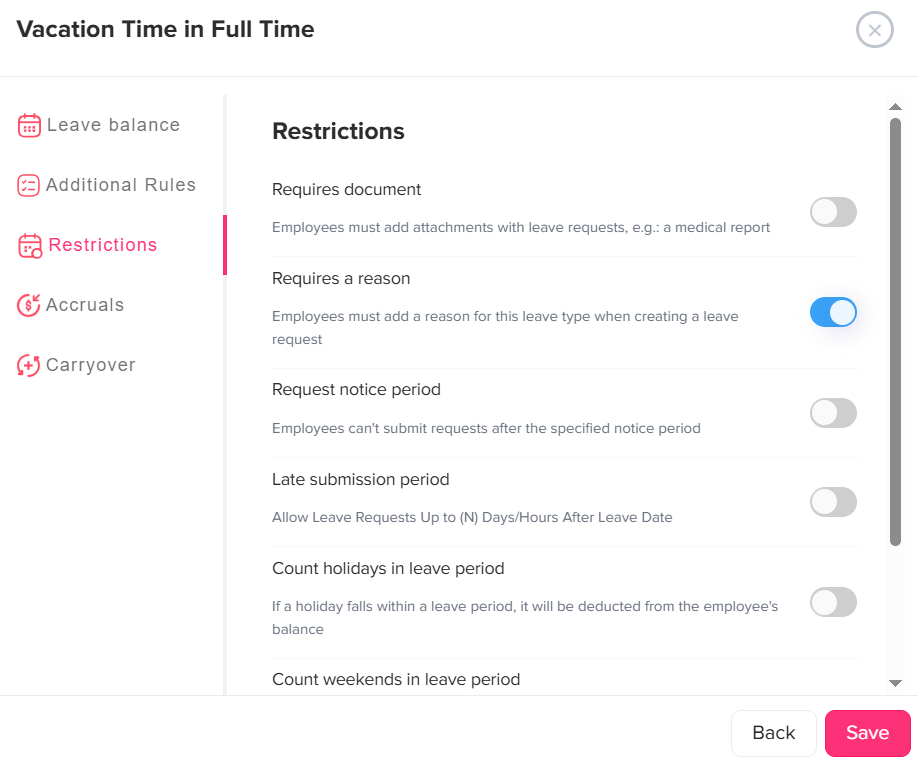
Open the Restrictions section where request-related rules are configured. - Enable the “Requires a reason” toggle
Turn on this option to make adding a reason mandatory for this leave type. - Click Save
Apply your changes to activate the requirement.
What does this mean for employees?
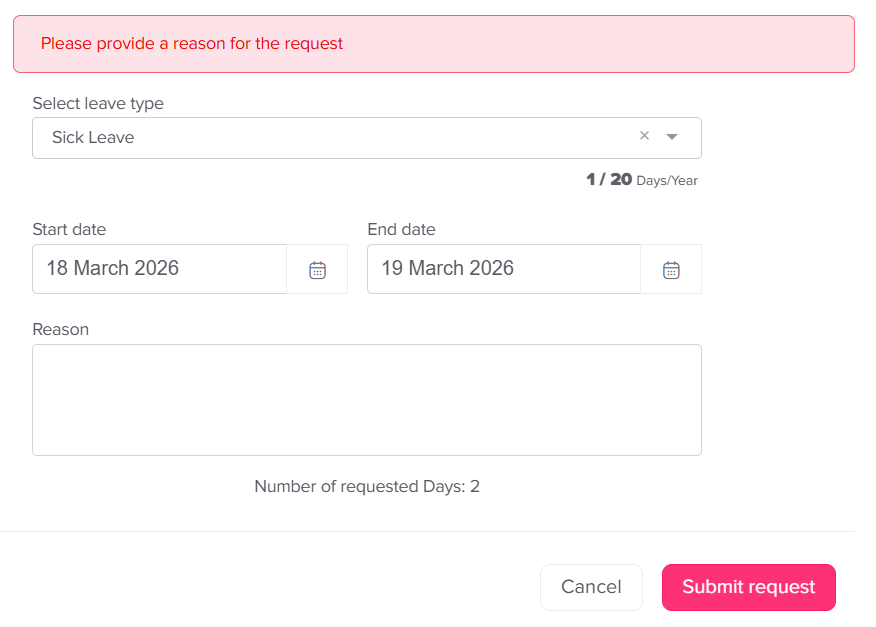
Once this option is enabled, adding a reason becomes a required step when submitting a leave request. Employees will need to provide a clear explanation before they can proceed. If they try to submit the request without a reason, a message will appear prompting them to fill it in, and the request will not be submitted until the required information is provided.
Can approvers see the reason for a leave request?

Yes, the reason provided by the employee is clearly visible to approvers at every stage of the request.
- While the request is pending, approvers can review the reason to better understand the context before making a decision
- After the request is approved or rejected, the reason remains available as part of the request details
- The reason is also included in the Reports section, allowing admins and managers to track and review past requests easily
This ensures full transparency, helps approvers make more informed decisions, and keeps a clear record of all leave requests over time.