


-
Leave Policies
- Can employees view their leave policy details?
- Can I set carryover rules for unused leave?
- How do accrual rules work in a leave policy?
- How do I create a leave policy?
- How do I edit or update an existing leave policy?
- How do I set a request period for leave requests?
- How to Allow Compensation for a Leave Type?
- How to Create a Leave Type with No Balance
- How to require a mandatory comment or reason when submitting a leave request?
- How to set a negative balance for leave?
- How to set a notice period for leave requests?
- Is it possible to set probation period rules for leave?
- What is a leave policy and how does it work in Day Off?
- What is the Difference Between a Leave Policy and a Leave Type?
How to set a negative balance for leave?
Negative balance allows employees to request leave even if they don’t have enough available balance. This is useful in cases where employees need to take time off in advance and will earn the leave later through accruals or future allocations.
Steps to configure negative balance
1. Go to Settings
Open the Settings section, the main area for managing all system configurations. This is where you can control how leave policies behave across your organization.
2. Navigate to Leave Policies
Access the Leave Policies section to view all available leave policies. Click on the edit icon near the policy. Each leave type can have its own rules, including whether a negative balance is allowed.
3. Click the edit icon next to the leave type
Select the specific leave type you want to configure. This ensures that the negative balance rule is applied only to that leave type and not others.
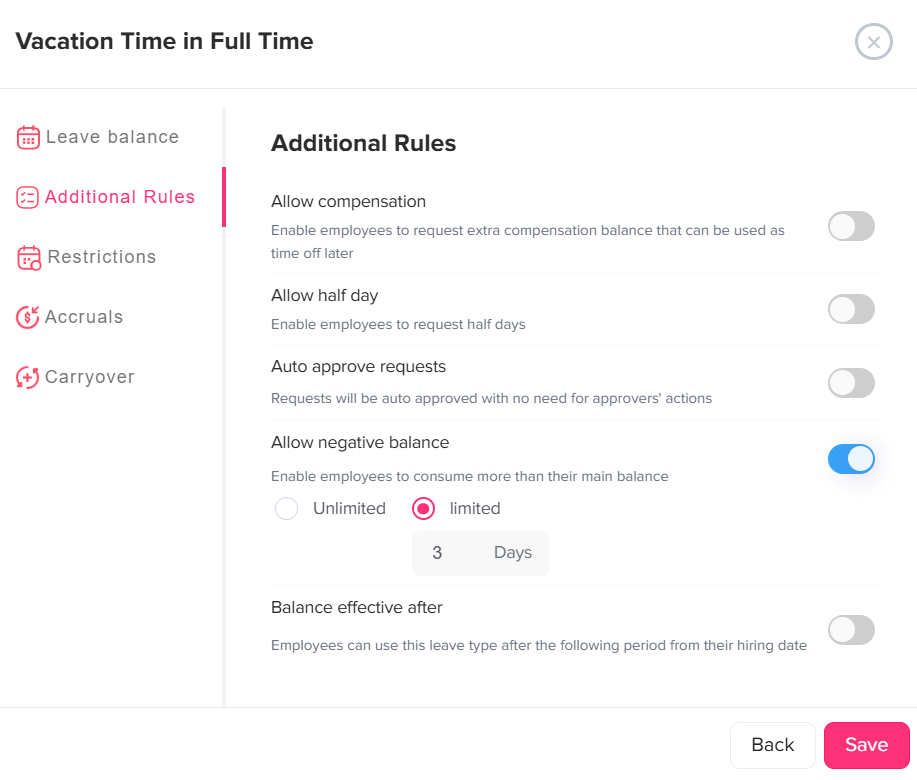
4. From the left-side menu, select Additional Rules
Open the Additional Rules section, where you can configure advanced settings that affect how leave is requested and consumed.
5. Enable the “Allow negative balance” toggle
Turn on this option to allow employees to request leave even if their current balance is insufficient. Once enabled, the system will permit requests that bring the balance below zero.
6. Choose the limit type
Decide how much flexibility you want to allow:
- Unlimited: Employees can continue requesting leave regardless of how far their balance goes into the negative. This offers maximum flexibility but less control.
- Limited: Set a cap on how much negative balance is allowed to ensure employees do not exceed a defined limit.
7. Set the allowed negative amount (if limited)
If you choose a limited option, define the maximum negative balance (e.g., -3 days). This means employees can only request leave until they reach that negative threshold, after which they won’t be able to submit further requests.
8. Click Save
Save your changes to apply the configuration. The negative balance rule will now be active for the selected leave type.
What does this mean for employees?
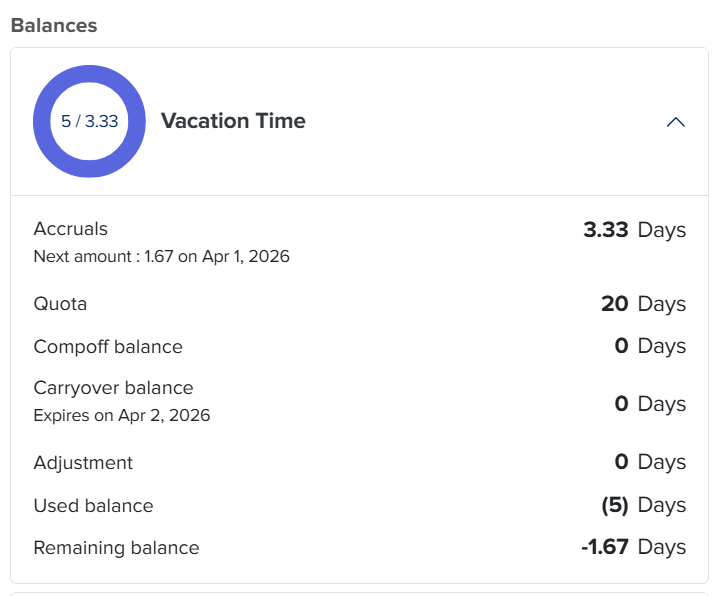
Employees will be able to submit leave requests even if they don’t have enough balance available. If a limit is set, they can only go negative up to the defined amount. This gives them flexibility while still keeping usage under control.
Can admins control or adjust this?
Yes, admins have full control over employee balances and can make adjustments when needed to ensure accuracy and compliance with company policies.
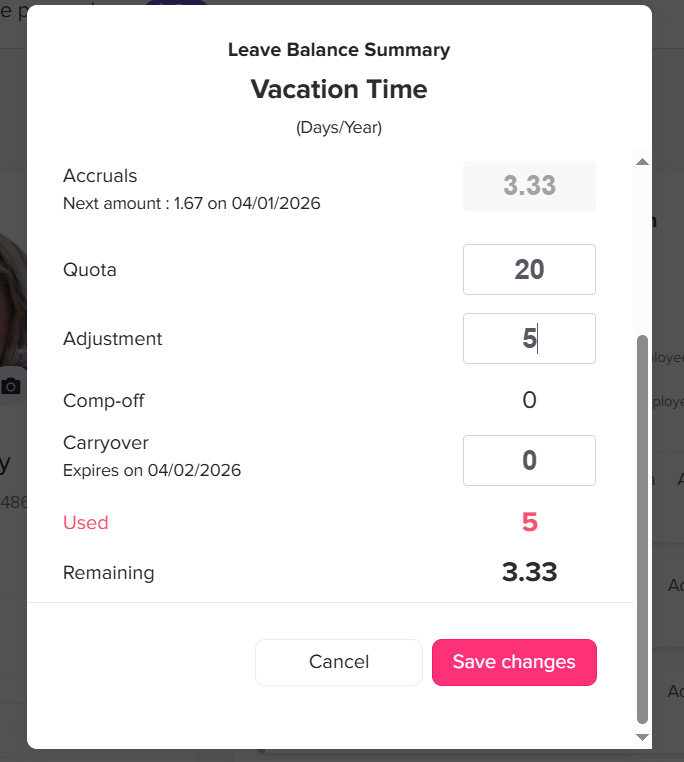
- Go to the Employees list.
- Click on the employee to open their profile.
- Navigate to the Balance section.
- Click the edit icon next to the leave type you want to manage.
- In the Adjustment section, you can:
- Add days or hours to increase the employee’s balance
- Deduct days or hours to reduce the employee’s balance
- Click Save to apply the changes.
These adjustments will be immediately reflected in the employee’s balance, allowing admins to manage negative balances and ensure everything stays accurate and up to date.
By enabling negative balance, you give employees more flexibility to take time off when they need it, even if they haven’t yet earned enough leave. At the same time, admins can easily monitor and adjust balances to keep everything accurate and under control. This creates a balanced approach that supports both employee needs and company policies.