





Projects Management
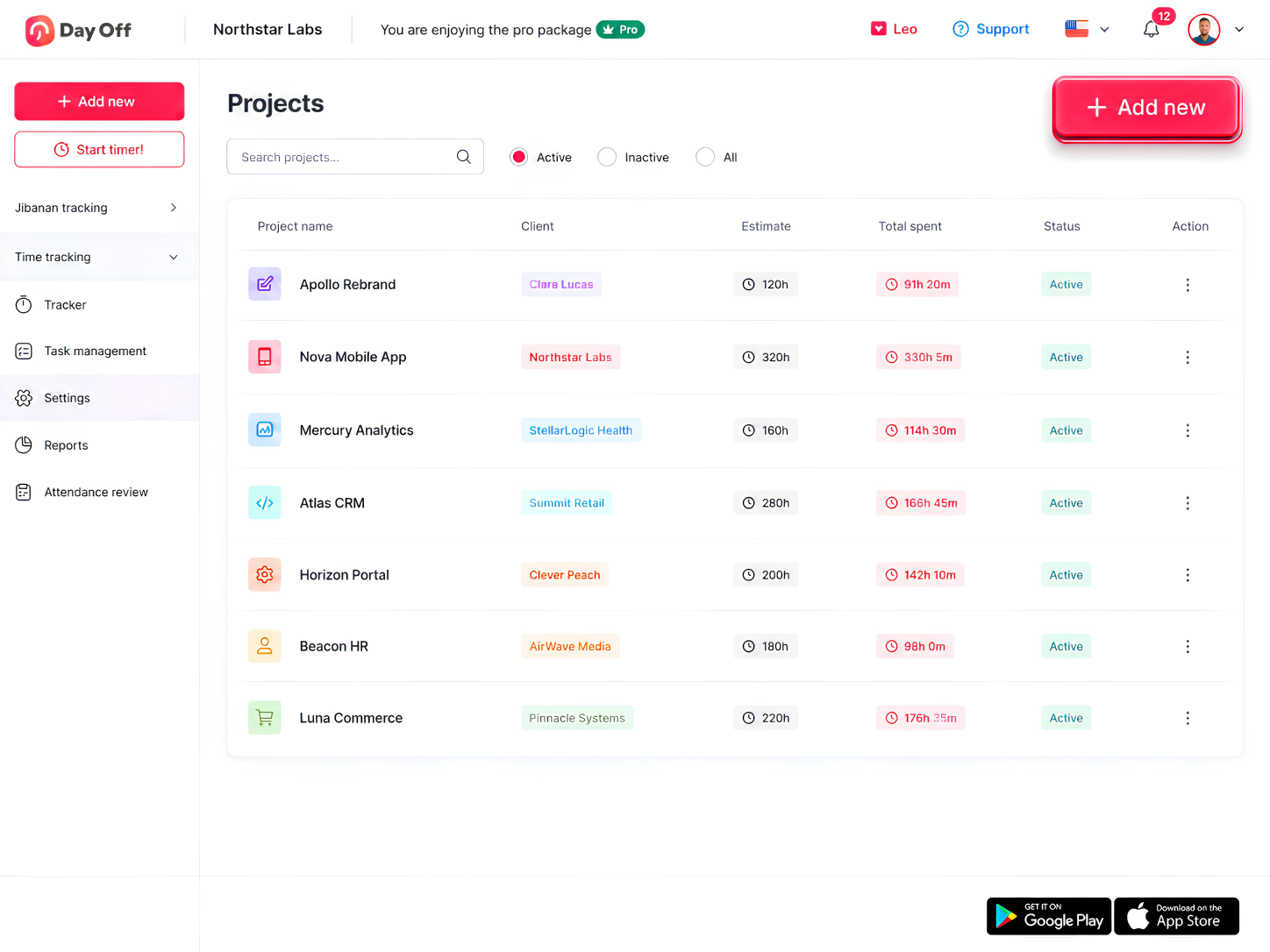
Day Off’s Projects feature helps you keep every piece of work organized in one place. Set up projects with names, client links, and custom colors, then track time spent against estimated hours to stay on top of progress. Active and inactive statuses make it easy to manage current work while keeping past projects on record for reporting.
Project Creation and Setup
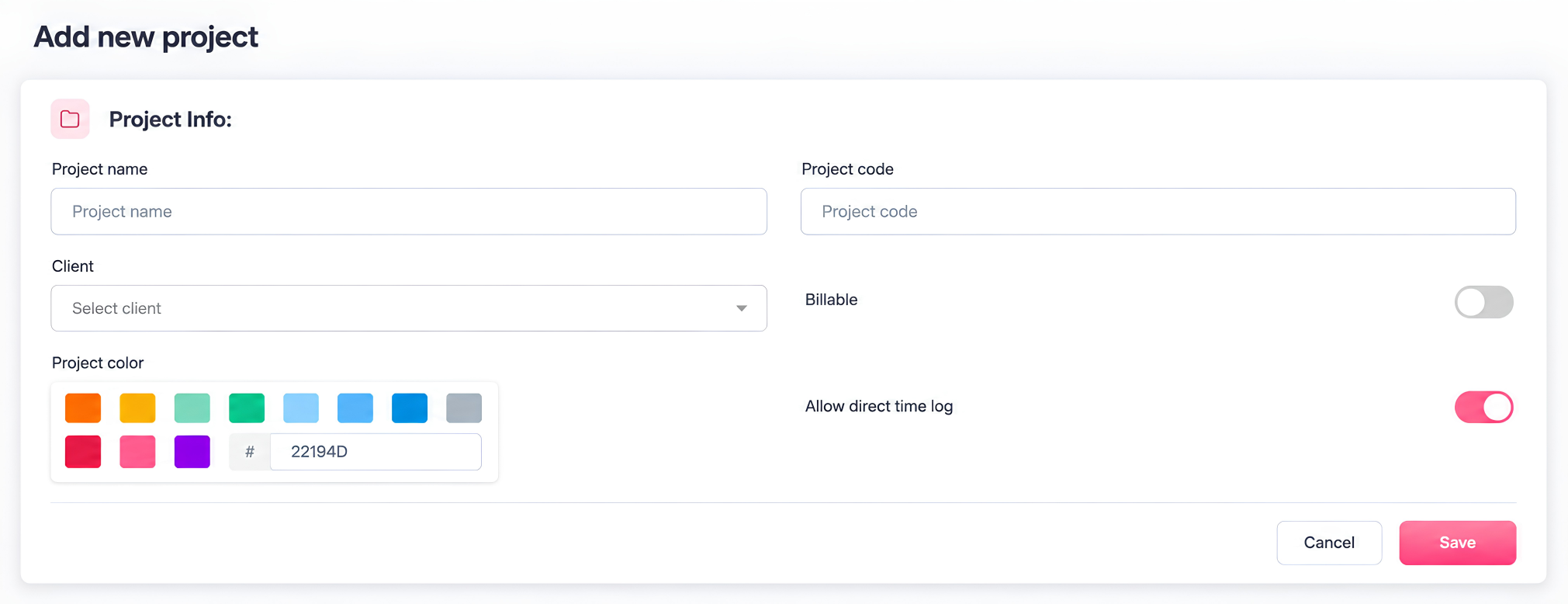
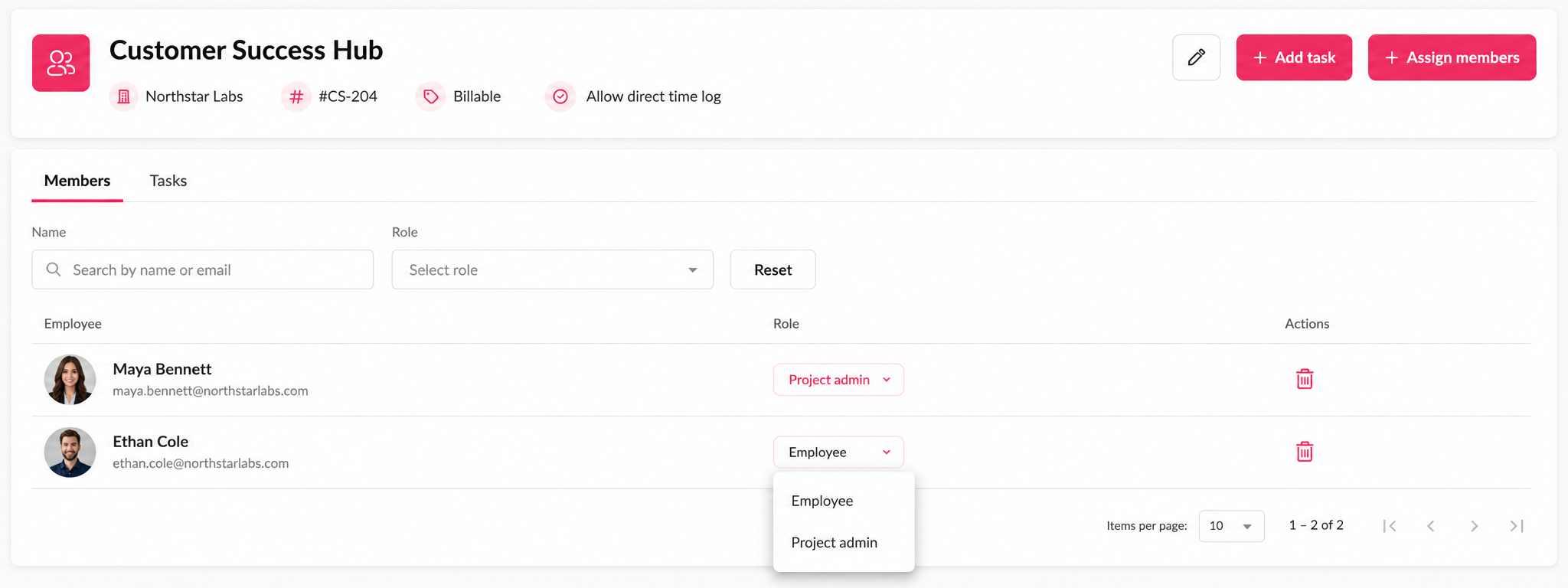
Creating a project involves entering a name and optional project code, assigning it to a client, and picking a color tag for easy visual identification in lists. Two toggles are also available: “Billable,” for marking time as chargeable to a client, and “Allow direct time log,” which lets team members log time directly to the project.
Client Linking and Organization
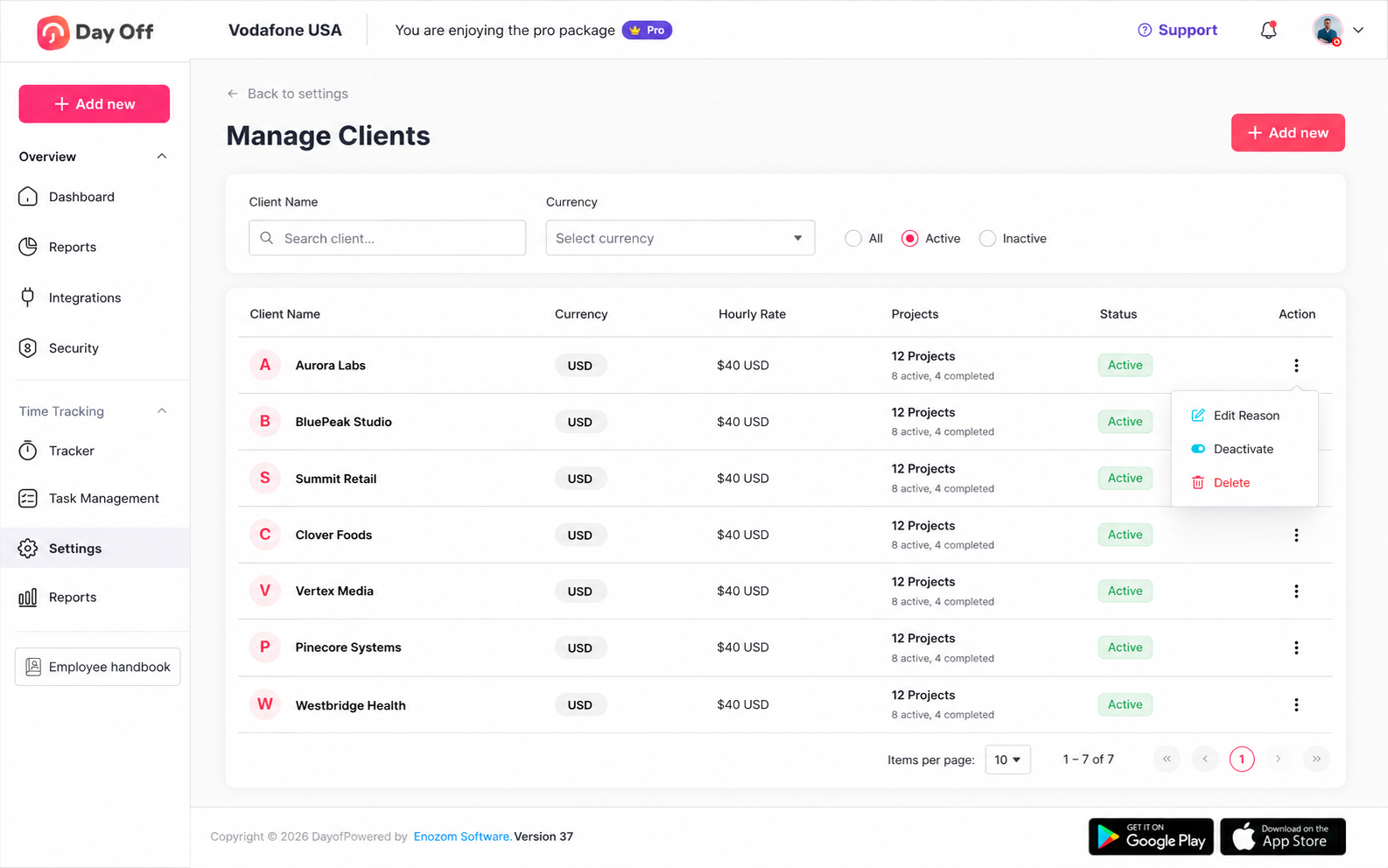
Projects can be associated with a specific client, which is displayed in a dedicated Client column on the projects table. This makes it easy to see which work belongs to which customer, and the list can be filtered by status (Active, Inactive, or All) or searched by project name to quickly find what you need.
Time Tracking, Estimates, and Lifecycle Management
Each project displays an Estimate alongside Total spent, letting you compare planned hours against actual time logged, with both columns sortable for quick review. A per-project actions menu also lets you edit details, deactivate a project when it’s no longer active, or delete it, covering the full lifecycle of a project.