
Features · Time Tracking

Projects Management

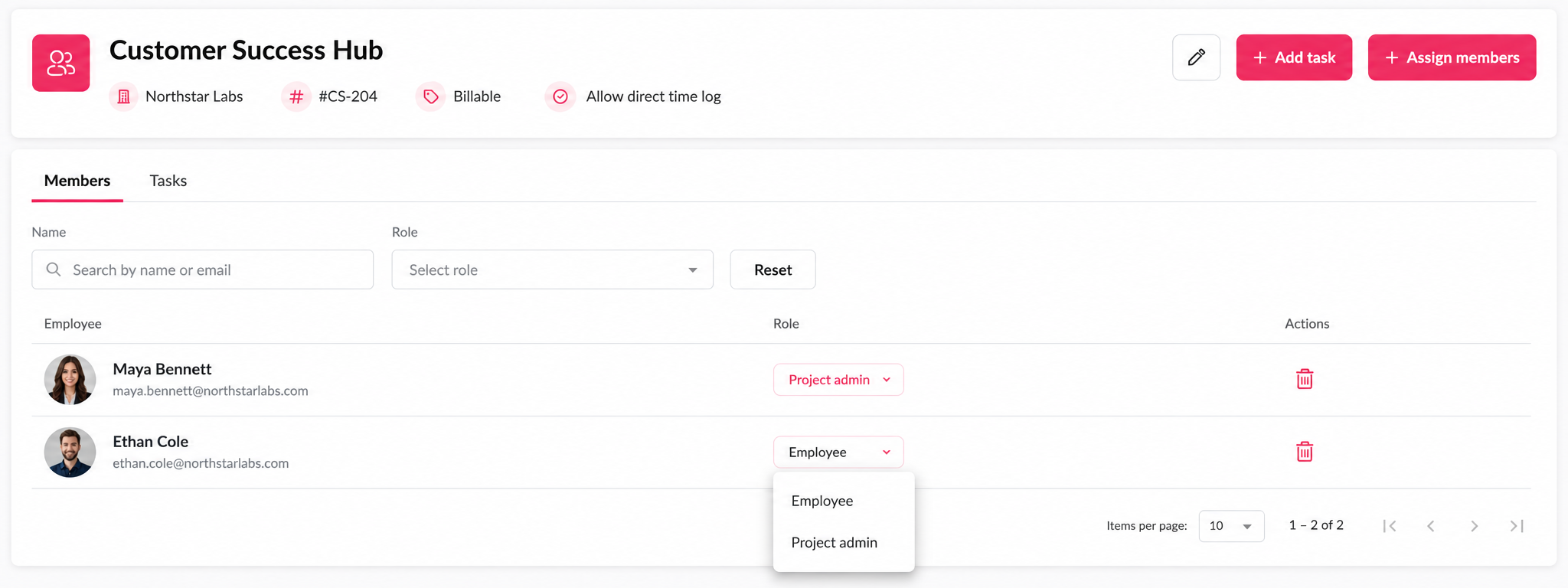
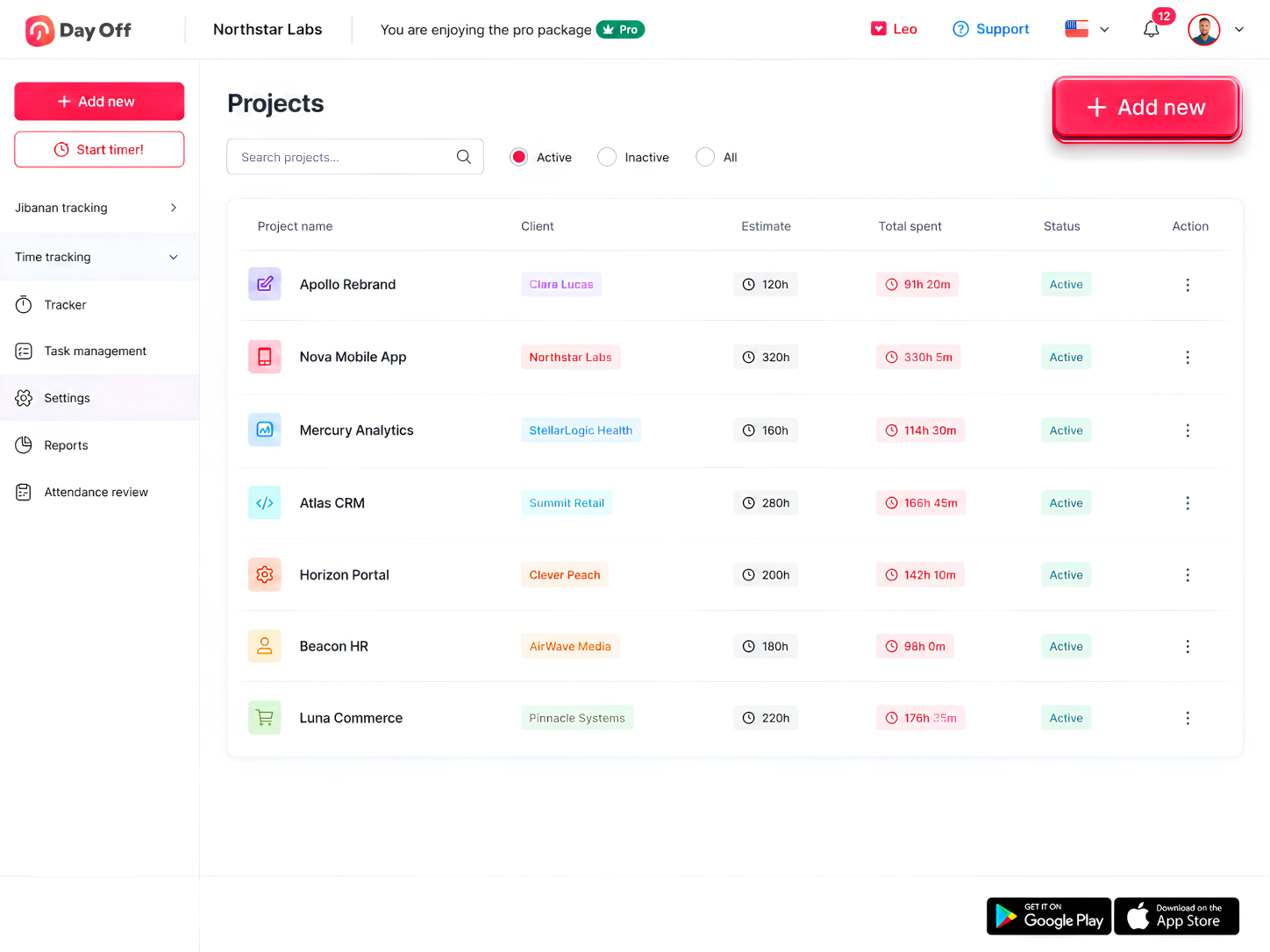
Day Off’s Projects feature helps you keep every piece of work organized in one place. Set up projects with names, client links, and custom colors, then track time spent against estimated hours to stay on top of progress. Active and inactive statuses make it easy to manage current work while keeping past projects on record for reporting.

Trusted by 60,000+ companies in 100+ countries

Projects Management in the Day Off app

Watch: track project time, estimated vs actual

A 49-second walkthrough of project time tracking in Day Off.

1

Project Creation and Setup

Creating a project involves entering a name and optional project code, assigning it to a client, and picking a color tag for easy visual identification in lists. Two toggles are also available: “Billable,” for marking time as chargeable to a client, and “Allow direct time log,” which lets team members log time directly to the project.
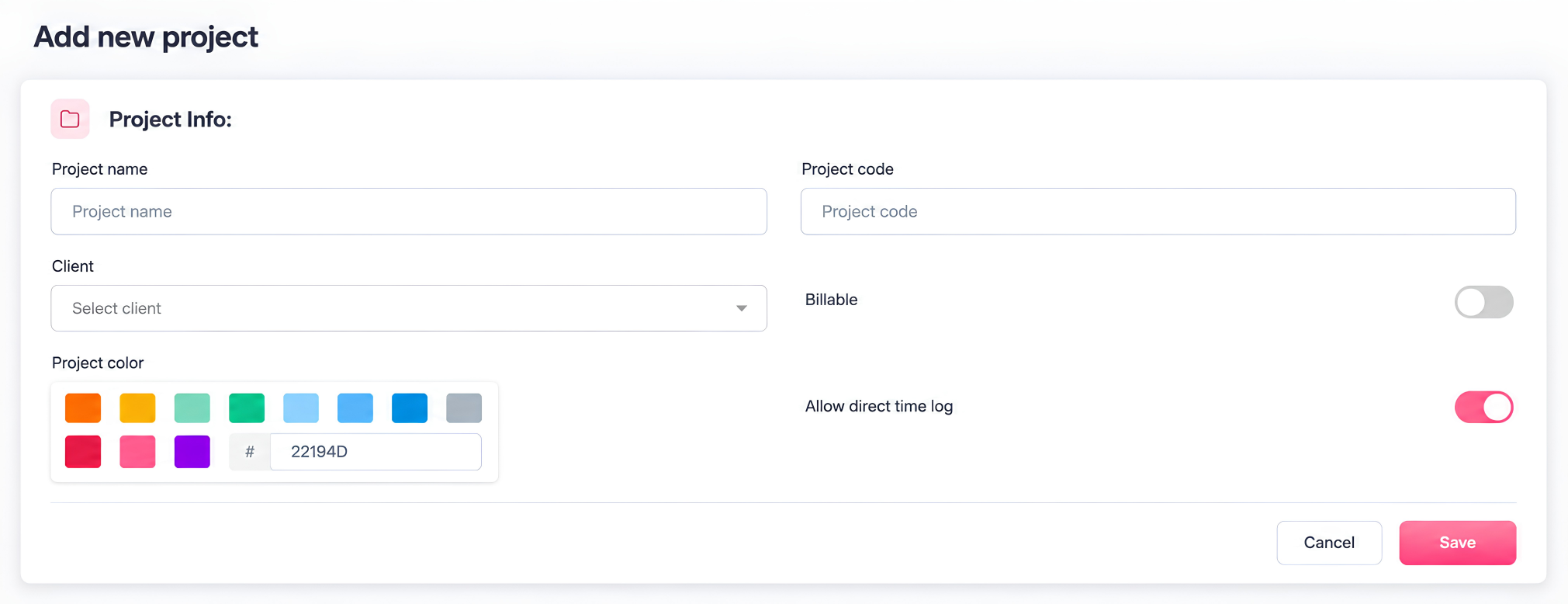
Project Creation and Setup: Projects Management in Day Off
2

Client Linking and Organization

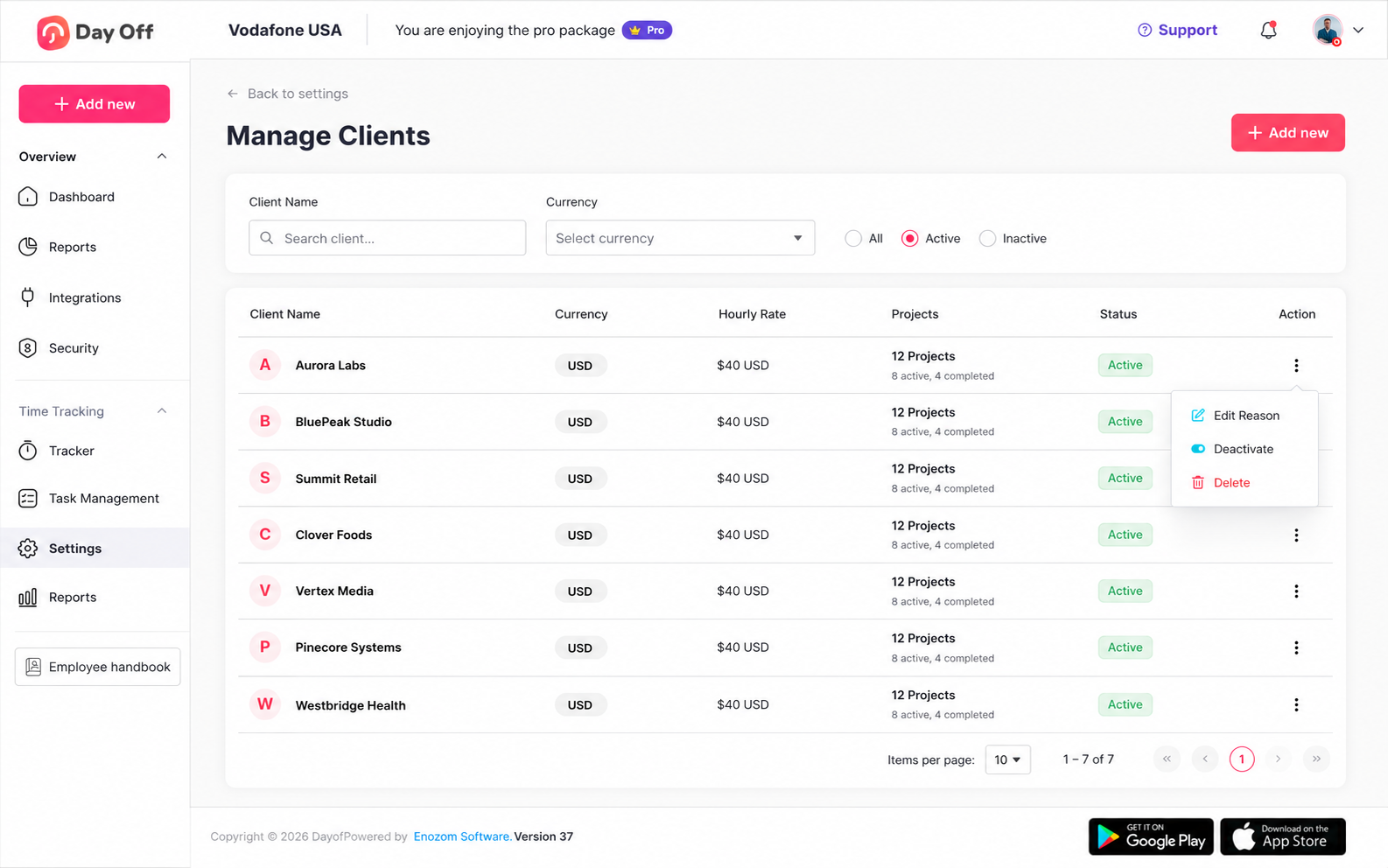
Projects can be associated with a specific client, which is displayed in a dedicated Client column on the projects table. This makes it easy to see which work belongs to which customer, and the list can be filtered by status (Active, Inactive, or All) or searched by project name to quickly find what you need.

Client Linking and Organization: Projects Management in Day Off
3

Time Tracking, Estimates, and Lifecycle Management

Each project displays an Estimate alongside Total spent, letting you compare planned hours against actual time logged, with both columns sortable for quick review. A per-project actions menu also lets you edit details, deactivate a project when it’s no longer active, or delete it, covering the full lifecycle of a project.

Time Tracking, Estimates, and Lifecycle Management: Projects Management in Day Off

Make time off the easy part of your week

Join 60,000+ companies that track leave, PTO, attendance and work hours with Day Off. Free to start, no credit card needed.