Print

How to enable Single Sign on (SSO)?

SSO allows employees to access Day Off without creating separate passwords. They can log in using their existing Microsoft work accounts, making access faster and more secure.

Steps to Enable SSO

To set up SSO in Day Off:

  • Go to Security on the web version
  • Navigate to the SSO section
  • Enable the SSO
  • Click on Setup for microsoft
  • Follow the setup instructions and grant required permissions
  • Save and activate

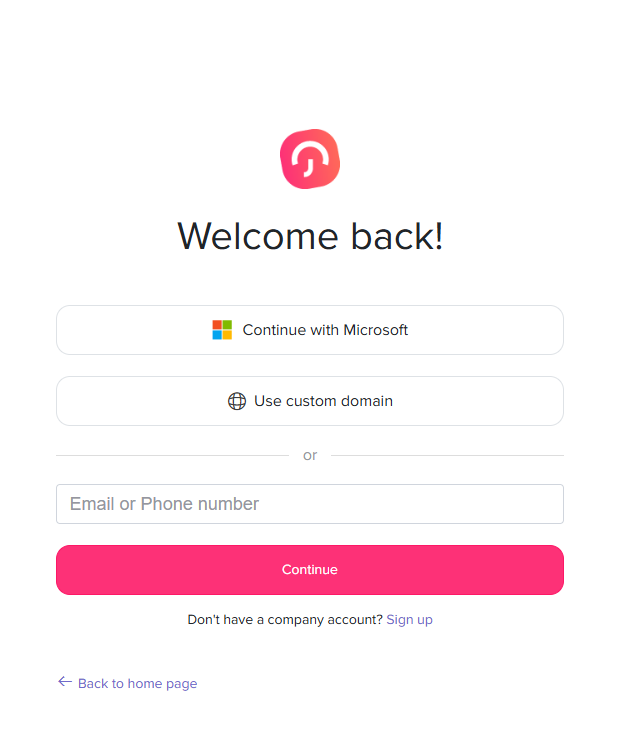
Once enabled, users can sign in using their Microsoft accounts.

How It Works for Users

  • Employees will see the Microsoft login option on the login page
  • They can log in using their work Microsoft account
  • No need to create or remember separate passwords
On this page