





-
Integrations
Syncing your Day Off calendar with Outlook allows you to see your time-off requests together with your meetings and events in one place. This makes it easier to manage your schedule, avoid double bookings, and stay aware of your availability at all times.
For Admins / Employees (Initial Setup)

Before setting up the sync, you need to connect your Day Off account with Outlook.
- Open the Day Off dashboard
- From the main menu, go to Integrations
- Find the Outlook Integration section
- Click on Add Integration
- A Microsoft window will appear asking you to grant permission
- Review the permissions and click Accept
This step allows Day Off to securely connect with your Outlook calendar so it can send your leave data and keep it updated automatically.
Configure Outlook Calendar Sync
After connecting your account, you can choose what exactly you want to sync and how it should appear in Outlook.
Choose what to sync
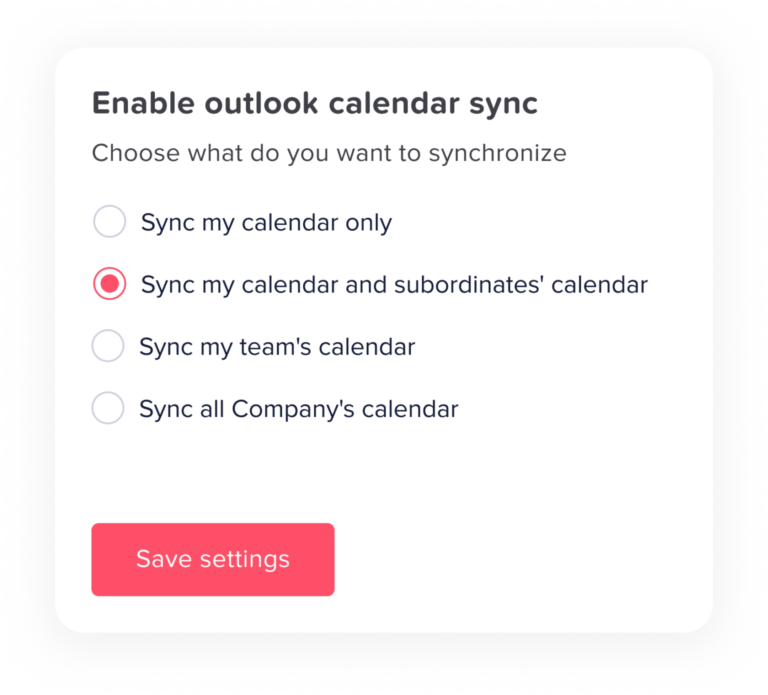
You will see several options depending on how much information you want in your Outlook calendar:
- Sync my calendar only
This option will sync only your personal time off requests.
It is best if you only want to track your own leave without seeing others. It keeps your calendar simple and focused on your schedule. - Sync my calendar and subordinates’ calendar
This will include your requests and the requests of employees who report to you.
It is useful for managers who need to monitor their team’s availability and ensure there is always enough coverage. - Sync my team’s calendar
This option will sync all requests within your team or department.
It helps team members stay aligned and avoid too many people being off at the same time. - Sync all company’s calendar
This will sync all employee requests across the entire company.
It provides full visibility and is usually used by admins or roles that require a complete overview of everyone’s availability.
Select Outlook calendar
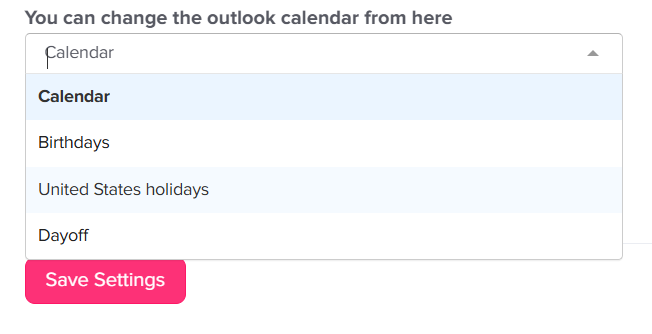
- If you have more than one calendar in Outlook, you can choose where the data should appear
- This helps you keep your personal calendar separate from your work or shared calendars
- Selecting the correct calendar ensures your time-off events are organized properly
Mark calendar as

This setting controls how your time off appears to others in Outlook:
- Free
Your time off will be visible in your calendar, but it will not block your time.
This means others can still schedule meetings with you during that period. - Busy (Only your requests will mark as busy)
Your time off days will be marked as busy, which prevents others from booking meetings during that time.
This helps protect your time off and avoids interruptions.
Note: Only your own requests will block your calendar, not other employees’ requests.
Final Step
After choosing all your preferences, click Save Settings
Once saved:
- Your Day Off calendar will automatically sync with Outlook
- The time off requests will appear in your selected Outlook calendar
- Any updates or changes in Day Off will be reflected in Outlook automatically
Additional Option
- If you no longer want to sync your calendar, you can click Disconnect Calendar at any time
- This will stop all future updates between Day Off and Outlook
Final Note
Syncing your calendar helps you stay organized by keeping all your important events and time off in one place. It improves planning, reduces scheduling conflicts, and makes it easier to manage your time effectively.