









The typical Google Sheets leave tracker, and why it starts well
For a small team, this setup genuinely works. Here’s why:
It’s free.
There’s no onboarding.
It’s fully customizable.
It lives where your team already works.
A quick note before we go further:
If you have fewer than eight employees and a straightforward leave policy, everyone gets the same annual entitlement, no international complexity, no accrual, a Google Sheet might genuinely be all you need for now. This article is for teams that are starting to feel the friction. If that’s you, read on.
7 ways your leave spreadsheet is quietly failing your team
1. No real-time visibility into who’s off
A Google Sheet is a static document. The moment you close it, you lose sight of your team’s availability. When a manager needs to answer “who’s off this week?”, they have to open the file, navigate to the right tab, scroll through the rows, and piece the answer together manually.
This creates a subtler problem too: when two people try to update the sheet at the same time, changes can overwrite each other. Google Sheets does have version history, but most teams don’t check it proactively, they only discover the conflict after something goes wrong.
Compare that to a live dashboard where you can see, at a glance, exactly who’s off today, who’s off next week, and whether any critical projects are going to be understaffed during a key period. That visibility doesn’t just save time, it prevents the kind of planning failures that frustrate entire teams.
2. There’s no real approval workflow
3. Public holidays aren’t automatically accounted for
This is one of the most expensive errors spreadsheet leave tracking produces, and it happens completely silently.
When an employee requests time off from December 24 through January 2, a standard Google Sheets tracker will deduct all of those days from their annual leave balance, including Christmas Day, Boxing Day, and New Year’s Day. Depending on the country, that could mean two, three, or four public holidays incorrectly consumed from their personal allowance.
Multiply that across a team of 20 people over a full year, and the miscalculation adds up to a significant number of leave days that were never correctly tracked. For international teams, with different public holidays in different countries or even different regions, the problem becomes essentially unmanageable without dedicated software.
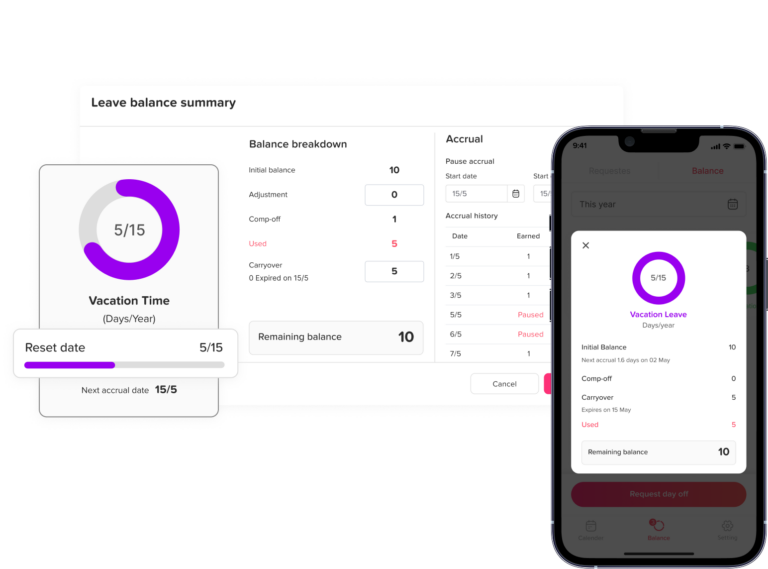
4. Accrual and proration require manual formula work, and formulas break
5. No notifications, reminders, or calendar integrations
Your Google Sheet doesn’t know when someone’s leave starts. It can’t send a Slack message to the team saying “reminder: Alex is out this week.” It can’t block off time in Google Calendar. It can’t update an Outlook shared calendar. It can’t ping the manager three days before a long absence starts to ensure coverage is in place.
All of that has to be done manually, by humans, every time. And in busy periods, which is exactly when leave management matters most, it’s the kind of administrative task that gets forgotten.
The practical result: teammates don’t realize someone is away until they send a message and wait hours for a reply. Meetings get scheduled across someone’s approved holiday. A client call gets missed because the account manager was off and no one knew to assign a backup.
6. Privacy and data protection are almost impossible to enforce
When leave is tracked in a shared Google Sheet, everyone with access to the sheet can see each other’s data. That means an employee can see their colleague’s leave balance, their leave history, and, if your sheet includes a reason column, why they took time off.
This creates a genuine legal exposure. Under the GDPR in Europe and similar frameworks elsewhere, employers have obligations regarding how employees’ personal data is accessed and stored. Medical information in particular, including the reason someone took sick leave, should not be visible to colleagues who have no legitimate reason to see it.
Building a permission system into Google Sheets that shows each employee only their own data is technically possible, but it requires significant setup effort, breaks easily when employees leave or join, and requires ongoing maintenance that most teams simply don’t have the capacity for.
7. It doesn’t scale past roughly 15 people
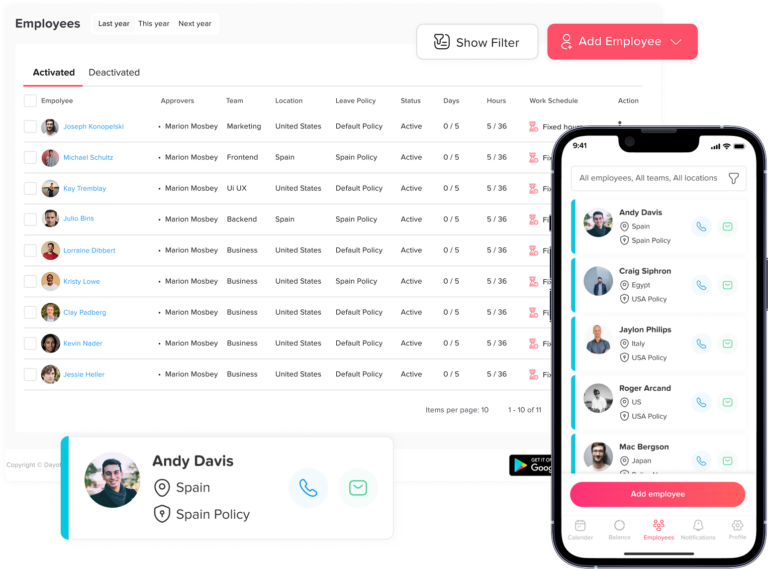
There’s a fairly predictable breaking point with spreadsheet leave management, and it usually hits somewhere between 12 and 20 employees. At that size, the sheet has enough rows that navigation becomes slow. Adding a new employee means updating multiple tabs. Changing a leave policy means hunting down every formula that references the old rule. Running any kind of report, “how many sick days did we use in Q3?”, means building a pivot table from scratch.
At 20 or more employees, maintaining the spreadsheet accurately becomes a meaningful portion of someone’s job. It’s not that Google Sheets can’t technically hold the data, it’s that the human effort required to keep it accurate grows faster than the team does.
What “free” actually costs you
The time cost is larger than most people realize
Errors have a direct financial cost
The compliance cost is the least visible and potentially the most serious
There’s also a morale cost
Day Off vs Google Sheets: feature by feature
Stop managing leave in spreadsheets
Compare manual PTO tracking in Google Sheets with a modern leave management workflow built for approvals, balances, holidays, visibility, and reporting.
| Feature | Google Sheets | Day Off Recommended |
|---|---|---|
| Cost | Free, but time-costly to maintain | Free plan available; paid plans at a low monthly rate |
| Leave request workflow | Manual: Slack/email + manual sheet update | Built-in requests, approvals, and notifications |
| Balance calculation | Manual formulas, error-prone | Automatic, including accrual and proration |
| Public holiday awareness | None: manual entry required | Built-in public holiday calendars by country |
| Calendar integration | None: manual copy/paste | Google Calendar, Outlook, Slack sync, and Microsoft Teams |
| Team visibility controls | Anyone with link sees everything | Role-based: employees see only their own data |
| Multi-country support | Very difficult to configure | Native support for different country policies |
| Mobile experience | Google Sheets mobile, not designed for leave | Dedicated iOS and Android app |
| Audit trail and compliance | No timestamps or approval records | Full history with timestamps |
| Notifications and reminders | None | Automated email and Slack notifications |
| Onboarding new employees | Manual row addition in multiple places | Invite by email, policy applied automatically |
| Reporting | Manual pivot table construction | Built-in reports and can be exported to Excel |
| Setup time | 2–4 hours for a working template | Under 10 minutes |
Ready to replace manual PTO tracking?
Try Day Off for freeTo be fair: when a spreadsheet still makes sense
Your team has fewer than eight people
Your leave policy is genuinely simple.
You have a dedicated person actively maintaining it.
You’re a freelancer or solopreneur
Moving from a spreadsheet to Day Off: what the switch actually looks like
One of the biggest reasons teams stay on spreadsheets longer than they should is the perceived difficulty of migrating. In practice, switching to Day Off is straightforward, and you don’t need to migrate your full historical data to get started.
Step 1: Export your current balances
Step 2: Set up your company in Day Off, takes under 10 minutes
Step 3: Invite your team
Step 4: Set a go-live date and communicate it clearly
The first leave request in Day Off, from submission to approval, takes under 60 seconds. Most teams find the process noticeably smoother within the first week.
Most teams complete the full setup in a single lunch break. If you have a more complex setup, multiple offices, different leave policies by location, or unusual accrual rules, Day Off’s support team can walk you through the configuration.
What teams say after switching
The most common feedback from teams that move from spreadsheets to Day Off isn’t about specific features, it’s about the cognitive load that disappears. The background noise of managing leave manually turns out to be louder than most people realized while they were still doing it.
Teams consistently report three things after switching: fewer “how many days do I have left?” messages to HR, faster leave approval because the request and approval happen in one place with automatic notifications, and more confidence that the balances are actually correct.
Day Off is rated highly on G2 and Capterra, with users particularly noting ease of setup and time saved on administration. Check the latest reviews at Day Off for up-to-date ratings and testimonials.
Frequently asked questions
Can I use Google Sheets to track employee leave?
Yes, Google Sheets works well for very small teams with simple leave policies. However, as your team grows beyond 10–15 people, spreadsheets become increasingly difficult to maintain accurately and lack essential features like automated approvals, balance accrual, and calendar integrations.
Is Day Off free?
Day Off offers a free plan suitable for small teams. Paid plans unlock additional features including advanced reporting, integrations, and multi-policy support. Visit Day Off for current pricing.
How long does it take to set up Day Off?
Most teams complete the initial setup in under 10 minutes. You’ll need your employees’ email addresses and their current leave balances from your existing records.
What happens to my existing leave data when I switch?
You enter current leave balances manually when setting up Day Off. Full historical records stay in your spreadsheet, you don’t need to migrate them. Most teams archive the spreadsheet and go live from the current date, keeping the old file for reference.
Does Day Off integrate with Google Calendar?
Yes. Day Off syncs approved leave to Google Calendar, Outlook, and Slack, so the whole team can see who’s off without checking a separate system.
Is a Google Sheet GDPR-compliant for leave tracking?
It can be, with careful configuration, but a shared Google Sheet visible to all employees often exposes personal data, including leave reasons and medical absences, to colleagues who have no legitimate need to see it. Dedicated leave management software enforces role-based access by default, making compliance significantly easier to maintain.
Can Day Off handle teams in multiple countries with different public holidays?
Yes. Day Off supports country-specific public holiday calendars, meaning employees in different countries automatically have the correct public holidays excluded from their leave calculations, something that requires significant manual effort to replicate in a spreadsheet.
The bottom line
Google Sheets is a genuinely brilliant tool. It’s one of the most flexible, accessible, and powerful pieces of software available, for the things it was built to do. Leave management just isn’t one of them.
The spreadsheet approach works until it doesn’t. The failure is gradual: a missed request here, a wrong balance there, a compliance gap that nobody notices until it becomes a problem. By the time most teams decide to switch, they’ve already absorbed months of unnecessary friction and administrative cost.
Day Off was built specifically for this problem. It handles the approval workflow, the balance calculations, the public holiday awareness, the calendar integrations, and the audit trail, automatically, for every employee, from day one. Setup takes under 10 minutes, there’s a free plan to start with, and migration from a spreadsheet is simpler than most teams expect.
If you’ve been running your team’s leave on a Google Sheet and you’ve recognized two or three of the problems in this article, it’s probably time.