


-
Getting started
How do I set up my company on Day Off?
Once you’ve created your company account on Day Off, the next step is to properly configure your workspace so it reflects your company’s structure, policies, and approval process. This guide walks you through the essential setup steps to ensure everything runs smoothly from day one.
1. Set Up Leave Types and Policies
Leave types and policies work together to define how time off is structured and assigned across your company. It’s important to configure both correctly to ensure accurate leave tracking.
Create Leave Types
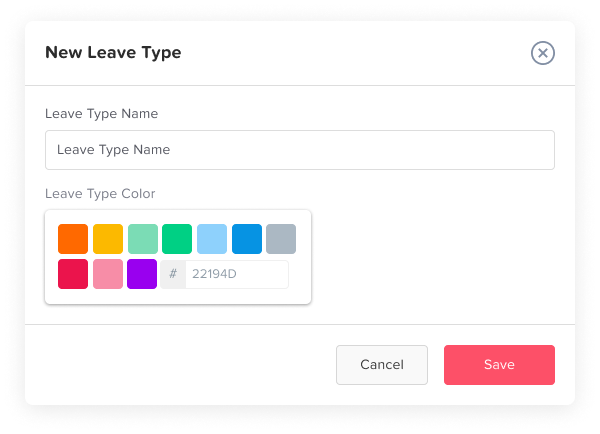
Leave types represent the different kinds of time off employees can request (e.g., Annual Leave, Sick Leave).
Go to Settings.
Click on Leave Types.
Click Add New Leave Type.
Fill in the Required Details
Name: Enter the leave type name (e.g., Annual Leave, Sick Leave).
Category: Select the appropriate category for the leave.
Balance Unit: Choose whether the leave is tracked in days or hours.
Cycle: Define how the leave resets (e.g., yearly).
Color: Assign a color to help visually distinguish this leave type in the calendar.
Click Save.
Repeat: Repeat these steps to create all the leave types your company needs.
Make sure to add all required leave types before moving to policies, as policies depend on them.
Configure Leave Policies
Leave policies define how leave types are assigned to employees and what rules apply to each one.
Go to Settings.
Click on Leave Policy.
Choose one of the following:
Edit an existing policy, or
Click Add Policy to create a new one.
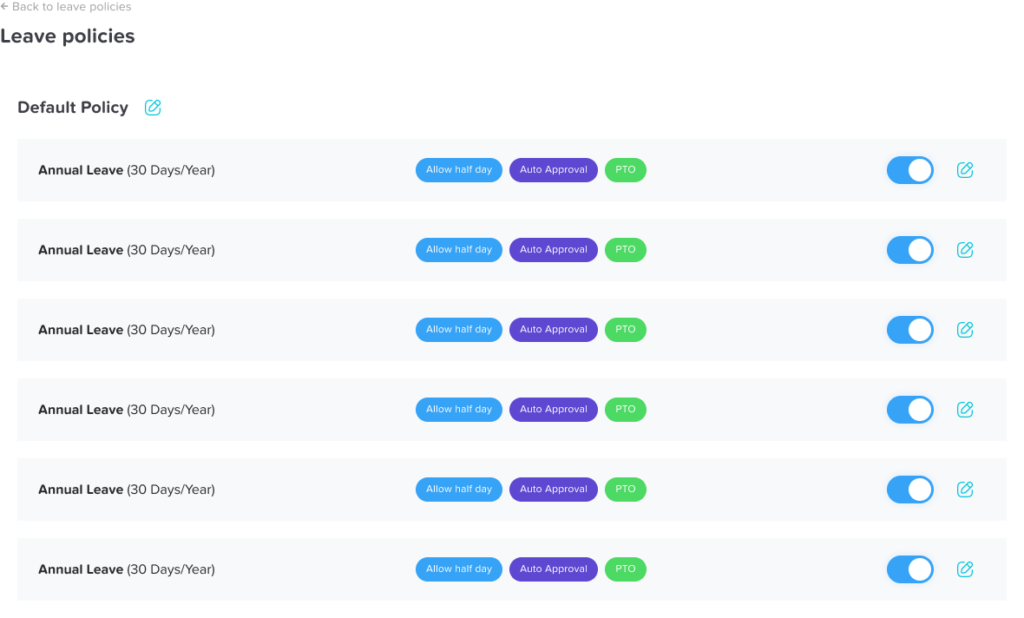
Configure the Policy
Inside the policy:
Enable Leave Types: Select the leave types you want to include in this policy.
Configure Each Leave Type:
Allowance: Set the number of days or hours allocated.
Additional Settings: Apply any limits or rules based on your setup.
Click Save.
You can create multiple policies for different groups of employees (e.g., full-time vs part-time).
2. Location Based Holidays Setup
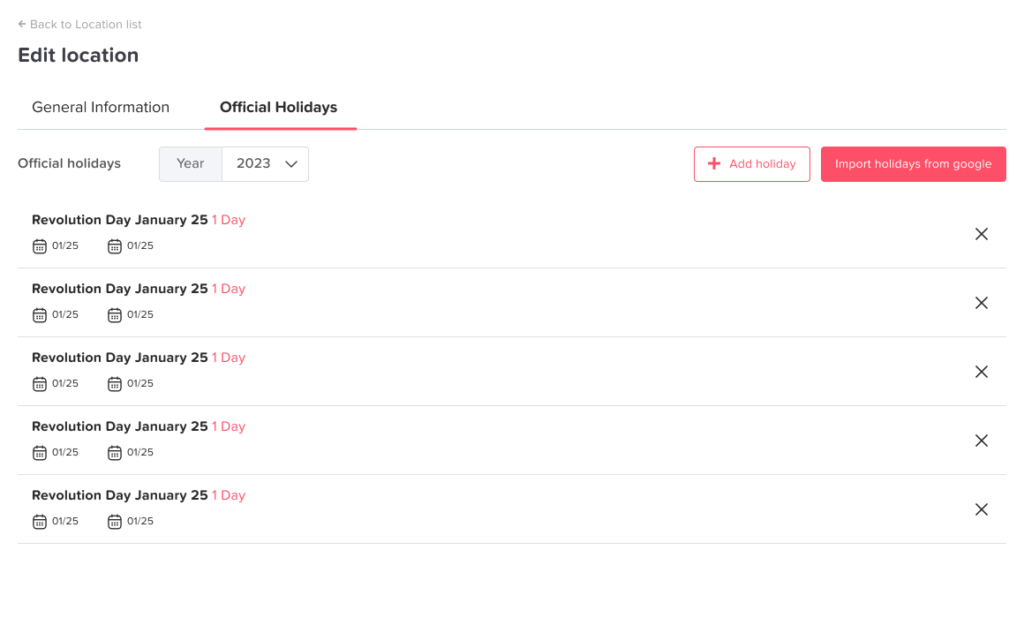
Public holidays ensure employees are not charged leave on official days off.
- Navigate to Settings → Locations and Holidays.
- Add a new location or edit an existing one.
- Go to the Holidays section within the selected location.
Add Holidays
Choose one of the following options:
- Click Import Holidays and select your country and the year, or
- Click Add Holiday to manually enter custom dates.
Review and Customize
After importing or adding holidays:
- Remove Irrelevant Holidays
Delete any holidays that do not apply to your organization. - Add Company-Specific Holidays
Include internal days off (e.g., company holidays or special events). - Click Save to apply your changes.
3. Add and Organize Employees
Next, bring your team into the system and structure them properly.
Steps:
- Go to Employees.
- Click Add Employees or Import Employees.
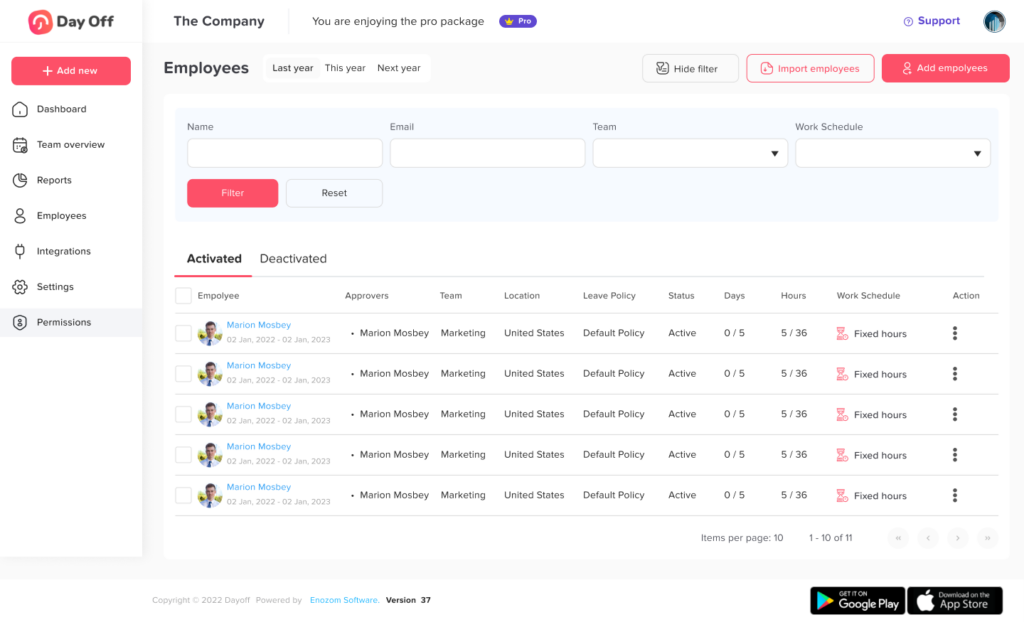
Basic Information
Choose how to invite the employee:
- By email, or
- By mobile
Fill in the required details:
- Email Address
- Employee Name
- Role
Joining Details
- Joining Date
Select the employee’s start date. - Reset Balance Every Anniversary
Enable this option if leave balances should reset on the employee’s work anniversary.
Advanced Settings
Configure additional employee details:
- Location
Assign the employee’s work location. - Work Schedule
Select the appropriate schedule. - Team
Assign the employee to a team or create a new one. - Leave Policy
Choose the applicable leave policy. - Time Zone
Set the employee’s working time zone.
Approval Settings
- Day / Comp Off Approval
- Select 1-step approval, or
- Select 2-step approval
- First Approver(s)
Assign the person(s) responsible for approving requests.
You can select multiple approvers for each approval level. - Watchers
Enable this option if additional stakeholders should be notified.
Final Step
Click Save to add the employee.
4. Create Departments and Teams
Organizing employees into departments improves visibility and simplifies approvals.
- Go to Settings, then to Teams.
- Click on Add Team.
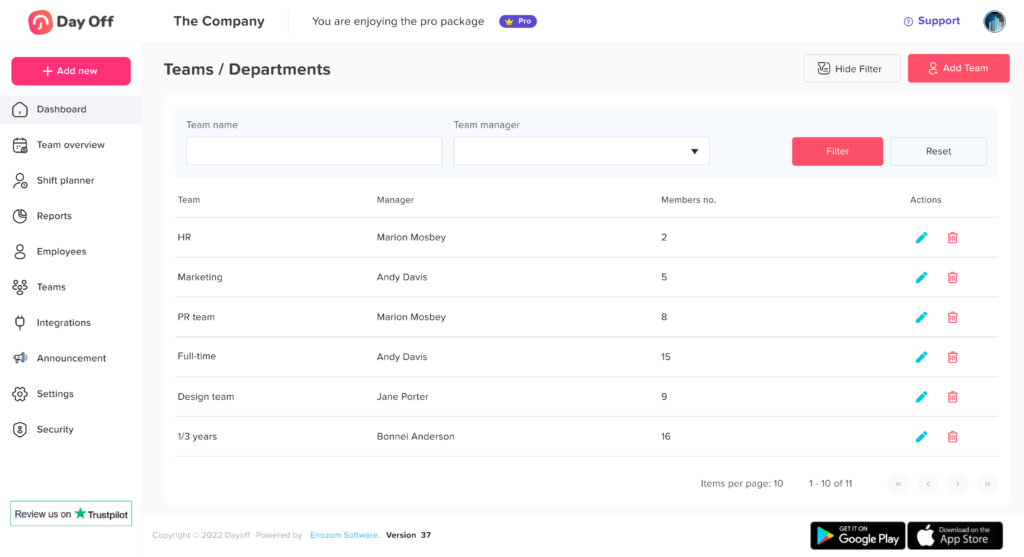
Team Information
Enter the Team Name.
Approval Settings
- Day / Comp Off Approval
- Select 1-step approval, or
- Select 2-step approval
- First Approver(s)
Assign the person(s) responsible for approving requests.
You can select multiple approvers for each approval level. - Watchers
Add stakeholders who should be notified of requests.
Leave Policy
- Override Location’s Policy
Enable this option if you want this team to have a different leave policy than the default location policy. - Leave Policy
Select the leave policy to apply to this team (e.g., Full Time).
5. Set Up Work Schedule
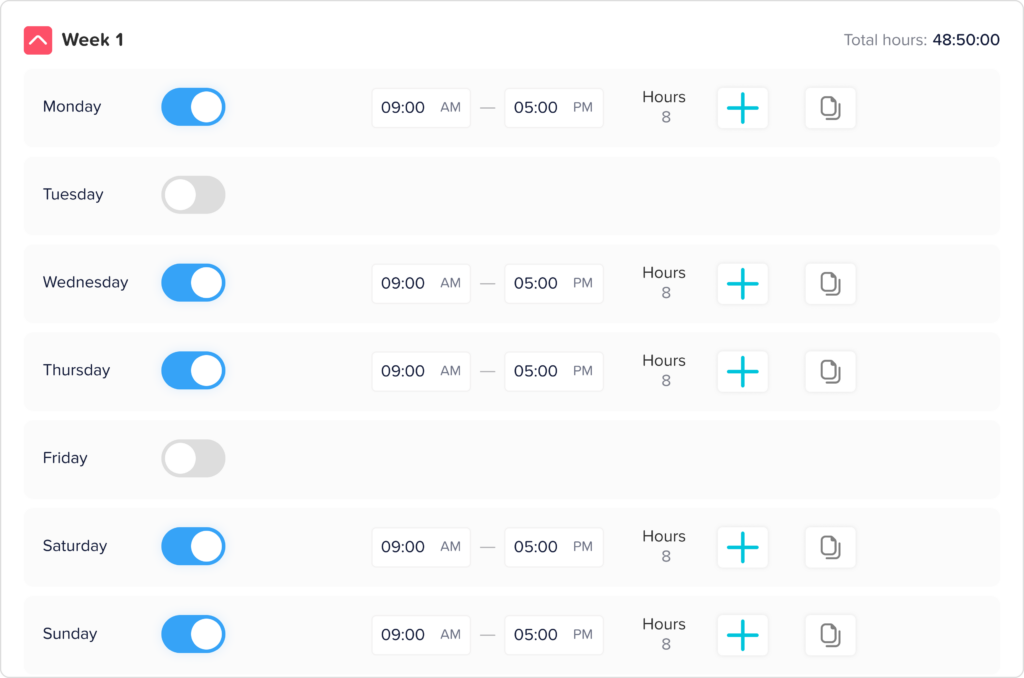
- Go to Settings.
- Click on Work Schedule.
- You can either:
- Edit the default work schedule, or
- Click Add Work Schedule to create a new one.
- Configure the schedule:
- Working Days: Select the days your company operates (e.g., Monday to Friday).
- Weekends: These will automatically be excluded based on your selection.
- Save the work schedule.
Schedule Type
You can choose the type of schedule:
- Fixed Hours
Define the number of working hours for each day.
Employees are expected to complete these hours, without specifying exact start and end times. - Flexible Hours (currently selected)
Define the start time and end time for each working day.
This allows flexibility while still setting boundaries for when employees can work. - Rotating Shifts
Shifts are assigned based on a rotation pattern (e.g., morning, evening, night shifts).
Tips:
- If your company has different working patterns (e.g., shifts or regional teams), create multiple work schedules.
- Make sure the correct schedule is assigned before employees start requesting leave to avoid incorrect calculations.
Final Checklist
Before rolling out Day Off to your team, review the following to ensure everything is set up correctly:
1. Leave Types
Ensure all required leave types (e.g., annual leave, sick leave, unpaid leave) have been created.
Each leave type should be properly configured with:
- Balance units (days or hours)
- Reset cycles (e.g., yearly)
This ensures accurate tracking of employee leave requests.
2. Leave Policies
Verify that policies:
- Include the correct leave types
- Match your company’s rules and entitlements
- Reflect differences between employee groups (e.g., full-time vs part-time)
This helps maintain fairness and consistency across your organization.
3. Locations & Holidays
Confirm that:
- All company locations are set up
- Holiday calendars are accurate for each location
This prevents employees from being charged leave on official holidays and ensures regional accuracy.
4. Employees
Make sure all employees are added with complete and correct details, including:
- Role
- Team
- Location
- Leave policy
Proper setup here simplifies management, reporting, and approvals.
5. Teams / Departments
Check that employees are grouped into the correct teams or departments.
This improves:
- Approval workflows
- Policy assignment
- Overall visibility within the system
6. Work Schedules
Ensure each employee or team has the appropriate work schedule assigned.
This is essential for:
- Accurate leave deductions
- Correct working day calculations
- Supporting different work patterns (e.g., shifts, flexible hours)
You’re All Set
Your Day Off workspace is now fully configured and ready to support your team.
By completing this setup, you’ve established a clear and reliable system that will help you:
- Track leave accurately without manual intervention
- Automate approval workflows and reduce administrative overhead
- Ensure fairness and consistency across all employees
- Improve visibility into team availability and planning
As your organization evolves, you can easily update these settings, whether it’s adding new leave types, adjusting policies, or restructuring teams, to keep everything aligned with your needs.