





-
Getting started
Creating a company account on Day Off is a straightforward process. Each step is designed to collect the basic information needed to set up your workspace correctly from the start.
Step 1: Open the Registration Page
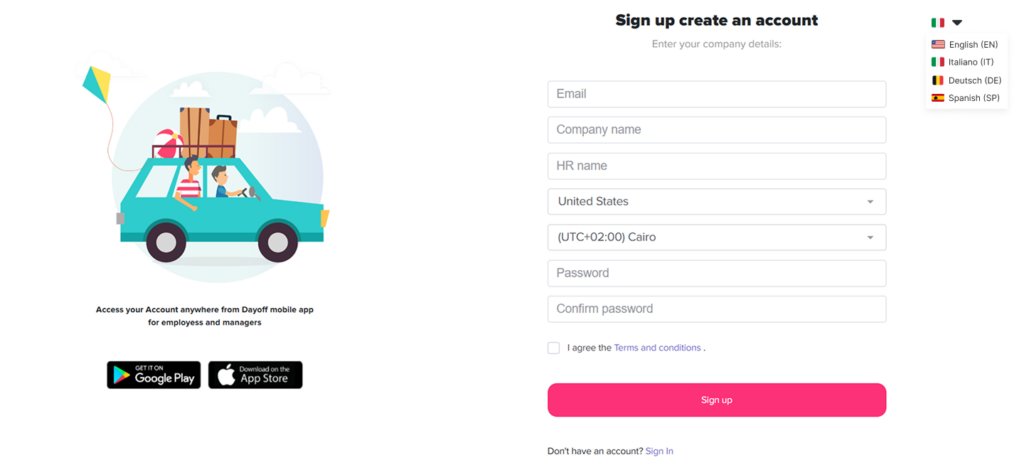
Go to: https://tracker.day-off.app/auth/register
This page contains the account creation form. It’s where you’ll enter all the necessary details to set up your company account.
Step 2: Enter Your Account Information
You’ll be asked to provide three key details:
Email: This will be your login credential and the main way the system communicates with you. It’s best to use your work email.
Company name: This creates your workspace and is what your team will see when they join.
Full name: This identifies you as the account owner (admin) inside the system.
These details form the foundation of your account and cannot be skipped.
Step 3: Select Your Location Settings
In this step, you define your company’s regional settings:
Country: Helps tailor certain defaults (such as holidays or regional formats).
Time zone: Ensures that all leave requests, approvals, and calendar events are recorded at the correct local time.
Choosing the correct time zone is especially important for teams working across different regions.
Step 4: Set Your Password
You’ll need to:
Enter a password
Confirm the same password
This password secures your account. Make sure it’s strong enough to protect your data, but still something you can remember.
Step 5: Agree to the Terms and Conditions
Before continuing, you must check the box to accept the Terms and Conditions.
This step confirms that you agree to the platform’s usage policies and is required to proceed with account creation. Then click the Sign up button to submit your information.
Step 6: Choose a Plan
The first step on the welcome page is selecting a plan that fits your team.
You’ll typically see two options:
Free Plan
The free plan allows you to get started with basic features. It usually includes:
A limited number of employees
Basic approval workflow
Standard leave policies
Access to reports
This option is suitable for smaller teams or for trying out the system.
Pro Plan
The Pro plan includes more advanced features and fewer limitations, such as:
Support for more or unlimited employees
Additional team management options
More advanced tracking features (such as accruals or carryover)
Expanded calendar and reporting capabilities
You can start with a free trial and upgrade later if needed.
Choosing a plan doesn’t lock you in permanently. It simply defines how your workspace will be set up initially. You can usually change or upgrade your plan later as your team grows or your needs change.
Step 7: Set Company Working Days
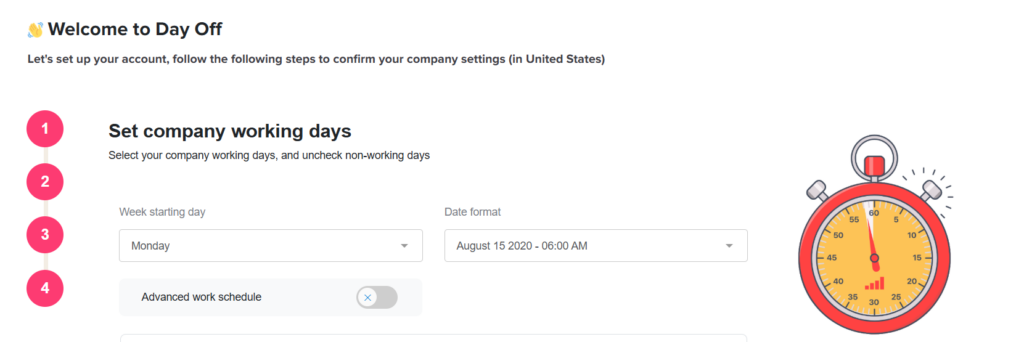
You can select which days are considered working days and which are not (for example, weekends). You also choose when your work week starts and how dates are displayed.
There is also an option to enable an advanced work schedule if your company has more specific or flexible working patterns.
This setup ensures that leave requests and calendars are calculated correctly based on your company’s actual working days.
Step 8: Balance Reset Settings
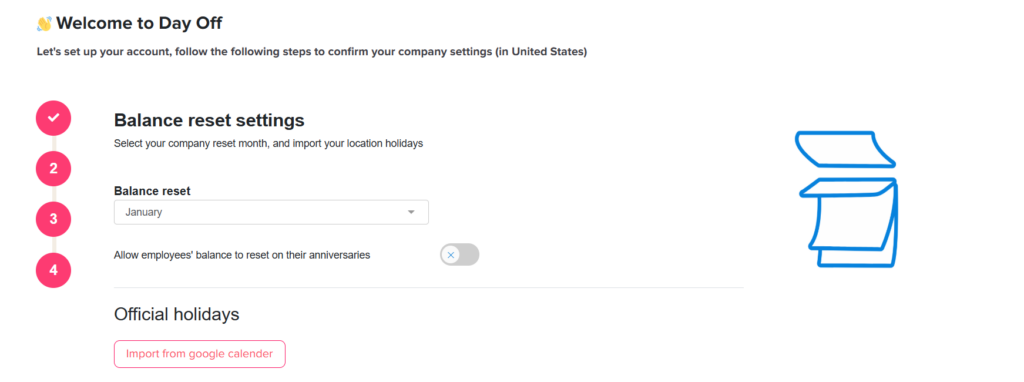
You can choose a reset period (such as at the beginning of the year) or allow balances to reset based on each employee’s work anniversary. This determines when leave days are renewed.
You can also import official holidays, which will be automatically considered when calculating leave and availability.
These settings ensure that leave balances are updated correctly and follow your company’s policies throughout the year.
Step 9: Customize Company Leave Types
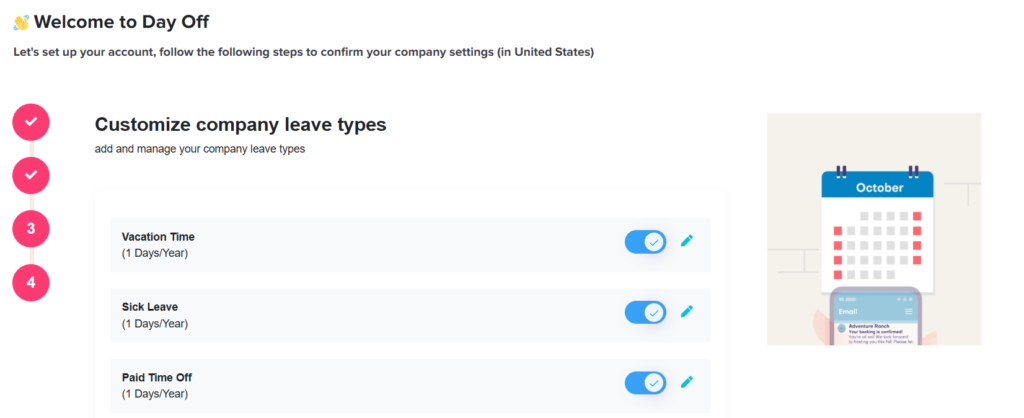
In this step, you define the types of leave your company offers, such as vacation, sick leave, or paid time off.
You can review the default leave types, adjust their settings (like the number of days per year), or add new ones based on your company’s policies. Each leave type can be enabled, edited, or removed as needed.
This setup ensures that employees request the correct type of leave and that balances are tracked accurately for each category.
Step 10: Invite Your Employees
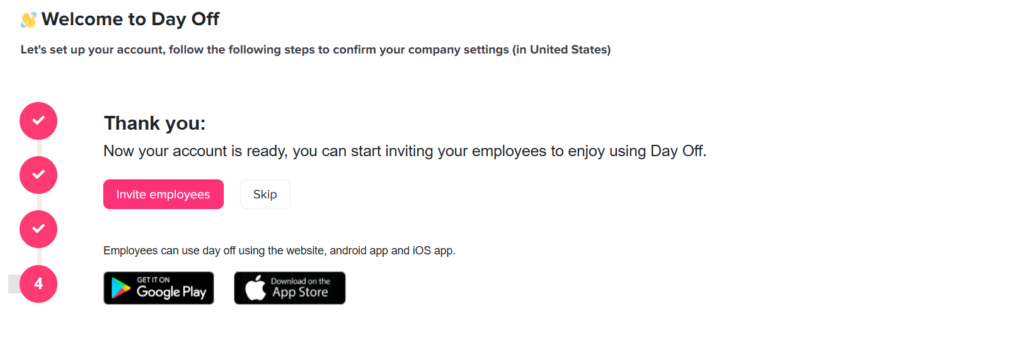
Your account setup is now complete and your workspace is ready to use.
At this stage, you can start by inviting your employees to join the system. Once they’re added, they’ll be able to access Day Off, submit leave requests, and view their schedules.
You can choose to invite your team immediately or skip this step and do it later.
Employees can access the platform through the web or mobile apps, making it easy to manage time off from anywhere.
By following these steps, you create and configure your company account from start to finish. Once completed, your workspace is fully set up, and your team can begin managing time off in a clear and organized way.