


-
Getting started
How to join my company?
To join your company on Day Off, you need to be added by your company admin or HR manager. Once you’re added, you’ll receive your login details, including a username and a temporary password for your first access. or you may be asked to log in using your company’s system (SSO or custom domain).
First Time Login
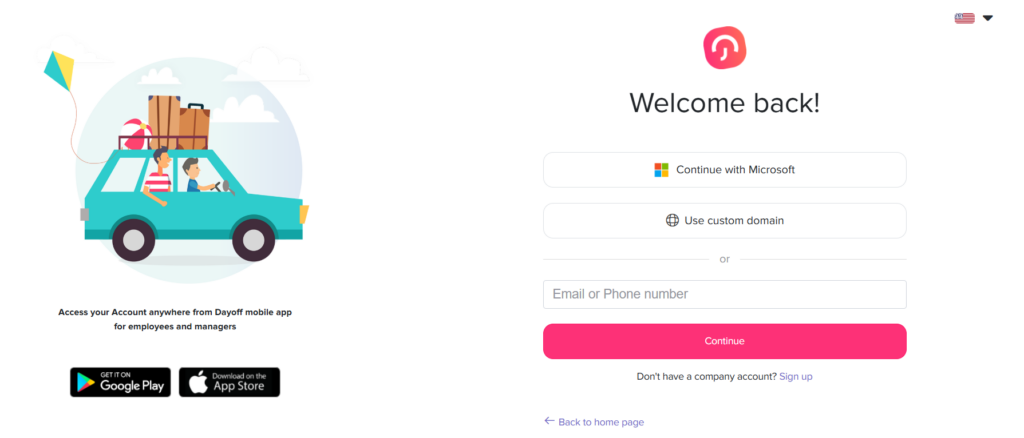
Follow these steps to access your account for the first time:
Open Day Off
Download the Day Off app (Android or iOS), or use the web version.Go to Login
Click on the “Log In” button.Enter Your Login Details
Use the same email or phone number your company used to invite you.Enter Your Temporary Password
Type the temporary password you received. For security reasons, you will be asked to set a new password.Click “Log In”
You’ll be signed in and taken to your account.
What if My Company Uses SSO?
If your company uses Single Sign-On (SSO), you won’t need a temporary password to log in.
Instead, your company will provide you with a login method that connects Day Off to your organization’s system (such as Microsoft).
How to Log In with SSO
Open Day Off (web or mobile app)
Click “Log In”
Choose the SSO option (e.g., “Continue with Microsoft”)
Sign in using your company credentials
Once authenticated, you’ll be logged in automatically and linked to your company workspace.
Important Notes
You must use the same email associated with your company account
Access is managed by your organization’s system, not a separate password
If you have trouble logging in, contact your IT team or admin
What if My Company Uses a Custom Domain?
If your company uses a custom domain, you’ll log in using your organization’s specific domain instead of a standard email/password or SSO option.
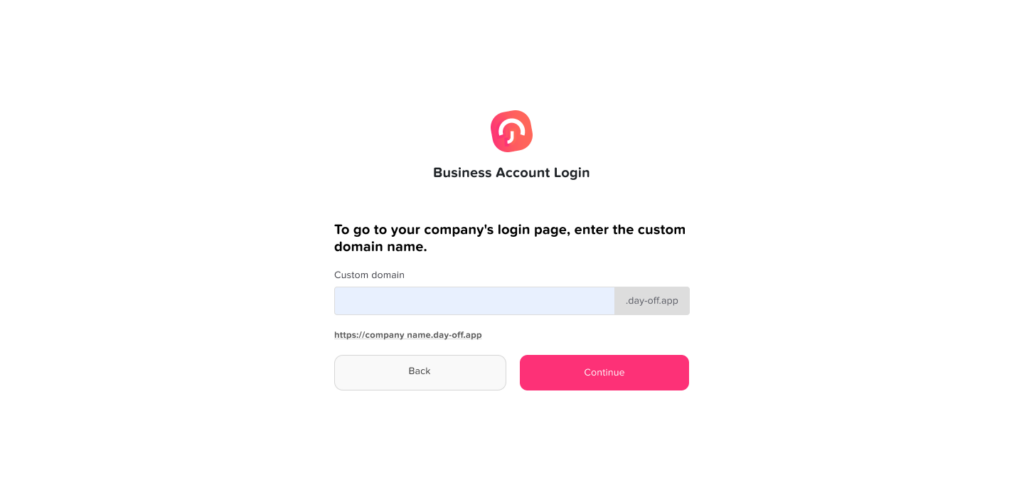
How to Log In with a Custom Domain
Open the Day Off login page
Click “Use custom domain”
Enter your company’s domain (for example:
yourcompany.day-off.app)Continue to your company’s login page
Enter your login credentials
Once completed, you’ll be signed in and connected to your company workspace.
Important Notes
Your company must provide you with the correct domain
The login method may vary depending on your company’s setup
If you’re unsure about your domain, contact your admin or IT team
Once logged in, you’ll be able to:
View your available leave balance at any time
Submit and track your time off requests
Check your team’s schedule to see who is off and plan accordingly
Joining your company on Day Off is a simple process that depends on how your organization manages access. Whether you log in using a temporary password, SSO, or a custom domain, once you’re in, you’ll have everything you need to manage your time off and stay aligned with your team.