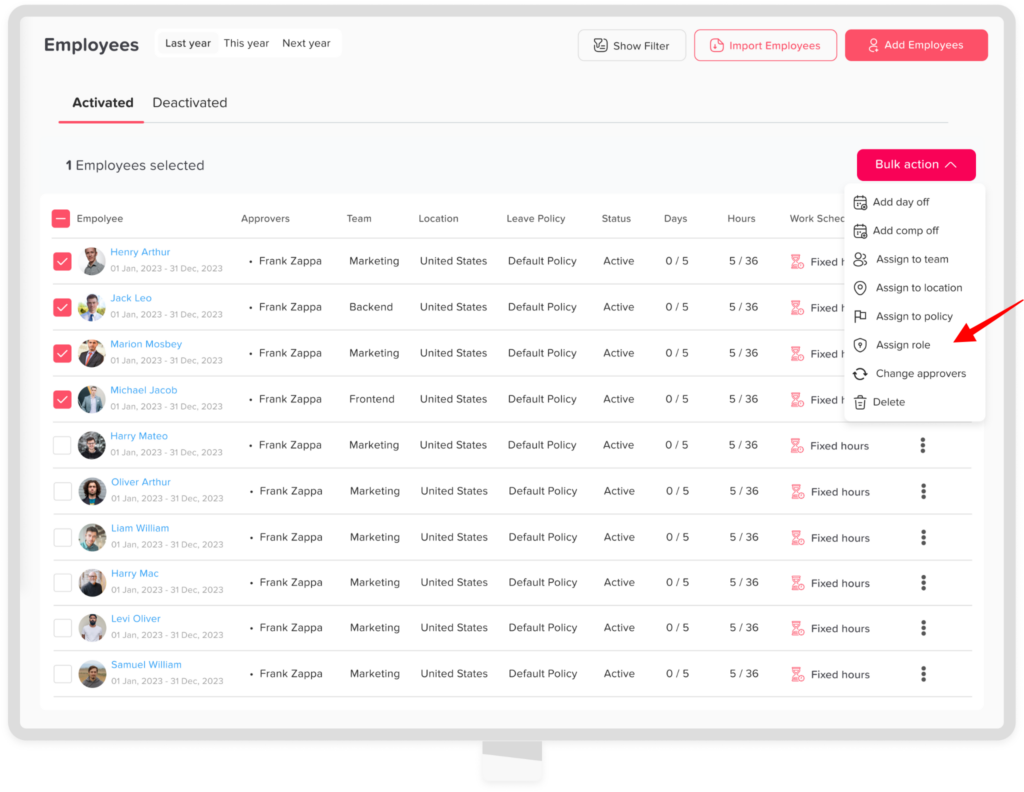
Main Permissions How to change a user's role/permissions? Print How to change a user’s role/permissions? Updating roles allows you to adjust what each user can see and do as your team evolves. Using the Web Version Role and permission changes are managed through the web platform.To update a user’s role:Go to the Employees OverviewOpen the employee’s profile you want to updateChange their assigned role (e.g., Employee, Manager, Admin, or custom role)Save the changesTo update a multiple user’s role:Go to the Employees OverviewSelect the required employeesClick on Bulk action Choose assign to role Choose the roleClick confirm