Most small teams don’t have a leave approval process. They have a habit.
Someone messages their manager on Slack. The manager says “sure, sounds good.” Someone, maybe the manager, maybe the employee, maybe nobody, updates a spreadsheet. The holiday is taken. Whether it was properly approved, whether the balance was correct, whether anyone else knew about it, that’s anyone’s guess.

This works until it doesn’t. And when it stops working, it tends to stop working at the worst possible moment: a key project is understaffed because two people assumed the other’s leave hadn’t been approved, or an employment dispute surfaces and there’s no record that a request was ever formally agreed.
This guide will walk you through how to build a leave approval process that’s clear, consistent, and light enough that your team will actually use it, not work around it. Where relevant, we’ll show exactly how Day Off handles each part of the process automatically, so you can compare the DIY approach against the software approach and decide what’s right for your team size and situation.
Why informal leave approval breaks down
Before getting into the solution, it’s worth understanding why the informal approach fails. It’s not because managers are careless or employees are irresponsible. It’s because the informal approach has structural flaws that only become visible under pressure.
It lives in too many places at once. Leave requests arrive via Slack, email, WhatsApp, face-to-face conversations, and the occasional Post-it note. There’s no single source of truth. When someone asks “was Alex’s leave approved?”, the answer requires checking four different channels.
It depends on one person’s memory and availability. When the person who “handles leave” is on holiday themselves, the whole system pauses. New requests pile up unanswered. Employees don’t know if they can book flights yet.
It has no audit trail. If an employee later disputes whether their leave was approved, or if there’s a question about how many days they’ve taken, there’s no reliable record. A Slack message from four months ago is not a compliance-grade approval log.
It scales linearly with team size. At five people, an informal process is manageable. At 15, someone is spending a meaningful portion of their week fielding leave questions. At 25, it’s a part-time job.
It creates perceived unfairness. When approval is informal, some employees feel more comfortable asking than others. The confident ones take more leave. The ones who don’t want to bother the manager take less. This is rarely intentional, but it’s a real outcome of unstructured processes.
What a good leave approval process looks like
A well-designed leave approval process has five components. None of them are complicated individually, the value comes from having all five working together.
1. A single, defined channel for requests
Every leave request should come through one channel. Not Slack sometimes and email other times. One channel.
This doesn’t have to be software. It could be a shared form, an email address, or a dedicated Slack channel. What matters is that everyone knows where requests go, managers know where to look, and the record exists in one place.
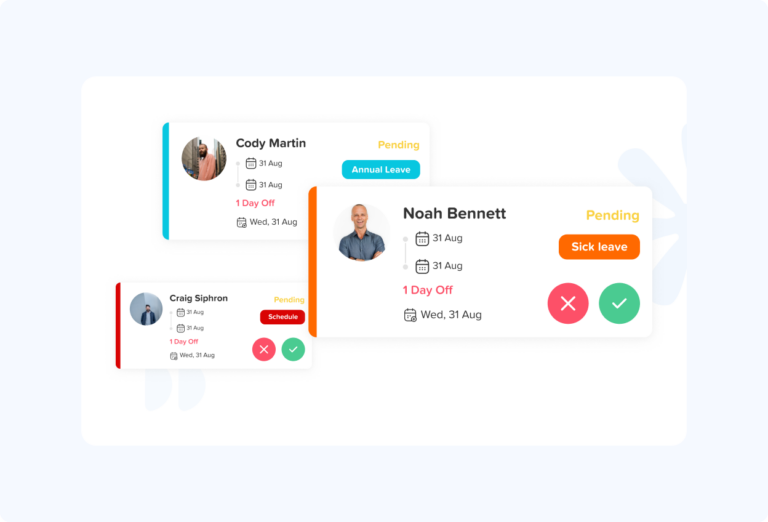
If you’re using dedicated leave management software like Day Off, this is handled automatically: employees submit requests through the app (on web or mobile), managers receive a notification instantly, and the approval or rejection is logged with a timestamp, all in one place, with no manual record-keeping required.
How Day Off handles this:
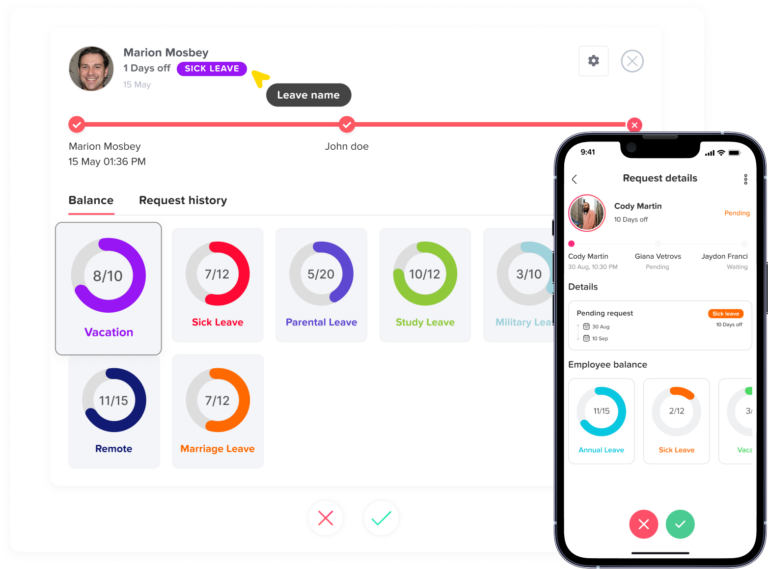
Every leave request goes through a single in-app channel. Employees open the app, tap “New request,” select their leave type and dates, add an optional note, and submit. The request appears in the manager’s queue immediately. There’s no Slack thread to lose, no email to miss, and no spreadsheet to update. The entire submission takes under 30 seconds.
2. Clear criteria for approval and rejection
Managers should be able to explain in one sentence why a request was approved or rejected. If they can’t, the criteria aren’t clear enough.
Common approval criteria include:
- Minimum notice period (e.g. requests must be submitted at least two weeks in advance for absences of a week or more)
- Team coverage requirements (e.g. at least two people from the engineering team must be available at any time)
- Blackout periods (e.g. no leave during the last week of each financial quarter)
- Maximum concurrent absence (e.g. no more than 25% of any team off at the same time)
These criteria should be written down in your leave policy, not kept in the manager’s head. The policy doesn’t need to be long. A single page covering the above points is more valuable than a 20-page document nobody reads.
How Day Off handles this:
Blackout periods and team coverage rules are configured directly in Day Off’s settings. When an employee submits a request that falls within a blackout date, the system flags it before it even reaches the manager. If a request would breach a minimum coverage rule, the manager sees that context alongside the request. The criteria are enforced by the system, not by memory.
3. A defined response time
“I’ll get back to you about that” is not a response time. Employees waiting for approval can’t book flights, arrange childcare, or make plans. A request that sits unanswered for two weeks is a process failure, not just a management oversight.
Define a maximum response time and communicate it. A reasonable standard for most teams:
- Requests for 1–2 days: response within 2 business days
- Requests for a week or more: response within 5 business days
- Requests during high-demand periods (e.g. summer, Christmas): response within 5 business days, but with a note that availability is subject to team coverage
If you’re using leave management software, automated notifications eliminate most of the delay, the manager is notified the moment a request comes in, and the employee is notified the moment a decision is made.
How Day Off handles this:
When a request is submitted, Day Off sends an instant notification to the approver, via email, and optionally via Slack or Microsoft Teams. The manager can approve or reject with a single click directly from the notification, without logging into the app. The employee receives their decision notification within seconds of the manager acting. In practice, most requests in Day Off are resolved within hours, not days.
4. A clear backup approver
What happens when the primary approver is on leave themselves?
If the answer is “requests wait until they’re back,” you don’t have a process, you have a single point of failure. Define a backup approver for every team, and make sure employees know who to contact when their primary manager is unavailable.
In most teams this is straightforward: the secondary approver is the manager’s manager, or a designated senior team member. The key is that it’s explicit and documented, not assumed.
How Day Off handles this:
Day Off supports multi-level approval and named backup approvers at the team level. When setting up a team, you assign both a primary approver and a backup. If the primary approver is on leave themselves, which Day Off knows, because their absence is already in the system, requests automatically route to the backup. No manual handover is needed.
5. A record of every decision
Every approved and rejected leave request should be logged, who requested it, when it was submitted, who approved or rejected it, when the decision was made, and any notes on the reason for rejection.
This record serves three purposes:
- It lets managers check a team member’s leave history without doing maths
- It gives employees confidence that their records are accurate
- It provides a defensible audit trail if a dispute ever arises
A shared spreadsheet can technically do this, but it requires manual discipline that most teams don’t sustain. Dedicated software logs this automatically, with timestamps, on every transaction.
How Day Off handles this:
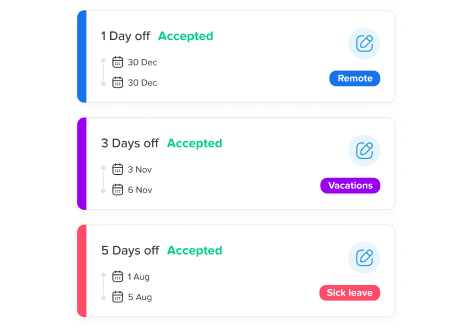
Every action in Day Off, request submitted, approved, rejected, cancelled, is logged automatically with the exact timestamp and the name of the person who acted. Managers can view the full leave history of any employee in seconds. At year-end, the complete record is available for payroll reconciliation, compliance audits, or any other purpose, without anyone having to reconstruct it from memory or email threads.
How to build your leave approval process: a step-by-step guide
Here’s how to go from informal habit to documented process. This can be done in an afternoon.
Step 1: Define your leave types
Before you can approve leave, you need to agree on what you’re approving. Write down every category of leave your company recognises:
- Annual leave / holiday
- Sick leave
- Unpaid leave
- Compassionate / bereavement leave
- Parental leave (maternity, paternity, adoption, shared parental)
- Mental health days (if offered)
- Volunteering leave (if offered)
- Sabbatical (if offered)
For each type, note whether it requires advance approval, how much notice is required, and whether it comes from the employee’s main leave balance or a separate allocation.
Step 2: Define your approval rules
For each leave type, decide:
Who approves it? In most small teams, this is the direct line manager. In some cases (e.g. senior hires or long absences), the HR manager or CEO may need to co-approve.
How much notice is required? A day off for a dental appointment has different notice requirements than a two-week holiday. Be specific.
Are there blackout periods? If certain times of year are off-limits for leave, document them explicitly and communicate them before they become relevant, not after someone’s tried to book that week.
What’s the maximum concurrent absence? Define the minimum coverage requirement for each team. “At least one developer must be available” is more useful than “use common sense.”
Who is the backup approver? Name the specific person who covers when the primary approver is away.
Step 3: Write it down in a simple policy document
A leave policy doesn’t need to be a legal document. It needs to be clear enough that a new employee can read it on their first day and understand exactly how to request leave and what to expect.
A one-page policy covering the following is enough for most teams under 50 people:
- How to submit a leave request (which channel, which form, or which app)
- How much notice to give for different types of leave
- Who approves requests and who the backup approver is
- Maximum response time for decisions
- Blackout periods or concurrent absence limits
- What happens to leave that isn’t approved (can it be rescheduled? Is there an appeal process?)
- Who to contact with questions
Keep it in plain language. If your employees need a lawyer to understand your leave policy, the policy is too complicated.
Step 4: Choose your request channel
This is where many teams get this decision wrong. They default to a new Slack channel or a shared Google Form, which are better than nothing, but introduce new problems (the Slack channel gets noisy, the Form has no approval workflow built in, the record-keeping is manual).
Your options, roughly in order of formality:
Option A: A dedicated Slack or Teams channel. Simple to set up, familiar to employees. Works for very small teams but has no approval workflow, no automatic balance tracking, and no audit trail.
Option B: A shared form (Google Forms, Typeform, etc.). Captures requests in a consistent format. Requires someone to manually check responses and notify employees of decisions. No balance tracking.
Option C: A leave management app. Requests, approvals, balance tracking, notifications, and audit trail in one place. Takes under 10 minutes to set up. Removes the manual work from every step of the process.
For teams of 10 or more, Option C is almost always the right choice. The time saved on administration in the first month typically exceeds the annual cost of the software.
Why teams choose Day Off for this:
Day Off is purpose-built as a leave management app, not a general HR platform with leave bolted on. That focus means the request and approval workflow is cleaner and faster than broader tools. It integrates natively with Slack and Microsoft Teams (so notifications land where your team already works), syncs approved leave to Google Calendar and Outlook automatically, and supports multiple approval levels, sub-teams, and country-specific public holiday calendars, all within a free plan for teams of up to 10 people.
Step 5: Set up your tool
If you’re using Day Off, setup takes under 10 minutes and requires no technical knowledge. Here’s exactly what to do:
1. Create your company profile
At Day Off Sign up with your work email. Set your company name, your leave year start date (1 January for calendar year, or your fiscal year start), and your working week (Mon–Fri for most teams, or a custom schedule if you work different days).
2. Add your leave types
Go to Settings → Leave Types and add each category of leave your company offers: Annual Leave, Sick Leave, Unpaid Leave, and any custom types (Volunteering, Sabbatical, etc.). For each leave type, set the annual entitlement in days or hours, whether it requires approval or is self-certified, and whether unused days carry over to the following year.
3. Add your public holiday calendar
Under Settings → Public Holidays, select your country (and region if applicable, Day Off supports separate calendars for England, Scotland, Wales, and Northern Ireland, for example). Public holidays are now automatically excluded from leave calculations, an employee requesting the week containing Christmas won’t lose those bank holiday days from their annual leave balance.
4. Set your approval rules
Under each team, assign a primary approver and a backup approver. Set any blackout dates, Day Off will automatically prevent requests from being submitted during those periods. If you have minimum coverage requirements (e.g. at least two developers on at all times), note these in your leave policy; Day Off surfaces existing approvals when a manager is reviewing a new request so they can check coverage manually.
5. Connect your integrations
In Settings → Integrations, connect Day Off to Slack, Microsoft Teams, Google Calendar, or Outlook, whichever your team uses. Approval notifications will now land in your team’s existing workflow, and approved leave will sync to the shared calendar automatically.
6. Invite your employees
Go to Employees → Invite and enter email addresses (or import a CSV if you have a large team). Employees receive an invitation email, create their account in two minutes, and can immediately see their leave balance and submit their first request. If anyone is joining with an existing leave balance for the current year, enter their opening balance manually before sending the invite.
Step 6: Communicate the new process clearly
The most common reason a new process fails isn’t the process itself, it’s the rollout. Employees hear about it once in a meeting and then can’t remember whether they’re supposed to use the new system or the old one.
Communicate the new process in three ways:
One announcement in your main team channel: “From [date], all leave requests go through [channel/app]. Here’s how it works: [two-sentence summary]. Your leave policy is here: [link].”
One walkthrough, a five-minute Loom video or a quick all-hands segment showing employees exactly how to submit a request in the new system. Don’t assume people will figure it out themselves.
One reminder two weeks after launch, for anyone who missed the first announcement or hasn’t tried the system yet.
After that, the process should be self-sustaining. If employees keep using the old method (messaging the manager directly), the fix is a friendly redirect: “Looks good in principle, can you put that through the system so it’s on record? Takes 30 seconds.”
Step 7: Review it after 90 days
No process survives first contact with reality unchanged. After 90 days, ask:
- Are requests coming through the right channel, or are people still DMing managers?
- Is the response time target being met?
- Are there leave types that need to be added or modified?
- Are the approval criteria causing friction? Are managers rejecting requests for unclear reasons?
- Is the backup approver arrangement working when the primary approver is away?
A 30-minute review with your managers every quarter is enough to keep the process healthy. The goal is a process that requires less intervention over time, not more.
How Day Off helps with this:
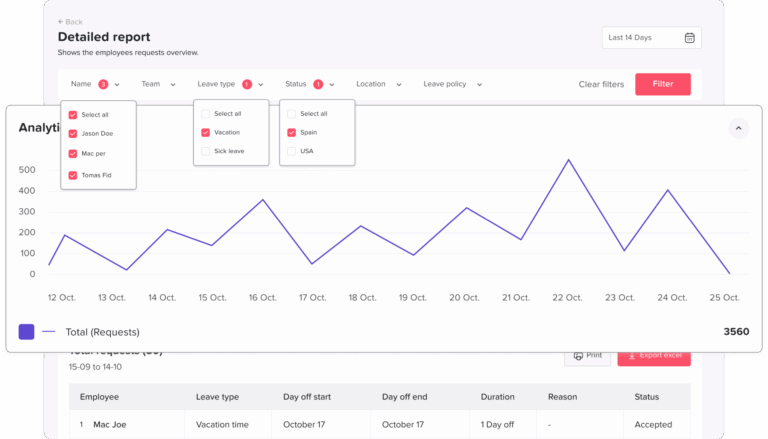
Day Off’s built-in reporting gives you the data you need for a 90-day review in minutes. Under Reports, you can see total leave taken by employee, leave type, and team, broken down by any time period. You can quickly spot which employees haven’t taken any leave (a burnout risk), which leave types are being used more or less than expected, and whether any requests were rejected at a higher rate than normal. Export to CSV if you want to share the data in a team meeting.
Common mistakes to avoid
Even teams with good intentions make these errors when setting up a leave approval process:
Overcomplicated approval chains
If every leave request requires sign-off from three people, most requests will be late, and some will never get answered. For most teams, one approver with one named backup is sufficient.
Approval criteria that live only in one person’s head
When the criteria for approval aren’t documented, decisions feel arbitrary. Employees who are rejected without a clear reason become disengaged. Write the criteria down.
Treating all leave types the same
Sick leave shouldn’t require two weeks’ notice. Annual leave probably should. Bereavement leave needs to be approved immediately and compassionately. Different types of leave have different dynamics, your process should reflect that.
Forgetting about part-time employees
If you have part-time staff, make sure your process handles pro-rated leave correctly. This is an area where manual spreadsheets frequently produce errors. Day Off handles proration automatically, when you set an employee’s working pattern (e.g. 3 days per week), their leave entitlement is calculated proportionally and their balance always reflects the correct figure.
Not training backup approvers
Naming a backup is only half the job. The backup needs to know they’re the backup, understand the approval criteria, and have access to the system. Many teams discover the backup approver was never told about their role when the primary approver goes on leave.
Announcing the process once and assuming it stuck
New processes need reinforcement. Build in the 90-day review, send the reminder two weeks after launch, and gently redirect employees who revert to old habits.
What a leave approval process looks like with Day Off
For teams using Day Off, the approval workflow is built in. Here’s what the process looks like end-to-end:
The employee submits a request. They open Day Off (on web or mobile), select the leave type, choose their dates, add an optional note, and submit. The system checks whether the dates fall within a blackout period, whether they have sufficient balance, and whether the dates conflict with another approved absence on the team.
The manager is notified immediately. The approver receives an email notification (and a Slack or Teams message, if integrated) with the request details. They can approve or reject with a single click from the notification, they don’t need to log into the app.
The employee is notified of the decision. As soon as the manager acts, the employee receives a notification with the outcome. If rejected, the manager can include a note explaining why or suggesting alternative dates.
The balance updates automatically. Approved leave is deducted from the employee’s balance immediately. Public holidays within the requested period are excluded automatically. If the employee is entitled to accrued leave, the balance reflects the latest accrual calculation.
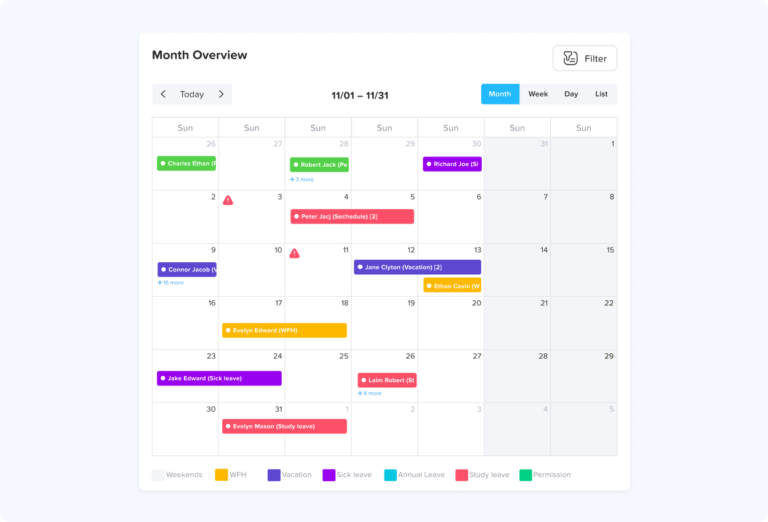
The team calendar updates. The approved absence appears on the shared team calendar. Anyone with access can see who’s off and when, without asking.
The audit trail is complete. Every request, approval, and rejection is logged with a timestamp. At any point, managers can pull a full leave history for any employee, useful for end-of-year reconciliation, payroll queries, or employment disputes.
The entire process, from employee submission to manager approval to team notification, takes less than 60 seconds on both sides.
Frequently asked questions
What is a leave approval process?
A leave approval process is the documented workflow by which employees request time off and managers approve or decline those requests. A good process defines who can request leave, how, how much notice is required, who approves requests, what the maximum response time is, and how decisions are recorded.
Who should approve leave requests?
In most organisations, the employee’s direct line manager is the primary approver. For senior positions or extended absences, the HR manager or a second-level manager may co-approve. Every approver should have a named backup for when they are themselves on leave.
How quickly should managers respond to leave requests?
A reasonable standard is 2 business days for short requests (1–2 days) and 5 business days for longer absences. Employees submitting requests well in advance, for holidays, for example, should receive a decision within 5 business days regardless of duration.
What should a leave approval email or notification include?
A leave approval should confirm: the employee’s name, the leave type, the dates approved (or declined), the number of days, the remaining leave balance after approval, and any notes from the manager. If declining, the notification should include a reason and, where possible, suggest alternative dates.
Can a manager change their mind after approving leave?
This depends on employment law in your jurisdiction and the terms of your employment contracts. In most countries, approved leave creates a reasonable expectation on the employee’s part, and withdrawing approval, particularly at short notice, can constitute a breach of contract. Always take legal advice before withdrawing an approval, and only do so in exceptional circumstances.
What happens if two employees request the same dates?
Define your tiebreaker criteria in advance and communicate them clearly. Common approaches include first-come-first-served (whoever requested first gets priority), seniority, or rotation (alternating priority between employees who regularly request the same peak periods). The key is that the criteria are known before the conflict arises, not decided ad hoc when it does.
How do you handle leave requests when the manager is on holiday?
Name a backup approver for every team and document this in your leave policy. The backup approver should have access to the same system and know the same approval criteria as the primary approver. Employees should know who to contact before the manager goes on leave, not after.
Do I need leave management software, or can I manage this in a spreadsheet?
For teams under 8–10 people with simple leave policies, a spreadsheet can work. For larger teams, teams with part-time employees or accrual calculations, international teams with different public holiday calendars, or any team that’s experienced errors or disputes with their current approach, dedicated leave management software saves significant time and reduces errors. Day Off is free for teams up to 10 people and takes under 10 minutes to set up.
The bottom line
A leave approval process doesn’t need to be complicated. It needs to be clear, consistent, and easy enough that your team doesn’t work around it.
The teams that do this well share a few common traits: they’ve written down their approval criteria, they’ve named backup approvers, they’ve given employees a single channel for requests, and they’ve committed to a response time. None of that requires expensive software or an HR department.
What software does is take the manual work out of every step. When requests, approvals, balance tracking, notifications, and audit trails are all handled automatically, the process doesn’t depend on anyone remembering to update a spreadsheet or reply to a Slack message. It just works, every time, for every employee, without administrative overhead.
Day Off was built specifically for this. It’s not a full HR platform with leave management bolted on as an afterthought, it’s a dedicated leave management tool, designed so that the approval workflow is fast, transparent, and frictionless for both employees and managers. Employees know exactly how many days they have, how to request them, and when to expect a decision. Managers spend less than a minute per request. HR has a complete, timestamped record without doing any manual data entry.