








Managing PTO requests in Microsoft Teams can make leave management easier, faster, and more visible for employees, managers, and HR teams. Instead of handling time off through scattered emails, chat messages, spreadsheets, or manual calendar updates, companies can bring PTO requests closer to where daily work already happens: Microsoft Teams.
For many teams, Teams is already the place where employees communicate, managers respond to updates, and departments coordinate work. When PTO management is connected to that workflow, employees can request time off more easily, managers can approve requests faster, and everyone gets a clearer view of who is available and who is away.

But Teams alone is not always enough for complete PTO management. A company also needs leave balances, approval rules, custom leave types, holidays, policies, reports, and team availability. That is where a dedicated leave management tool like Day Off becomes useful. With Day Off’s Microsoft Teams integration, companies can manage leave requests, send approval notifications, import employees, share absence updates, and keep teams informed without forcing everyone to switch between multiple platforms.
In this guide, we will explain how to manage PTO requests in Microsoft Teams, what problems this solves, how Day Off integrates with Teams, and what best practices help companies build a smooth PTO request process.
What Are PTO Requests?
PTO stands for Paid Time Off. A PTO request is a formal request from an employee to take time away from work while using an available paid leave balance. Depending on the company policy, PTO may include:
- Vacation leave
- Sick leave
- Personal leave
- Annual leave
- Emergency leave
- Half-day leave
- Compensatory time off
- Unpaid leave, if tracked alongside PTO
- Custom leave types created by HR
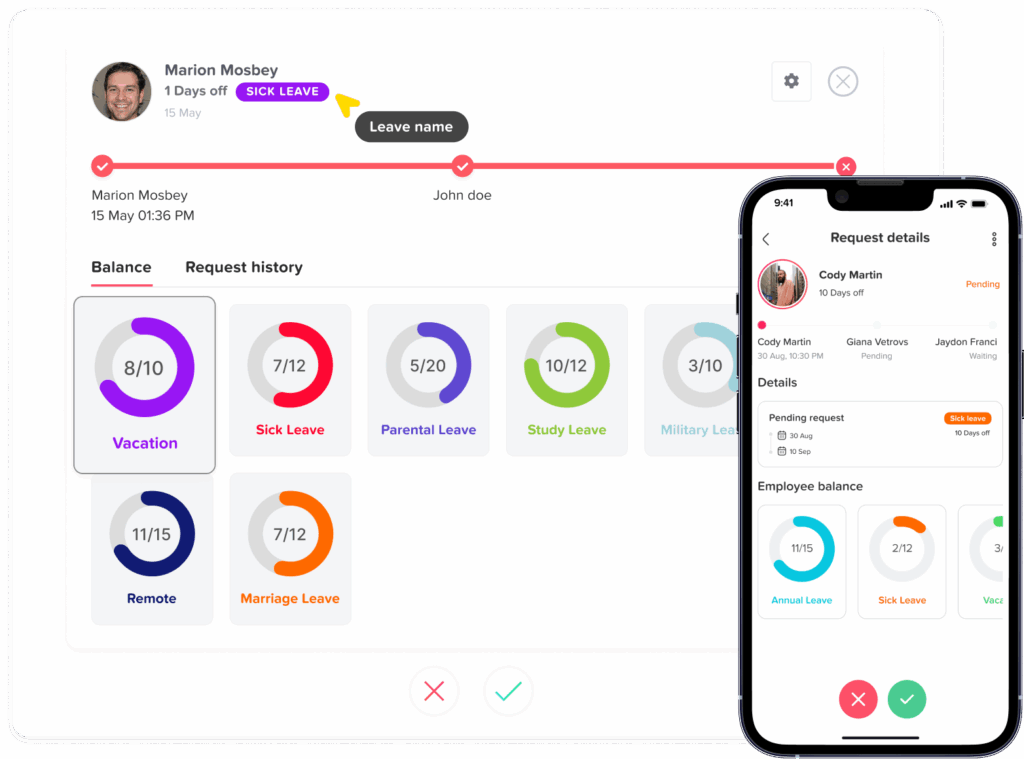
A PTO request usually includes the employee’s name, leave type, start date, end date, duration, reason if required, current balance, and approval status. The request may need to be reviewed by a manager, HR, or multiple approvers depending on the company’s policy.
When PTO requests are not organized, teams can face problems such as overlapping absences, delayed approvals, inaccurate leave balances, missed updates, and confusion about who is working or away.
Why Manage PTO Requests in Microsoft Teams?
Microsoft Teams is already part of the daily workflow for many companies. Employees use it to message coworkers, join meetings, follow updates, and communicate with managers. Managing PTO requests in Teams helps reduce friction because employees do not need to rely on separate emails or informal messages.
The main benefits include:
| Benefit | Why It Matters |
|---|---|
| Faster requests | Employees can submit leave requests from the same place they already communicate |
| Quicker approvals | Managers receive instant notifications and can respond faster |
| Better visibility | Teams can see who is absent and plan work accordingly |
| Fewer manual updates | HR does not need to copy details from chats into spreadsheets |
| Less confusion | Approved leave is tracked in one system instead of scattered messages |
| Improved planning | Managers can avoid scheduling conflicts and overlapping leave |
| Better employee experience | Employees can check balances and request time off more easily |
Common Problems With Manual PTO Requests
Many businesses still manage PTO requests through email, spreadsheets, paper forms, or direct messages. These methods may work for a very small team at first, but they become harder to manage as the company grows.
Requests Get Lost in Chats or Emails
An employee may send a message like, “Can I take next Friday off?” If the manager forgets to reply, the request may remain unclear. Later, HR may not know whether the leave was approved or not.
Leave Balances Are Not Always Updated
When PTO is tracked manually, employees may not know how many days they have left. Managers may approve requests without checking the employee’s available balance.
Approvals Take Too Long
If managers need to search emails, check spreadsheets, and ask HR for balances, approvals become slow. This frustrates employees and creates extra admin work.
Overlapping Leave Becomes Hard to Catch
Without a shared leave calendar, several employees from the same team may request the same days off. This can leave the business understaffed during important periods.
HR Spends Too Much Time on Follow-Ups
HR teams often spend time reminding managers to approve requests, updating balances, answering employee questions, and preparing reports manually.
Team Availability Is Unclear
When leave information is scattered, managers may not know who is working, who is off, and who is returning soon. This affects planning, scheduling, and project delivery.
Microsoft Teams and PTO Management: What You Need to Know
Microsoft Teams can support time off communication, especially when teams use tools like Shifts. Microsoft’s own support documentation explains that employees can request time off in Shifts by selecting the time off type, setting the duration, adding an optional reason or note, and sending the request to a manager for approval. Employees then receive a notification when the request is approved or denied.
This is useful for basic time off workflows, especially for frontline teams. However, many companies need more than a simple request flow. They need a full PTO management system connected to Microsoft Teams.
A dedicated PTO tracker helps manage:
- Leave balances
- PTO accruals
- Carryover rules
- Custom leave policies
- Multiple leave types
- Department level visibility
- Team calendars
- Approval workflows
- Reports and exports
- Notifications
- Employee records
- Mobile access
That is why integrating Teams with a dedicated leave management platform like Day Off gives companies a stronger and more complete solution.
How Day Off Helps Manage PTO Requests in Microsoft Teams
Day Off is a leave management and PTO tracking platform that helps teams manage time off, vacation days, sick leave, absences, and employee availability. It is available on the web, iOS, and Android, making it useful for office teams, remote teams, hybrid teams, and employees who need mobile access.
Day Off integrates with Teams so employees and managers can handle important leave actions without leaving Teams. According to Day Off’s Microsoft Teams integration page, employees can request time off directly through Teams, receive request updates, check balances, and managers can receive instant request notifications.
This makes PTO management easier because Microsoft Teams becomes the communication layer, while Day Off manages the leave rules, balances, approvals, and records behind the scenes.
Key Features of Day Off’s Microsoft Teams Integration
Day Off’s Microsoft Teams integration is designed to reduce manual work and keep leave communication organized.
Employees Can Submit PTO Requests in Microsoft Teams
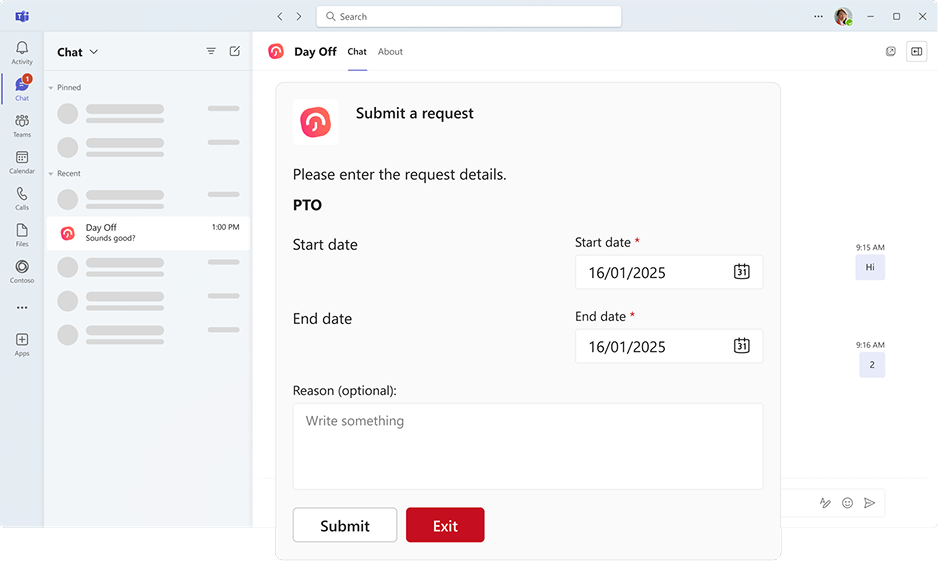
Employees can request time off directly from Microsoft Teams instead of opening another system or sending a manual message. With Day Off, they can choose the leave type, select the start and end dates, submit the request, and wait for approval from the manager.
This is helpful because employees can take action from the platform they already use every day.
Managers Receive Instant Notifications
When an employee submits a time-off request, the approver receives an instant Teams notification with the request details. Day Off explains that the notification can include the leave type, start and end dates, and the employee’s remaining leave balance, helping managers make informed approval decisions.
This is important because managers do not need to search for the request or ask HR for basic information before responding.
One Click Approval or Rejection
Day Off allows managers to approve or decline leave requests directly from the Teams notification. This reduces approval delays and keeps the process simple for managers.
For companies with multiple approvers, Day Off can notify all assigned approvers at the same time, helping the request move faster through the approval process.
Employees Receive Status Updates
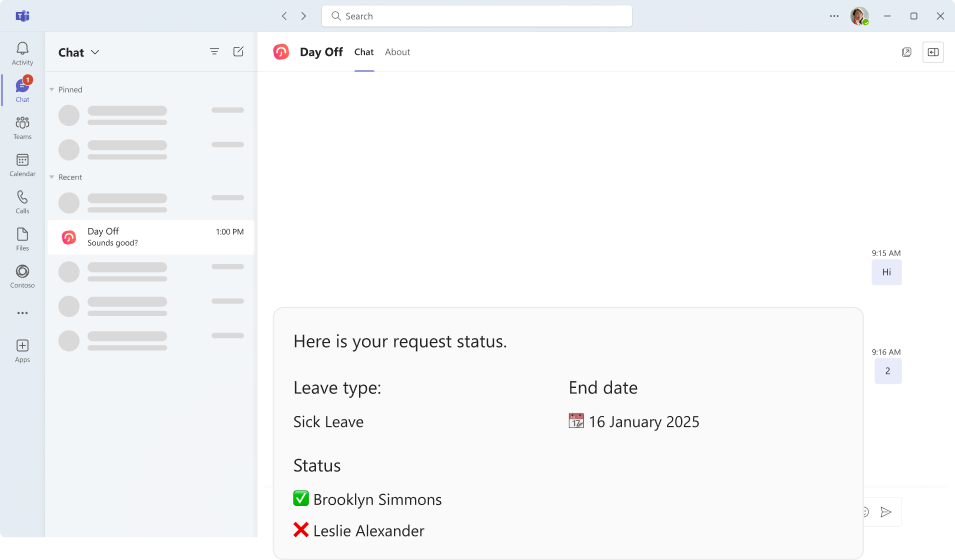
Employees do not need to keep asking whether their request was approved. Day Off sends Teams notifications when leave requests are approved, making the process clearer and more transparent.
This improves the employee experience because people can plan their time off with confidence.
Employees Can Check Leave Balances
A good PTO process should give employees access to their available balance before they submit a request. Day Off’s Microsoft Teams integration allows employees to check leave balances and track request status with a few clicks.
This helps reduce repeated HR questions like:
- How many vacation days do I have left?
- Was my request approved?
- Can I take another sick day?
- How many PTO days will remain after this request?
Employee Import From Microsoft Teams
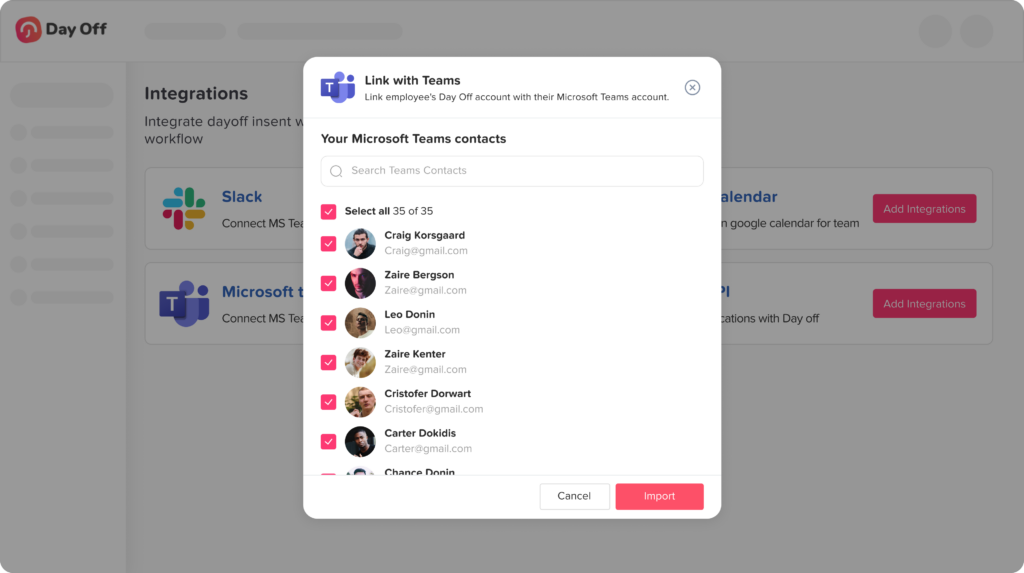
Day Off allows companies to import employees from their Microsoft Teams organization into Day Off. If employees already use the same email in both platforms, their accounts can be linked for a smoother setup.
This helps HR save time during onboarding and reduces manual employee data entry.
Daily “Who Is Absent” Digest
Day Off can send a daily summary of employees who are on leave directly to Microsoft Teams. This “who is absent” digest gives teams a quick view of availability at the beginning of the day.
This is especially useful for:
- Managers planning workloads
- HR teams monitoring absences
- Team leads assigning tasks
- Remote teams coordinating across locations
- Employees who need to know who is unavailable
Custom Digest Message Style
Day Off lets companies choose how absence information appears in Microsoft Teams notifications. The available styles include:
| Digest Style | What It Shows | Best For |
|---|---|---|
| Name only | Employee names | Small teams that need a simple absence list |
| Name with leave type | Employee names and leave type | Teams that need more context |
| Name with leave type and date | Employee names, leave type, and date | Larger teams or teams with more complex schedules |
Scheduled Delivery Time
Companies can choose when the daily absence message is sent to Microsoft Teams. For example, a company may schedule the digest early in the morning so managers and employees start the day with clear visibility.
This small detail can make a big difference in daily planning.
How to Set Up Day Off With Microsoft Teams
Setting up the Day Off and Microsoft Teams integration is simple. The exact process may depend on your account permissions, but the general setup follows these steps.
Step 1: Open Day Off
Log in to your Day Off account from the web version.
Step 2: Go to Integrations
From the main menu, navigate to the Integrations section.
Step 3: Select Microsoft Teams
Find Microsoft Teams and click Add Integration.
Step 4: Grant Permission
Day Off will ask you to grant permission to connect with your Microsoft Teams workspace. Review the permissions carefully, then click Allow to authorize the connection.
Step 5: Import Employees
Import your employees from Microsoft Teams into Day Off. This helps align your employee directory and keeps your team records consistent.
Step 6: Enable the Daily Absence Digest
Turn on the option to send a daily message showing who is absent.
Step 7: Choose the Message Style
Select how much information you want the Microsoft Teams digest to include:
- Name only
- Name with leave type
- Name with leave type and date
Step 8: Set the Delivery Time
Choose the time when the absence digest should be sent each day.
Step 9: Save Changes
Click Save changes to activate your settings. Day Off notes that the Microsoft Teams integration becomes active after saving the configuration.
Why Day Off Is Better Than Managing PTO Manually in Microsoft Teams
Microsoft Teams is great for communication, but using only chat messages for PTO can create problems. A message is not the same as a proper leave record.
For example, an employee may ask for time off in a Teams chat, but unless that request is connected to a PTO system, the company may still need to manually update balances, calendars, payroll records, and reports.
Day Off helps solve this by connecting the communication side of Microsoft Teams with a structured leave management system.
| Manual PTO in Teams Chat | PTO Management With Day Off + Microsoft Teams |
|---|---|
| Requests can get buried in messages | Requests are submitted and tracked properly |
| Managers may approve without checking balances | Managers can see important request details |
| HR must update records manually | Day Off keeps leave records organized |
| Employees need to ask about request status | Employees receive instant status updates |
| Team availability is unclear | Daily absence digests show who is off |
| No structured leave reports | Day Off provides organized leave data |
| Hard to manage policies | Day Off supports leave policies and balances |
PTO Request Policy Checklist
Use this checklist to make sure your PTO process is ready before connecting it with Microsoft Teams.
| PTO Area | What to Define |
|---|---|
| Leave types | Vacation, sick leave, unpaid leave, personal leave, custom types |
| Balances | How many days or hours each employee gets |
| Accruals | Monthly, yearly, weekly, biweekly, or other accrual rules |
| Carryover | Whether unused leave moves to the next year |
| Approval flow | Who approves each employee’s requests |
| Notice period | How early employees should request time off |
| Half-day rules | Whether partial days are allowed |
| Blockout dates | Dates when leave may be limited |
| Holidays | How public holidays affect PTO |
| Notifications | Who receives request and approval updates |
| Reports | What HR needs to review monthly or yearly |
Sample Internal PTO Request Process for Microsoft Teams
Companies can use this simple internal process:
- Employee checks available balance in Day Off.
- Employee submits the PTO request through Microsoft Teams.
- Manager receives the request notification in Microsoft Teams.
- Manager reviews dates, leave type, and remaining balance.
- Manager approves or declines the request.
- Employee receives a status update in Microsoft Teams.
- Day Off keeps the leave record updated.
- The team receives daily absence visibility through Microsoft Teams digest.
This process is simple, but it covers the most important parts of leave management.
FAQ
Can you manage PTO requests in Microsoft Teams?
Yes, PTO requests can be managed in Microsoft Teams, especially when Teams is connected to a dedicated leave management tool like Day Off. This allows employees to submit requests, managers to receive notifications, and teams to stay updated on absences.
Does Microsoft Teams have a time-off request feature?
Microsoft Teams includes time-off request options through Shifts for certain team setups. Employees can select a time-off type, choose dates or duration, add a note, and send the request to a manager. However, many companies still need a dedicated PTO tracker for balances, policies, reports, and advanced leave management.
How does Day Off integrate with Microsoft Teams?
Day Off integrates with Microsoft Teams so employees can request time off, check balances, track request statuses, and receive updates. Managers can receive instant request notifications and approve or decline requests. Day Off can also send a daily “who is absent” digest to Microsoft Teams.
Can employees request PTO directly from Microsoft Teams using Day Off?
Yes. With Day Off’s Microsoft Teams integration, employees can submit time-off requests directly through Microsoft Teams without switching between apps.
Can managers approve PTO requests in Microsoft Teams?
Yes. Day Off sends Microsoft Teams notifications to approvers when employees submit leave requests. Managers can review the details and approve or decline requests quickly.
Can Day Off show who is absent in Microsoft Teams?
Yes. Day Off can send a daily absence digest to Microsoft Teams showing who is on leave. Companies can customize the message style and delivery time.
Why use Day Off instead of only using Microsoft Teams messages?
Microsoft Teams messages are useful for communication, but they do not replace a complete PTO management system. Day Off helps manage leave balances, policies, approvals, calendars, employee records, and reports while using Microsoft Teams for easy communication and notifications.
Is Day Off useful for remote and hybrid teams?
Yes. Day Off is useful for remote and hybrid teams because it gives managers and employees a clear view of who is away, who is available, and which PTO requests are pending or approved.
Conclusion
Managing PTO requests in Microsoft Teams helps companies make leave management faster, clearer, and easier for employees and managers. Instead of relying on emails, spreadsheets, or informal chat messages, teams can bring PTO requests into a platform they already use every day.
However, Microsoft Teams works best when it is connected to a dedicated PTO tracker. Day Off gives companies the structure they need to manage leave balances, approval workflows, request statuses, employee records, absence visibility, and daily team updates.
With Day Off’s Microsoft Teams integration, employees can request time off, managers can approve requests faster, and teams can stay informed about who is absent. This creates a smoother PTO process, reduces manual HR work, and helps the whole company plan with more confidence.
For teams that want a simple, organized, and modern way to manage PTO, connecting Day Off with Microsoft Teams is a smart step toward better leave management.