





In Day Off, if the designated approver is on leave, the request can still move forward. It all depends on how you configure your approval setup.
If There Are Multiple Approvers
If the employee has multi approvers assigned in the same step:
- The request is sent to all approvers
- Any available approver can approve
- The workflow continues normally without delays
If the Designated Approver Is the Only One
If only one approver is assigned:
- The request will remain pending until action is taken
Admin Override
Admins have full visibility and control:
- Admins can view all pending requests, even if they are not assigned as approvers
- They can force accept or force reject any request
This allows admins to step in and prevent delays when approvers are unavailable.
Steps to Force Accept or Reject
To take action on a request:
- Go to the Dashboard and find the Pending requests section
- Click on the pending request you want to manage
- Click on view details
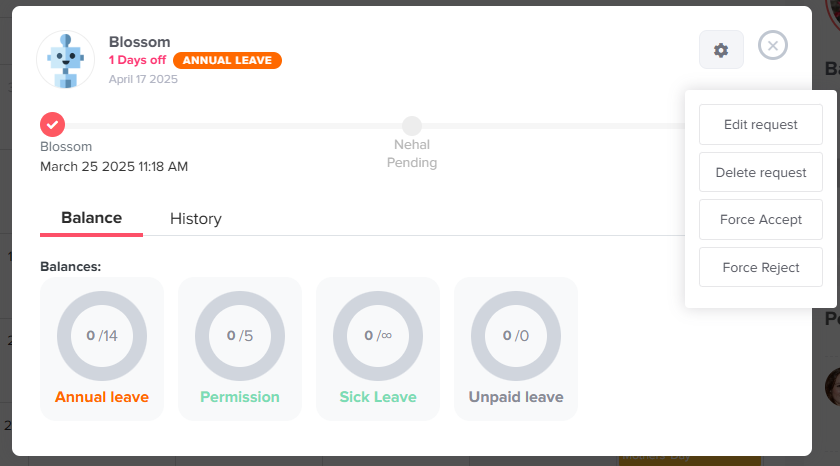
- Click on the settings icon to:
- Edit request
- Delete request
- Force Accept
- Force Reject
How to Avoid Delays When an Approver Is Away
A little planning goes a long way. Here are a few simple tips:
- Assign more than one approver in the same step, so someone is always available.
- Encourage approvers to review pending requests before their own time off starts.
- Make sure admins check the Pending requests section on the Dashboard regularly.
- Check the company calendar to see when approvers will be away.
To set this up, read how to assign approvers for an employee and how many approvers you can set per employee.
Why a Backup for the Designated Approver Matters
When requests stay pending for too long, employees cannot plan their time off with confidence. In addition, late answers can create gaps in team coverage. With a backup in place, you keep the workflow moving and give everyone a faster answer.