





-
Blockout Dates
- Can admins override blockout dates?
- Can employee request time off during blockout dates?
- Can I apply blockout dates to specific teams or departments?
- How can I check blockout dates in the Day Off app?
- How do blockout dates work?
- How do I set blackout dates in Day Off?
- How to prevent overlapping holidays/leave requests?
For Admins
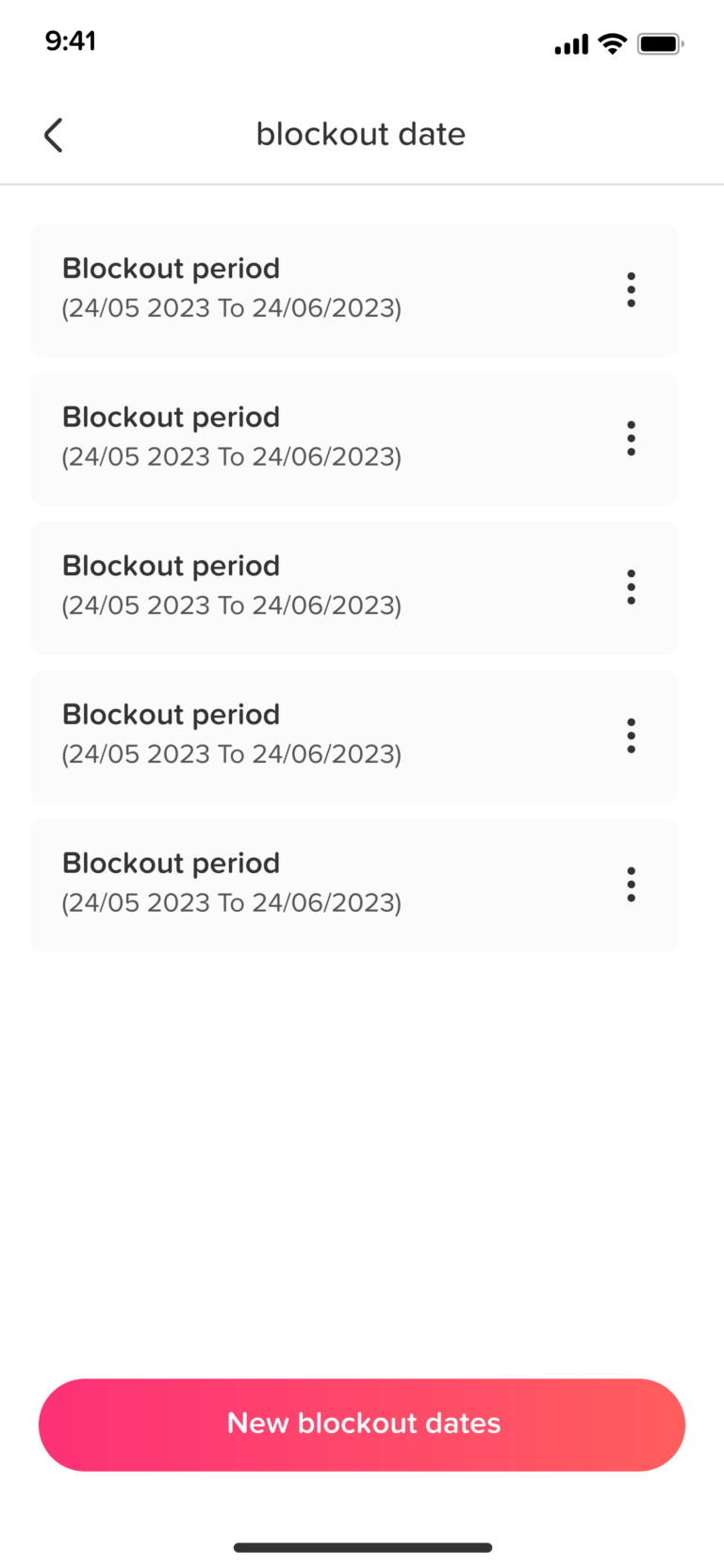
Admins can easily view and manage blockout dates directly from the settings section of the system. Follow the steps below:
- Open the Day Off app
- Navigate to Settings & integrations → Settings
- Select Blockout Dates
- You will see a complete list of all configured blockout dates
From this section, you can also:
- Add new blockout dates
- Edit existing ones
- Remove dates that are no longer needed
This allows you to keep blockout periods up to date and aligned with your organization’s policies.
For Employees
Employees can easily check blockout dates while requesting time off:
- Open the Day Off app
- Click + Add new (top of the left-hand menu) and choose Request day off, or go to Absence → My balance and click Request day off
- Select the desired dates
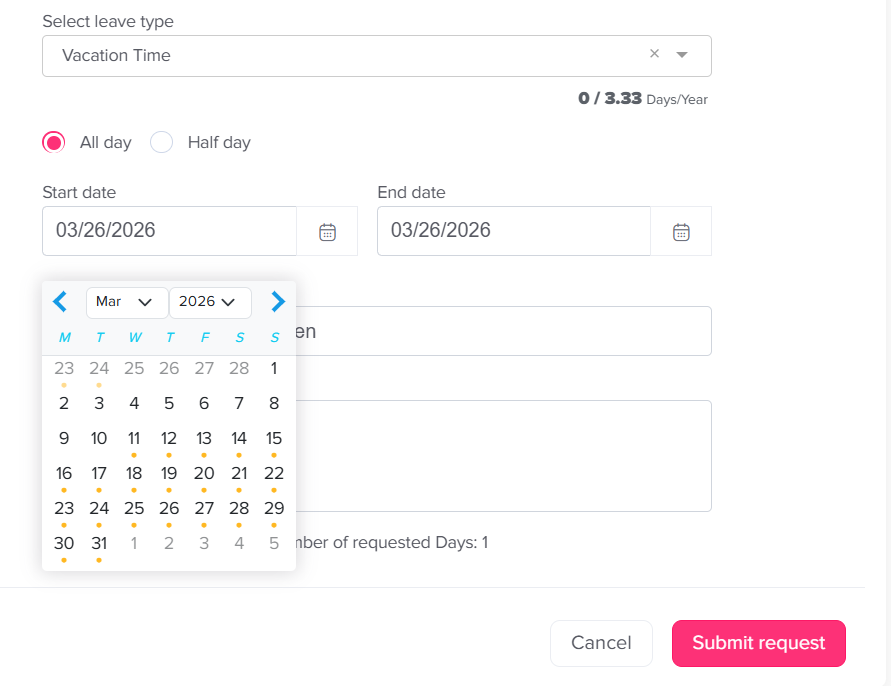
Blockout dates are visually indicated within the calendar:
- Fully blocked dates appear with a gray dot and cannot be selected
- Partially available dates (with limited availability) appear with an orange dot
If you attempt to select dates within a blockout period, the app will either display a warning or prevent submission, depending on the level of restriction.
Calendar View (For All Users)
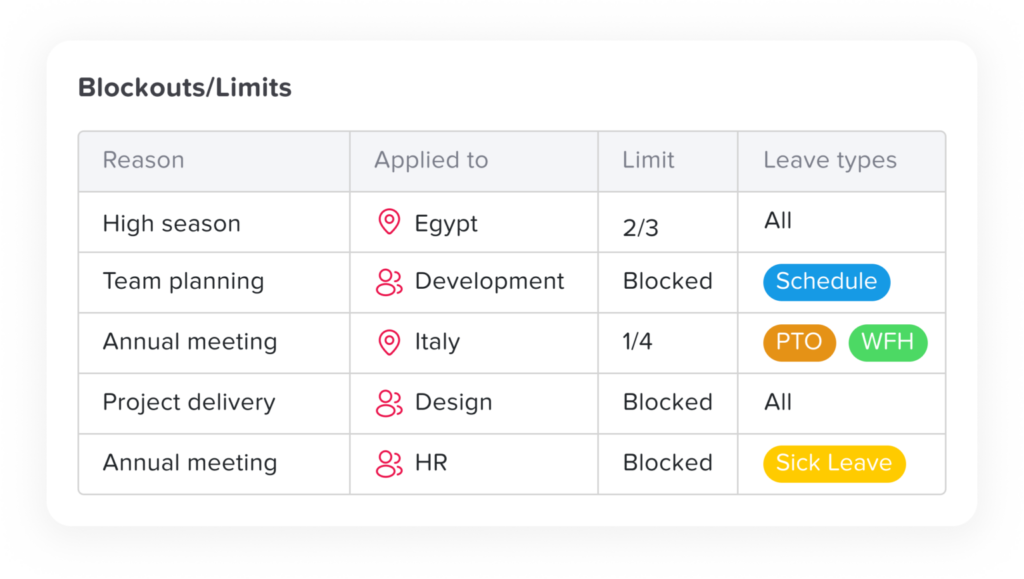
Blockout dates are clearly displayed within the calendar, making them easy to identify at a glance:
- Open the calendar in the Day Off app
- Blockout dates will be visibly highlighted for quick recognition
- Click on any blockout date to view more details
When selected, a detailed view will appear, providing additional information about the blockout period, such as its duration and any relevant notes or restrictions.
By keeping blockout dates clearly visible and easily accessible, the Day Off helps both admins and employees plan time off more effectively and avoid scheduling conflicts.
If you need further assistance or notice any discrepancies in blockout dates, please reach out to your system administrator or HR team for clarification.