





-
Blockout Dates
- Can admins override blockout dates?
- Can employee request time off during blockout dates?
- Can I apply blockout dates to specific teams or departments?
- How can I check blockout dates in the Day Off app?
- How do blockout dates work?
- How do I set blackout dates in Day Off?
- How to prevent overlapping holidays/leave requests?
Yes, administrators can override blockout dates when needed. This feature is designed to handle exceptional situations while still keeping blockout rules in place for general use.
For Admins
Admins can override blockout dates by creating a time-off request directly on behalf of employees.
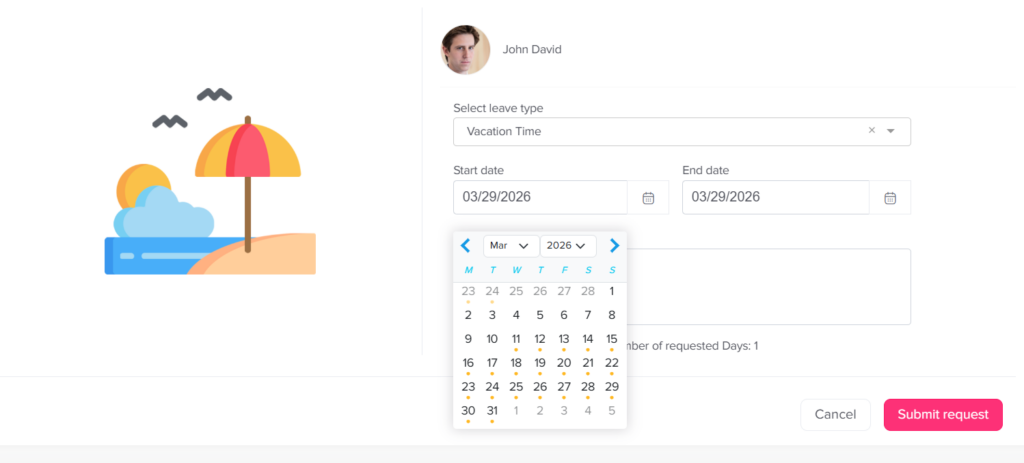
To override for a single employee:
- Open the Day Off dashboard
- Go to People → Employees
- Click on the employee’s name to open their profile
- Under the profile picture, click Add day off
- Select the leave type and choose the requested dates
- If the selected dates fall within a blockout period, the system will display a warning
- Confirm the action to proceed with the override
The request will be created successfully despite the blockout restriction.
To override for multiple employees:
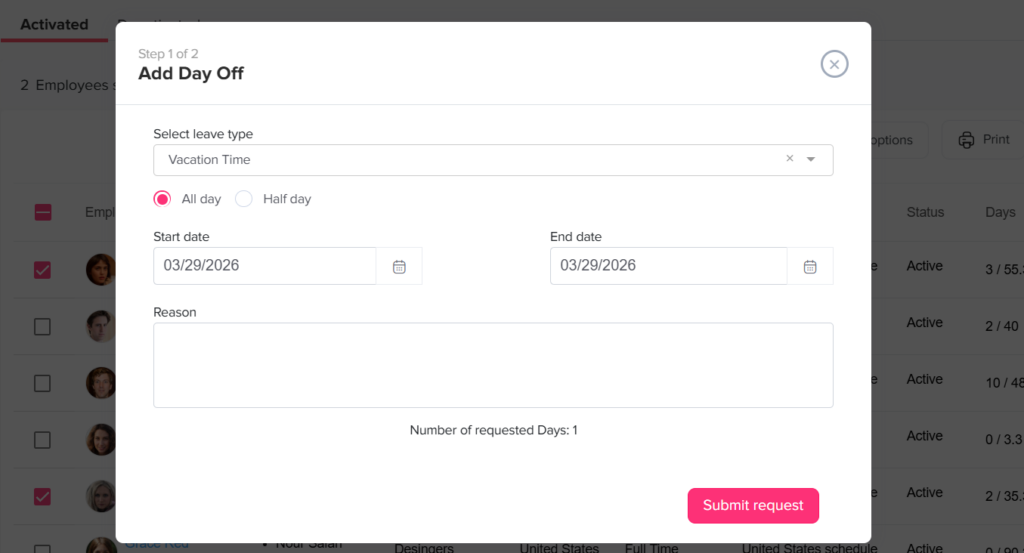
- Go to People → Employees
- Select the checkbox next to each employee you want to include
- Click on the Bulk Actions button
- Choose Add day off
- Select the leave type and enter the requested dates
- If the dates fall within a blockout period, a confirmation message will appear
- Confirm the action to proceed
Once completed, the request will be applied to all selected employees, and they will be notified that a day off request has been added on their behalf.
For Employees
Employees cannot override blockout dates themselves.
- If they attempt to request time off during a blockout period, the system will either warn them or prevent submission
- In such cases, they need to contact an admin or manager to request an exception
Calendar View (For All Users)
Blockout dates remain visible in the calendar for transparency:
- Open the calendar in the Day Off app
- Blockout dates will appear highlighted
- Click on any blockout date to view more details
- Approved overrides may still appear as scheduled time off on those dates
This flexibility allows administrators to handle urgent or exceptional requests without compromising overall scheduling rules. By keeping blockout dates visible while still permitting controlled overrides, the system ensures both consistency and adaptability in managing time off across the organization.