


-
Blockout Dates
- Can admins override blockout dates?
- Can employee request time off during blockout dates?
- Can I apply blockout dates to specific teams or departments?
- How can I check blockout dates in the Day Off app?
- How do blockout dates work?
- How do I set blackout dates in Day Off?
- How to prevent overlapping holidays/leave requests?
Can I apply blockout dates to specific teams or departments?
Yes, Day Off gives administrators the flexibility to assign blockout dates to specific teams or departments instead of applying them company-wide. This is especially useful when certain groups have different operational needs or peak periods.
For Admins
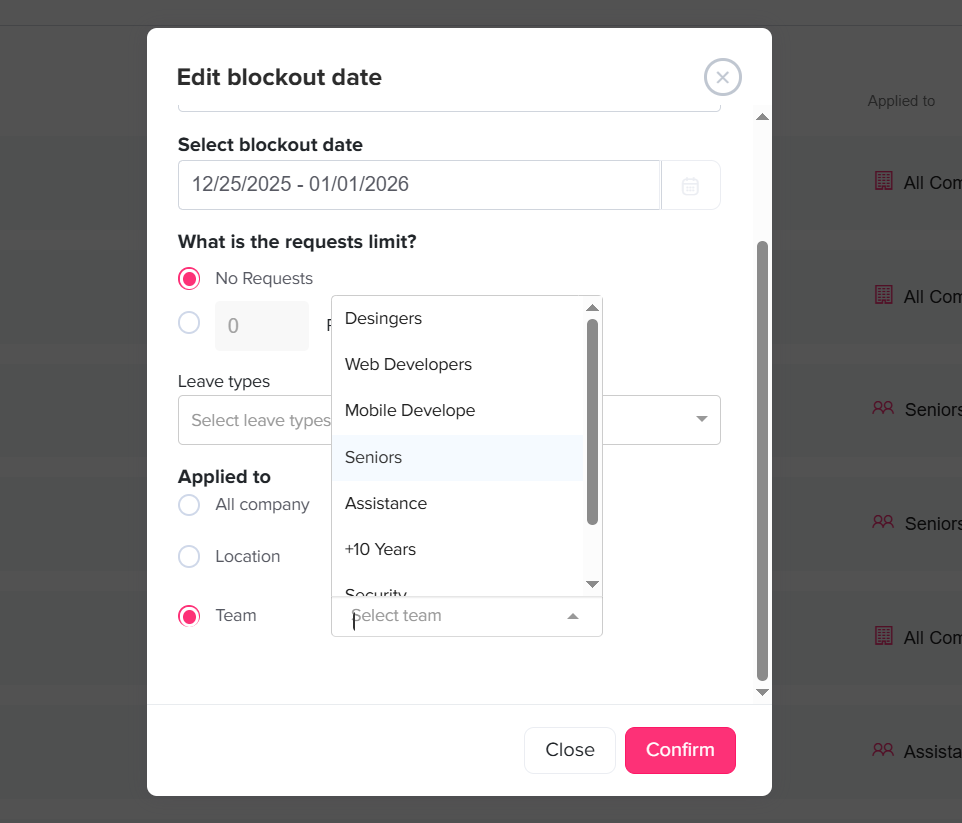
- Open the Day Off dashboard
- Navigate to Settings from the main menu
- Select Blockout Dates to access all configured restrictions
- Click Add Blockout Date to create a new one, or select an existing entry to modify it
- In the configuration screen, choose the team(s) or department(s) that the blockout should apply to
- Complete the setup and click Save to apply the changes
Once saved, the blockout date will only impact the selected groups. Other teams and departments will not be affected, allowing for more precise control over time-off policies.
For Employees
Employees will only be impacted by blockout dates that are specifically assigned to their team or department, ensuring that restrictions are relevant to their role.
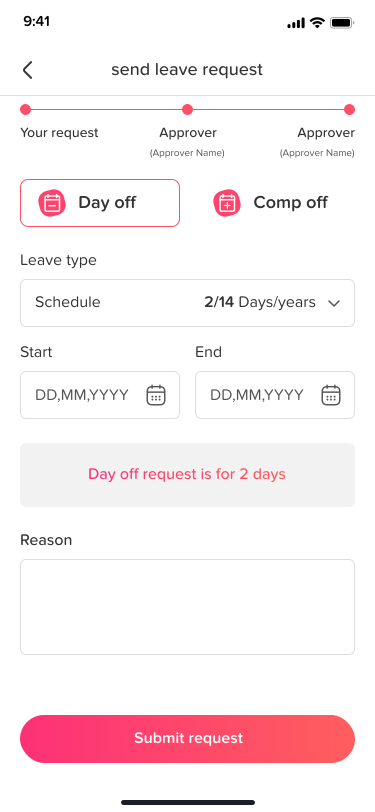
- Open the Day Off app
- Go to the Request Day Off section
- Choose the dates you would like to request
If a selected date falls under a blockout period for your team, it will be clearly indicated and may restrict your ability to submit the request
If the blockout does not apply to your team or department, the date will remain available for selection
This ensures that employees are only restricted when necessary, without affecting others across the organization.
Calendar View (For All Users)
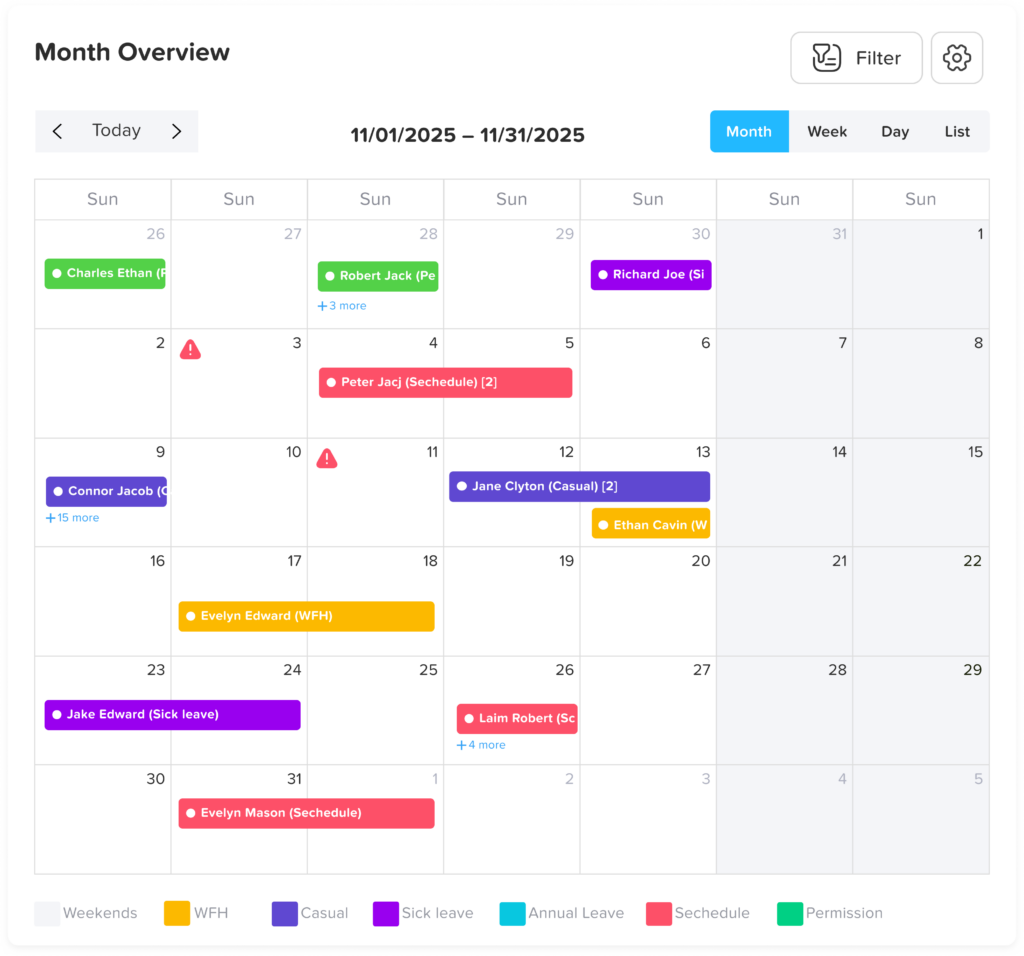
The calendar provides a clear visual representation of how blockout dates are applied across different teams and departments.
- Open the calendar within Day Off dashboard
- Blockout dates will appear highlighted based on your access and team assignment
- Select any highlighted date to explore more details
- A detailed view will display, including which teams or departments the blockout applies to, along with any additional notes or conditions
By enabling blockout dates at a team or department level, Day Off ensures that scheduling rules remain both flexible and relevant to each group’s needs. This approach helps organizations maintain operational efficiency while giving employees clear visibility into any restrictions that apply to them.
For any questions or adjustments, you can always reach out to your administrator or HR team to ensure blockout settings align with your team’s requirements.