


-
Blockout Dates
- Can admins override blockout dates?
- Can employee request time off during blockout dates?
- Can I apply blockout dates to specific teams or departments?
- How can I check blockout dates in the Day Off app?
- How do blockout dates work?
- How do I set blackout dates in Day Off?
- How to prevent overlapping holidays/leave requests?
How do I set blackout dates in Day Off?
A blockout (blackout date) in Day Off allows you to restrict or control leave requests during important periods such as major events, deadlines, or peak business times.
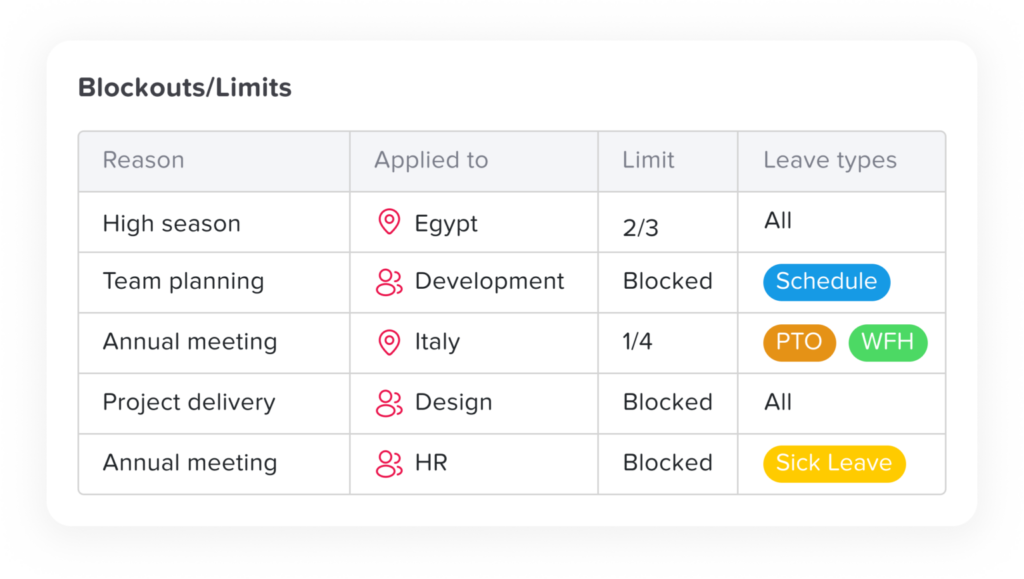
1. Go to Settings
Log in to the Day Off dashboard using an account with admin permissions.
From the main menu, navigate to Settings, then open the Blockout Dates section.
2. Manage Blockouts
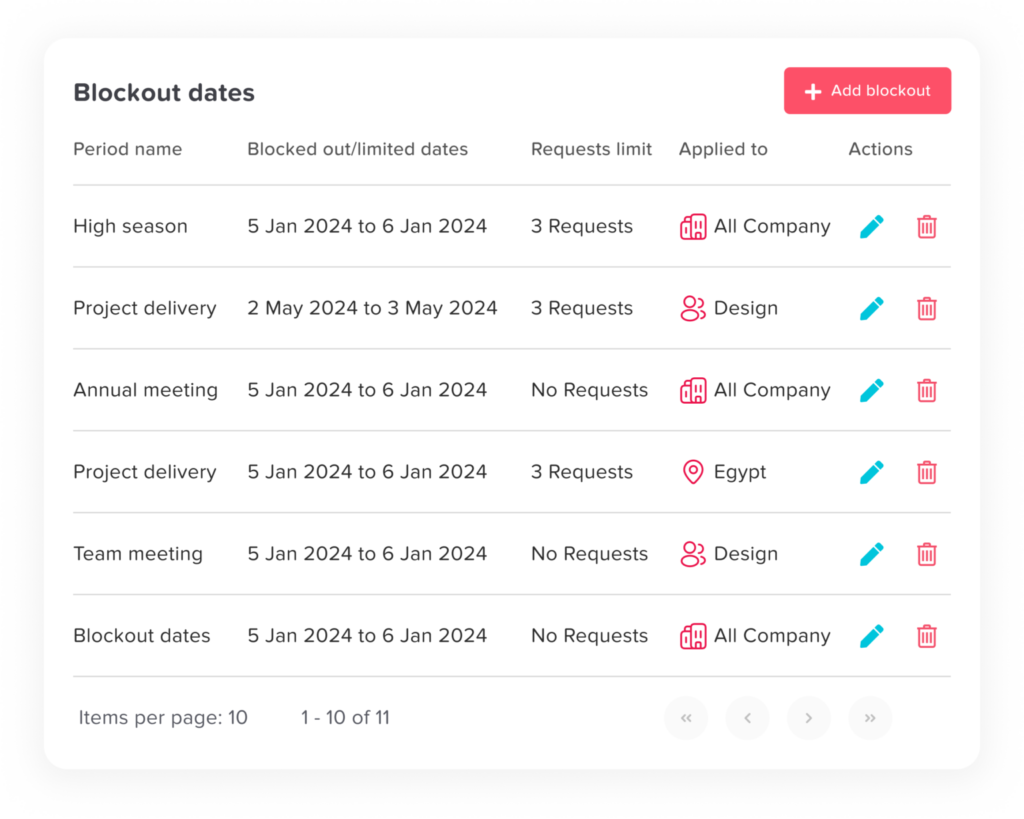
In this section, you can view all existing blockouts.
You also have the option to:
- Create a new blockout
- Edit any existing blockout
- Delete blockouts that are no longer needed
3. Create a New Blockout
Click on Add Blockout (or a similar button) to start creating a new blockout.
4. Enter Blockout Details
Provide the necessary information:
- Name: Add a clear and descriptive name (e.g., “Annual Meeting” or “Peak Season”)
- Date Range: Select the start and end dates for the restriction period
5. Choose the Restriction Type
Select how leave requests should be handled during this period:
- No Request: Completely blocks all leave requests
- Limit Requests: Allows only a limited number of requests during the selected dates
6. Define Who the Blockout Applies To
Specify the scope of the blockout:
- Entire company
- Specific locations
- Selected teams
7. Save the Blockout
After filling in all details, click Save.
The blockout will appear in the list, where you can edit or delete it at any time.
How blockouts appear to employees
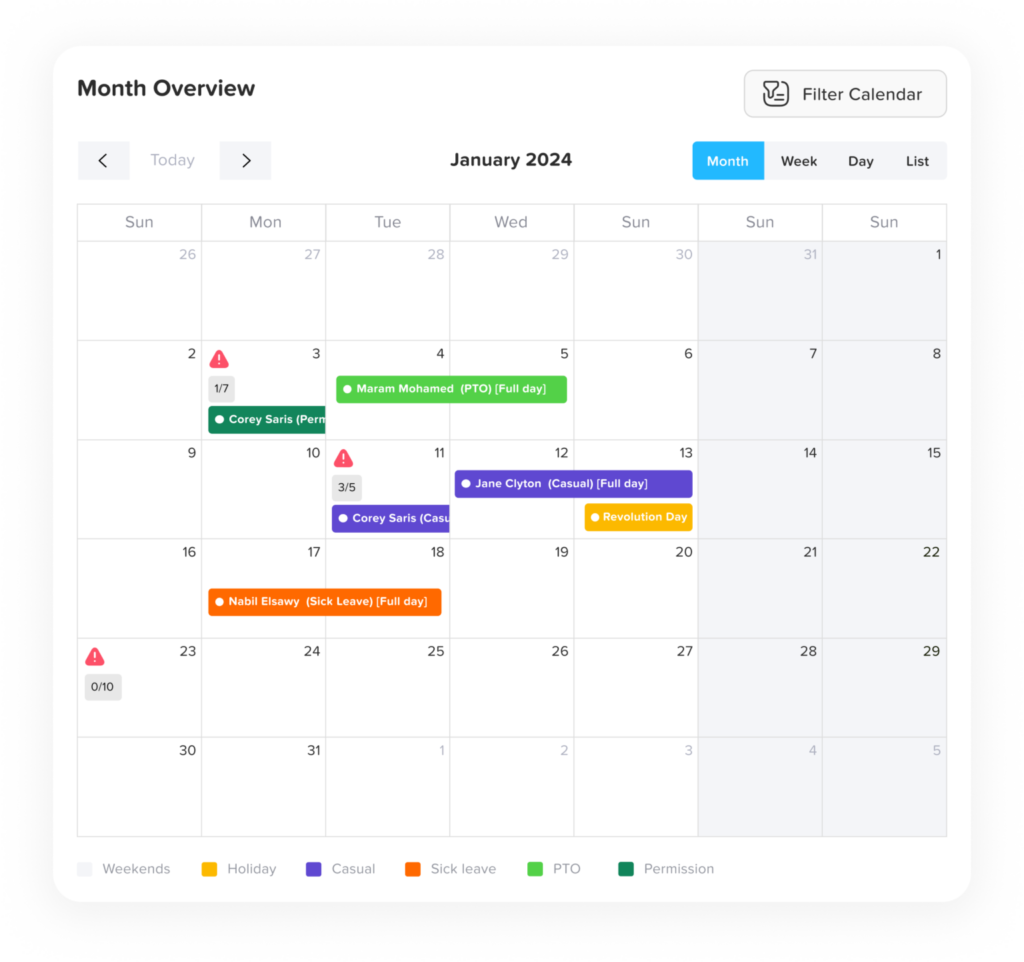
Visual indicator on the dashboard
A warning triangle icon is displayed on the dashboard to highlight dates affected by a blockout.
This visual cue immediately signals that there are restrictions applied to that specific day or period.
Visibility during leave requests
When employees select dates using the date picker while submitting a leave request, any blockout period will be clearly indicated.
This ensures employees are aware of restrictions before submitting their request.
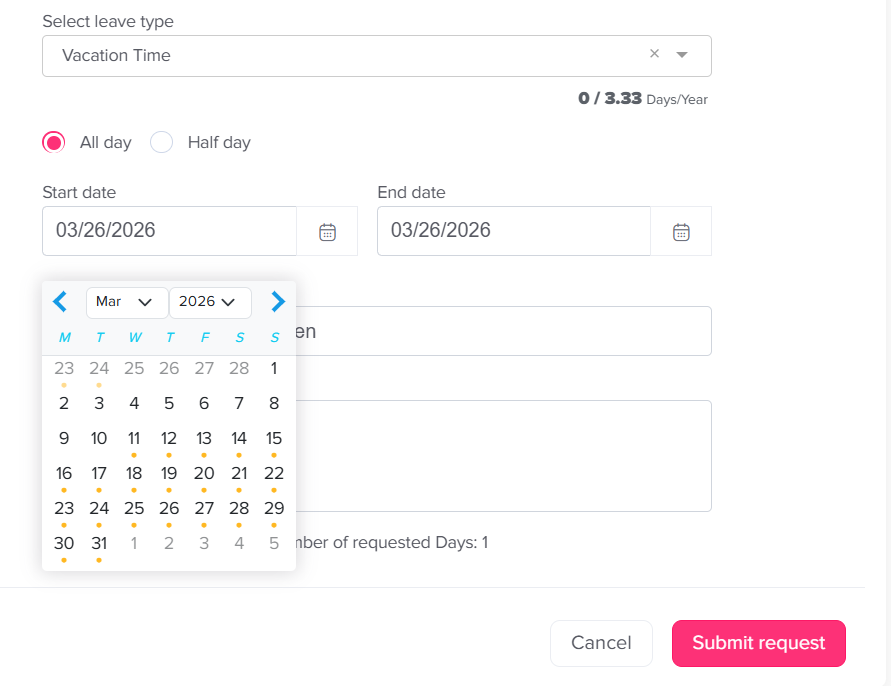
Information shown to employees
When a blockout is present, the system provides the following details:
- Blockout details: Displays the name or purpose of the blockout (e.g., event, peak period).
- Number of requests submitted: Shows how many leave requests have already been approved or counted toward the limit.
- Availability status: Indicates whether the blockout is:
- Still accepting requests, or
- Fully booked / completely restricted
What employees can do
- If requests are still available: Employees can proceed and submit their leave request normally, as long as the limit has not been reached.
- If the blockout is full or set to “No Request”: Employees will be prevented from submitting a request for those dates, ensuring compliance with the restriction.
Admin override capability
Administrators have the ability to override blockout restrictions when necessary.
- Override blocked periods: Even if a blockout is set to No Request, admins can still submit or approve leave requests during that time.
- Exceed request limits: If a blockout has a maximum number of allowed requests, admins can approve additional requests beyond the set limit.
- Use cases for overrides
This is useful in exceptional situations, such as:- Urgent employee needs
- Last-minute changes
- Special approvals from management
Best practices
- Plan blockouts in advance and communicate them clearly to employees
- Use descriptive names so employees understand the purpose of each blockout
- Regularly review and update blockouts to keep them relevant
- Use admin overrides sparingly to maintain fairness and consistency