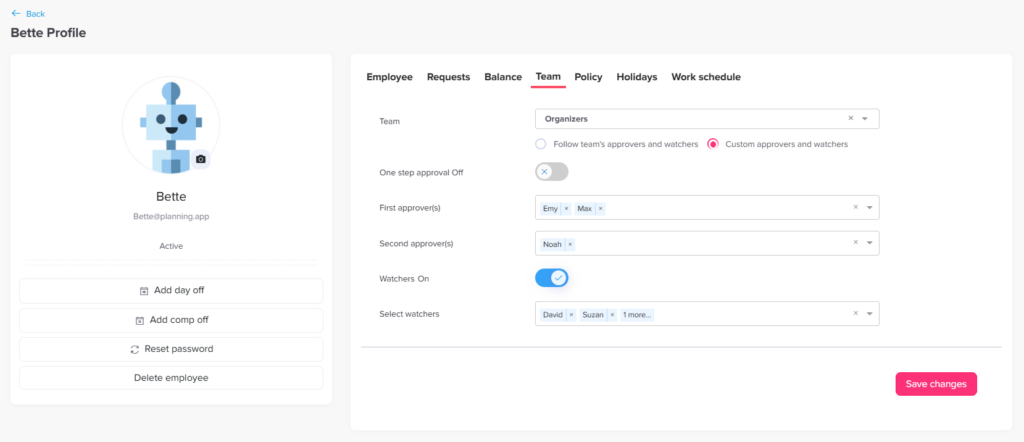
Main Approvals How can I assign approvers for an employee? Print How can I assign approvers for an employee? You can easily assign approvers for each employee in Day Off through the web platform, using a flexible approval workflow. Steps to Assign Approvers To set approvers for an employee:Go to the Employees OverviewSelect the employeeOpen their profileGo to teamAssign approvers for:Step 1Step 2 (optional)Add one or multi approvers in each stepSave your changes How It Works The employee’s requests will be sent to Step 1 approvers firstOnce any approver approves, the request moves to the next step (if configured)After the final step is approved, the request is completed Flexible Setup You can assign multiple approvers per stepOnly one approval per step is requiredYou can also add watchers for visibility without approval access