


-
Blockout Dates
- Can admins override blockout dates?
- Can employee request time off during blockout dates?
- Can I apply blockout dates to specific teams or departments?
- How can I check blockout dates in the Day Off app?
- How do blockout dates work?
- How do I set blackout dates in Day Off?
- How to prevent overlapping holidays/leave requests?
How to prevent overlapping holidays/leave requests?
Preventing overlapping leave requests is essential to ensure adequate team coverage and avoid operational disruptions. Day Off provides built-in controls to help manage and limit the number of employees who can take time off at the same time.
How to create a blockout date
Creating a blockout date allows administrators to control when employees can (or cannot) request time off. This can be used to fully restrict leave during critical periods or to limit the number of employees who can be off at the same time.
Step-by-step guide
- Open the Day Off dashboard
- Navigate to Settings from the main menu
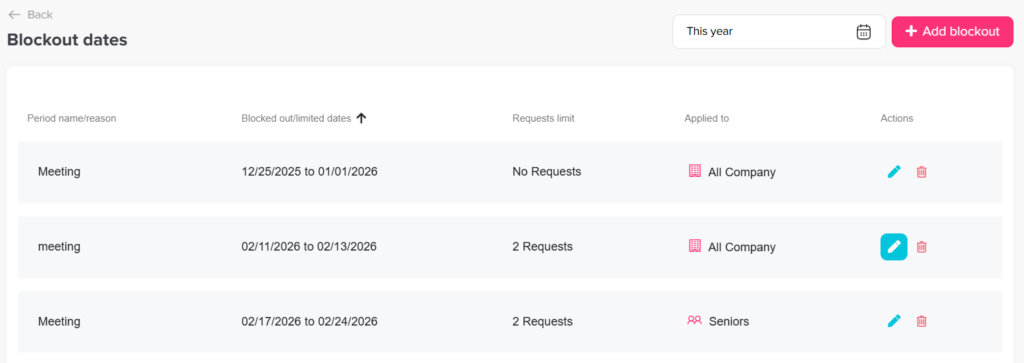
- Select Blockout Dates to access all existing configurations
- Click on Add Blockout Date to create a new restriction
Configure the blockout details
Once the configuration window opens, you will need to carefully define each field to ensure the blockout behaves exactly as intended:
Period name / reason
This field allows you to assign a clear and meaningful name to the blockout period.
It’s recommended to use descriptive labels such as “Year-End Closing”, “Black Friday”, or “Internal Audit”, as this name will be visible to employees when they view the calendar. A well-defined reason helps employees understand the purpose of the restriction and reduces confusion or unnecessary requests.
Select blockout date
Here, you define the exact date range for the blockout by selecting a start and end date.
This range determines when the restriction will be active. It can be a single day (e.g., for an important meeting) or span multiple days or weeks (e.g., peak business periods or holidays). Choosing the correct range is important to ensure coverage without being overly restrictive.
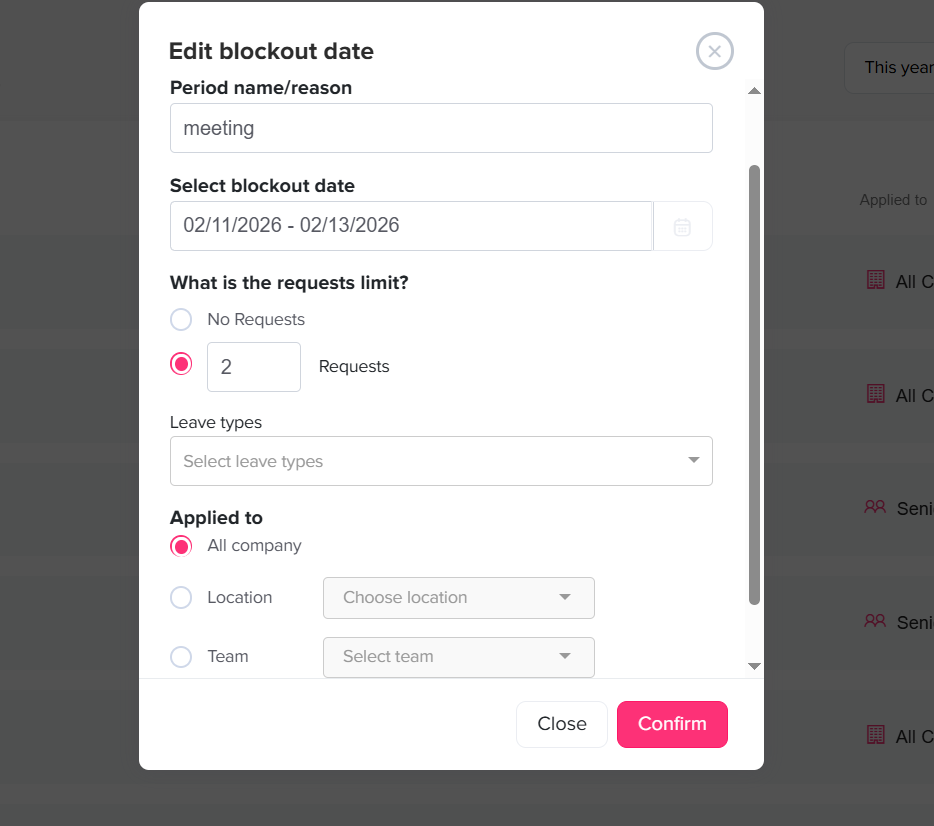
What is the requests limit?
This is one of the most important settings, as it defines how strict the blockout will be:
- No Requests (Fully blocked)
Selecting this option completely prevents employees from requesting time off during the selected period. These dates will appear as unavailable (grayed out) in the calendar and cannot be selected at all. - Limited Requests (Set a number)
By entering a specific number, you allow only a limited number of employees to take time off during that period.
For example, setting the limit to “2” means only two employees can be off at the same time. Once this limit is reached, additional requests will be automatically restricted or blocked.
This option is particularly useful when you want to maintain minimum staffing levels without fully restricting time off.
Leave types
In this section, you can specify which types of leave the blockout applies to.
For example, you may want to restrict annual leave during busy periods while still allowing sick leave or other urgent leave types. This level of control ensures that essential or unavoidable absences are still permitted while managing planned time off.
Applied to
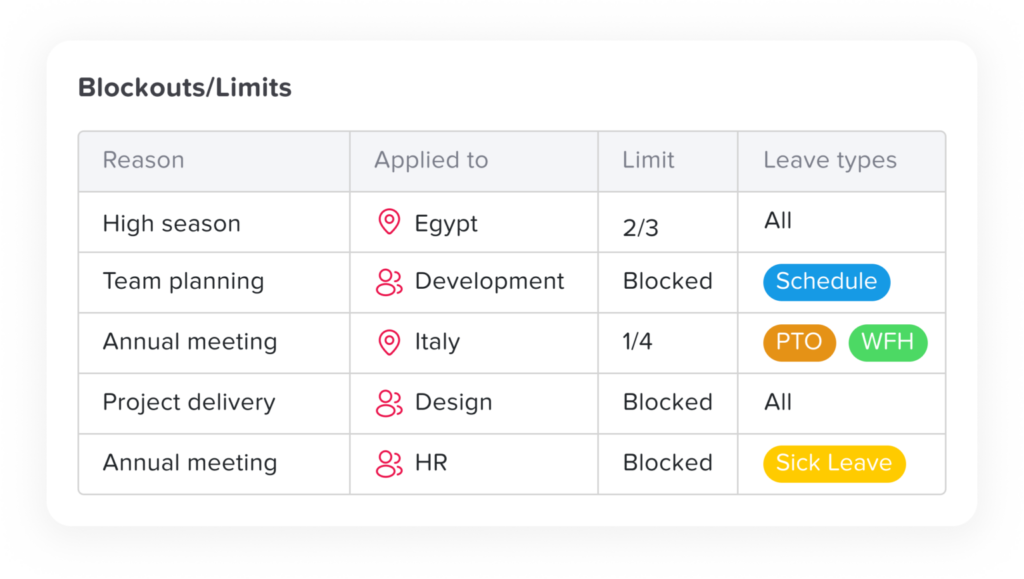
This setting allows you to control who is affected by the blockout:
- All company: Applies the blockout to every employee across the organization
- Location: Limits the restriction to a specific office or geographic location
- Team: Applies only to selected teams or departments
This flexibility is especially useful for organizations with multiple teams or locations that operate independently or have different peak periods.
Finalize the setup
- Review all the configured details to ensure accuracy
- Click Confirm to save and activate the blockout date
Once saved:
- The blockout will immediately appear on the calendar with its visual indicators
- Employees will see the restriction when selecting dates
- The system will enforce the defined rules automatically (either blocking or limiting requests)
By carefully configuring each field, admins can create precise and effective blockout rules that balance operational needs with employee flexibility, ensuring smooth scheduling across the organization.