





-
Balance reset
- Can I reset leave balances on anniversary dates instead of calendar /fisical year?
- Can I select a reset date for each leave type individually, for instance vacation to reset in January and sick leave to reset on the employee's anniversary?
- What is a leave balance reset?
- Will my leave balance automatically update after the reset?
Yes, you can reset leave balances based on each employee’s anniversary (joining) date instead of using a fixed calendar or fiscal year. This allows every employee to have their own leave cycle starting from the date they joined the company.
This approach is especially useful for companies that want a more personalized and fair leave system, where each employee’s entitlement is tied to their tenure rather than a shared company-wide date.
Steps to enable anniversary-based reset
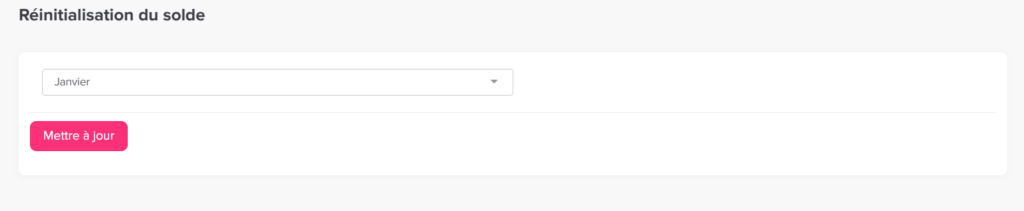
Go to Settings & integrations → Settings
Open the Settings section where leave configurations are managed.
Navigate to the Balance Reset section
Locate the Balance Reset settings within the leave policy.
Select the reset month
Choose the month you want the leave balance to reset.
This month defines the start of your company’s fiscal leave year, and the reset will apply to all employees.
Click Update
Save your changes to apply the selected reset month.
How to set an employee to reset leave based on their anniversary date
To apply anniversary-based reset for a specific employee, you need to make sure their joining date is set correctly and enable the anniversary option in their policy.
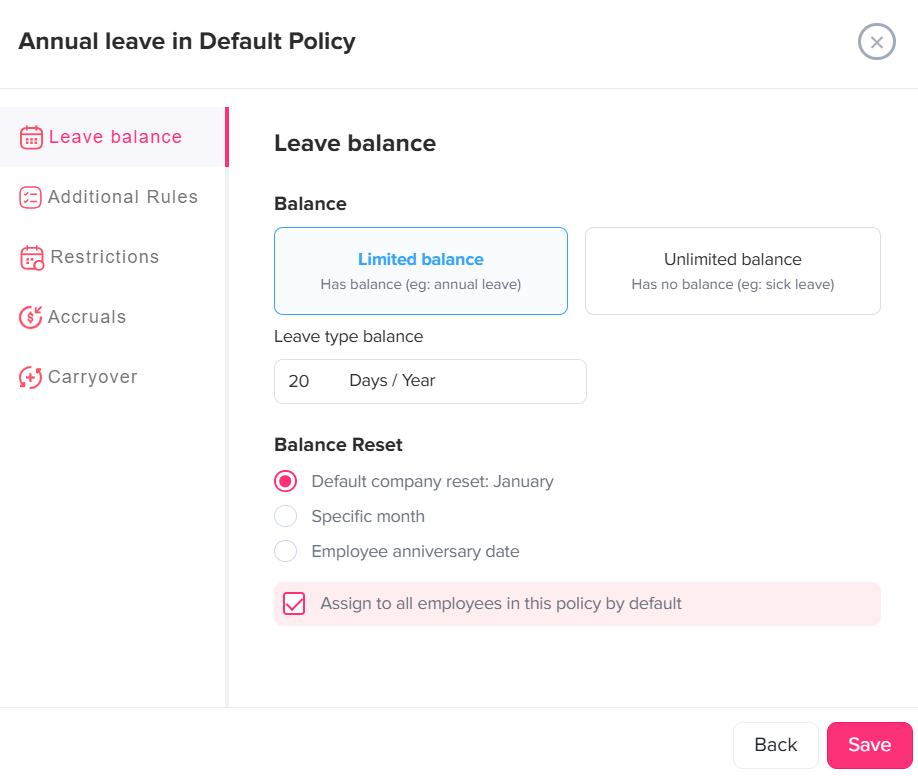
How to set a leave type to reset based on a specific date
The reset date for a leave type is simply the point in time when an employee’s leave balance is refreshed back to its starting value (for example, 20 days per year). After this date, a new leave cycle begins.
What the reset options mean
- Default company reset (e.g., January):
Everyone’s leave balance resets at the same time each year, usually at the start of the calendar year. - Specific month:
The balance resets once a year in the month you choose (e.g., April). This is useful if your company follows a non-calendar leave cycle. - Employee anniversary date:
Each employee’s leave resets based on their individual hire date. So, every employee has a different reset date tied to when they joined.
How to set or change the reset date
- Go to Settings & integrations → Settings
- Open Leave Policies
- Click the edit icon next to the policy
- Click the edit icon for the specific leave type
- In the Balance Reset section, select the option you need
- Click Save