





Day Off Knowledge Base
-
Employees
- Can I request leave for past dates?
- How can I check my leave balance?
- How can I check the status of my request?
- How do I change my password?
- How do I check public holidays and weekends?
- How do I update my personal information?
- How do I upload or update my profile picture?
- How do I view my leave history?
Print
Keeping your password secure is important to protect your company account and personal information. You can easily update your password at any time from your account settings.
To change your password in Day Off “Web Version”
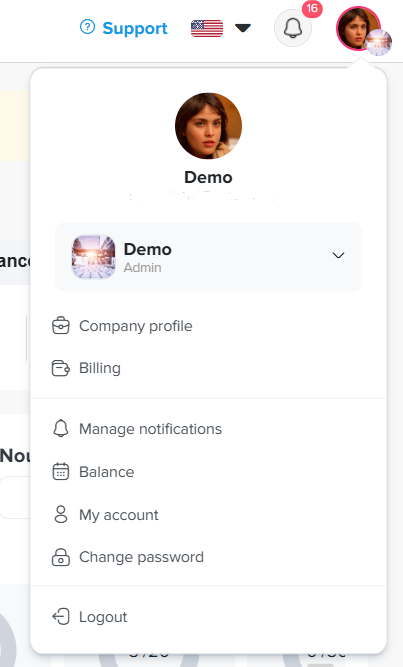
- Click on your profile picture
In the top-right corner of the screen, click on your profile picture or avatar to open the account menu. - Select “Change password”
From the dropdown menu, click on Change password. This will take you to the password update page. - Enter your current password
In the Old password field, type your current password to verify your identity. - Create a new password
Enter your new password in the New password field. Make sure it’s strong and secure (use a mix of letters, numbers, and symbols if possible). - Confirm your new password
Re-enter the new password in the Confirm password field to ensure there are no typos. - Save your changes
Click the Change button to update your password successfully.
Note: If you don’t remember your current password, you may need to log out and use the “Forgot Password” option on the login page.
How do I change my password on mobile?
- Open the main menu
From the bottom of the screen, tap on the menu icon to open the main navigation menu. - Go to Settings
In the menu, tap on Settings to access your account options. - Tap “Change password”
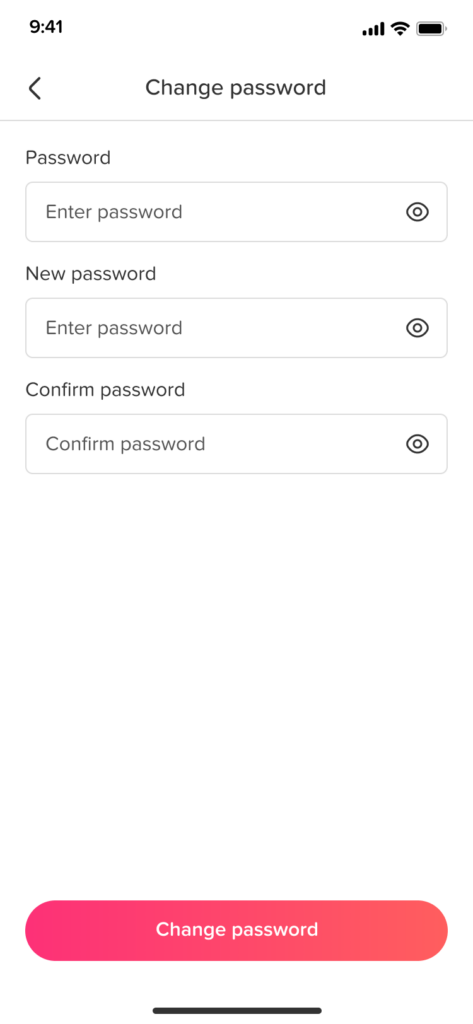
Inside the Settings screen, select Change password to open the password update page.
- Create a new password
Enter your new password in the New password field. For better security, use a combination of letters, numbers, and symbols. - Confirm your new password
Re-enter your new password in the Confirm password field to make sure it matches. - Save your changes
Tap the Change button to update your password successfully.
Note: If you’ve forgotten your current password, log out and use the “Forgot Password” option on the login screen.
If you have any trouble updating your password or need further assistance, feel free to contact your HR administrator or support team.
Keeping your password up to date helps ensure your account remains secure and your information stays protected at all times.
On this page