





Day Off Knowledge Base
-
Employees
- Can I request leave for past dates?
- How can I check my leave balance?
- How can I check the status of my request?
- How do I change my password?
- How do I check public holidays and weekends?
- How do I update my personal information?
- How do I upload or update my profile picture?
- How do I view my leave history?
Print
You can easily view public holidays and weekends in Day Off through the calendar and the official holidays section. This helps you plan your time off more effectively and avoid scheduling conflicts.
To check public holidays and weekends on the web:
- View the calendar on your dashboard
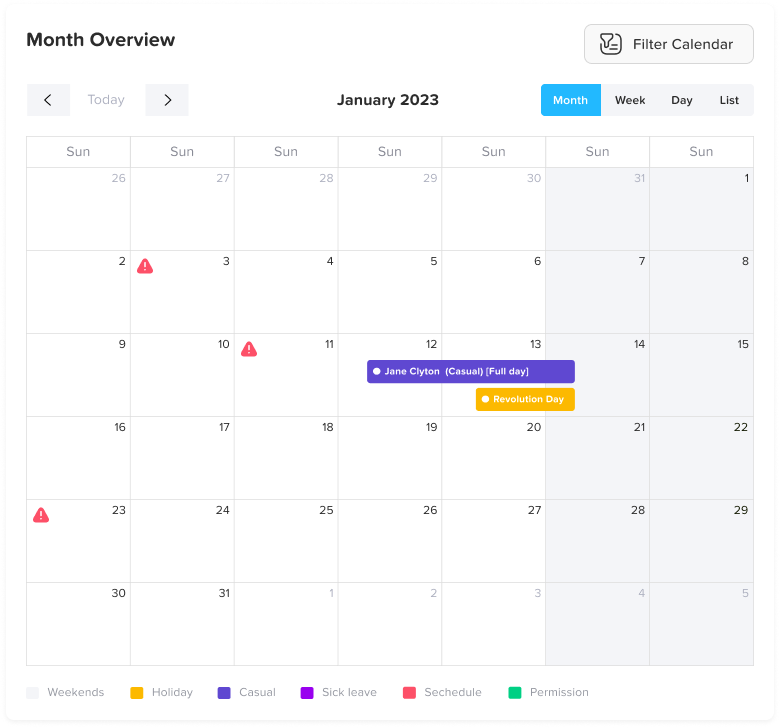
On your dashboard, you’ll find the calendar view (month, week, or day). This calendar gives you a visual overview of all working and non-working days. - Identify weekends in the calendar
Weekends are automatically highlighted in a grayed-out color, making them easy to distinguish from regular working days. This helps you quickly recognize non-working days at a glance. - Check public holidays in the calendar
Public (official) holidays are displayed directly on the calendar and are highlighted in yellow, so you can easily spot them when planning your leave.
- Go to “Official holidays” for a full list
From the side menu, click on Official holidays. This section provides a complete list of all public holidays for the year, including their dates and duration. - Review holiday details
In the Official holidays page, you can see each holiday clearly listed with its name and date, helping you stay informed about upcoming non-working days.
To check public holidays and weekends on mobile:
- View public holidays in the calendar
Official holidays are displayed directly on the calendar and highlighted with a grey dot, making them easy to identify while browsing or planning your time off. - Tap on a holiday for more details
Tap on any highlighted holiday to view additional details, such as the holiday name and date. - Access the full official holidays list
From the menu at the bottom of the screen, tap on Settings, then select Official holidays. This will open a complete list of all public holidays for the year, including their names and dates.
If you have any questions about public holidays or notice any missing information, please reach out to your HR administrator for assistance.
Regularly checking the calendar and official holidays list helps you stay informed and plan your time off more efficiently.
On this page