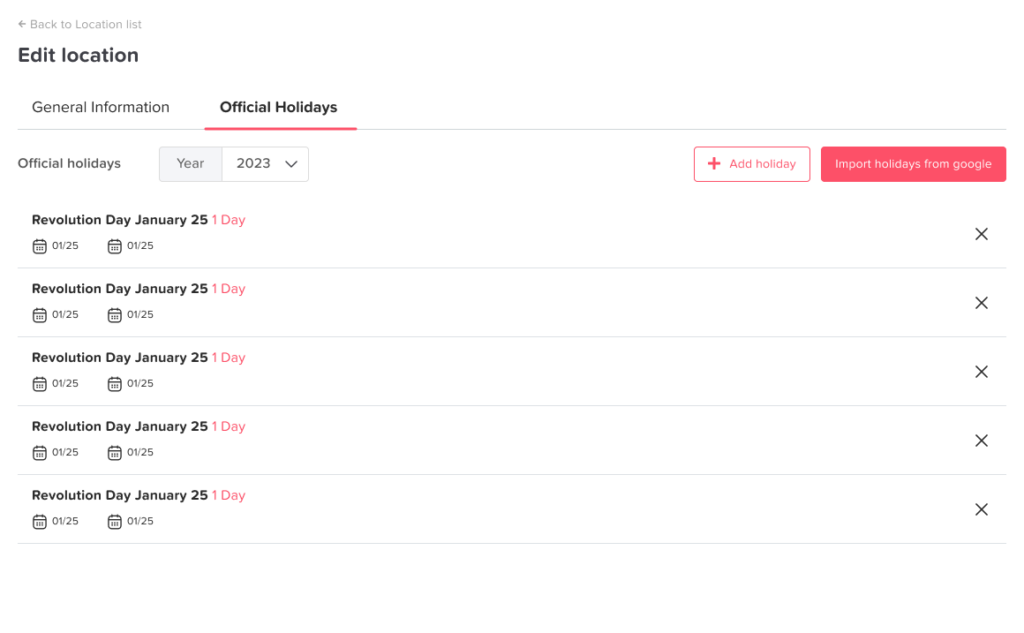
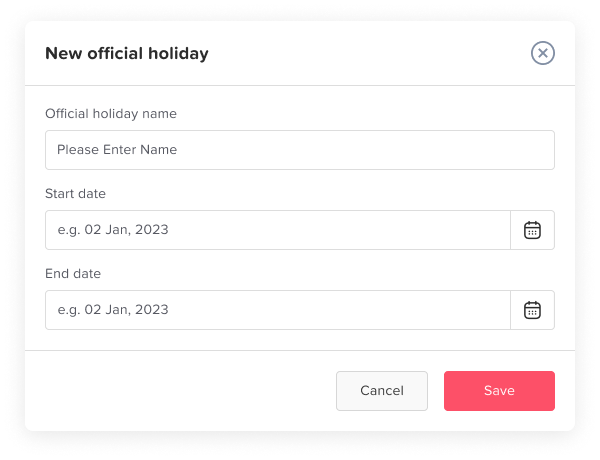
Main Locations and Holidays How to add official holidays? Print You can add official holidays in Day Off to ensure they are automatically reflected in your team’s calendar. Steps to Add Holidays To Add official holidays:On the web version, open the left-hand menuGo to People → LocationsClick the edit (pencil) icon next to the location Open the Official holidays tabClick on “Import holidays from Google”Select the Country name Click find holidays Select all holidays or select the official holidays you want to apply themClick confirmorClick on add holiday Add the official holiday’s nameSelect the start and end dateClick Save Why Add Official Holidays? Adding holidays helps you:Ensure holidays are not deducted from leave balancesKeep the team calendar accurateManage different holidays per location Location Based Holidays You can assign holidays to specific locationsUseful for companies with teams in different countriesEach location sees only its relevant holidays