


Day Off Knowledge Base
-
Employees
- Can I request leave for past dates?
- How can I check my leave balance?
- How can I check the status of my request?
- How do I change my password?
- How do I check public holidays and weekends?
- How do I update my personal information?
- How do I upload or update my profile picture?
- How do I view my leave history?
Print
How do I view my leave history?
Viewing your leave history allows you to keep track of all your past and current requests, helping you stay organized and review your time off over different periods.
To view your leave history on the web:
- Go to “My requests”
From your dashboard, click on My requests. This will take you to a page that displays all your submitted leave requests for the current year, along with the status of each request (such as Pending, Accepted, or Rejected). - Understand your requests list
On the Leave requests page, you’ll see a complete list of your requests, including important details like leave type, number of days, and request dates. This gives you a clear overview of your time off activity throughout the year.
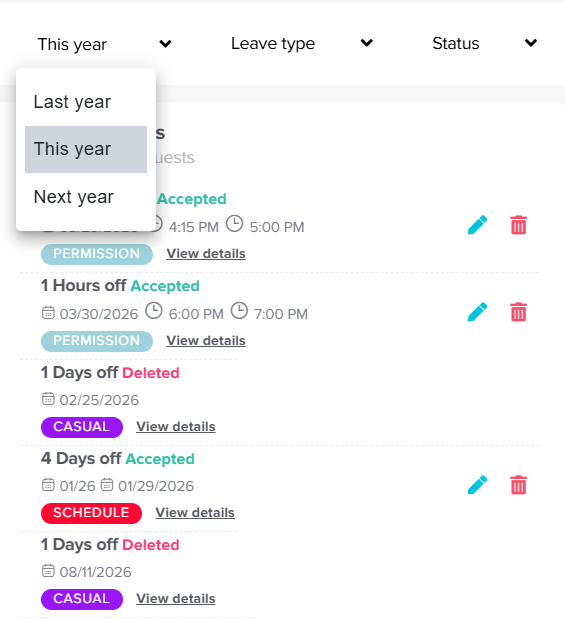
- Use the filter to view other years
At the top of the page, you’ll find a filter option that allows you to change the time period. You can use it to view your requests from previous years or even check requests planned for the next year, making it easy to navigate across different timeframes. - Click on “View details” for more information
Select View details next to any request to open a detailed view. Here, you can see additional information such as approval steps, timestamps, and any actions taken on the request.
To view your leave history on mobile:
- Go to “Balance”
From the menu at the bottom of the screen. Tap on Balance. This section not only shows your leave balances but also gives you access to your leave history. - Use the yearly filter
At the top of the screen, you’ll find a yearly filter. Use it to switch between different years and view your requests for a specific time period.
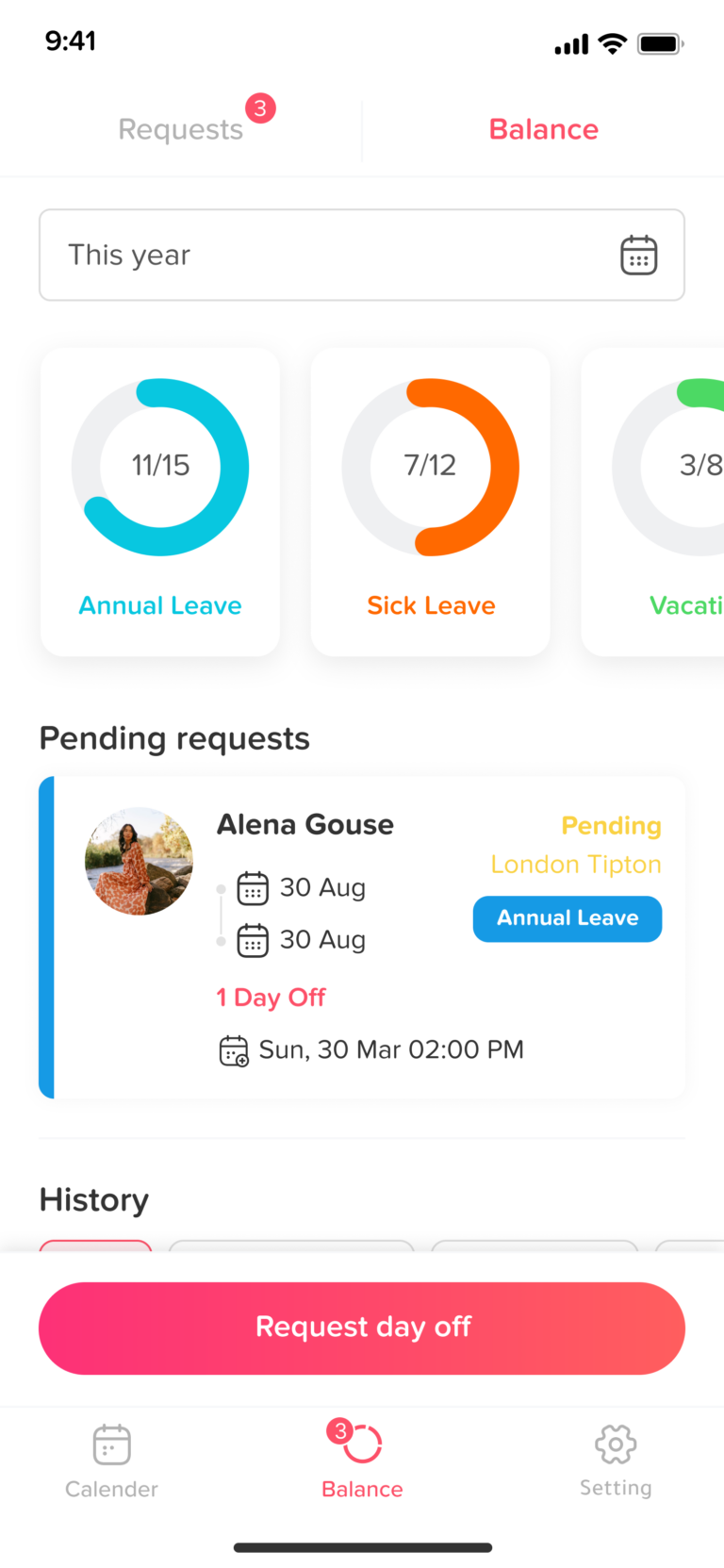
- Scroll to view your requests
Scroll down through the page to access your full list of submitted requests. As you navigate, you’ll see each request clearly displayed with its current status (such as Pending, Accepted, or Rejected), along with key details like the leave type, selected dates, and duration. This layout makes it easy to review your past and current requests at a glance and understand their progress. - Tap on a request for more details
Tap on any individual request to open a detailed view. In this section, you’ll find more in-depth information, such as the full request timeline, approval status, and any updates or actions taken. This helps you better understand the outcome of each request and track any changes or approvals made.
If you need clarification about any request or notice missing information, please contact your manager or HR administrator. Regularly reviewing your leave history helps you stay organized and maintain accurate records of your time off.
On this page