





You can easily update any existing location in Day Off through the web platform.
Steps to Edit an Existing Location
To modify a location:
- Open the left-hand menu
- Go to People → Locations
- Find the location you want to edit
- Click on it or select Edit
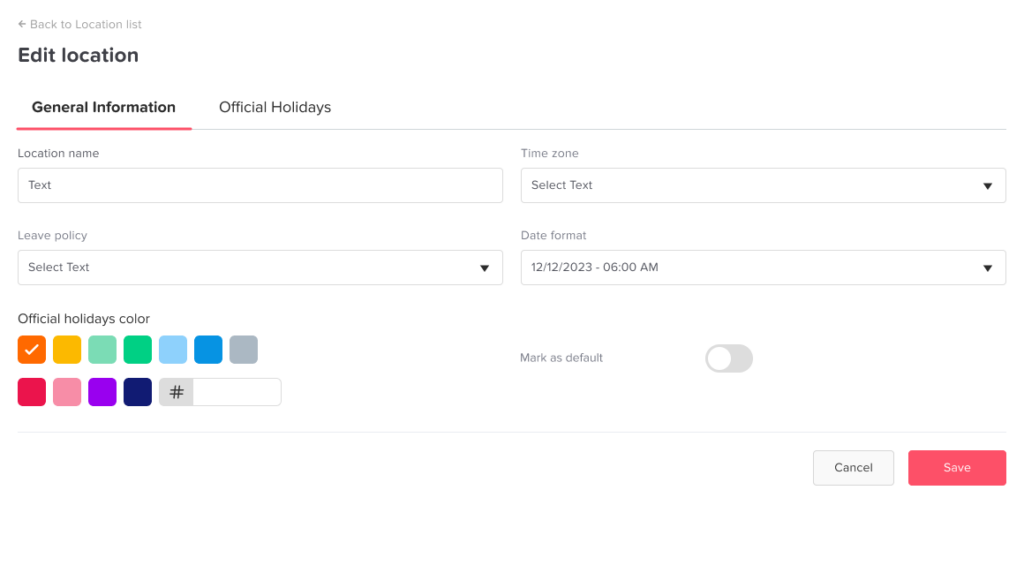
- Update the required details (e.g., name or settings)
- Click Save
What Happens Next
- Changes are applied immediately
- Updated information is reflected across all employees assigned to that location
- Reports and filters using that location will reflect the new details
Why Edit an Existing Location?
Companies change over time. For example, an office may move, get a new name, or start to follow different rules. When that happens, you can update the existing location instead of creating a new one.
Keeping locations accurate matters because they help you:
- Organize employees by office or region
- Apply different leave policies per location
- Filter reports and data based on location
- Manage global or distributed teams more efficiently
Tips Before You Edit an Existing Location
- Use clear names, such as the city or country of each office.
- Remember that your changes affect every employee assigned to that location.
- Keep the list short and tidy, so it is easy to filter later.
- Review your setup when your company opens or closes an office.
What to Do Next
If only one person has moved, you do not need to edit the location itself. Instead, you can change an employee’s location. You can also add a new location when your company opens a new office. Then, filter the company calendar by office to see who is away.
Frequently Asked Questions
Do my changes apply right away?
Yes. Changes are applied immediately, and the updated details appear for all employees assigned to that location.
Can I have more than one office?
Yes. On the pro plan, you can organize employees across several offices, countries, or regions.