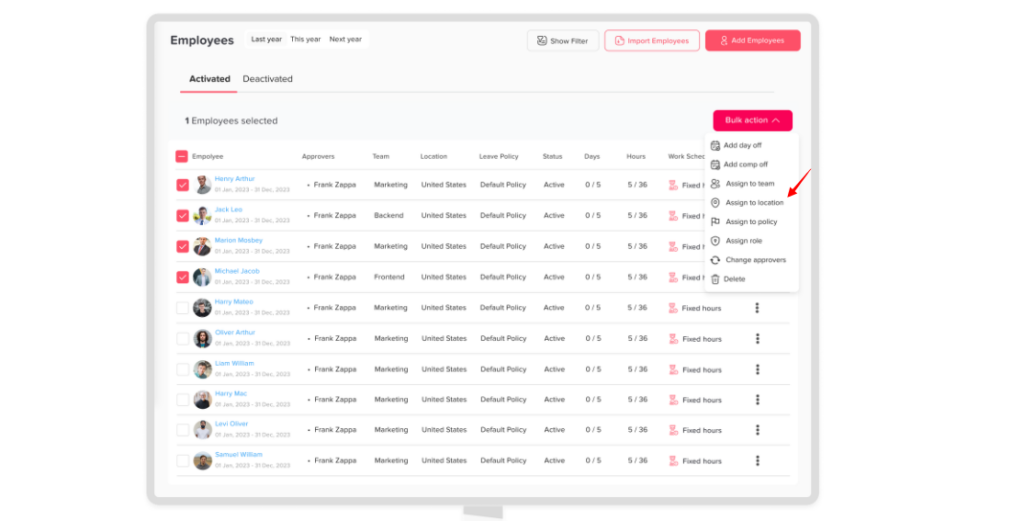
Main Locations and Holidays How can I change employees' locations? Print You can update an employee’s location in Day Off individually or in bulk, depending on your needs. Change Location for an Employee To update one employee:Go to People → EmployeesSelect the employeeOpen their profileFind the Location fieldChoose the new locationClick Save Change Location for Multiple Employees (Bulk) To update multiple employees at once:Go to People → EmployeesSelect multiple employeesClick on Bulk ActionsChoose Assign to LocationSelect the desired locationClick Save What Happens Next Employees are assigned to the new locationTheir official holidays update accordinglyAny location based settings or policies are applied